An instructional video is a recorded lesson that teaches one skill or concept through picture and voice, so the viewer can do the thing afterwards without the video. Whether it teaches depends less on the camera than on how much it asks of the viewer’s working memory at each moment. You have seen the symptom. A learner rewinds the same 20 seconds three times. Or stops to look up a word the narrator used once and never showed. Nothing is wrong with the learner; the video asked for more than a mind can hold while the picture keeps moving. Read on and you can apply five design principles from multimedia learning. You can set a length from evidence instead of folklore, choose between subtitles and a voice track, plan a lesson in segments, and judge any instructional video against the same test.
Key takeaways
- An instructional video teaches when it spares working memory. Of Mayer’s 15 multimedia principles, 5 decide most of what a viewer keeps: coherence, signaling, segmenting, modality and pre-training.
- Across 105 randomised trials in higher education, adding video to existing teaching produced strong learning gains. Replacing teaching with video produced small ones (Noetel and colleagues, 2021).
- In 6.9 million sessions of MOOC video from 2012, median watch time topped out at about six minutes, whatever the length (Guo, Kim and Rubin, 2014). That was attention, not learning.
- Two systematic reviews, of 12 studies in 2021 and 41 studies in 2023, found that an instructor’s face on screen does not by itself improve learning. Guiding gaze can help.
- Evidence on subtitles for second-language learners is mixed: Pannatier and Bétrancourt found no effect in 131 students in 2023. Narration in the learner’s own language is the stronger lever.
- We do not record or edit video. We add narration per language as an audio track under one URL; your tier sets the track count, and 1080p needs a paid tier.
- Key takeaways
- What an instructional video is
- Five principles that make video teach
- What the six-minute finding says
- Face, voice and pace
- How to make instructional videos
- Subtitles, captions or a second voice
- Instructional video examples, judged
- One video, many audiences and languages
- Who can see the finished video
- Frequently asked questions about instructional videos
- Getting started
What an instructional video is
An instructional video is a recorded lesson with one learning objective, built so that the viewer can do something afterwards that they could not do before. The objective is what makes it instructional. A video can be beautiful, accurate and watched to the end and still teach nothing, if nobody can say what the viewer should be able to do once it stops. Teachers make an instructional video for students, trainers for staff and product teams for customers, and what follows applies to all of them.
Instructional video vs tutorial vs training video
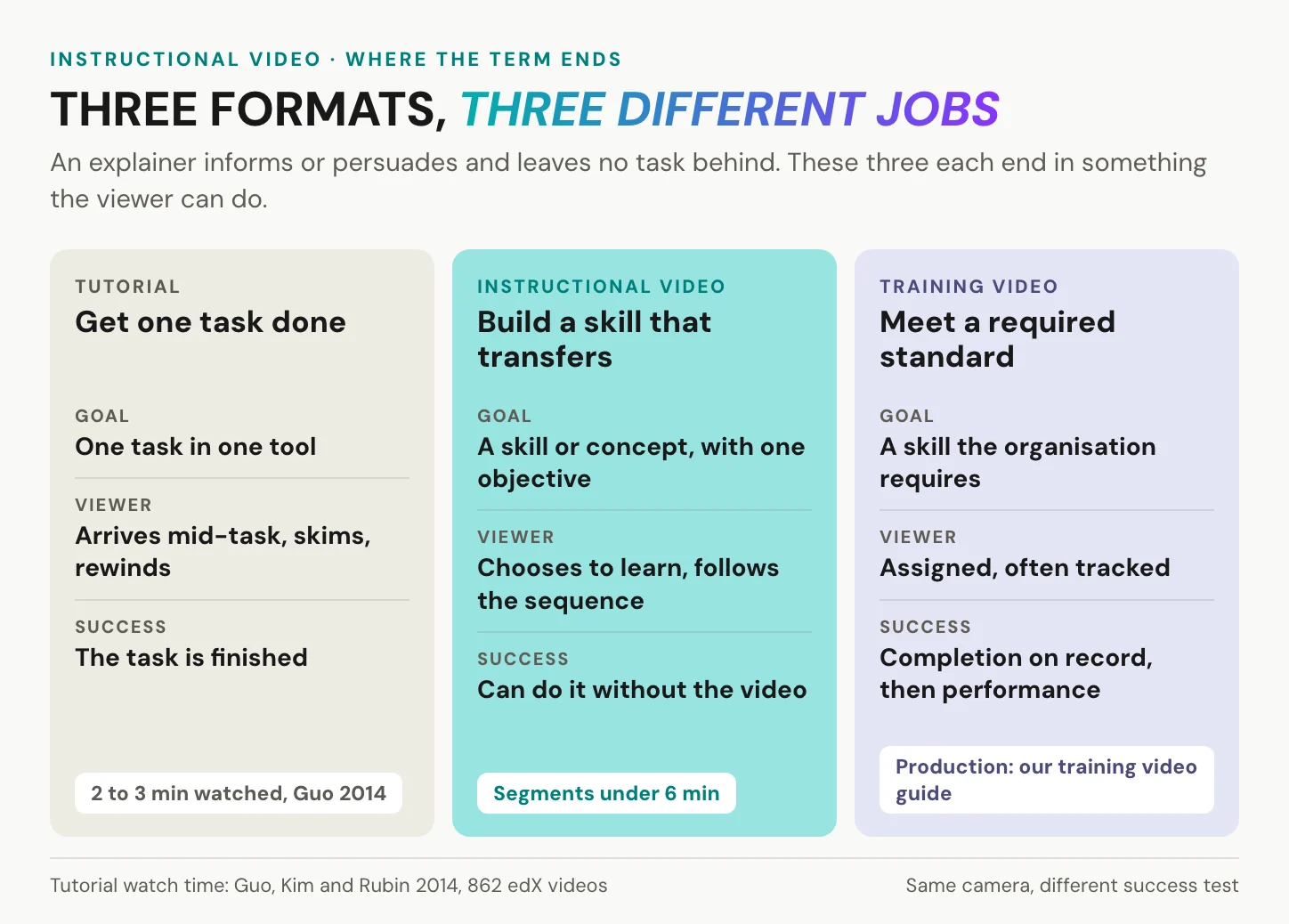
A tutorial shows one task in one tool, and people open it mid-task, skim it and jump back. Guo, Kim and Rubin saw exactly this in 2014: students watched 2 to 3 minutes of each tutorial on average, however long it was, and rewatched tutorials more often than lectures. An instructional video teaches a skill or concept that carries over to the next task. A training video is the one your organisation requires, assigns and often tracks; production and compliance for that case are in our article on how to create training videos. An explainer informs or persuades and leaves no task behind. A live webinar becomes a lesson only once someone re-cuts the recording. The formats overlap, and one recording often serves two of them. The test is what the viewer must do afterwards.
When a video is the wrong answer
The case for text is real. Reference data, long checklists and anything the learner must copy character by character belong in text or in an annotated screenshot sequence. Nobody can search a voice or copy a command out of a moving picture. When the learner must practise decisions, a simulation beats both. For most procedures the answer is a pair: a short video shows the motion, and a written step list under it holds the values the learner has to type. The learner watches once and keeps the list open while working. Video earns its cost when motion, sequence or tone carry the meaning: the grip on a tool, the order of three clicks, the pause before a hard sentence in a customer call. If none of that matters, write it down.
Five principles that make video teach
Start with the bottleneck. Everything a learner sees and hears passes through a working memory limited in capacity and duration, as Sweller, van Merriënboer and Paas summarised in 2019. Richard Mayer’s cognitive theory of multimedia learning adds three assumptions: words and pictures travel on separate channels, each channel holds little at a time, and learning takes active work. His 2024 review lists 15 design principles from more than 200 experiments. Five of them decide most instructional videos.
Does video teach at all? Mostly yes, with one condition. In 2021, Noetel and colleagues pooled 105 randomised trials with 7,776 students in higher education. Swapping existing teaching for video produced small gains (g = 0.28), while adding video to existing teaching produced strong ones (g = 0.80).
Video helps most when it is added to teaching, not when it replaces it.
Learners really do differ, in prior knowledge, pace and taste. But matching instruction to a visual or auditory “learning style” has no evidence base, as Pashler, McDaniel, Rohrer and Bjork concluded in 2008. Design for load, not for styles.
One caution about the numbers: Mayer’s median effect sizes, from his 2017 review, come mostly from short lab lessons with college students. Where an independent meta-analysis exists, it stands beside them.
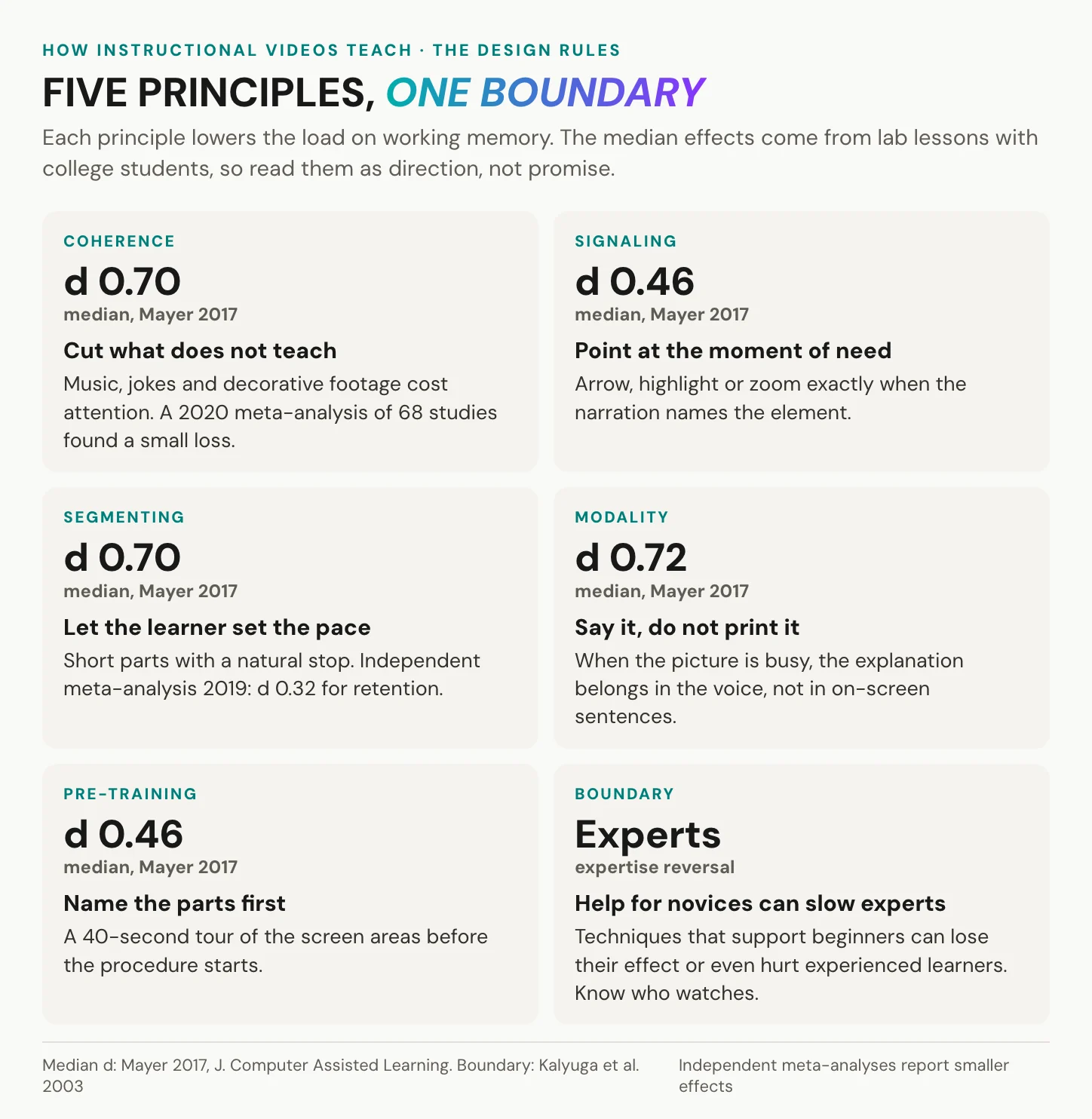
Coherence and signaling: cut the noise, point at the step
Every element asks to be processed. Background music, a brand intro, a joke: each competes with the step. A brand intro has a real job on a campaign page, but inside a lesson it only delays the first instruction. Mayer’s median for removing such material is d = 0.70. Sundararajan and Adesope’s 2020 meta-analysis of 68 studies found a small but consistent cost for interesting, irrelevant additions. If the viewer needs it to do the task, keep it; otherwise cut it.
The viewer cannot follow what they cannot find. When the narration names the Export button, an arrow, a highlight or a zoom should land on it in the same moment, and on-screen headings show which step this is. Mayer’s median is d = 0.46. Schneider and colleagues’ 2018 meta-analysis of 103 studies found gains in both remembering and applying. A late signal sends the eye searching, which is the very load it was meant to remove.
Segmenting: let the learner set the pace
Cut the lesson into parts that each end at a natural stop, and let the learner decide when to go on. In 2001, Mayer and Chandler let learners click to continue through a narrated animation about lightning, and they did better on transfer, though not on retention. Mayer’s median is d = 0.70. The independent figure is more modest. Rey and colleagues pooled 56 investigations in 2019 and found d = 0.32 for retention, across 67 comparisons and 6,100 learners, and d = 0.36 for transfer. Small, consistent and cheap to get. In a video, the stop can be the end of a short file or a start point in a longer one. What matters is that the next part waits for the learner, not the other way round.
Modality: say it, do not print it
When the screen is busy, the explanation belongs in the voice. Printed sentences move words into the visual channel, next to the picture the viewer should be watching. Picture a spreadsheet screencast. If a caption box explains the formula while the cursor builds it, the eye has to choose between the two; if the voice explains it, the eye can stay on the cell. Mayer’s median for spoken over printed words is d = 0.72. Ginns’s 2005 meta-analysis of 43 effects supported the principle and found it strongest for complex material in video that runs at its own speed. That describes most instructional video, and it is also why the subtitle question is harder than it looks. By the same finding, it matters less when the learner controls the pace and can pause to read.
Pre-training, and when the principles reverse
A procedure is easier to follow once you know the names in it. Before the steps, give a 40-second tour: the three areas of the screen, the four parts of the machine, what each is called. Now the narration can say “the filter panel” and the eye knows where to go. Mayer’s median is d = 0.46. The tour costs one short segment and saves a rewind in every one after it.
Experts are not novices. Kalyuga, Ayres, Chandler and Sweller described the expertise reversal effect in 2003: techniques that help beginners can lose their effect with experienced learners, or even hurt. Segmenting is the robust exception; in Rey’s analysis, learners with high prior knowledge gained more from it for retention, not less. So know who watches: novices want the tour, experts want the skip.
In short: every principle removes something the viewer would otherwise have to hold in mind. That is the whole test.
What the six-minute finding says
Every short-video rule points the right way, because shorter parts are easier to follow. But the bands in circulation disagree. Two to ten minutes, ten to twenty, three to nine: none of these bands comes with a study. The one number with data behind it is six minutes, and it measured attention.
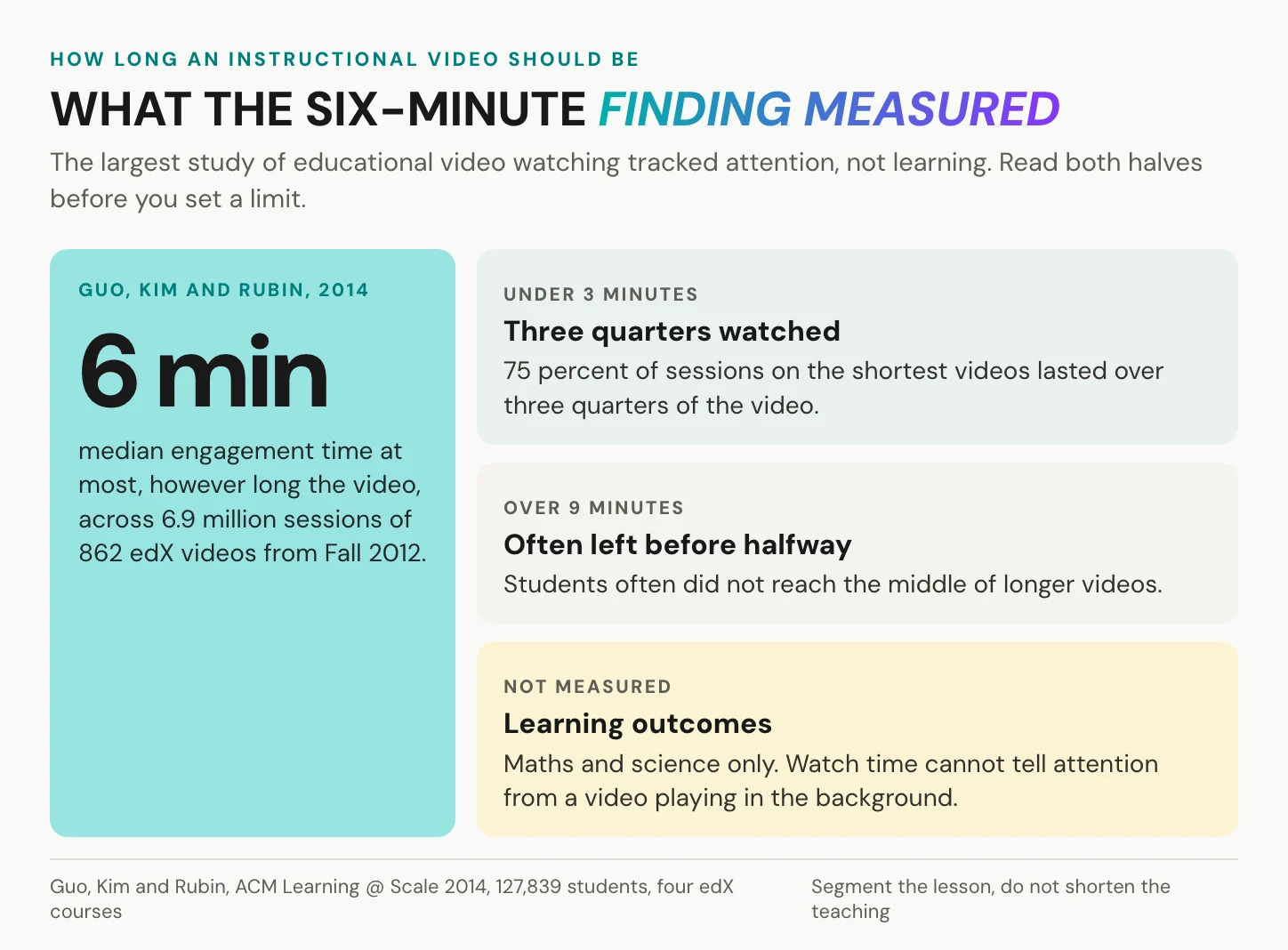
What Guo measured, and what it did not
In 2014, Philip Guo, Juho Kim and Rob Rubin analysed 6.9 million video-watching sessions from four edX courses of Fall 2012. That was 862 videos and 127,839 students. Their finding, in their own words: “median engagement time is at most 6 minutes, regardless of total video length”. Students often made it less than halfway through videos longer than 9 minutes. On videos of 0 to 3 minutes, 75 percent of sessions lasted more than three quarters of the video.
Now the limits, which the authors stated themselves. Engagement meant watch time and whether students tried the problem afterwards. It could not tell attention from a tab playing in the background. All four courses were maths and science, and learning was not measured. Their own recommendation: plan segments shorter than 6 minutes before production starts.
Six minutes is a measure of attention, not of learning. The lesson it supports is to cut the lesson into parts, not to cut the teaching.
The attention-span numbers that do not hold
These numbers survive because they match experience: attention does drift. But the ten-to-fifteen-minute lecture limit fails at its sources. Wilson and Korn in 2007 and Bradbury in 2016 found the primary data do not support it, and Bradbury added that teachers differ more than formats do. The eight-second “goldfish” span comes from a 2015 Microsoft Canada consumer report that credited a statistics website. The figure has no traceable primary source. The learning pyramid, “people remember 10 percent of what they read”, has no source either. Subramony and colleagues showed in 2014 that its percentages were grafted onto a chart by Edgar Dale that contains no numbers. None of this means long lectures work. It means the limit on a segment should come from the task, not from a number with no source.
Stated preference against observed behaviour
Ask viewers and they want more. TechSmith’s 2024 viewer study, a vendor survey of 1,000 people in six countries, put the most desired length for informational and instructional videos at 10 to 19 minutes. And 67 percent of the 1,000 said they would watch over an hour to learn a new skill at work. Watch-time data say otherwise, and both are true. People want a complete lesson, and they watch it in short stretches.
The bridge is a segment with a question after it. In 2013, Szpunar, Khan and Schacter split a 21-minute recorded lecture into four segments and quizzed one group after each. Among the 48 students of their second experiment, the quizzed group’s minds wandered 19 percent of the time, against 39 and 41 percent in the two groups without quizzes. It scored 89 percent on the last segment’s quiz, against 65 and 70 percent. One more lever sits with the viewer: in Murphy and colleagues’ 2022 study, 1.5x or 2x playback cost little comprehension. So do not slow the voice to make a long video feel gentler.
In short: plan the lesson as segments under six minutes, with a question between them. The total can be as long as the skill needs.
Face, voice and pace
Three choices get argued over most: whose face, whose voice and what speed. The evidence on each is shorter than the argument.
Should the presenter be on camera?
Viewers like seeing a person. In TechSmith’s 2024 survey, 87 percent of 1,000 respondents preferred a real person to an animated character or AI avatar. Learning is another matter: Henderson and Schroeder reviewed 12 studies in 2021 and found no consistent evidence either way. Polat reviewed 41 studies in 2023: the face alone did not reliably improve learning, but the social and attentional cues an instructor gives could. In Stull, Fiorella and Mayer’s 2021 experiment with 133 students, an instructor who shifted gaze between the viewer and the board helped. So show the presenter when gaze or gesture points at something. Cut to the screen when the screen is the lesson. A short face-to-camera opening is fine where it sets up the task; the evidence only warns against a face that points at nothing.
Human voice or AI voice
Viewers are wary of AI. In the same TechSmith survey, 90 percent of the 1,000 respondents had concerns about video made with AI, and accuracy was the concern named most often. The learning outcome looks calmer. Craig and Schroeder in 2019 compared an older text-to-speech engine, a modern one and a recorded human voice. In most respects, learners taught by the modern engine did not differ from those taught by the human. Mayer’s voice principle, median d = 0.74 in 2017, rests on research that Craig and Schroeder called dated. Still, say so when a voice is synthetic, in the description or at the start of the video. Article 50 of the EU AI Act requires providers of AI systems to mark synthetic audio as artificially generated, and deployers must disclose deepfakes.
Speaking rate and dynamic drawing
A slow, careful voice feels kind to a beginner, and a pause after a hard step still earns its place. Slowing the whole narration does not. Guo found that within a given length, engagement usually rose with speaking rate. A talking head cut between slides beat slides alone, informal desk recordings were often more engaging than studio productions, and drawing on a tablet beat slides and code screencasts. Mayer, Fiorella and Stull added gaze guidance, a first-person view and a prompt to explain in 2020, and none of it needs a studio. Like the six-minute finding, the speaking-rate result measured engagement, not learning.
In short: the voice explains, the eyes and hands point. A face without a pointing job is decoration.
How to make instructional videos
Six decisions come before the record button. Sound, lighting and the script are production questions; what follows is the design layer, the plan that decides whether the finished video teaches. It doubles as an instructional video template: one row per segment.
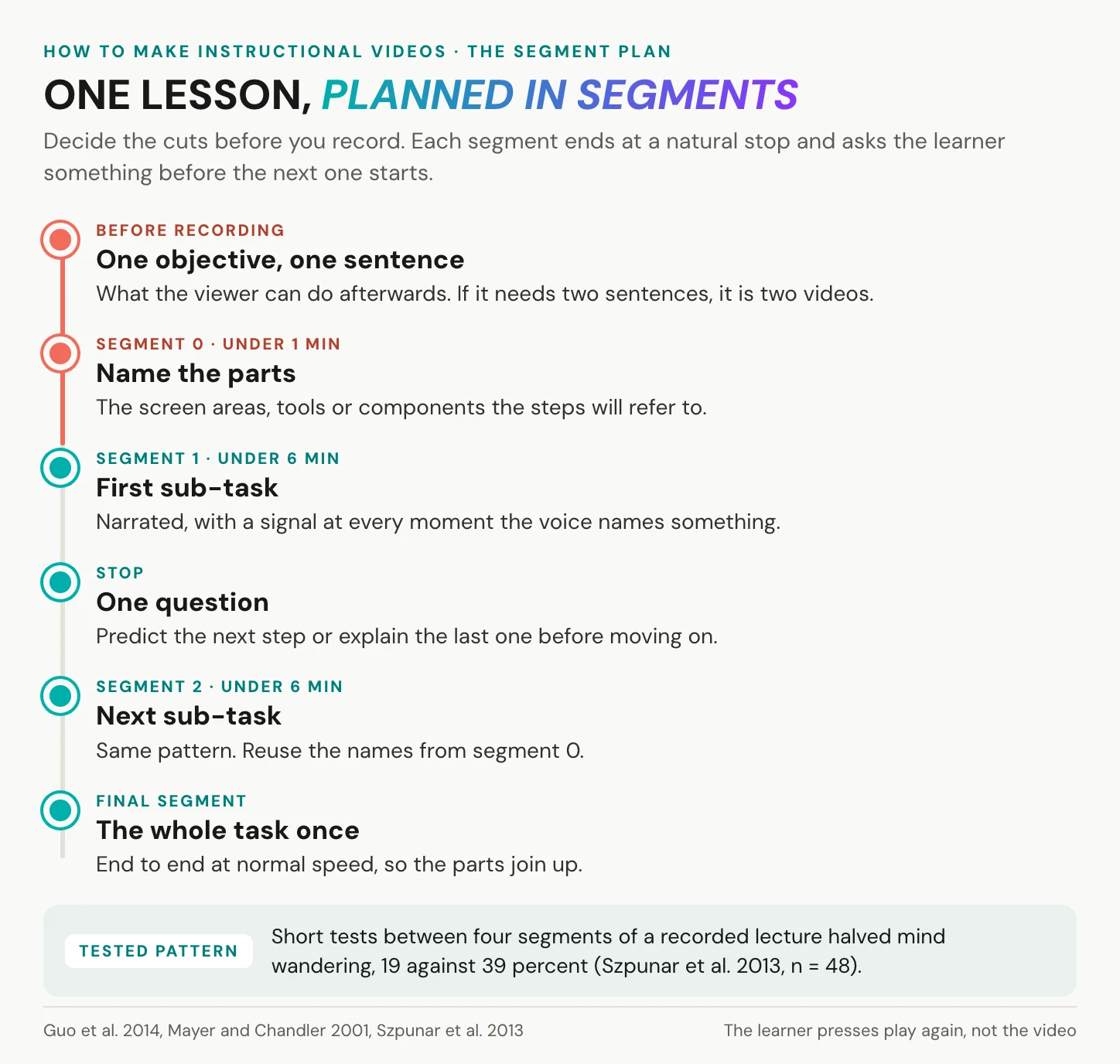
Write one objective, then name the parts
Write one sentence that starts with a verb the viewer can do afterwards. “Export a filtered report as a CSV file.” “Replace the intake filter without tools.” If you need two sentences, you have two videos. Anything that does not serve the verb gets cut, including the feature’s history and the edge cases nobody meets in week one.
Before you write the steps, list the things the steps refer to: screen areas, fields, buttons, tools, machine components. Give each one the name the narration will use, and use exactly that name every time. This list becomes segment 0, the pre-training tour from the principles above. It runs under a minute and also exposes naming trouble. If the interface says “Workspace” and your team says “Board”, decide now.
Cut the segments and write for the ear
Now group the steps into segments, each ending at a natural stop where the learner has finished something they could check. Each is its own short video or its own start point in a longer one, and the learner presses play again. If a segment runs long, split it at the next stop rather than speeding through it.
Narration is heard once, at the speaker’s pace. Write short sentences and use the names from your parts list. Do not read aloud what is already on screen. Put key terms on screen, not sentences: in Adesope and Nesbit’s 2012 meta-analysis of 57 studies, key terms taken from the narration worked better than verbatim text. Sentences written for the ear also translate cleanly, because a short sentence with one term in it survives a second language.
Mark the signals and end with a question
Next to every sentence, note what the viewer should look at in that moment: a highlight, a zoom, an arrow, a pause of the cursor. That column is your signaling plan. For an instructional video with screen recording, record at 1080p, enlarge the interface before you start, and keep the cursor still between actions. Then watch the result on a phone. Menu text that reads well on your monitor often vanishes in the palm of a hand.
Close each segment with one question. What happens next? Why did the last step matter? Szpunar’s quiz results and the prompts to explain in Mayer, Fiorella and Stull point the same way: a question to answer keeps the mind on the lesson. If your player has no quiz function, put the question in the text beside the video or in your learning management system. A question in writing works. A question nobody asks does not.
In short: objective, parts, segments, ear, signals, question. If the plan is right, recording is the easy part.
Recorded your first segment? Create an alugha account, upload the master and add a narration track in the language your learners speak.
Subtitles, captions or a second voice
Captions help. Gernsbacher’s 2015 review of more than 100 studies found that captioning improves comprehension of, attention to and memory for video. The benefits were strongest for viewers watching in a second language, children learning to read and viewers who are deaf or hard of hearing. Captions are also an access requirement: WCAG 2.2 success criterion 1.2.2, at Level A, asks for captions on all prerecorded audio in synchronised media. Viewers who are deaf or hard of hearing always get captions. The open question is everyone else.
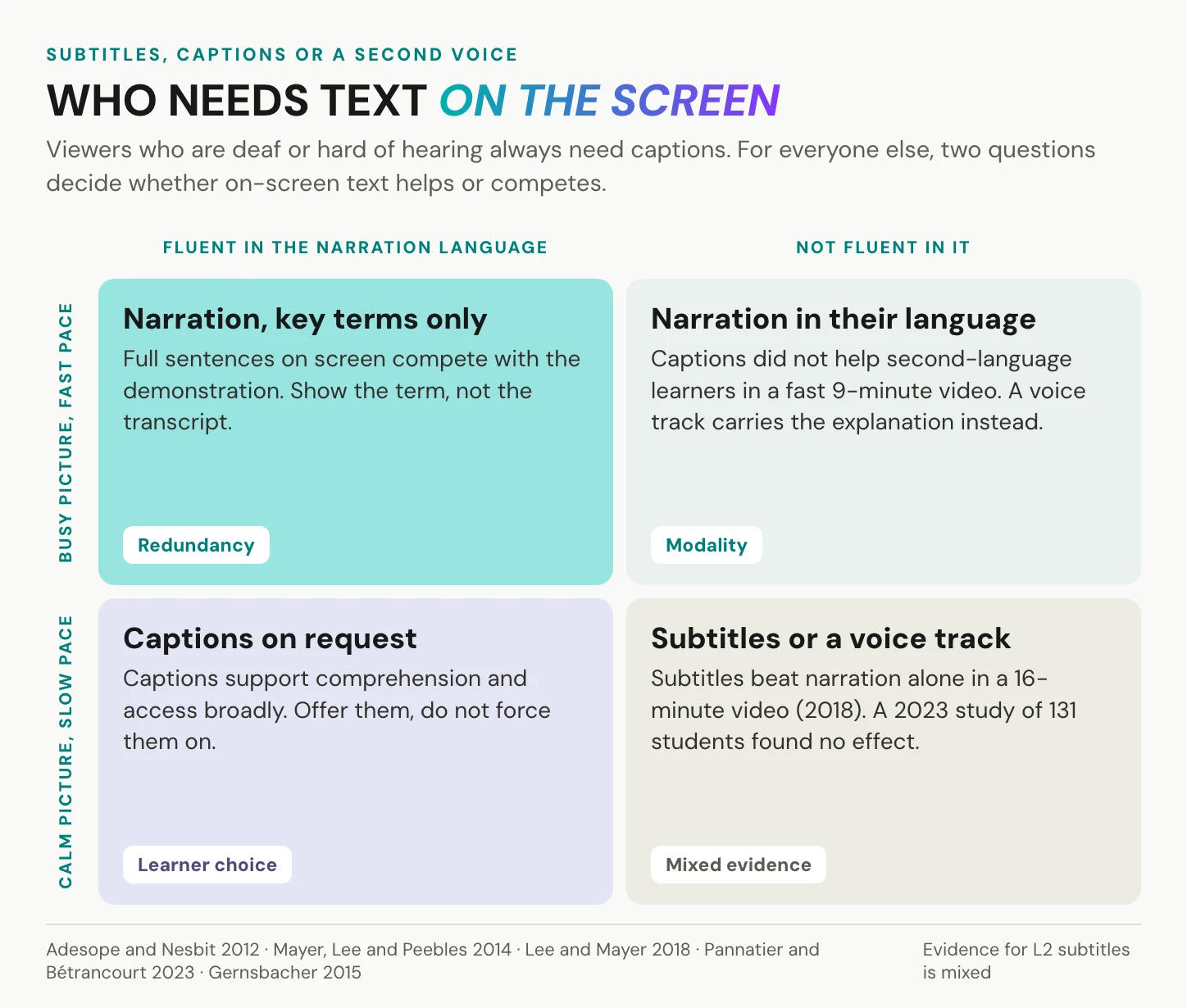
What the redundancy principle says
On-screen text has real uses. A learner can reread it, and it still works on a muted phone. But identical text on top of identical narration can cost. When the picture is busy and the video sets the pace, the viewer reads, listens and watches at once, and something gives. Mayer’s median for removing redundant on-screen text is d = 0.87. But the principle is conditional. In Adesope and Nesbit’s meta-analysis, spoken plus written text did no worse than written alone and beat spoken alone. The advantage showed most for beginners, for system-paced video and for material without pictures. So the rule is narrow: do not print the narration over a busy demonstration. Key terms, numbers and the name of the current step can stay.
Second-language learners: the evidence is mixed
The common advice, add subtitles for non-native viewers, is right often enough to keep repeating, but it is not a rule. In a fast 9-minute science video, on-screen captions did not help non-native English speakers (Mayer, Lee and Peebles, 2014). In a 16-minute video on Antarctica, Korean-speaking students learned more with English subtitles than with English narration alone (Lee and Mayer, 2018). In 2023, Pannatier and Bétrancourt showed 131 francophone students an English lecture with English, French or no subtitles. No condition made a difference; English proficiency drove the results. Mayer, Fiorella and Stull still list subtitles for second-language speech among five things that help. It depends on pace and proficiency: the faster the picture and the weaker the viewer’s command of the language, the harder it becomes to read and watch at once.
Captions as the learner’s choice
The learner’s own language is the stronger lever. Captions should be a switch the learner controls, not text burned into the picture. Burned-in text cannot be switched off, resized or swapped for another language. The line that 80 percent of caption users are not deaf has a real origin. In Ofcom’s 2006 review, about 6 of the 7.5 million UK viewers who had used TV subtitles had no hearing impairment. It is a television finding, not one about online lessons. For formats and quality, read what closed captions are. A transcript under the video doubles as a searchable step list, and a video transcript example shows the shape.
In short: text helps when the viewer needs it and chooses it. The explanation itself belongs in a voice the learner understands.
Instructional video examples, judged
Good examples share a pattern, and so do weak ones. Here are five typical instructional video examples, judged by what they ask of the viewer.
| Example | What works | What costs | Principle |
|---|---|---|---|
| A 12-minute CRM screencast recorded in one take | Real data flow, real screen | No segments, wandering cursor, small text on a phone | Segmenting, signaling |
| Replacing a filter, filmed over the technician’s shoulder | First-person view of the hands | Little, if the parts are named first | Perspective, pre-training |
| A concept explained by drawing on a tablet | The explanation builds as the viewer watches | Runs long if unsegmented | Dynamic drawing |
| A classroom lecture cut into pieces for online use | The content already exists | Cuts follow the clock, not the lesson | Segmenting |
| A help-page how-to with a brand intro and music | Polished, on brand | Seconds pass before the first step, music competes with the voice | Coherence |
The one-take CRM screencast. Real data, a real screen, and twelve minutes without a stop. The cursor wanders while the narrator thinks, and the menu text shrinks to nothing on a phone. The fix: cut at every finished sub-task, zoom where the narration points, and hold the cursor still between clicks.
The over-the-shoulder repair. Filmed from the technician’s point of view, the hands do what the viewer’s hands will do next, a perspective Mayer, Fiorella and Stull found helps demonstrations. The fix, if one is needed: name the components before the first screw comes out.
The tablet-drawn concept. The explanation builds line by line while the viewer watches, which Guo found more engaging than slides. The risk is length, because drawing invites detours. The fix: one concept per drawing, and a stop when the drawing is complete.
The chopped lecture. The content already exists, and that is a real merit. But the cuts follow the clock, not the lesson, and Guo found pre-recorded lectures chopped up for online courses less engaging than video planned for the screen. The fix: re-cut at the lecture’s own topic boundaries and re-record the joins.
The help-page how-to with a brand intro. Polished and on brand. Then the logo animates, the music swells, and the first step is still to come. Tutorials are skimmed, so every second before the step is a second the viewer skips or leaves. The fix: start on the step, and put the brand in the thumbnail.
In short: judge an example by what it asks the viewer to hold in mind, not by its production value.
One video, many audiences and languages
Here is where we come in, and where we do not.
We do not record your screen and we do not cut your video. Your recording tool does that. Our player has no chapters, in-video quizzes, hotspots or branching, and we offer no SCORM, no xAPI and no per-learner completion record. We count plays per language track, on a paid tier and through our API. Whether anyone learned anything is measured where the task is done, or in your LMS.
Narration in the learner’s language
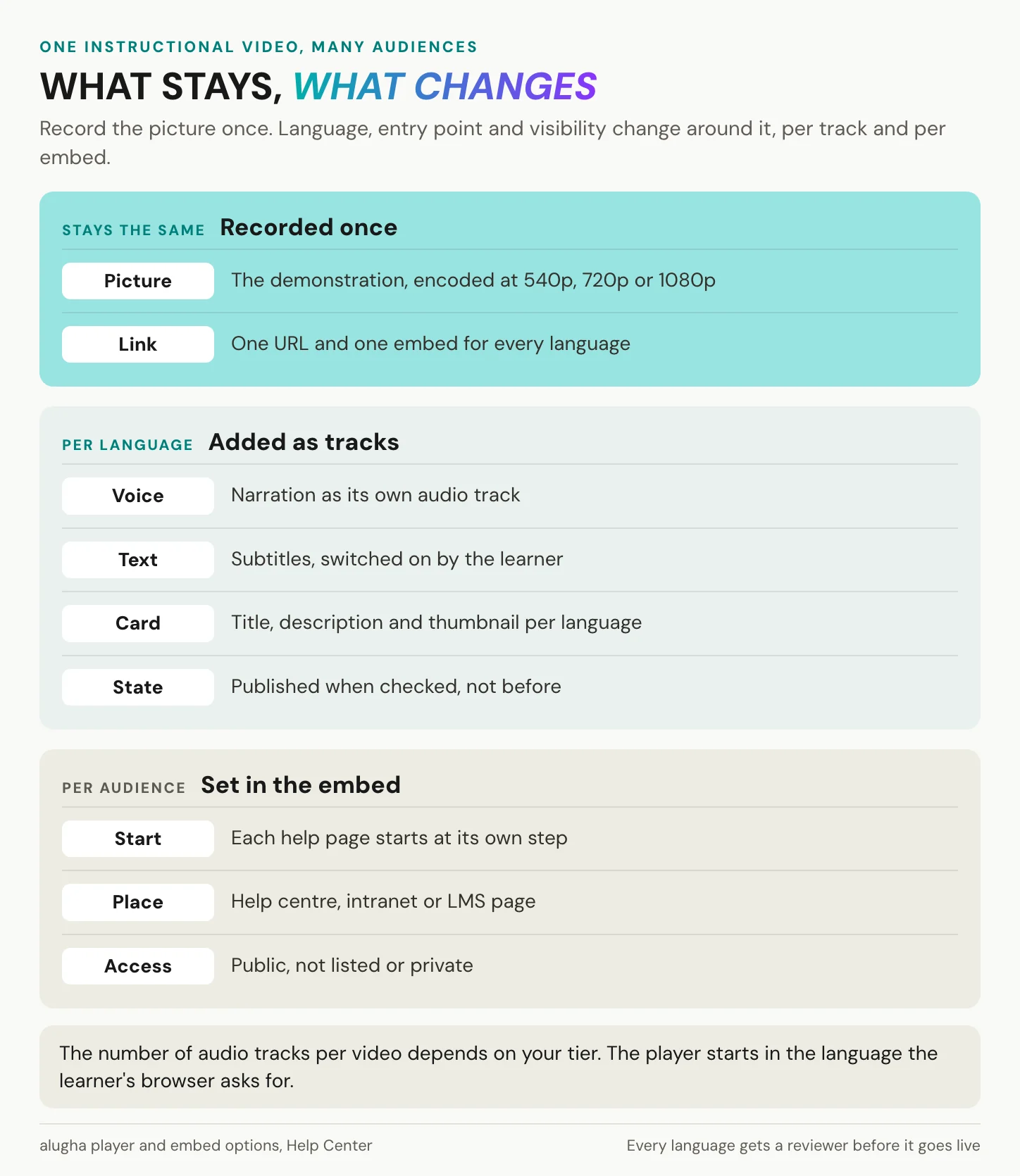
Our part starts with the finished master. Each language you add can carry its own audio track and its own subtitle track, in the same video, under one URL and one embed. The learner chooses audio and subtitles separately and switches without a page reload. Our player starts in the language the learner’s browser asks for, or falls back to your default track. Browser language, not location.
The demonstration stays in the picture and the explanation stays in the ear.
A learner in Lyon hears French, a learner in Gdańsk hears Polish, and neither has to read the steps off the bottom of the screen while trying to watch them.
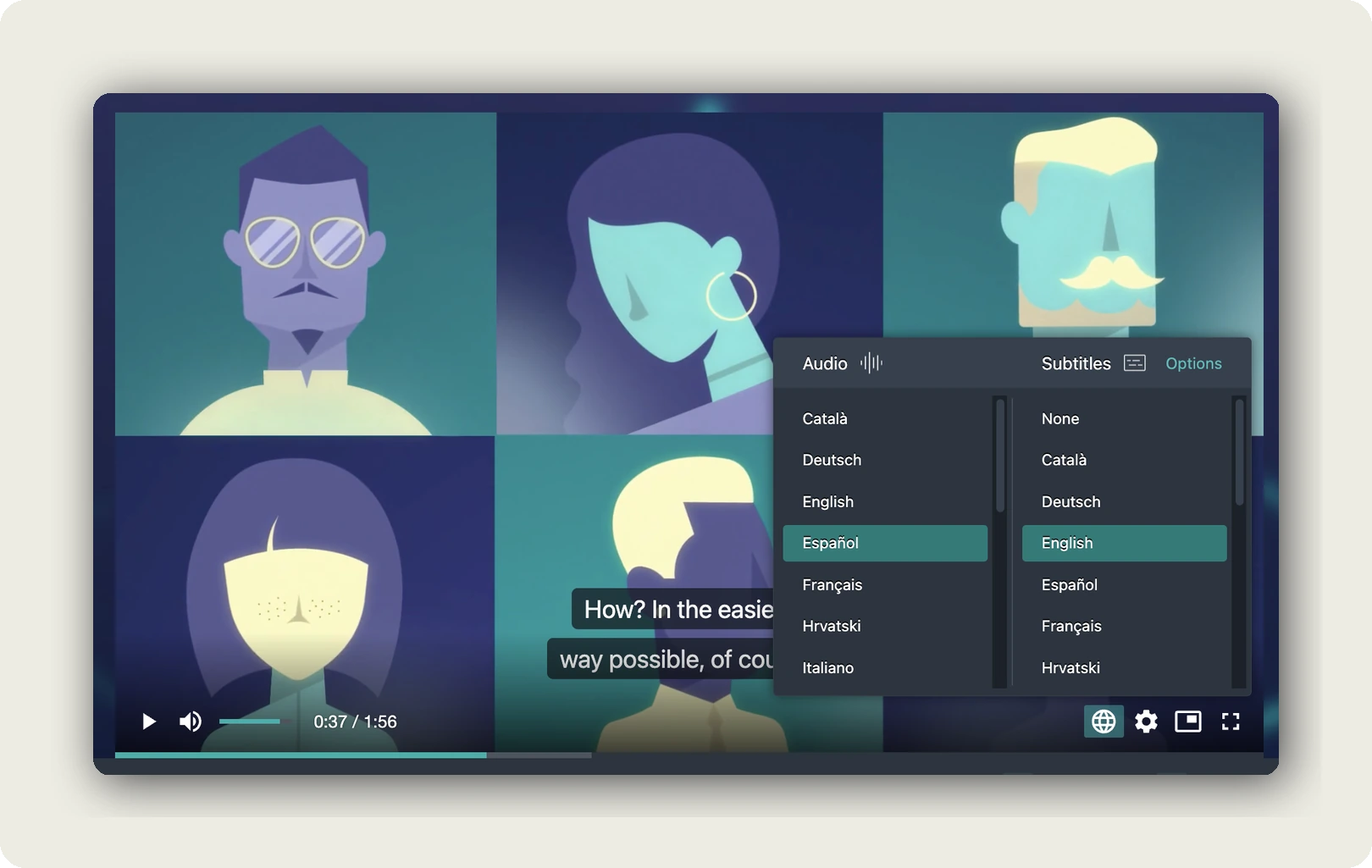
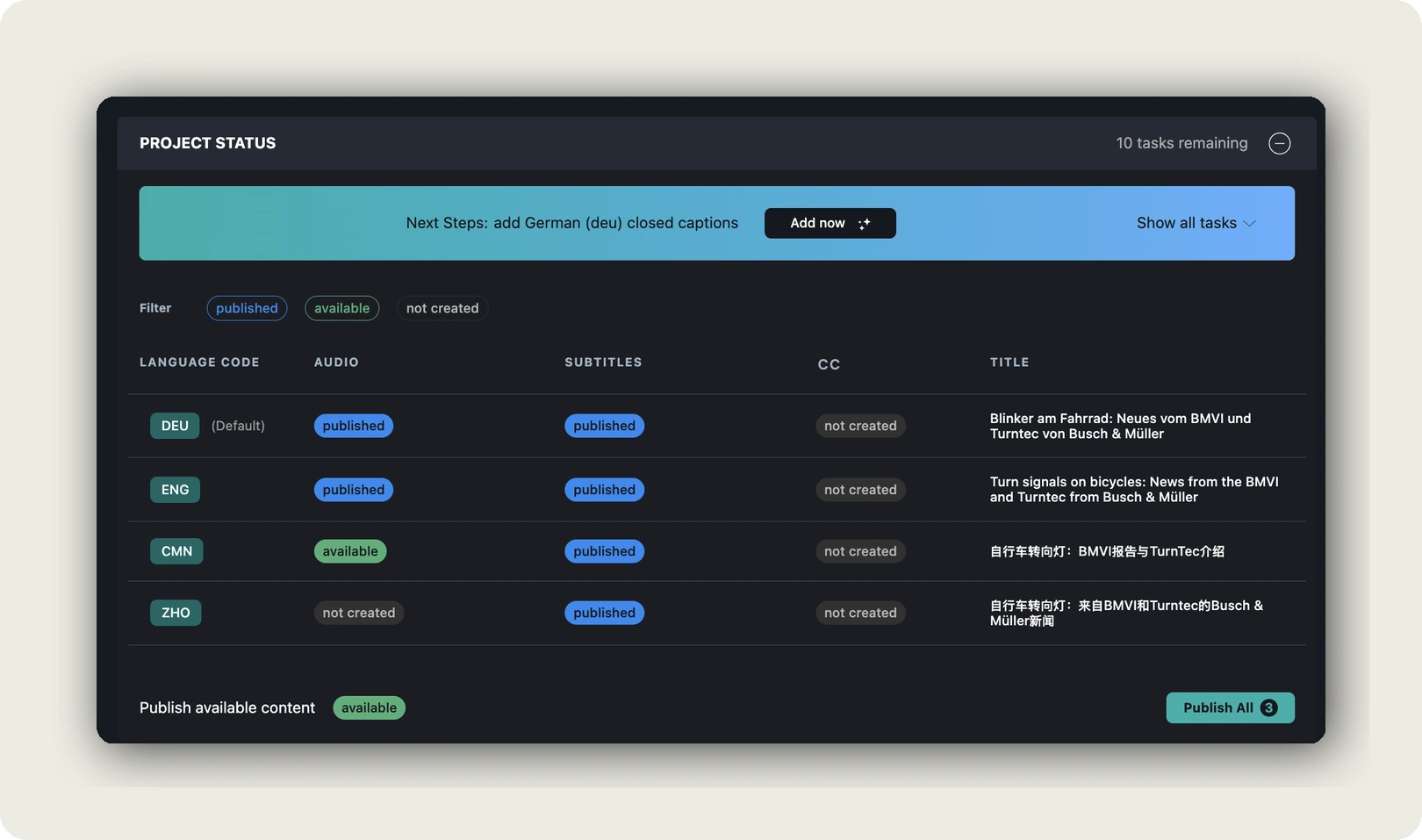
The language versions come from the same project in the dubbr, our editing workspace. Speech-To-Text writes the transcript, machine translation carries it into the new language, and Text-To-Speech gives it an AI voice (how AI dubbing works). Then someone on your team reads each language before it goes live. An instructional video names menus, buttons and numbers, and machine output gets exactly those wrong. So a track can be Available, not yet Published. A glossary that keeps a menu label identical in every language is on a paid tier. The number of audio tracks per video also depends on your tier, so below the top tier the list of languages has a ceiling.
One master, many entry points
One recording can serve five help pages. The Start Video at field in our embed options gives each embed its own start time, with one upload and one set of language tracks behind all of them. There are two limits. Play on loop always restarts at 0:00, so a looping micro-demonstration is its own short project. And leave autoplay off, so the learner starts when ready rather than mid-sentence. At upload you choose Low (540p), Medium (720p) or Regular (1080p). Regular needs a paid tier, and there is nothing above it. Record screencasts at 1080p, choose Regular, and small menu text stays readable on a phone. Titles and thumbnails are set per language, so the French learner sees a French title and thumbnail.
When you do not need us
You do not need us if your team shares one language and your recording tool already hosts the video, with the data-protection question settled. Nor for a public tutorial that has to be found on YouTube; we do not match its reach. A one-off recording for three colleagues is fine in the meeting tool that made it. And content that should be text should be text. If your learners follow the source language well, captions may be all they need, and most recording tools already offer those. For schools, universities and non-profits, we offer discounted access through our sales team: book a call.
In short: we start where your recording ends. One master, a voice per language, one link that opens in the learner’s language.
Who can see the finished video
YouTube is free. It needs no procurement and plays everywhere. A 2017 US survey commissioned by Google asked 1,006 people aged 18 to 54, of whom 918 used YouTube monthly. More than 7 in 10 of those viewers said they used it for help with a problem in their work, studies or hobbies. For a public tutorial, that reach is the point.
A company’s instructional video is a different case. It is often a screencast of a real system, with real customer or employee names in it. Unlisted is not access control: by YouTube’s own description, anyone with the link can watch. Privacy-enhanced mode stops embedded views from shaping ads, but it does not promise that nothing is stored on the device. Section 25 TDDDG requires consent before a site stores or reads information on the user’s device, unless that is strictly necessary. In Fashion ID (C-40/17, 2019), the Court of Justice of the EU held a site that embedded a third-party plugin to be joint controller with the plugin’s provider. That covered collecting and passing on its visitors’ data, not what the provider did with it afterwards. And any host processes your video on your behalf, so ask it for its Art. 28 GDPR processing agreement before the first upload. The cheapest fix costs nothing: record against a demo tenant or masked test data.
Our part is narrower. Hosting in Germany and the EU, no third-party advertising cookies and trackers, no ads, and no stranger’s tutorial after step four. Our embed sets no cookies. Our own first-party analytics do run, so your data protection officer should check the intranet’s consent setup whatever the host. Visibility is public, not listed or private, and a not-listed link can be forwarded. In an LMS, our player runs as a standard iframe, as our Moodle guide shows. We send no xAPI statements, and some LMSs strip iframes. More on GDPR-compliant video hosting.
In short: public tutorials belong where people search. Screencasts of your own systems belong where you control who watches and who processes the data. This is general information, not legal advice.
Frequently asked questions about instructional videos
What does instructional video mean?
An instructional video is a recorded lesson with one learning objective. It teaches a skill or concept through picture and voice, so the viewer can do something afterwards without the video. It differs from a tutorial, which shows one task in one tool and gets skimmed mid-task, and from an explainer, which informs or persuades but leaves no task behind.
How do you make an instructional video?
Make six decisions before you record. Write one objective that starts with a verb the viewer can do. List and name the parts the steps refer to. Cut the lesson into learner-paced segments under six minutes. Write the narration for the ear, with key terms on screen. Mark what to highlight at each sentence. End each segment with a question.
What are some examples of instructional videos?
Typical examples are a software walkthrough recorded as a screencast and a repair filmed over the technician’s shoulder. Others explain a concept by drawing on a tablet, cut a classroom lecture into segments, or sit on a help page. The good ones share three traits: short segments, signals at the moment of need and a clean voice.
What makes a good instructional video?
A good instructional video spares working memory. It cuts what does not teach and points at each element when the narration names it. It comes in learner-paced segments, keeps the explanation in the voice and names the parts before the steps. These principles help beginners most, so adapt the tour and the pace to what viewers already know.
How long should an instructional video be?
Plan each segment under six minutes. In Guo, Kim and Rubin’s 2014 study of 6.9 million viewing sessions, median engagement topped out at about six minutes, whatever the video’s length. That study measured watch time, not learning. So the whole lesson can run as long as the skill needs, provided it comes in parts with a question between them.
Should I add subtitles to an instructional video?
Yes, make captions available. They help comprehension broadly, and WCAG 2.2 lists them at Level A in success criterion 1.2.2. For second-language viewers, the evidence on subtitles is mixed and depends on pace and proficiency, and a voice track in their own language is the stronger option. Let the learner switch captions on, rather than burning them into the picture.
What is the difference between an instructional video and a training video?
A training video is one your organisation requires, assigns and usually tracks. An instructional video is the teaching design inside it: one objective, named parts, short segments, clear signals. Every good training video is an instructional video, but not the other way round. For production and compliance, see how to create training videos.
Getting started
Go back to the learner who rewound the same 20 seconds three times. The fix was never a better camera. It was a named part, a pointer at the right moment and a stop where the segment ended. Three steps get you there.
- Take your next instructional video and write its one objective, starting with a verb.
- Plan it as segments under six minutes, with a question after each one.
- Decide, per audience, whether they need a voice in their own language or captions on request.
Then watch someone use it. This time the learner plays the segment once, and does the step.
Teaching the same skill in several languages? Book a call to talk through narration tracks for one of your own instructional videos, or create an account and start with one upload.