Summary
The alugha player detects each viewer’s browser language and automatically plays the matching audio and subtitles – no manual selection required. One embed, one link, every language. This article explains how the automatic language switcher works, what viewers see, and how you can override it.
How the automatic language switcher works
When a viewer opens your video – on alugha.com or in an embed on your website – the player checks the browser’s language setting (the Accept-Language header). If a matching language track is available and Playable, the player switches to it automatically.
For example: a viewer in Spain with their browser set to Spanish sees the Spanish audio and subtitles. A viewer in Germany sees the German version. Both use the same link or embed code.
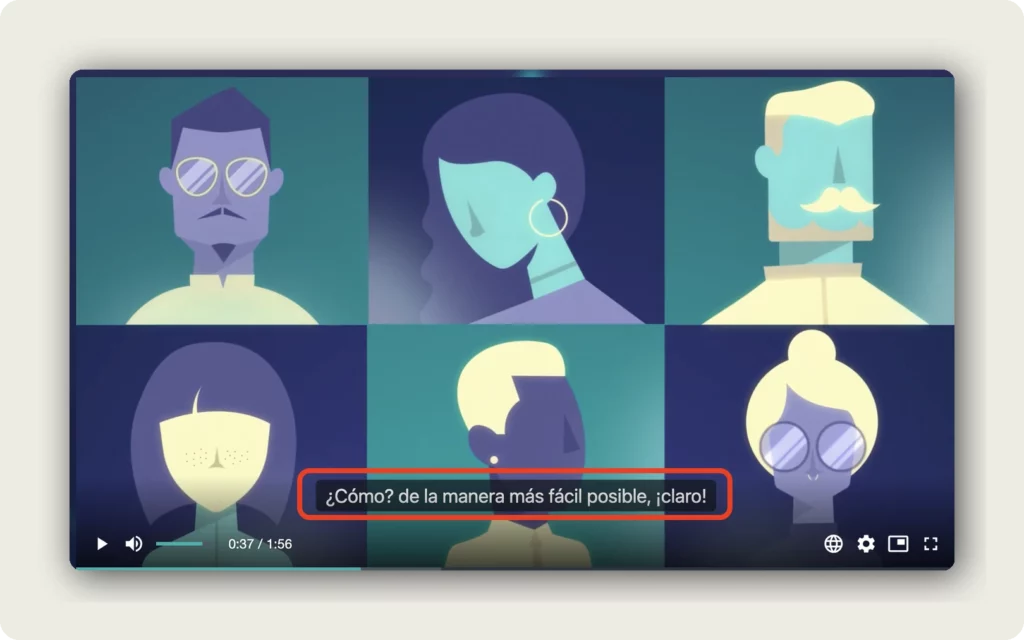
If no matching language exists, the player falls back to the default language – the track you designated as the default when you created the project (typically the source language).
The language picker in the player
Viewers can always override the automatic selection by clicking the globe icon in the player controls. The picker opens a panel with two columns:
- Audio — every language that has published audio. Click a language name to switch the spoken track.
- Subtitles — every language that has published subtitles, plus None to turn subtitles off. Click a language name to switch the subtitle track.
Audio and subtitles can be mixed freely – a viewer can listen in English while reading French subtitles, for example. The Options tab offers additional playback settings.
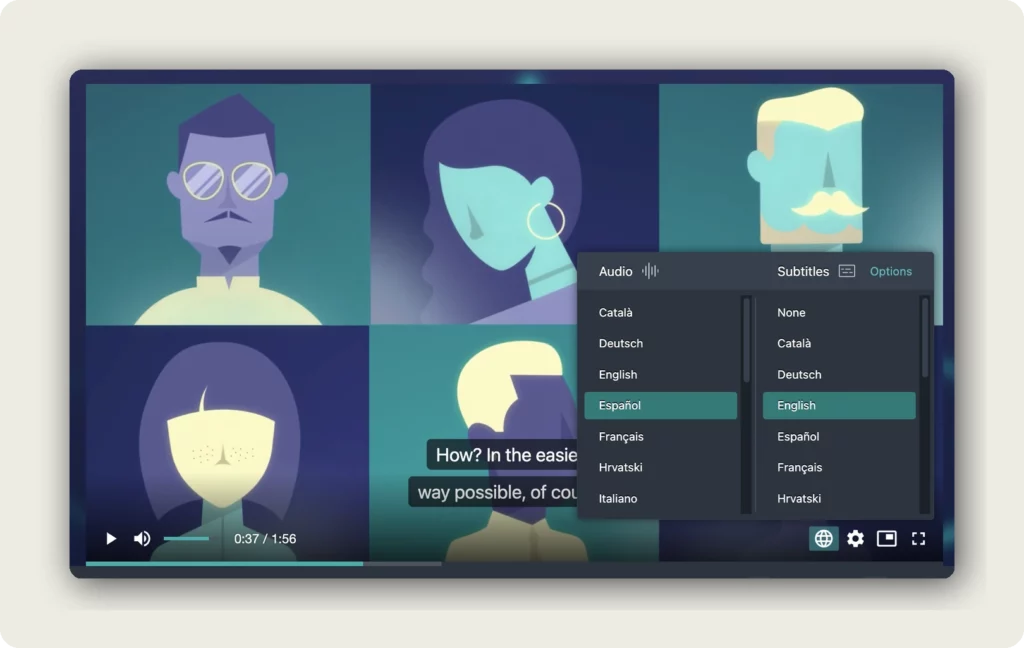
The currently active language is highlighted in the list (for example Español for Audio and English for Subtitles in the screenshot above). Switching takes effect immediately – no page reload, no buffering delay beyond the initial stream switch.
How it looks on your website
When you embed the alugha player on your website using the embed code from Embed your multilingual video, the automatic language switcher works exactly the same way. The player detects the viewer’s browser language, shows matching audio and subtitles, and offers the globe icon for manual override.
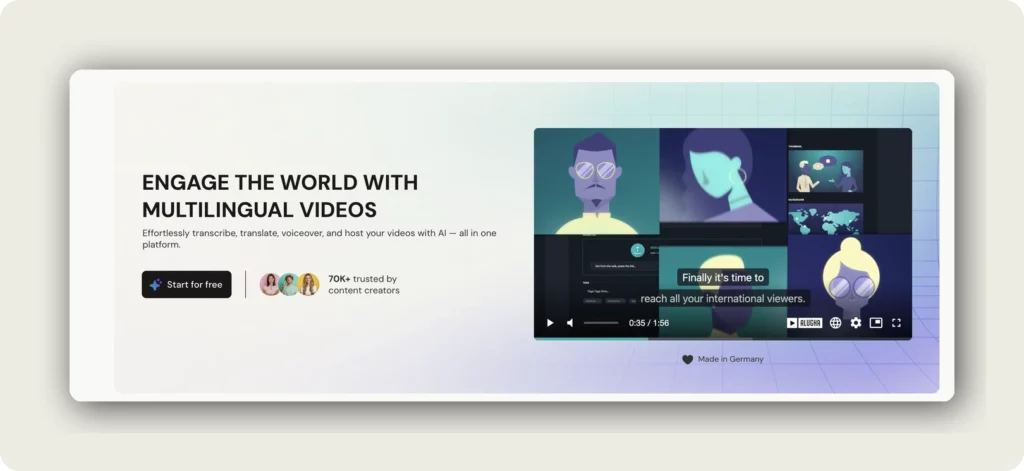
You do not need to build any language-switching UI yourself. The player handles everything inside the iframe – detection, switching, subtitle rendering, and audio crossfade.
Controlling the default language in embeds
By default, the embed is set to Language: Automatic (browser detection). If you want to force a specific language instead:
- Open the EMBED OPTIONS tab in the Share dialog.
- Change the LANGUAGE dropdown from Automatic to the language you want (for example Deutsch).
- Copy the updated embed code.
Viewers will still be able to switch languages manually via the globe icon, but the embed will start in the language you chose.
Good to know
- One link, all languages – the shared link and the default embed code serve every language from a single URL. No separate links per language needed.
- Browser language, not IP geolocation – detection is based on the browser’s language setting, not the viewer’s country. A Spanish-speaking viewer in Germany with a Spanish browser will see Spanish.
- Fallback = default language – if the viewer’s browser language has no match, the player shows the default track (usually the source language you uploaded).
- Audio and subtitles are independent – the viewer can mix any available audio with any available subtitle language via the picker.
- Only Playable languages with published content appear in the picker. Hidden or Private languages are excluded (see Understand published vs. available content).
- The switcher works on alugha.com, on your embeds, and in any iframe-based integration (WordPress, Moodle, etc.).
Troubleshooting
The player shows the wrong language:
- Check the viewer’s browser language setting – the player follows the browser, not the country.
- If the embed has Language set to a specific language (not Automatic), it will always start in that language regardless of the browser.
A language is missing from the picker:
- Confirm the language is published and Playable. Only tracks with both conditions met appear in the picker.
- Check the PROJECT STATUS tab in the dubbr – if the language’s audio or subtitles are still available (not yet published), they won’t show.
Subtitles do not appear:
- The viewer may have subtitles set to None in the picker. Open the globe icon and select a subtitle language.
- Confirm subtitles are published for that language – published audio alone does not enable subtitles.
I want to disable the language picker entirely:
- The globe icon only appears when the project has more than one Playable language. For a single-language project, the picker does not show.
- There is no toggle to hide the picker on multi-language projects — the picker is always available so viewers can choose.
Related Articles
- Embed your multilingual video
- Share your video with a link or QR code
- Customize your alugha player appearance
- Understand published vs. available content
Was this article helpful?