A new hire asks how to submit an expense claim. A colleague explains the steps, repeats them for the next starter, then runs the same session for a team in Lyon. A training video can make that explanation available whenever someone needs it. But recording the conversation is only the beginning: the video needs a clear task, a usable script and a plan for keeping every language version current. This guide takes you through that workflow, from choosing a format to checking whether employees can apply what they have watched.
Key takeaways
- Build each training video around a clear learning outcome. Show the task, explain the decisions and give the learner a way to practise.
- Match the format to the work. A software walkthrough, safety demonstration and conversation scenario need different pictures, preparation and review.
- Keep lessons focused, with enough time to follow the steps. Research supports shorter learning videos, but six minutes is a planning guide, not a universal limit.
- Write the script before recording. Use the six-block template below to align the narration, visuals and next action.
- Plan accessibility, disclosure and training records early. The requirements depend on your audience, jurisdiction, subject matter and use of AI.
- Choose how you will maintain multiple languages. One video master can centralise delivery, while each affected language track still needs updating and review.
- Key takeaways
- What is a training video?
- Seven types of training video and when to use them
- How to plan a training video
- Training video script template: six blocks to copy
- Record and edit a training video people can follow
- Accessibility and legal requirements for training videos
- Create multilingual training videos without losing version control
- How to localise and publish a training video with alugha
- Roll out, maintain and measure employee training videos
- Frequently asked questions about training videos
- Start with one task and test the result
Already have a video to localise? Create a free alugha account and use it to work through the multilingual workflow below.
What is a training video?
A training video is an instructional recording designed to help a defined audience perform a task, develop a skill or apply a rule. In a workplace, that might mean submitting an expense claim, inspecting equipment or handling a customer complaint. A useful video makes the expected outcome visible: the learner knows what to do, what a correct result looks like and when to ask for help.
The boundaries between training videos, tutorials and explainers overlap. A tutorial usually walks through a specific task; an explainer introduces a concept; a marketing video supports a buying decision. Employee training can use any of those techniques, but it needs to connect them to work the learner will actually do. An engaging introduction to a software platform is only part of the training if the employee still cannot complete the required workflow.
The delivery also depends on whether the training is mandatory or available on demand. Mandatory training may require an assignment, a knowledge check and a record linked to the learner and content version. An optional refresher needs a descriptive title, a reliable search result and a current answer. Make that distinction before choosing where to host the video.
Video is especially useful when movement, sequence or judgement carries the lesson. Film the hand position, show the click path or demonstrate the conversation. Keep reference tables, exact values and exception lists in a searchable companion document. Employees should be able to look up a detail without replaying an entire lesson.
Seven types of training video and when to use them
Choose the format by asking what the learner needs to see. The seven categories below cover common employee training needs, although they overlap: an onboarding programme can include a software tutorial, a safety demonstration and a short refresher. Treat the durations in the illustration as starting points for planning. Complexity, prior knowledge and time to practise should determine the finished length.
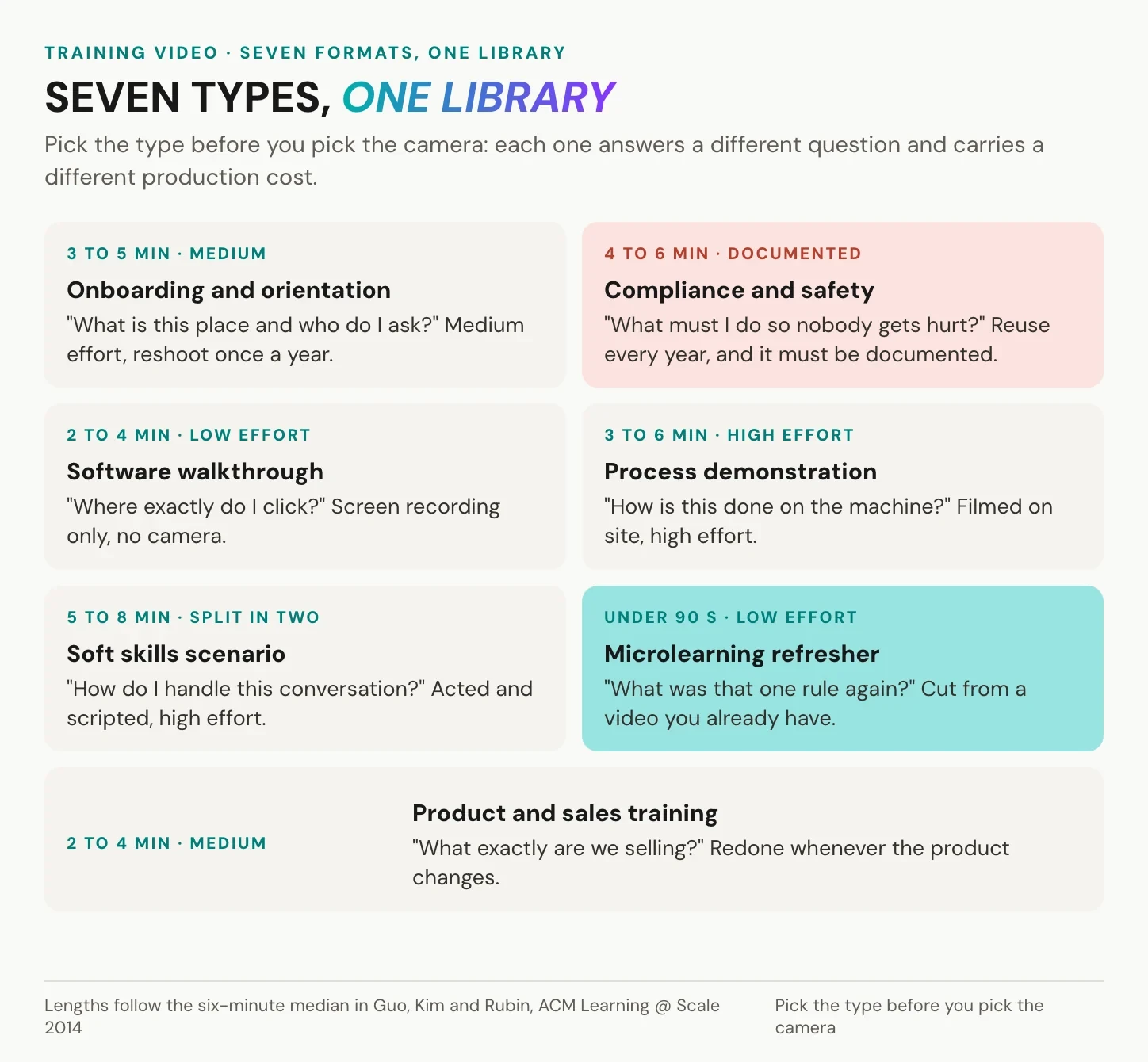
Onboarding and orientation videos help new employees understand the workplace, find key contacts and complete their first tasks. A short introduction can sit alongside separate lessons for requesting access or finding a policy. Give HR responsibility for the content and review it when roles, systems or locations change. For distributed teams, HR video communication across a global workforce also needs a language plan from the start.
Compliance and safety training videos explain required behaviour and the consequences of getting it wrong. Show a relevant situation, explain the approved response and check understanding. A recording can support instruction, but the training process may also require discussion, practical demonstration and documented completion. Recheck the material whenever the underlying rule or workplace risk changes.
Software walkthroughs show a complete task in the interface employees use. Record with a clean test account and include the visible result of each important action. Keep separate workflows in separate clips so a changed menu does not force a full course to be rebuilt.
Process and machine demonstrations make physical actions visible: where a component goes, how an inspection proceeds or which indicator confirms the expected state. Plan camera angles with the person responsible for the procedure. Where the task is safety-critical, the demonstration must reflect the approved local instructions and any required practical training.
Product and sales training videos connect product knowledge to a customer conversation. Show the use case, the relevant feature and the limits of the claim. Keep specifications and pricing in sections that can be replaced when the product changes.
Soft-skills and scenario training gives employees a situation to interpret. Show a complaint or difficult conversation, pause at a decision point, then explain how different responses affect the outcome. The pause is part of the lesson: learners need time to think before seeing the model answer.
Microlearning refreshers answer one narrow question at the moment of need. A brief reminder can be extracted from a longer lesson, provided it still includes the context needed to use it correctly.
How to plan a training video
Start with the task, the audience and the person who will approve the result. Those three decisions guide the script, recording and review. For a first employee training video, choose a process that is stable, frequently explained and narrow enough to demonstrate clearly. The production pipeline below is a useful way to assign responsibilities; the time each stage takes will depend on access to experts, filming conditions and the number of languages.
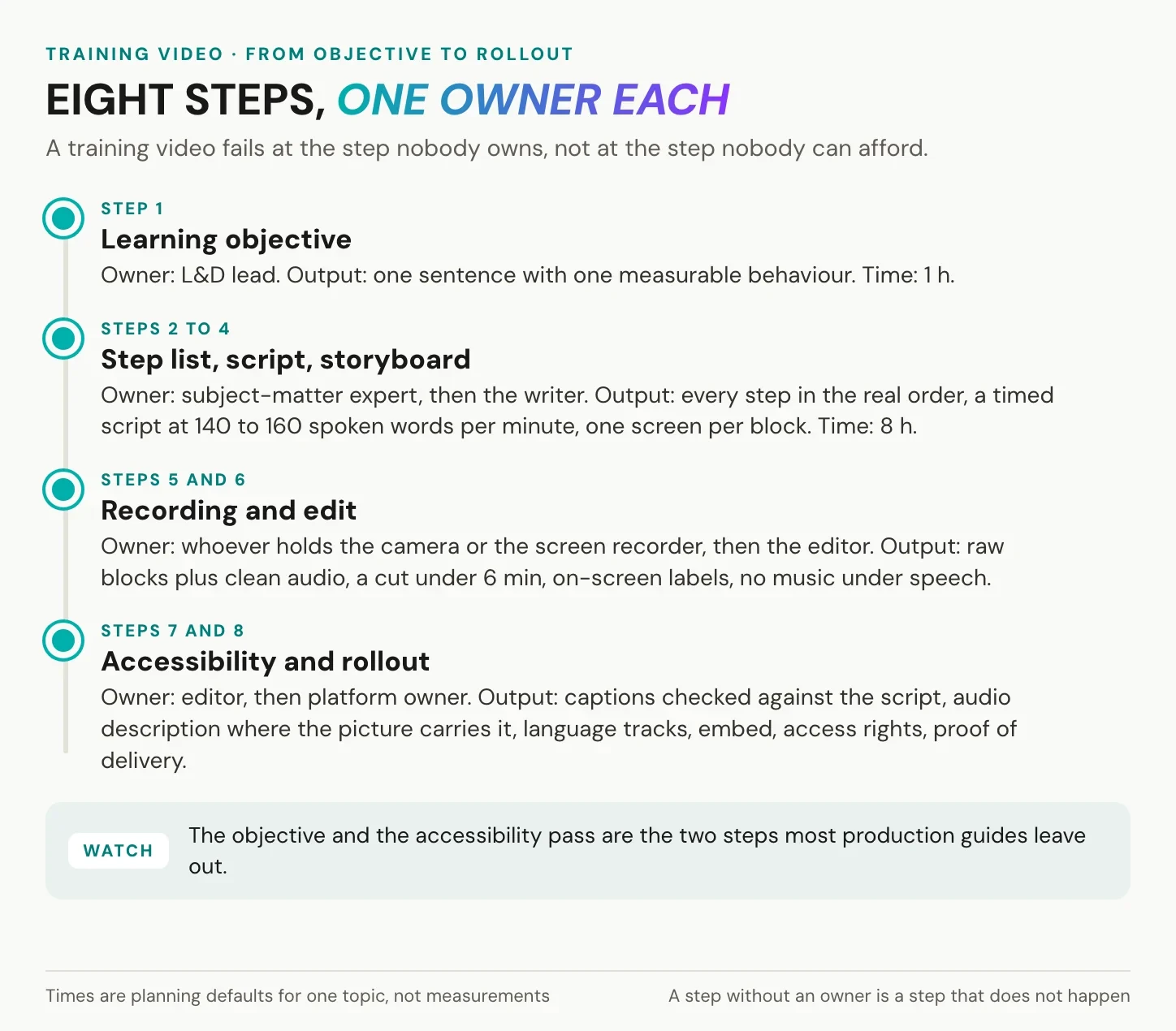
Write an observable learning objective. For example: “After this video, a new employee can submit an expense claim with the required receipt.” That tells you which screens to show and how to test the result. “Understand our finance system” does neither. A task can contain several connected steps; split it when the learner faces a new goal, a different audience requirement or a natural point to practise.
Next, walk through the task with a subject matter expert. Ask them to explain what a beginner might miss: prerequisites, permissions, decision points and the signs of an incorrect result. Capture a rough demonstration if it helps, then check it against the approved procedure. An expert’s everyday shortcut should not become the official instruction by accident. Test the outline with someone unfamiliar with the process before polishing the wording.
The format now tells you which tools you need. A screen recorder suits a software walkthrough. A camera or phone, tripod and microphone suit a physical demonstration. Animation can clarify a process that is difficult to film, while an AI presenter can introduce or explain a lesson. Choose training video software that supports the recording and editing work you actually need, then check how captions, translations and updated versions will fit into the workflow.
Turn the outline into a storyboard with three columns: what appears on screen, what the narrator says and what text the learner sees. Give each scene a purpose and make any review decisions before filming. One person should own the finished video, with named reviewers for subject accuracy and each target language. That makes later updates much easier to coordinate.
Training video script template: six blocks to copy
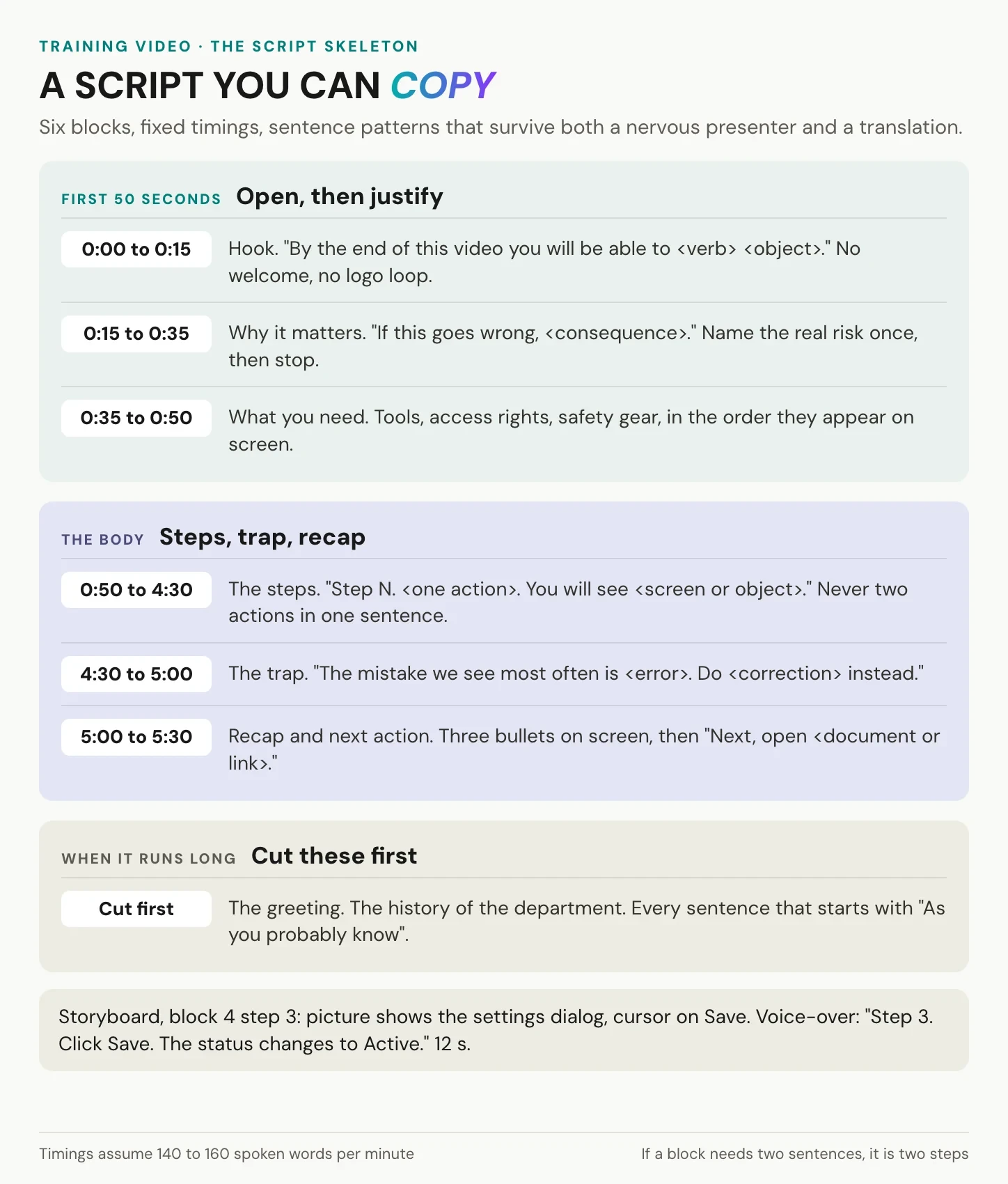
A training video script connects spoken instructions to visible actions. The template below uses six blocks and an illustrative running time of five and a half minutes. Adjust the timings to the task: a simple reminder may need less than a minute, while a complex demonstration may need several chapters and practice breaks. Keep the outcome, prerequisites and check for understanding even when you shorten the script.
TITLE: <task> | <system or machine> | <version> | <YYYY-MM-DD>
AUDIENCE: <role and prior knowledge>
OWNER: <name>   SUBJECT EXPERT: <name>
REVIEW DATE: <YYYY-MM-DD>   LANGUAGES: <list>

0:00 to 0:15   LEARNING OUTCOME
"By the end of this video, you will be able to <complete the task>."
Show the finished result or the situation the learner will handle.

0:15 to 0:35   WHY IT MATTERS
"Use this process when <situation>. It helps you <benefit>."
Explain any relevant risk without a long introduction.

0:35 to 0:50   WHAT YOU NEED
"Before you start, have <tools, information or permissions> ready."
Include required preparation and safety instructions for the task.

0:50 to 4:30   THE STEPS
"Step 1. <Action>. Check that <expected result>."
"Step 2. <Action>. If <condition>, <approved response>."
Match each instruction to the action visible on screen.
Leave enough time to observe or pause and practise.

4:30 to 5:00   A COMMON MISTAKE
"If you see <problem>, check <cause>."
Show the correction, or explain when to stop and ask for help.

5:00 to 5:30   RECAP AND NEXT ACTION
Restate the key steps and the expected result.
"Now <practise the task or answer a check question>."
"For help, open <resource> or contact <role>."
Write the narration in the order the learner will act. Use the exact button label, name the object and make the result explicit. “Click Save. The status changes to Active” is easier to follow and translate than “Hit that and you’re good to go”. Avoid idioms, unexplained acronyms and references such as “over here”. The script should still make sense when a different narrator records it in another language.
- Example scene: step 3 of a software setup task
- Picture: the settings dialog, with Save visible; after the click, show the Active status
- Voice-over: “Step 3. Click Save. The status changes to Active.”
- On-screen text: retain the exact interface labels Save and Active
- Timing: allow enough time to see the action and read the result; test it with a first-time user
Read the script aloud while moving through the storyboard. Cut repeated context, long greetings and department history before cutting an instruction. If it still feels rushed, add a chapter or split the lesson at a meaningful stopping point. A shorter video is only better when the learner can still follow it.
Record and edit a training video people can follow
For a first recording, prioritise intelligible speech and a clear view of the task. An elaborate set adds little if the learner cannot read the interface or hear the instruction. Record a short test with the equipment and location you plan to use, then watch it on the device employees are likely to have. That check can reveal tiny text, background noise or a camera angle that hides the important movement.
Place a microphone close enough to capture clear speech and listen for room echo, ventilation noise and sudden changes in volume. Keep background music low enough that every instruction remains easy to hear, or leave it out. For physical demonstrations, capture the detail view as well as the wider context so viewers can tell where the action takes place.
For a screen recording, use a clean test account and realistic sample data. Hide notifications, personal information and unrelated browser tabs. A 1920-by-1080 recording is a practical starting point, but legible interface text matters more than the resolution label. Move the cursor deliberately and use a close-up when a control would otherwise be too small to identify.
Record in short sections that follow the script. Leave a pause before and after each section, then edit out mistakes and unnecessary waiting. Keep the timing of important actions intact: viewers need to see the click and the resulting state. Save the script, project files and source recordings together so a changed step can be replaced without recreating the entire lesson.
How long should a training video be?
Plan a short, focused lesson, then test whether the learner has enough time to follow it. In their 2014 study, Guo, Kim and Rubin analysed 6.9 million viewing sessions across four edX courses and found that shorter videos attracted stronger engagement. The study on video production and student engagement supports segmenting lessons, but its measures of viewing behaviour do not establish a universal six-minute limit or prove learning outcomes in a workplace.
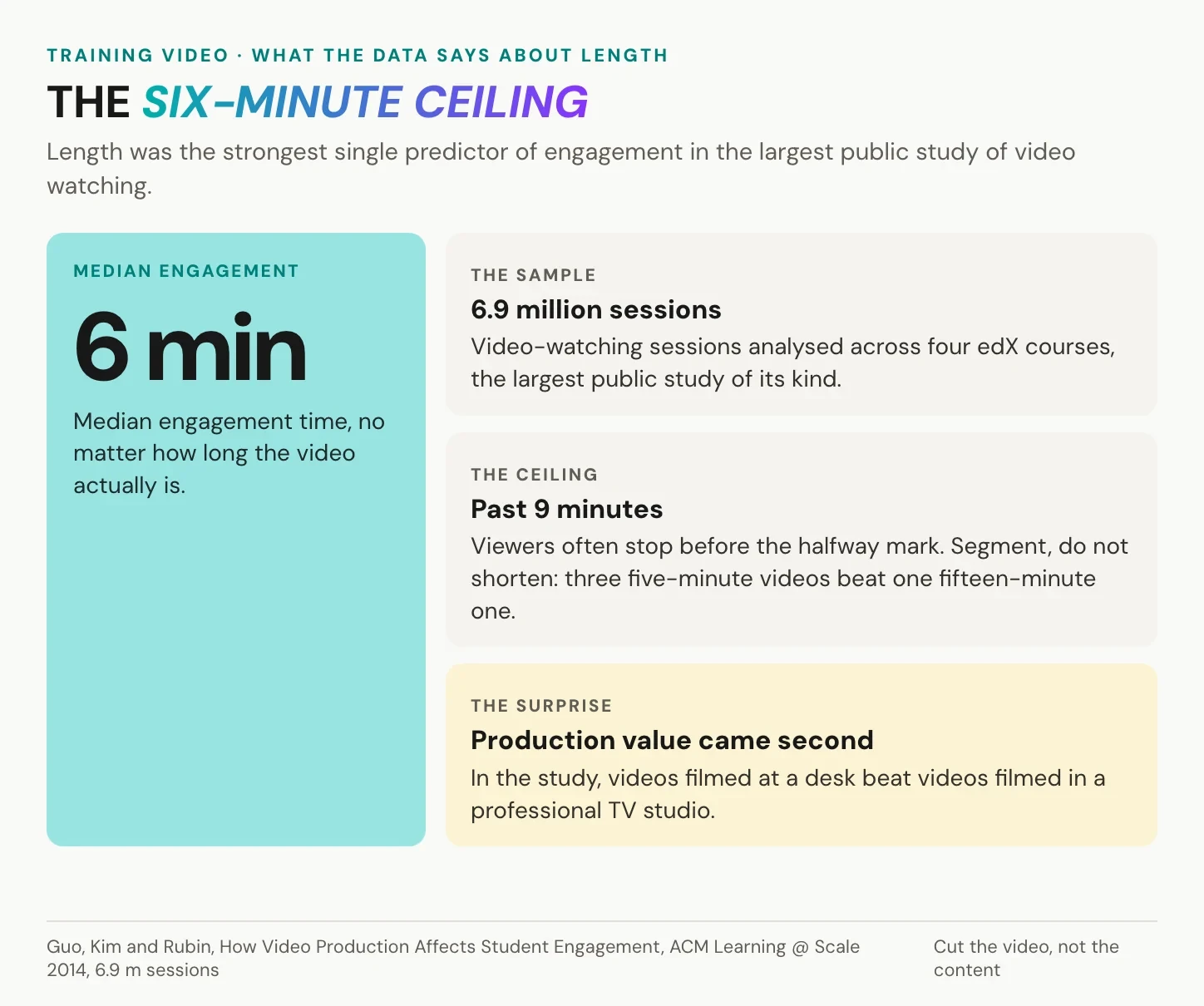
For an initial plan, try two to six minutes for a focused walkthrough and a shorter clip for a reminder. Treat those ranges as editorial starting points. If a demonstration needs longer, use chapters and clear stopping points instead of speeding through important actions. Ask a colleague to complete the task after watching: hesitation and mistakes tell you more about the required detail than the running time alone.
Accessibility and legal requirements for training videos
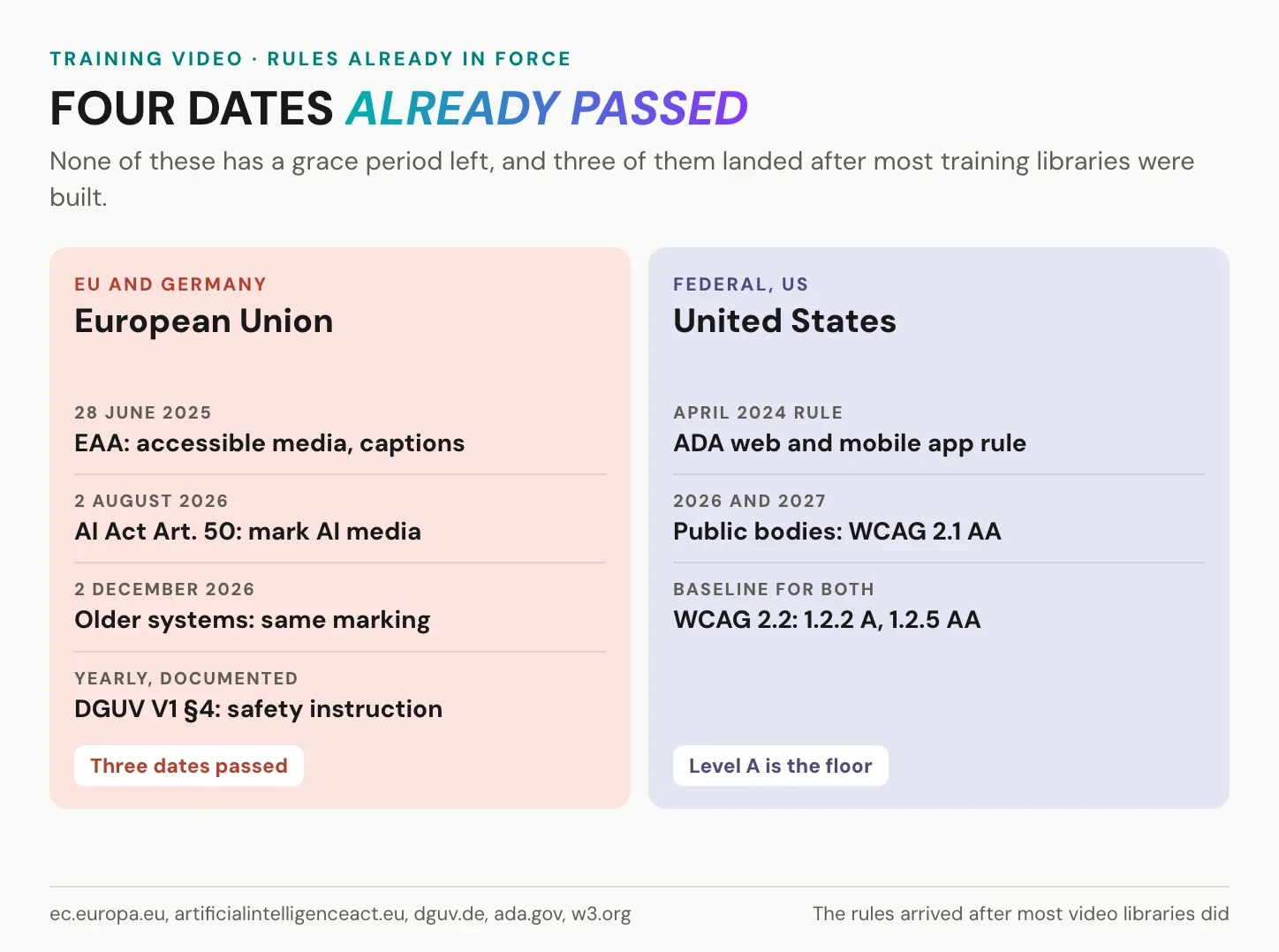
The rules depend on the audience, service and jurisdiction. An internal induction, a public-sector course and a customer-facing service can have different obligations. Review the video and its delivery together: captions are little help if the viewer cannot operate the player. Our guide to WCAG 2.2 for enterprise video hosting covers that wider setup. The deadlines in the illustration need to be read alongside the scope and exceptions below.
Captions, audio description and the scope of accessibility law
For prerecorded video with audio, WCAG 2.2 success criterion 1.2.2 requires captions at Level A, with an exception for a clearly labelled media alternative to text. Captions include relevant sounds and speaker identification as well as speech. At Level AA, criterion 1.2.5 addresses audio description of visual information. If the narration already conveys all relevant visual information, an additional description track is unnecessary. Build that information into the script where possible, and use our guide to accessible subtitles for corporate video when preparing the text tracks.
WCAG is a technical standard; the legal obligation comes from the applicable law or other requirement. The European Accessibility Act has applied since 2025-06-28 to specified products and services, including e-commerce and consumer banking, subject to its exemptions and transitional provisions. Germany implements it through the Barrierefreiheitsstärkungsgesetz. An internal employee training video is not automatically covered by the EAA, and making a video customer-facing does not by itself bring it within scope. Other accessibility or employment obligations may still apply.
Workplace safety instruction in Germany
Under § 12 of the Arbeitsschutzgesetz, instruction must be appropriate to the work and risks. DGUV Vorschrift 1, § 4 requires instruction to be repeated as needed, at least annually, and documented. A video can support that process; playing a recording does not by itself demonstrate that the required instruction has been completed. Include job-specific explanation, a way to resolve questions and the practical checks appropriate to the task.
AI-generated presenters and voices: disclosure requirements
The EU AI Act’s Article 50 transparency obligations have applied since 2026-08-02. They distinguish the provider’s machine-readable marking duties from the deployer’s duty to disclose qualifying deepfake content. The European Commission guidance on Article 50 explains that disclosure must be clear and distinguishable, by the first exposure at the latest. Whether a particular avatar or voice meets the deepfake definition requires a contextual assessment. An opening statement can help, but one line is not a blanket compliance guarantee. When using a colleague’s likeness or voice, also establish the necessary permissions and permitted uses. Our EU governance guide for voice cloning in corporate training covers the workflow in more detail.
Build these decisions into production rather than leaving them for the upload stage. A reviewed transcript supports captions and translation; descriptive narration helps learners who cannot see the action; clear ownership keeps required updates from being missed. The same preparation also makes the video easier to use on a muted phone or in a noisy workplace.
Working with an existing multilingual training library? Book a call and bring one video to discuss captions, language tracks and delivery.
Create multilingual training videos without losing version control
Multilingual training starts with deciding what can be shared across locations and what must be adapted. A common process can often use one video master with several audio and subtitle tracks. Local procedures, equipment or regulations may require separate content. Our guide to localizing educational video for every learner explores how to make those adaptations meaningful for the audience.
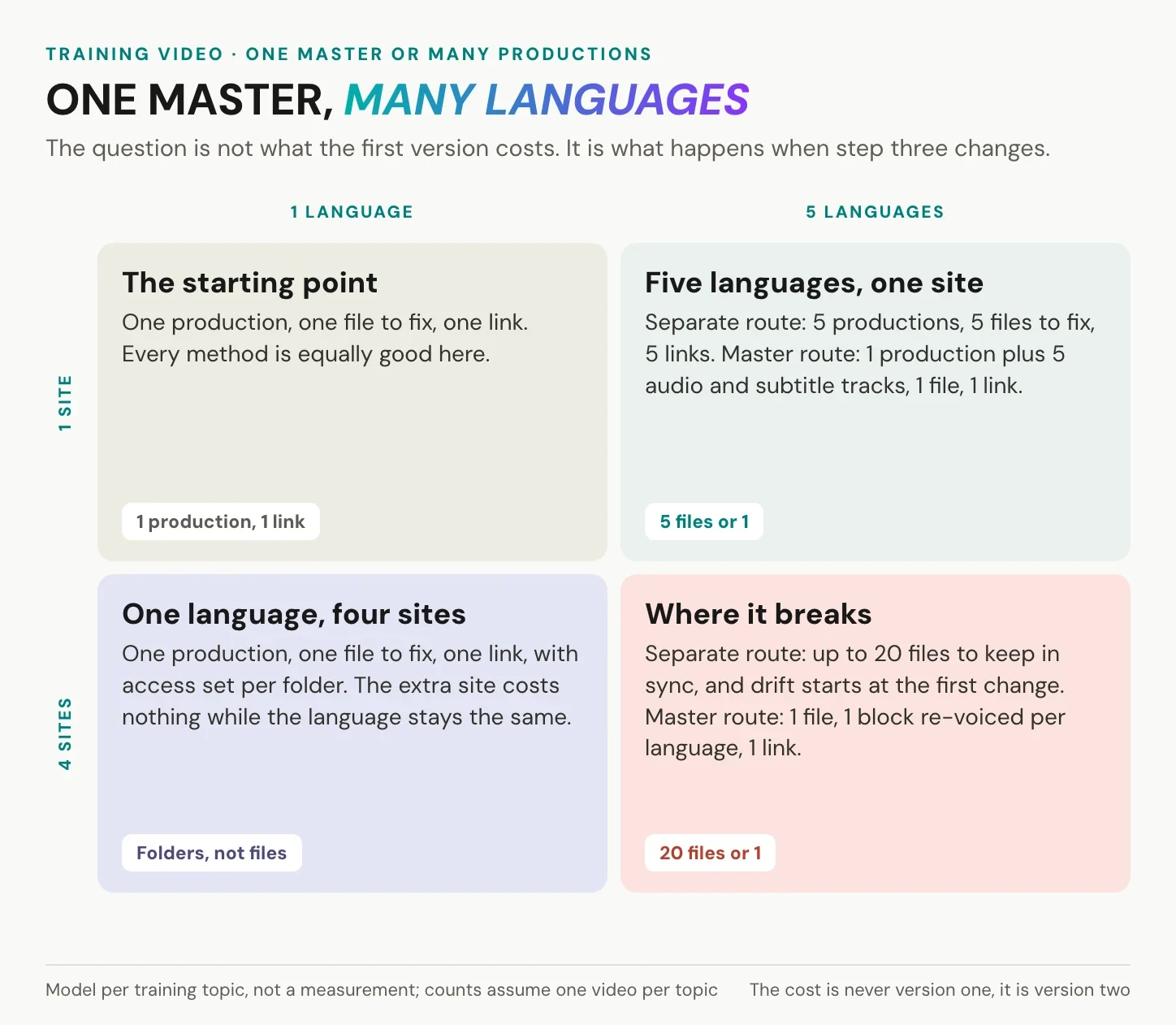
With separate language exports, each version has its own file and may have its own link, permissions and publication history. A multilingual master keeps the shared visual sequence in one project and lets the player offer different language tracks. That simplifies distribution when the footage is identical. It does not remove the need to review each translation or to create a local variant where the underlying instruction differs.
Consider five languages used at four sites. If the sites use the same process, you might maintain five separate language files; if every site needs a distinct version, that can become twenty. A shared master reduces duplication where the visuals match. When step three changes, update the footage and every affected transcript, subtitle and voice track, then test the result in each language. Centralising the video reduces version drift; language review still belongs in the update plan.
Subtitles and dubbing solve different viewing needs. Subtitles support quiet viewing and access to spoken content, while a dubbed track lets employees follow a demonstration without dividing attention between the action and translated text. Many training videos benefit from both. Keep captions available for viewers who need them, even when you add a voice track in their language.
Before translating, agree a glossary for product names, technical terms, role titles and interface labels. Match a button name to the interface the learner will actually see: that may mean retaining the source-language label or using its approved local equivalent. Have a reviewer who understands the job check instructions, units, warnings and pronunciation. Fluent wording is not enough if it points to the wrong control.
How to localise and publish a training video with alugha
Once the source recording is approved, alugha can bring transcription, translation, voice tracks, subtitles and hosting into the same workflow. The alugha AI feature guide describes the sequence in the dubbr editor. Complete each review before generating the next layer, because an error in the source transcript can otherwise spread into every language.
1. Upload the approved video master
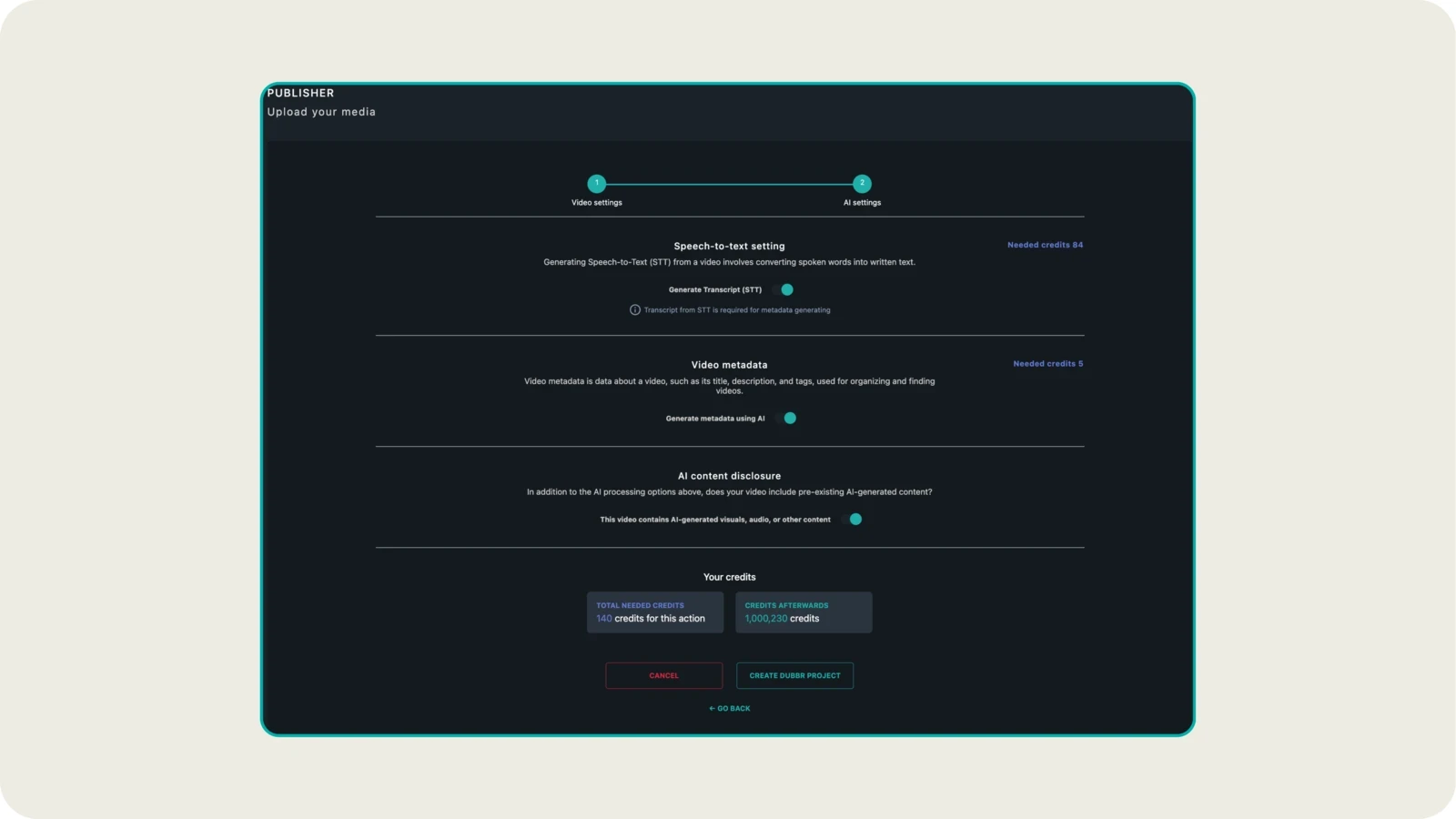
Upload the finished source video through the Publisher and add a title that names the task, a useful description, the original language and a recognisable thumbnail. Keep the version and content owner in your production records. After processing, check that the picture remains readable and the audio is clear in the player. Use the same approved master for the language workflow so reviewers are working from a consistent source.
2. Transcribe and check the source language
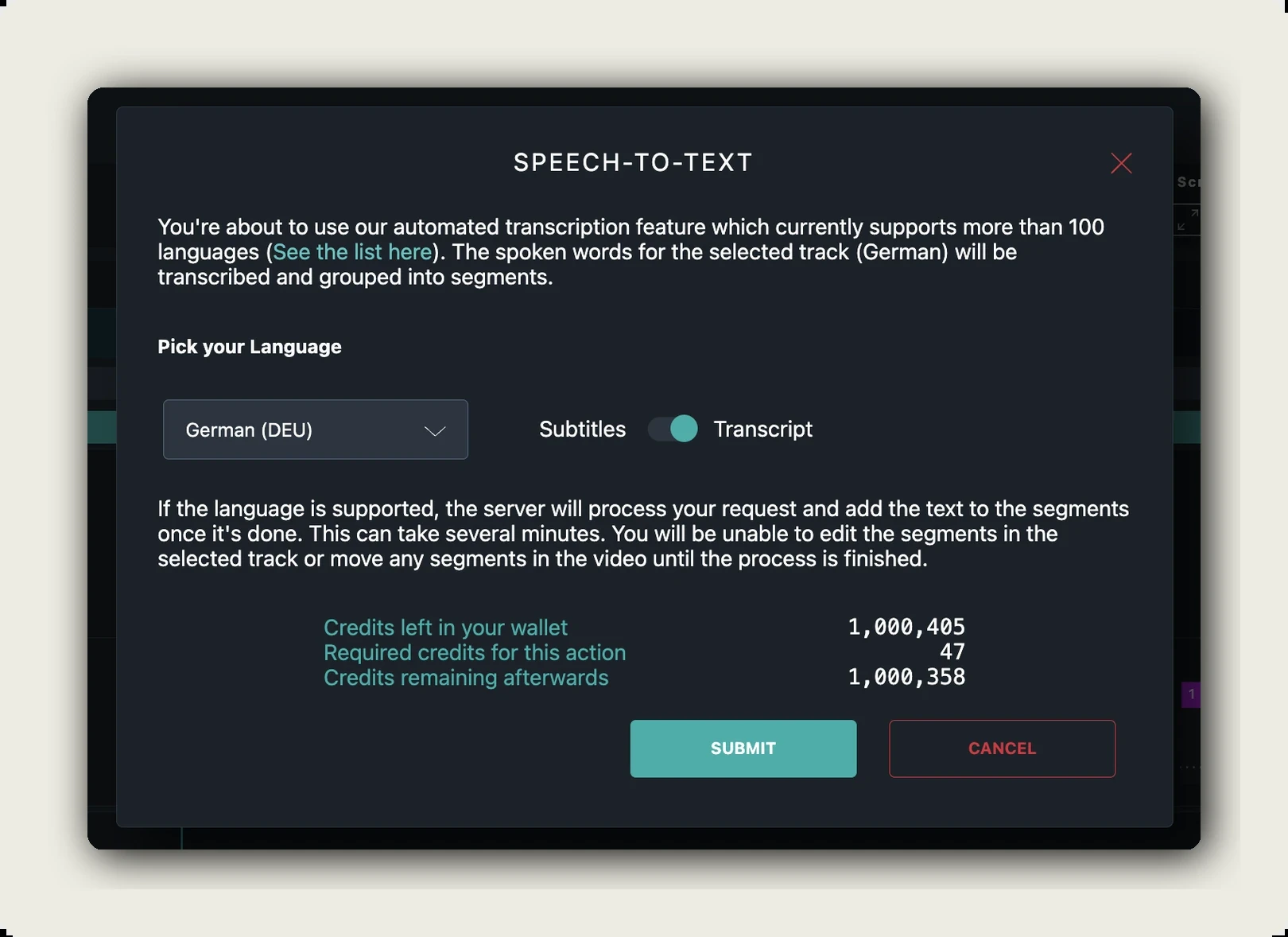
Open the video in the dubbr and run Speech-To-Text on the source-language track. Review the transcript against the recording, including speaker assignments where relevant. Pay particular attention to numbers, names, abbreviations and words such as “not”, where a small transcription error can reverse an instruction. Treat automatic transcription as a first draft. Correct the source before using it to generate subtitles or translations.
3. Translate with consistent terminology
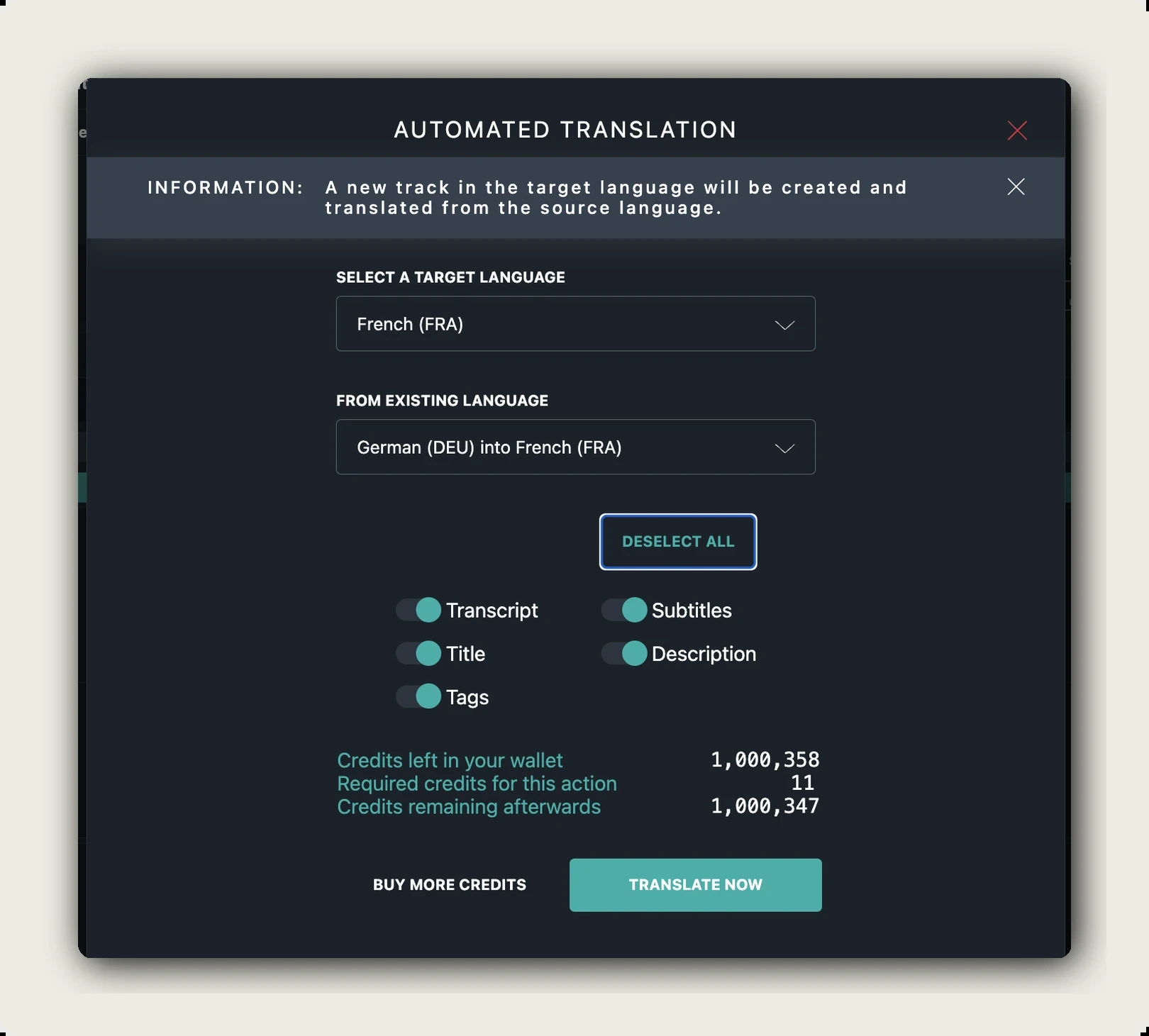
Add the required target-language tracks and use Automated Translation. Apply the glossary available in your account to the terms agreed during planning, then have each translation reviewed in the context of the video. Check the displayed credit cost before starting the job. Language and glossary availability depend on the current product offering and account setup; choose the languages your employees need rather than generating versions without an owner to maintain them.
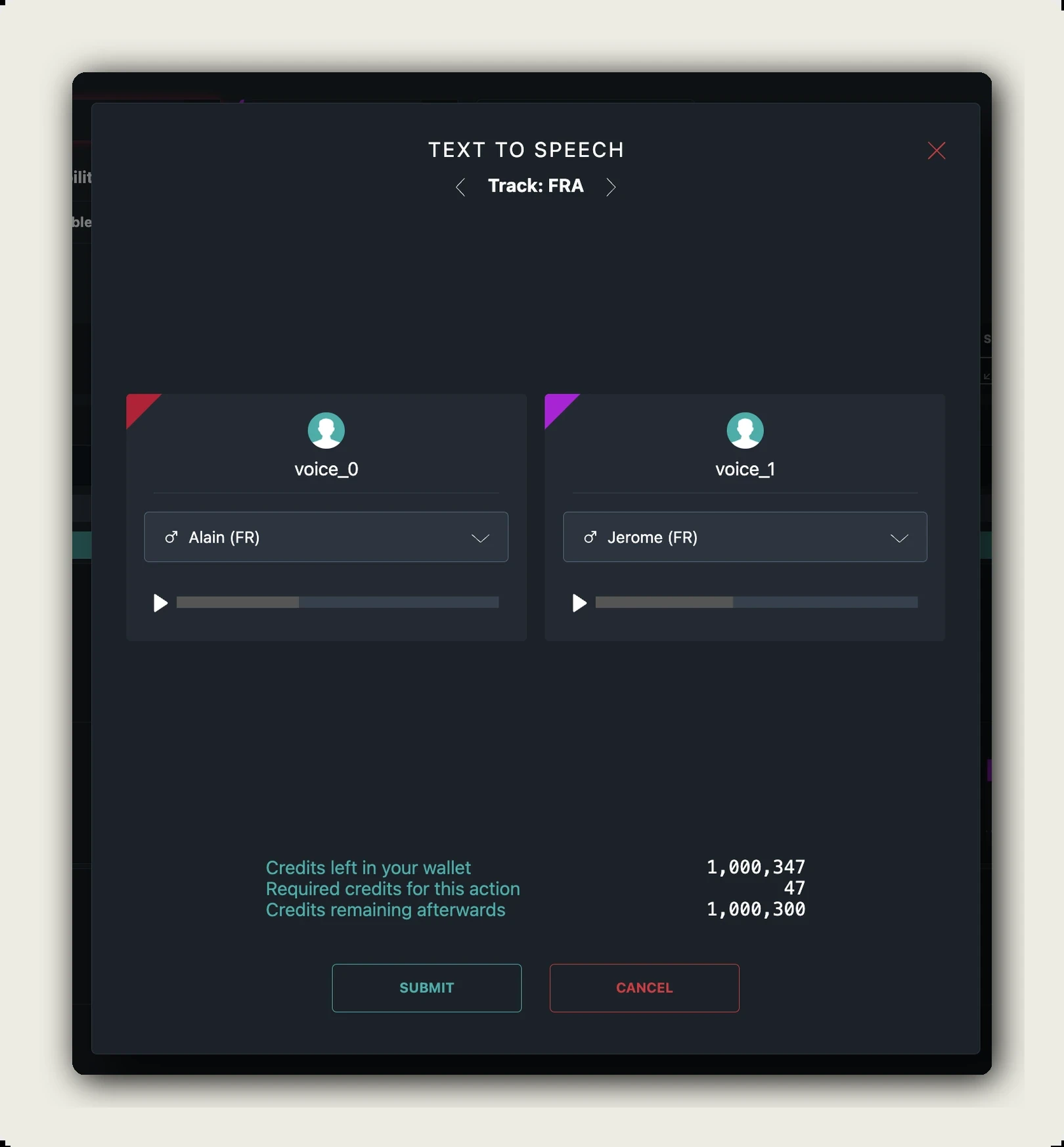
4. Prepare subtitles and voice tracks
Review subtitle timing and line breaks while watching the video. Use the Subtitle Accessibility tool as an aid, then check that captions preserve meaningful sounds and remain clear of important controls or demonstrations. For dubbing, choose a suitable Text-To-Speech voice or record narration, and listen to the whole track for pronunciation, timing and clarity. Apply the relevant permissions and disclosure checks if you use a cloned voice or AI presenter.
5. Publish, embed and test access
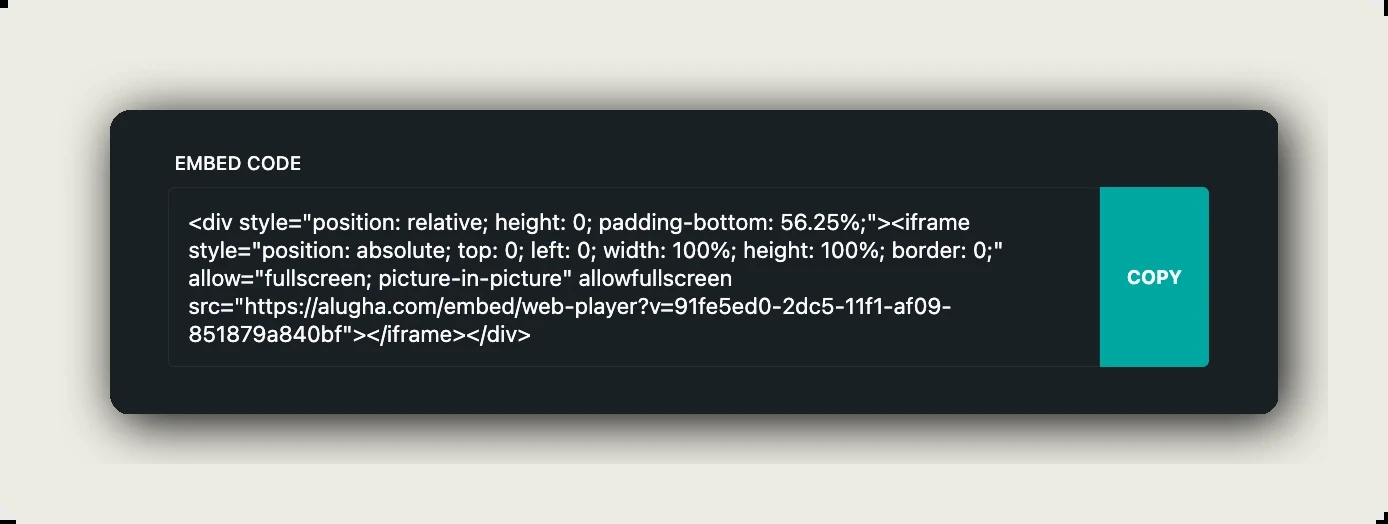
When the language versions are approved, publish the project and use its sharing or embed options for the intended destination. Select the appropriate visibility and available access controls. An unlisted link should not be treated as authentication: anyone who receives it may be able to share it. Test the embedded player as a learner, including language selection, captions and access from the devices your team uses. Keep any mandatory-training assignment and completion records in the system responsible for them.
Roll out, maintain and measure employee training videos
A finished video needs a place in the employee’s workflow. Put it where the task begins: the relevant intranet page, knowledge-base article or course in the learning management system (LMS). Add a title that matches the question employees ask, a brief description of who it is for and a clear next action. A library full of generic titles such as “Training 03” makes even a well-produced lesson difficult to find.
Choose hosting and access rules that fit the content and audience, particularly when a video contains employee or customer information. Review processing locations, contracts, subprocessors, retention and permissions as part of that decision. EU hosting alone does not establish GDPR compliance. Our guide to GDPR-compliant video hosting provides a starting point for the hosting review.
If your intranet or LMS permits the embed code, place the player alongside the supporting procedure and test it with an ordinary learner account. Check that the user can start playback, choose the right language and reach any required exercise. Embedding a video does not automatically create LMS completion tracking or pass a quiz result back to the course.
For mandatory training, define the evidence you need before launch. Your record may need to identify the learner, assigned topic, content version, completion date and assessment or acknowledgement. Make sure the responsible HR or learning system captures that information. A view count cannot tell you whether a particular employee understood the instruction or can perform the task.
Give the content owner a review date and a list of changes that trigger an earlier review: a new interface, revised procedure, updated rule or recurring learner error. When something changes, update the source and all affected languages, check the embedded versions and retire outdated copies. Keep the version history linked to the training records.
Measure whether employees can use the training
Completion rate shows whether people reached the end, but it needs context. Compare task performance before and after the rollout: can employees complete the process independently, how often do they make the relevant error, and which questions still reach support? Use replay patterns to locate sections worth reviewing, then ask learners what caused the replay. A frequently watched step may be valuable reference material or an unclear explanation. Keep the comparison period and audience consistent, and record other process changes that could affect the result.
Frequently asked questions about training videos
How long should a training video be?
A focused training video often works well as a short lesson of a few minutes, but there is no universal maximum. Match the duration to the task and the learner’s prior knowledge. The widely cited six-minute guidance comes from research on online-course engagement. For complex instruction, use chapters, practice breaks or several connected videos, and test whether learners can perform the task afterwards.
Do I need a script for a training video?
Yes, a script is useful when a training video will be reused, reviewed or translated. It keeps the instruction aligned with the visuals and gives subject experts a concrete draft to approve. For a quick informal recording, a short outline may be enough. For repeatable employee training, include the learning outcome, prerequisites, steps, common mistake and next action.
What software do I need to make a training video?
For a software tutorial, start with a screen recorder and an editor that can trim clips, add close-ups and handle captions. For a physical demonstration, add a camera or phone and a microphone. Animation or an AI presenter may suit other formats. If employees need multiple languages, include transcription, translation, voice tracks and multilingual delivery in the tool selection; alugha covers that part of the workflow.
Can I use an AI avatar in a training video?
Yes, an AI avatar can introduce or explain a training lesson, provided the content is accurate and you have the necessary rights to any likeness or voice used. Assess the applicable disclosure duties. In the EU, Article 50 distinguishes provider marking from deployer disclosure of qualifying deepfakes. A clear, accessible notice helps viewers understand how the presenter was created, but the appropriate implementation depends on the content and context.
Do training videos need captions by law?
The legal requirement depends on the organisation, audience and applicable rules. WCAG includes a Level A captions requirement for prerecorded audio in synchronised media, subject to its specified exception. For US state and local governments, the ADA Title II web rule uses WCAG 2.1 Level AA, with compliance dates of 2027-04-26 for entities serving 50,000 or more people and 2028-04-26 for smaller entities and special district governments. Existing ADA duties still apply before those dates. This rule does not set a blanket deadline for private employers. Reviewed captions are a practical default for employee training regardless of the legal minimum.
Start with one task and test the result
Choose a task that colleagues explain repeatedly. Write the learning objective, fill in the six-block script and agree the steps with the person responsible for the process. Record a first version, then ask someone from the intended audience to use it. Fix the points where they hesitate before translating and rolling it out. A useful training video earns its place when employees can find it, follow it and complete the work.
Ready to turn that approved recording into multilingual training? Upload the master and prepare the languages, subtitles and access settings your audience needs. Start free, see the plans, or book a call to plan the rollout.