Summary
Set your video’s visibility to control who can see it on alugha — Private, Public, or Not listed. Change it in seconds from the My archive list, or from inside the dubbr on the PROJECT tab.
Prerequisites
Before you begin:
- A verified alugha account (see Create and verify your alugha account)
- At least one video uploaded to alugha (see Upload a video to alugha)
Step-by-Step Instructions
1. Change visibility from My archive
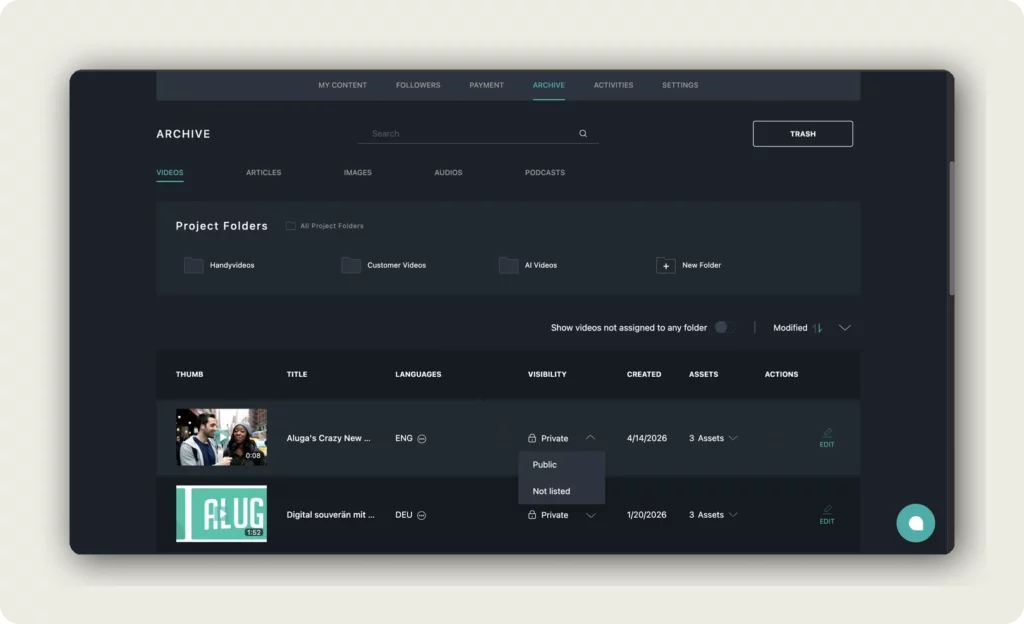
Log in to alugha. Click your profile avatar in the top right corner and select My archive to open the Archive page. Make sure the VIDEOS sub-tab is selected.
Find the video you want to update and click the value in the VISIBILITY column to open the dropdown. Choose one of the three options:
- Private — Only you can see the video. Not searchable, not listed anywhere.
- Public — Anyone can find and watch the video. It is listed on your alugha profile and indexed by search engines.
- Not listed — Hidden from search and your profile, but anyone with the direct link can view it. Use this for limited sharing.
2. Change visibility from inside the dubbr
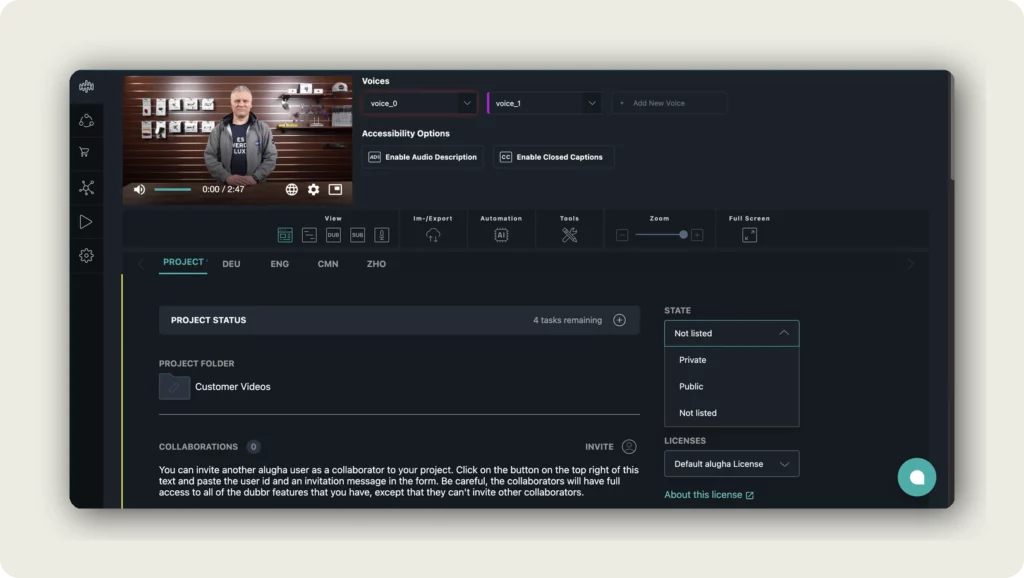
Already editing a video? You can change visibility without leaving the dubbr. Open the PROJECT tab (first tab, left of the language tabs). On the right side, find the STATE panel and click the dropdown to pick Private, Public, or Not listed.
The three options mean the same as in My archive. Your choice applies immediately to the whole video project.
3. Confirm when you set a video to Public
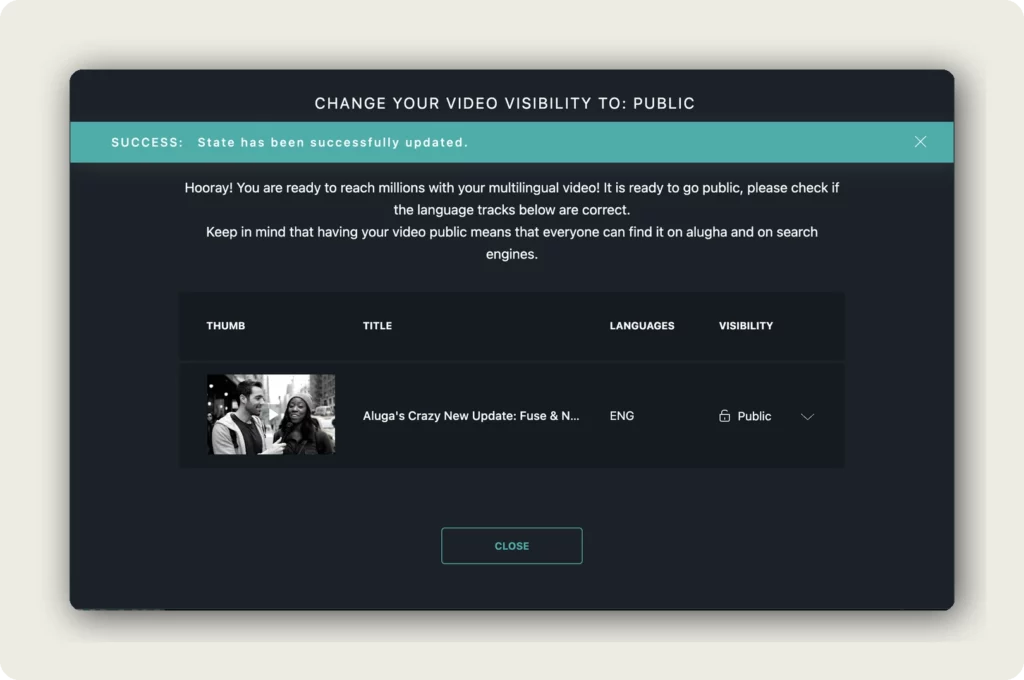
When you switch a video to Public, alugha shows a confirmation dialog with a SUCCESS banner. Take the moment to double-check your language tracks in the list below the message — a public video can be found by anyone on alugha and on search engines, so you want the right languages playable before it goes live.
Click CLOSE to finish. Your video is now public.
Good to know
- Visibility applies to the whole video project, not to individual languages. Language tracks have their own status (Playable / Private / Hidden) — see the My archive guide for details.
- You can change visibility as often as you want. Switching from Public back to Private removes the video from search results and your profile.
- Not listed is the right choice for shareable demos or client previews — nobody will stumble onto the video, but anyone with the link can watch it.
- A Public video is indexed by search engines like Google and Bing. Make sure the title, description, and thumbnail look the way you want before going public.
- Changing visibility does not cost credits. Only AI actions in the dubbr (translation, voiceover, transcription) cost credits.
Troubleshooting
The visibility dropdown doesn’t open in My archive:
- Reload the page and try again.
- Click the visibility value (e.g., Private) — not the padlock icon next to it.
I set the video to Public but it’s not showing up in search:
- Search engines can take a few days to index a new video. Check your alugha profile page first — if the video appears there, it is public.
- Make sure at least one language track is Playable. A Public project with only private languages has nothing to show viewers.
My client can’t view the Not listed video:
- Send them the direct video link — Not listed videos cannot be found via search or your profile.
- Check that you shared the correct link from the Share dialog, not a link to the My archive page.
Related Articles
Was this article helpful?