Summary
Control how your embedded video behaves when viewers land on the page. The Custom Options in the Embed dialog let you toggle autoplay, loop, and a custom start time — plus pick the video size and screen resolution behaviour. Every change updates the embed code and live preview instantly.
Prerequisites
Before you begin:
- A published video project — see Publish your multilingual video project.
- The embed dialog open — reach it via Im-/Export → Share Project → EMBED OPTIONS tab.
Step-by-Step Instructions
1. Open the Embed Options tab
Open the video in the dubbr and go to Im-/Export → Share Project. Switch to the EMBED OPTIONS tab. Below the embed code you see the CUSTOM OPTIONS section with a list of toggles and an EMBED PREVIEW on the right.
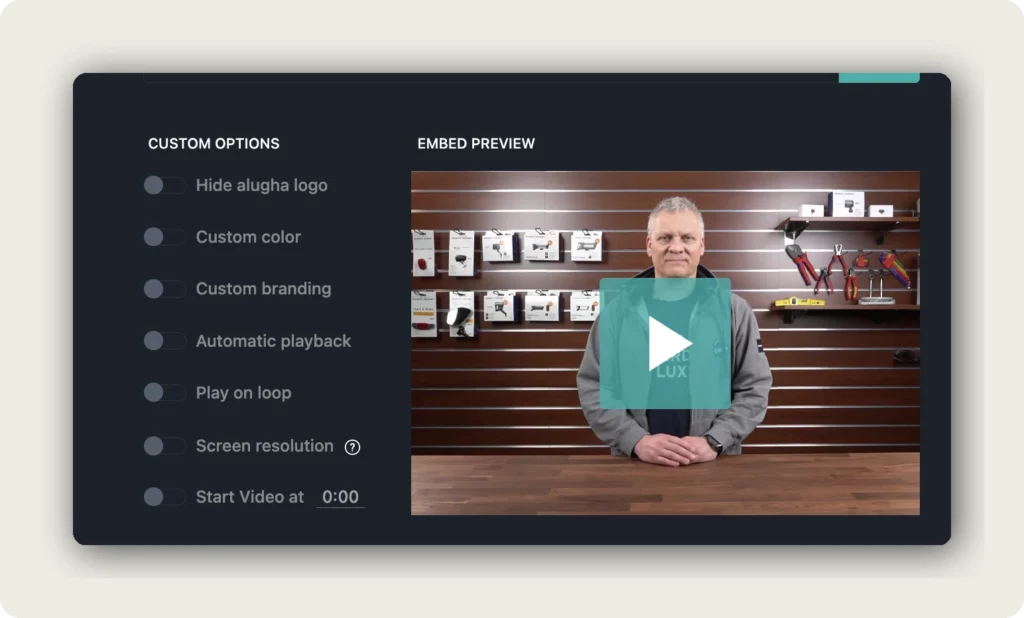
2. Enable Automatic playback (autoplay)
Toggle Automatic playback on. When a viewer loads the page, the video starts playing automatically – no click required.
Keep in mind: most modern browsers mute autoplay by default unless the user has previously interacted with the site. The video will play, but audio may be muted until the viewer clicks. This is a browser policy, not an alugha limitation.
3. Enable Play on loop
Toggle Play on loop on. When the video reaches the end, it restarts from the beginning automatically. Looping is useful for background videos on landing pages, showroom displays, or event screens.
Loop and autoplay can be combined — the video starts on page load and replays indefinitely.
4. Set a start time
Change the Start Video at field from 0:00 to any timecode (for example 1:30). Viewers will jump straight to that point when the embed loads – handy when you want to skip an intro or highlight a specific section.
Combined with autoplay and loop, the video plays from the start time, loops back to 0:00 at the end, and continues indefinitely.
5. Choose the video size
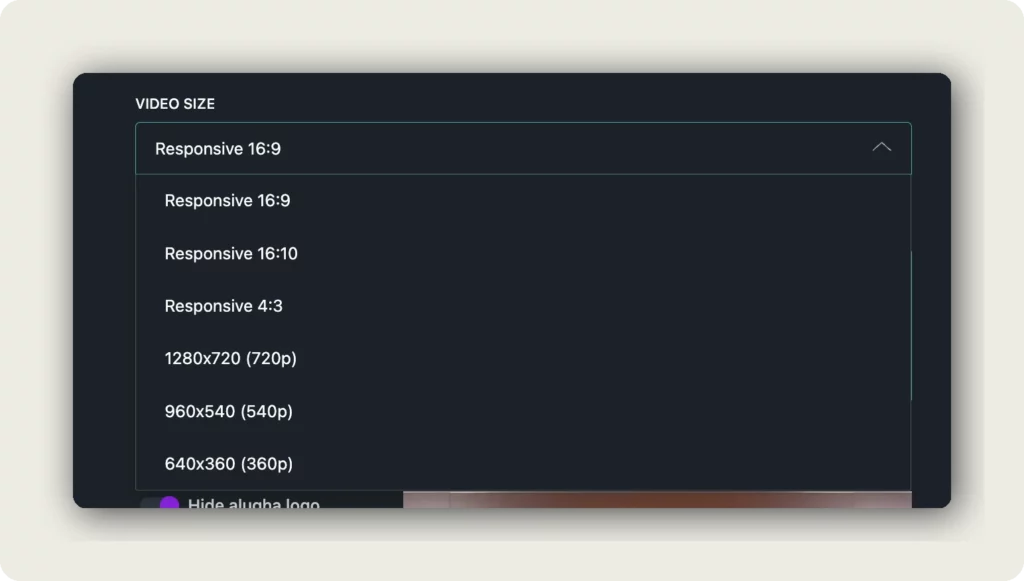
Above the Custom Options, the VIDEO SIZE dropdown sets the embed dimensions:
- Responsive 16:9 (default) — fluid width, 16:9 aspect ratio. Best for most websites.
- Responsive 16:10 — slightly taller, good for education/LMS platforms.
- Responsive 4:3 — classic TV ratio, for legacy or square-ish layouts.
- 1280×720 (720p) / 960×540 (540p) / 640×360 (360p) — fixed pixel sizes. Use these only when the container has a known fixed width.
For most embeds, Responsive 16:9 is the right choice — it adapts to any screen.
6. (Optional) Adjust screen resolution
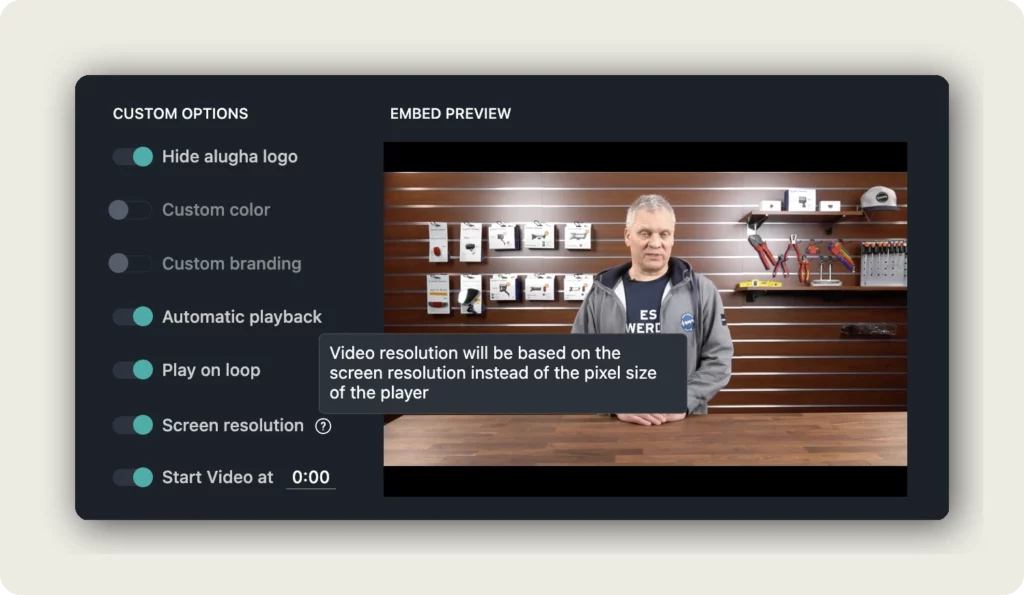
Toggle Screen resolution on to change how the player calculates video quality. When enabled, the player uses the screen resolution instead of the pixel size of the player element to decide which quality level to stream.
This matters on high-DPI (Retina) displays: a 640-pixel-wide player on a Retina screen actually has 1280 physical pixels – enabling this toggle ensures the player streams the higher-quality version.
7. Copy the embed code
Every toggle change updates the EMBED CODE field in real time. Once you are happy with the preview, click COPY (teal button) to copy the HTML snippet. Paste it into your website, CMS, or LMS.
Good to know
- Autoplay + mute — browsers block autoplay with sound by default. Viewers see the video playing silently and can unmute with a click. This is normal browser behaviour.
- Autoplay + loop + start time can all be combined. The embed code captures every toggle.
- The EMBED PREVIEW is a live player — use it to verify the exact behaviour before copying the code.
- Custom Options are per embed code, not per project. The same project can have different embed codes with different options on different pages.
- For visual customisation (logo, colour, branding), see Customize your alugha player appearance.
- Embed options are free — no credits.
Troubleshooting
Autoplay does not work:
- Most browsers block autoplay with sound. The video should still autoplay muted. Viewers can unmute manually.
- Some websites override iframe permissions. Check that the embed container allows autoplay in its
allowattribute.
Loop restarts from 0:00 instead of my start time:
- This is expected behaviour. Start time applies only to the initial load. After the video ends, loop restarts from the beginning of the video.
The video looks blurry in the embed:
- Enable the Screen resolution toggle. This tells the player to use the screen’s physical resolution for quality selection instead of the player’s CSS size.
- If the player is very small (under 480px wide), consider using a fixed resolution (720p or 540p) instead of responsive.
The embed code does not change when I toggle something:
- The change is in the URL parameters inside the iframe
srcattribute. Scroll through the code — it can be long. - Copy the code again after every toggle change to make sure you have the latest version.
Related Articles
- Customize your alugha player appearance
- Embed your multilingual video
- Share your video with a link or QR code
- Publish your multilingual video project
Was this article helpful?