To embed a video on a website, copy the HTML the video’s host gives you and paste it where the video should play. On YouTube that means Share, Embed, Copy. Three clicks give you an iframe with a fixed box, 560 pixels wide and 315 high.
That box is where the work starts. It does not scale to a phone on its own, and it loads the whole player before anyone presses play. The standard version also writes cookies to your visitor’s browser before anyone has agreed to anything.
By the end you will know which of the three embed methods fits your page and how to paste code that scales and stays fast. You will also know why autoplay stays silent, how to ask for consent before a third-party player loads, and how to fix an embed that shows a blank box.
Key takeaways
- Getting the code takes three clicks on YouTube: Share, Embed, Copy. What you copy is a fixed 560 by 315 pixel iframe, so fitting it to a phone is your job.
- One CSS rule makes any embed responsive:
aspect-ratio: 16 / 9withwidth: 100%. It has been Baseline widely available since March 2024, so the padding wrapper can retire. - Add
loading="lazy"to every iframe below the fold. A click-to-load facade goes further: in Google’s 2020 Lighthouse example it loads 3 KB instead of a 540 KB player. - Browsers block autoplay with sound: Chrome since version 66 in April 2018, Firefox since version 66 in March 2019. Muted autoplay is allowed, so add
mutedandplaysinline. - In Germany, section 25 TDDDG requires consent before an embed stores or reads anything on the device that is not strictly necessary. The authorities’ November 2024 guidance treats embedded videos as add-ons.
- Captions for prerecorded video are WCAG 2.2 Level A (1.2.2). Turn them on in the player or add a WebVTT track to your own video, and title every iframe.
- Key takeaways
- How to embed a video in four steps
- Three ways to embed video
- Embed video code for every screen
- Embed videos in WordPress, Wix and more
- Fast pages with embedded video
- Why autoplay stays silent
- Privacy and consent in the EU
- When an embedded video will not play
- One embed code for every language
- Frequently asked questions about how to embed video
- Getting started
How to embed a video in four steps
To embed video from almost any host, the method is the same, and four steps cover it.
- 1. Copy the embed code. On the video’s page, open Share, then Embed, and copy the HTML.
- 2. Paste it into your page. Use the page’s HTML, or the HTML or code block of your site builder.
- 3. Make the box responsive. One line of CSS does it, shown in the code section below.
- 4. Test it where it breaks. Open the page on a phone, in a private window, with the consent banner declined.
YouTube’s player is free, quick and very good, and YouTube Help documents exactly this path: Share, Embed, copy, paste. It also records the one case where no code will help. The owner can switch embedding off for a video, and then nothing you paste will play it.
Vimeo follows the same pattern, Share, then Embed, and its player takes parameters in the URL, among them dnt, muted and playsinline.
One boundary before the code. An email client will not play an embed, so newsletter video is its own job: see how to embed a video in an email.
A copied YouTube embed, with the attributes it should carry:
<iframe
  src="https://www.youtube.com/embed/VIDEO_ID"
  title="Product tour: set up your first project in two minutes"
  width="560" height="315"
  loading="lazy"
  allow="fullscreen; picture-in-picture"
  referrerpolicy="strict-origin-when-cross-origin"
  allowfullscreen></iframe>
In short: copy the code from the host, paste it in one piece, make the box responsive and test it on a phone with consent declined. The next two sections explain every line of the snippet above.
Three ways to embed video
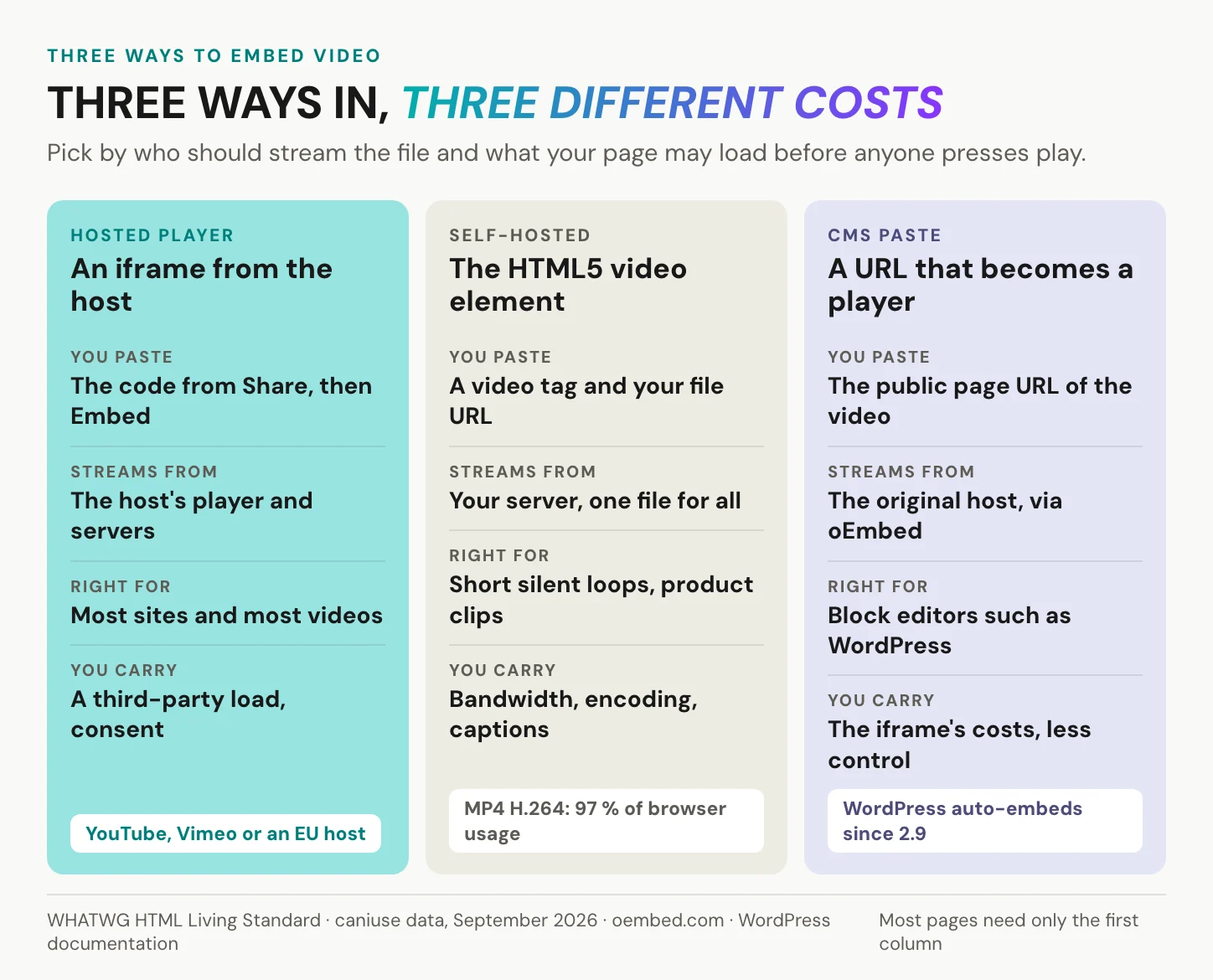
There are three ways to put a video on a page, and most pages need only the first. Each hands you a different cost: someone else’s player, your own bandwidth, or less control over the markup.
A hosted player in an iframe
A host stores the file, encodes it in several qualities and streams the one that fits each visitor’s screen and connection. You paste an iframe, a window onto the host’s player, and the host’s rules come with it. YouTube costs nothing and brings reach: the Web Almanac 2024 names youtube.com the most popular third-party video domain on the web. Vimeo adds a control YouTube lacks, domain-level privacy, which lets a video play only on up to 50 domains you name.
An iframe is the simple route. A JavaScript player API adds events such as play, pause and progress, at the price of more code on your page. Either way, a third party’s player loads inside your site before anyone presses play, and the video’s owner decides whether embedding is allowed at all. Which host fits is its own question, answered in the best YouTube alternatives.
The HTML5 video element on your own server
The <video> element needs no third party at all. You put an MP4 on your own server and point the tag at it. The web-features dataset lists it as Baseline widely available since January 2018. Per caniuse data of September 2026, MP4 with H.264 plays in 97.26 percent of global browser usage, WebM in 96.05 percent and AV1 fully in 80.39 percent.
The catch is everything a host did for you. One file at one bitrate goes to every visitor, the phone on a train and the office desktop alike. You pay the bandwidth, encode the file and write the captions yourself. HLS streaming plays natively in Safari, in most mobile browsers and in recent desktop Chrome. Desktop Firefox and Edge need a JavaScript library.
The Web Almanac 2024 found <video> on 6.7 percent of mobile pages and 7.7 percent of desktop pages. Nine out of ten videos in its crawl run under two minutes, which is the element’s home ground: short clips and silent loops.
Pasting a URL into your CMS
Many editors let you skip the code. You paste the video’s address, the CMS asks the host for the player through a standard called oEmbed, and the iframe appears. The host answers with a small record that carries the player HTML, a width and a height. What lands on your page is the same fixed box you would have copied by hand.
WordPress has done this since version 2.9 for built-in providers such as YouTube and Vimeo, and from YouTube only public and unlisted videos work. A host that is not on the built-in list stays a plain link. Ours is one of them, so in WordPress you use our block or a Custom HTML block, as our WordPress guide further down shows. URL pasting is the fastest route and the least controllable, because the markup comes from the host and the editor, not from you.
In short: a hosted player for almost everything, the <video> element for silent loops you control, URL pasting when your editor knows the host.
Embed video code for every screen
A copied embed works, but a good one carries a handful of extra decisions. Each of them fits in one attribute or one CSS rule.
The iframe attributes that matter
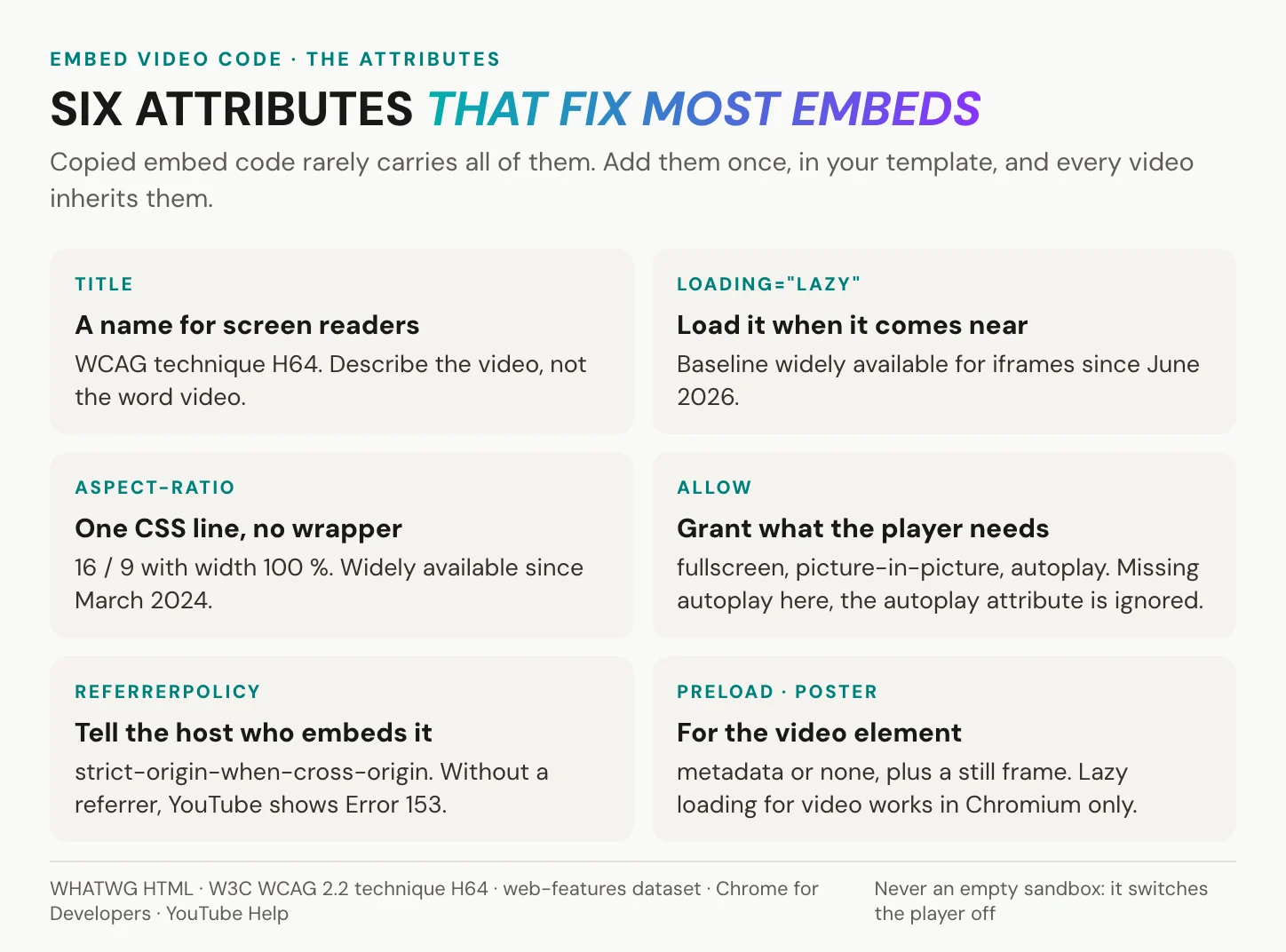
title gives the player a name for screen readers. W3C technique H64 lists it as a sufficient way to label an iframe, so describe the video, not the word “video”. loading="lazy" fetches the player only as it nears the screen, and it has been Baseline widely available since June 2026, from Chrome 77, Firefox 121 and Safari 16.4.
allow="fullscreen" is the current form of the permission; allowfullscreen is the legacy switch kept for older browsers. referrerpolicy matters more than it looks: YouTube Help says playback fails with Error 153 when no HTTP Referer arrives. If your site sends no-referrer, set this value on the frame.
width and height still earn their place, because WordPress 5.7 and later lazy-loads only iframes that carry both. Two things stay out: an empty sandbox attribute, which switches off scripts and breaks the player, and frameborder, which is old markup. And the src always starts with https.
Responsive embeds with one line of CSS
For years the standard trick was a wrapper div with padding-bottom: 56.25%, which is 9 divided by 16, times 100. It held a 16:9 box on any screen, and it still works, but you no longer need it. The CSS aspect-ratio property sizes the iframe itself. It became Baseline newly available in September 2021 and widely available in March 2024, from Chrome 88, Firefox 89 and Safari 15.
.video-embed {
  width: 100%;
  height: auto;
  aspect-ratio: 16 / 9;
  border: 0;
}
Give the iframe class="video-embed" and it fills the column at any width. For vertical video, write 9 / 16, and for a square clip 1 / 1. Keep the width and height attributes anyway, because they give the browser the ratio before your CSS arrives, so it can reserve the box early. In a very wide layout, add a max-width to the class so a talking head does not fill a whole desktop monitor.
Our own copied snippet still uses the padding wrapper. It works as it is, and you can swap it for the class above if you would rather manage one element than two.
The video element, done properly
Self-hosted, the <video> tag needs its own attributes.
<video controls playsinline preload="metadata"
       width="1280" height="720"
       poster="/media/product-tour.jpg">
  <source src="/media/product-tour.mp4" type="video/mp4">
  <track kind="captions" src="/media/product-tour.en.vtt"
         srclang="en" label="English" default>
  <a href="/media/product-tour.mp4">Download the product tour (MP4)</a>
</video>
controls gives the visitor play, pause and volume, and playsinline keeps the video in the page on an iPhone instead of jumping to fullscreen. preload="metadata" fetches only duration and dimensions. The HTML specification advises it, and autoplay overrides it anyway. The poster shows a still until playback starts.
Put the MP4 source first, since it plays almost everywhere. The <track> carries WebVTT captions, and the link inside is the fallback for a browser that plays nothing.
Two traps. loading="lazy" on <video> works only in Chromium browsers so far, so use preload="none" plus a poster for videos far down the page. And muted="false" still mutes, because the attribute’s presence is what counts, so remove it instead.
For a background loop, the set is shorter:
<video autoplay muted loop playsinline
       poster="/media/hero-loop.jpg">
  <source src="/media/hero-loop.mp4" type="video/mp4">
</video>
A loop that runs longer than five seconds needs a way to pause it, under WCAG 2.2 success criterion 2.2.2. Add controls or your own pause button.
Captions and a name for every player
Under WCAG 2.2, captions for prerecorded video are success criterion 1.2.2 at Level A, and audio description is 1.2.5 at Level AA. Criterion 2.1.2 forbids keyboard traps inside the player, so a visitor who tabs into it must be able to tab out again. The European Accessibility Act has applied since June 2025 to e-commerce and other services; Germany’s BFSG exempts micro-enterprises that provide services.
Captions carry more than the words. They name the speaker when it is not obvious and note sounds that matter, such as laughter or a warning tone. In a <track>, use kind="captions" for that full version and kind="subtitles" for a translation of the dialogue alone. On YouTube, cc_load_policy=1 and cc_lang_pref switch captions on and pick their language, as YouTube Help documents. Automatic captions are a first draft, so check names and product terms before you publish. More in what are closed captions and WCAG 2.2 accessibility for enterprise video hosting.
In short: name the player, load it late, size it with aspect-ratio, keep the referrer, and caption the video.
Embed videos in WordPress, Wix and more
Every site builder offers two routes: a video or embed block takes a URL, and an HTML or code block takes anything else.
| Platform | Paste a URL | Paste code | Watch out |
|---|---|---|---|
| WordPress (block editor) | The Embed block, or a bare URL on its own line, for built-in providers such as YouTube and Vimeo | Custom HTML block | Lazy loading is added only to iframes that carry width and height |
| Wix | A video player element takes a YouTube or Vimeo link | The embed element for HTML, which Wix describes as an iframe with HTML code | Code that should interact with your site goes through Wix’s developer platform |
| Squarespace | A video block takes a YouTube or Vimeo link | A code block with HTML selected | Iframes in code blocks are not available on every Squarespace plan |
| Shopify | A video section or block, where your theme offers one | A custom code section, where your theme offers one | Sections differ by theme, so check yours in the theme editor |
For our own player in WordPress, our Help Center walks through it. Whatever the builder, paste the snippet in one piece and check the published page, not the editor preview, because some editors strip iframe attributes.
How to embed videos in an LMS or intranet
Some learning platforms and intranets strip iframes from course content, and some block third-party cookies. If you embed video in a course and the player disappears, ask the admin to allow the player’s domain in the HTML filter. In Moodle that setting sits under Site administration, Security, Site security settings, and the Moodle walkthrough in our Help Center shows it step by step. Check the course with a learner account as well, because what an admin sees and what the filter lets a learner see can differ.
Completion tracking usually stays with the LMS, not the player. Safari has blocked all third-party cookies by default since March 2020, so a player that needs its own login inside the frame fails there. And unlisted is not private: an unlisted link plays for anyone who has it, including a learner who forwards it.
In short: a URL goes into the video block, code into the HTML block. The only test that counts is the published page, seen as a visitor or learner.
Want one player that works in every one of these editors, in every language of your video? Create an alugha account and embed your first video with a single snippet.
Fast pages with embedded video
A hosted player is a page inside your page, with its own scripts. By default it loads them when your page loads, not when someone presses play.
Lazy loading and the facade pattern
loading="lazy" is the first fix. Google’s web.dev article on iframe lazy loading, last updated in 2024, says lazy loading a YouTube embed “saves around 500KB on initial page load”. That is Google’s own figure, published without a method. Lazy loading only delays the player until the visitor scrolls near it, so a visitor who scrolls past still gets the full player.
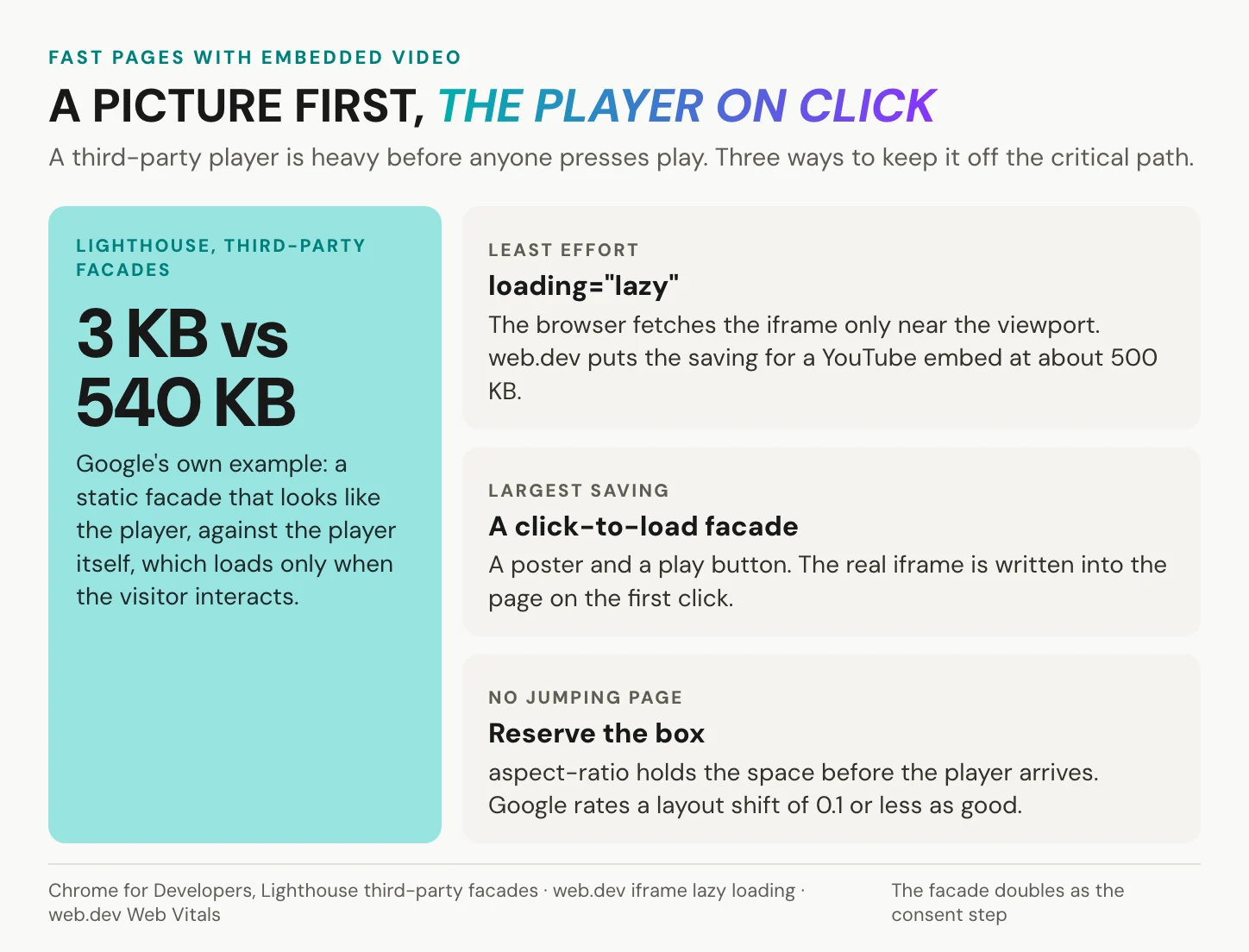
A facade goes further: a static image that looks like the player and swaps itself for the real iframe on click. In Google’s Lighthouse documentation of 2020, the example facade weighs 3 KB against 540 KB for the player it stands in for. Lighthouse 13 retired that audit, but the page still names lite-youtube-embed and lite-vimeo-embed as ready-made facades.
A lazy iframe still loads the player. A facade loads a picture.
You can also write one yourself in a dozen lines:
<p class="video-note">Playing this video loads the YouTube player,
which may store data in your browser.</p>
<button class="video-facade" type="button"
        data-src="https://www.youtube-nocookie.com/embed/VIDEO_ID?autoplay=1"
        data-title="Product tour: set up your first project">
  <img src="/media/product-tour.jpg" alt="" width="1280" height="720" loading="lazy">
  <span class="visually-hidden">Play video: Product tour</span>
</button>

<script>
  document.querySelectorAll('.video-facade').forEach(function (button) {
    button.addEventListener('click', function () {
      var frame = document.createElement('iframe');
      frame.src = button.dataset.src;
      frame.title = button.dataset.title;
      frame.allow = 'autoplay; fullscreen; picture-in-picture';
      frame.referrerPolicy = 'strict-origin-when-cross-origin';
      frame.className = 'video-embed';
      button.replaceWith(frame);
    });
  });
</script>
The autoplay=1 in the URL is fine here, because the visitor has just clicked, and allow="autoplay" lets the new iframe use that click. .visually-hidden is your usual screen-reader-only class. Host the poster image yourself: a thumbnail pulled from the video host is itself a third-party request.
Keep the page from jumping
Google’s Core Web Vitals set “good” at LCP 2.5 seconds, INP 200 milliseconds and CLS 0.1, measured at the 75th percentile of page loads. INP replaced FID on 2024-03-12. A late player hurts the last one most: it pushes the text down, and the reader loses the line. Reserve the box with aspect-ratio or with width and height, and the layout stays still when the player lands. The same goes for a facade, so give its image width and height, as in the snippet above.
One exception to lazy loading is a video at the very top of the page. Its poster may be the largest element in the first screen, the one LCP measures, so load that image normally and lazy-load only what sits further down. PageSpeed Insights shows your page’s field data at the same 75th percentile Google uses, which tells you whether the change reached real visitors.
In short: loading="lazy" for every embed below the fold, a facade for the heavy ones, a reserved box for all of them.
Why autoplay stays silent
Autoplay rules frustrate site owners, and they also protect every visitor. When Chrome 66 introduced its policy in April 2018, Google said it blocked roughly half of unwanted media autoplays. That is Google’s own count, with no published denominator.
Chrome’s documentation puts the rule plainly: “muted autoplay is always allowed”. Sound needs a click, tap or key press on the site first, or a high Media Engagement Index built from past visits. Firefox has blocked audible autoplay by default since version 66, released on 2019-03-19. Safari on iOS has allowed muted autoplay since iOS 10 in 2016. On an iPhone it needs playsinline to stay in the page, and it pauses a video that scrolls out of view.
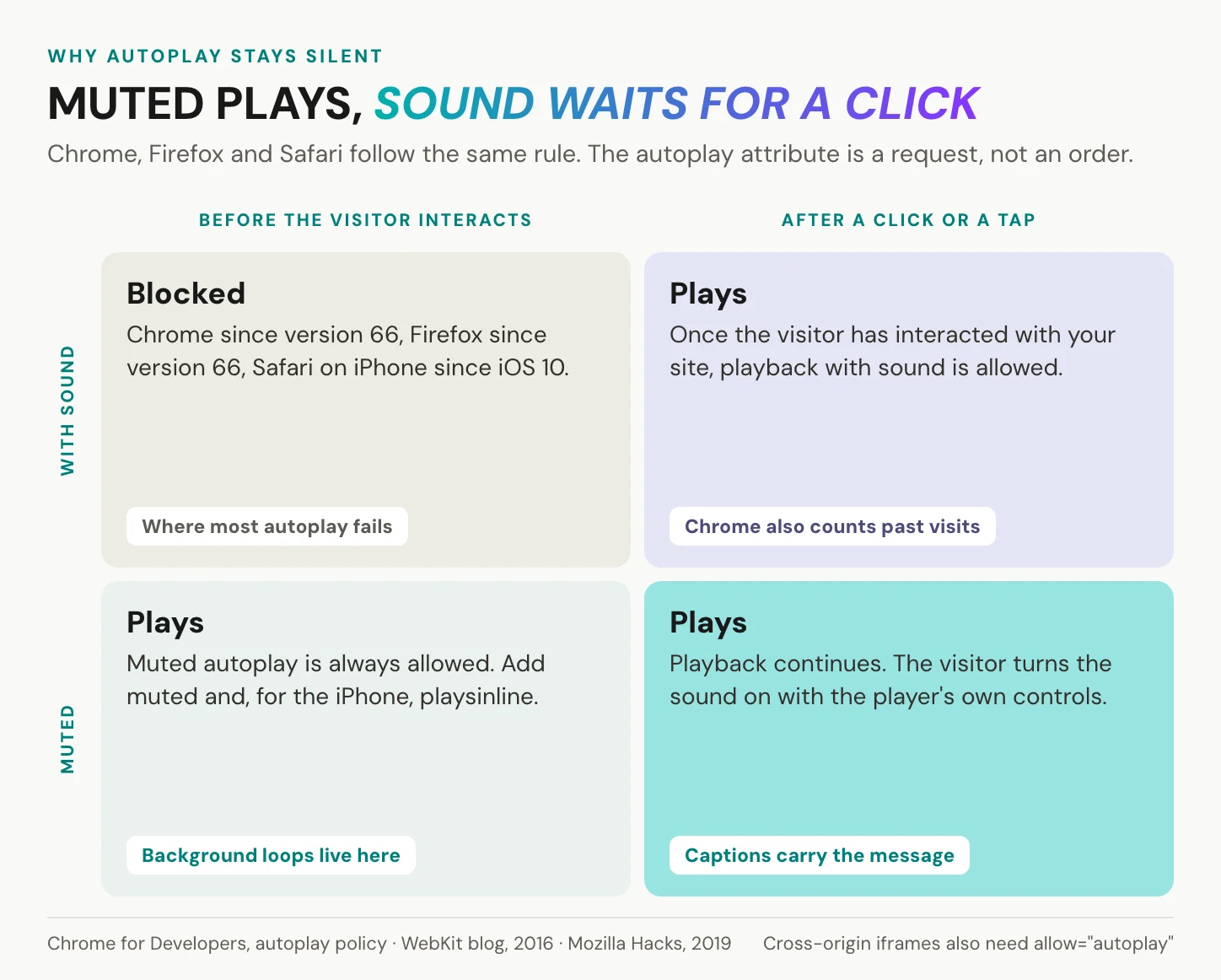
Inside an iframe there is one more condition: a cross-origin frame needs allow="autoplay", or the browser ignores the autoplay attribute. In the Web Almanac 2024, 23 percent of mobile <video> elements carried autoplay but only 8 percent carried muted. That suggests many autoplay attributes cannot work, though the data does not pair them.
Autoplay with sound is the browser’s decision, not yours. Every player gets muted, ours included.
YouTube adds two consequences. Autoplayed embeds do not count as views, and its developer documentation says that with autoplay on, “playback data collection and sharing will therefore occur upon page load”. Audio that plays by itself for more than three seconds also needs a pause or volume control, under WCAG 2.2 criterion 1.4.2.
In short: muted autoplay plays everywhere, sound waits for the visitor, and an iframe needs allow="autoplay" before either works.
Privacy and consent in the EU
For public marketing video, YouTube’s reach is often worth a consent banner, and transfers to Google are lawful today on an adequacy basis. The question on your page is narrower: what the embed does to the device before anyone agrees. This is not legal advice.
What privacy-enhanced mode does and does not do
Change the domain to www.youtube-nocookie.com, and Google says the view “will not be used to personalize the YouTube browsing experience”. You can see the difference yourself: load a standard youtube.com/embed address with your browser’s developer tools open. In September 2026, its first response already sets cookies such as YSC and VISITOR_INFO1_LIVE, the second for about six months. The nocookie version’s first response sets none.
Google never promises that nothing is stored or sent, though. The web studio Cloud Four reported in 2023, citing Per Axbom, that the nocookie player writes a device identifier to Local Storage on load. That is a practitioner’s observation, not a regulator’s finding.
Privacy-enhanced mode changes what YouTube does with the view. It does not stop the embed from writing to the visitor’s browser.
When an embed needs consent
In Germany, section 25 of the TDDDG, the Telecommunications Digital Services Data Protection Act, sets the rule. Storing information on a visitor’s device, or reading it, needs informed consent, except where it is strictly necessary for a service the visitor asked for. The law began as the TTDSG on 2021-12-01 and was renamed on 2024-05-14.
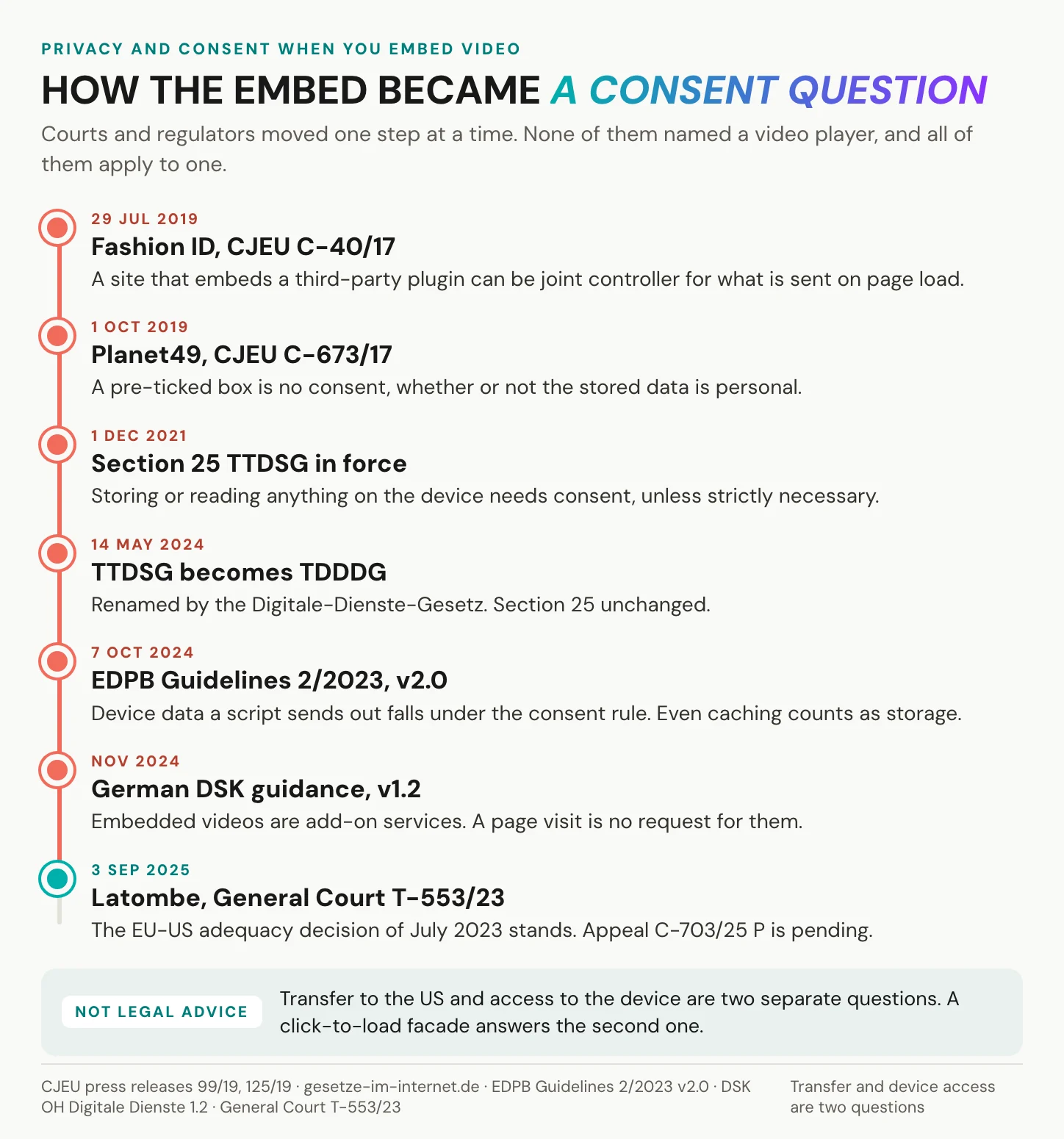
The German data protection authorities applied it to video in their November 2024 guidance on digital services. Embedded videos are an add-on, a page visit alone is no request for them, and Local Storage counts. The EDPB’s Guidelines 2/2023, version 2.0 of 2024-10-07, read the underlying EU rule the same way. Protection applies whether or not the data is personal, and even caching counts as storage. Both are guidance, not rulings.
Under the CJEU’s Fashion ID ruling (C-40/17, 2019), a site that embeds a third-party plugin, there a Like button, can be joint controller for the data sent on page load. Planet49 (C-673/17, 2019) ruled out pre-ticked consent. Transfers are a separate question: the General Court upheld adequacy decision 2023/1795 on 2025-09-03, and appeal C-703/25 P is pending. Browser defaults do not settle anything either: Safari blocks and Firefox partitions third-party cookies, while Chrome keeps them.
The two-click pattern
The facade from the speed section is also the consent step: a poster you host, one sentence naming the provider, and the player only after the click. The alternative is to wire the embed into your consent tool.
Vimeo deserves its due. Its dnt=true parameter blocks session data and analytics, and as of September 2026 its player’s first response sets only Cloudflare’s short-lived bot-management cookie. What its scripts do next is a separate question. The other route is an EU host whose player loads no third-party advertising cookies and trackers, more on ours below. Hosting and contracts are covered in GDPR-compliant video hosting.
In short: privacy-enhanced mode reduces what YouTube personalizes, not what the embed stores. In Germany, and in the EDPB’s reading across the EU, a third-party player needs consent before it touches the device. A click-to-load facade is the simplest way to ask.
When an embedded video will not play
Most broken embeds fail in one of three ways, and the symptom tells you where to look.
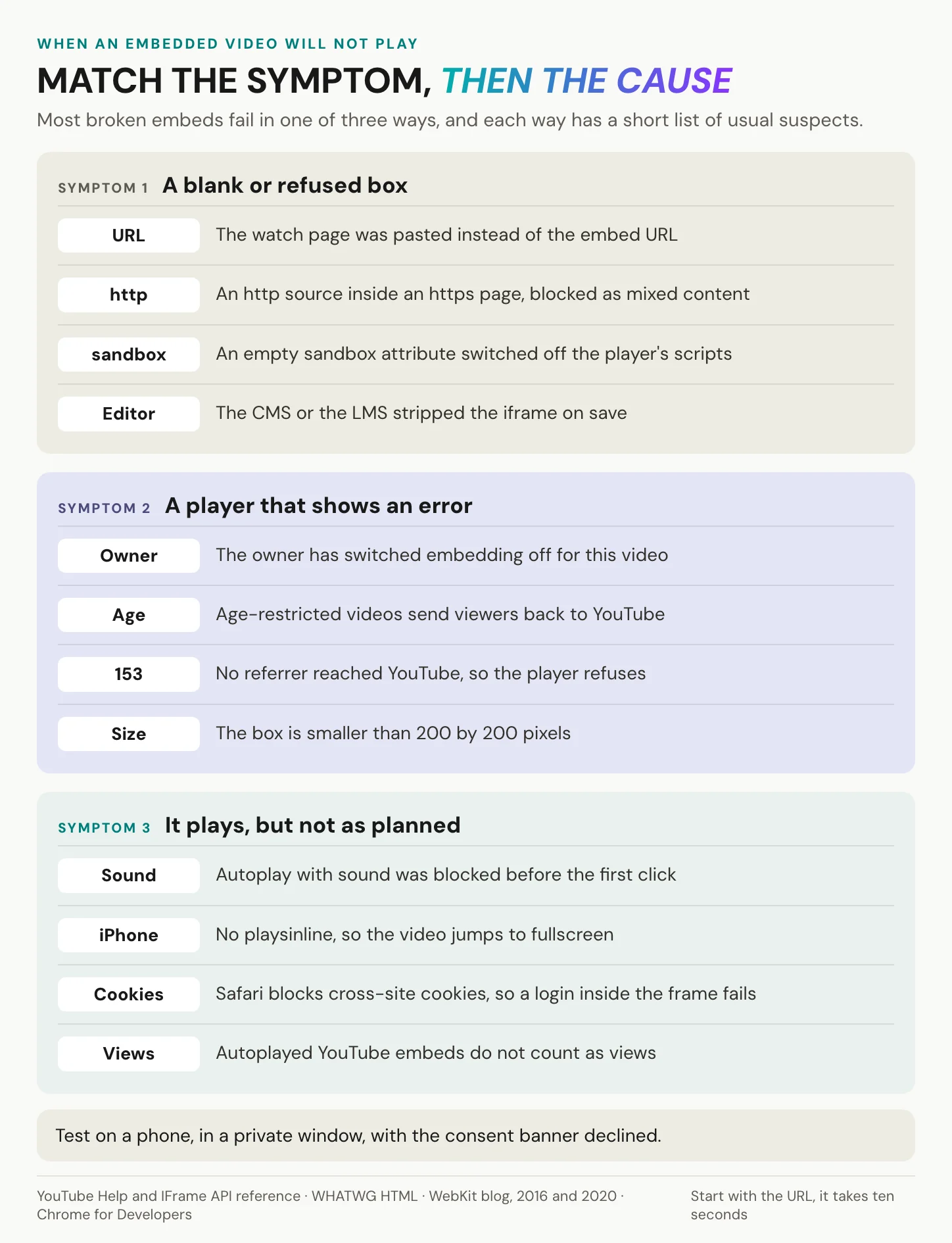
A blank or refused box. The commonest cause is the wrong URL. A YouTube watch?v= address refuses to load in a frame; only the /embed/ address works. The same trap exists on our URLs, where the video page refuses framing and only the embed URL plays. A player loaded over http inside an https page is blocked as mixed content. An empty sandbox attribute kills the player’s scripts. And some CMSs and LMSs strip the iframe on save, so check the published page’s source.
An error inside the player. The owner may have switched embedding off, or the video is age-restricted and sends the viewer back to YouTube. Error 153 means no referrer arrived, so restore the default referrer policy. YouTube also needs a player of at least 200 by 200 pixels and recommends 480 by 270 for 16:9. A tiny box in a sidebar fails.
It plays, but not as planned. Sound is blocked before the first click. Without playsinline, an iPhone jumps to fullscreen. A private video that relies on the host’s login fails in Safari, which blocks cross-site cookies. Autoplayed YouTube embeds do not count as views. And parameters copied from old tutorials may do nothing. Since 2018-09-25, rel=0 limits related videos to the same channel instead of hiding them, and modestbranding has had no effect since 2023-08-15.
In short: check the URL, the referrer and the size first. Then run the same test every time: a phone, a private window, the consent banner declined. Whatever loads before the click is what your visitors get.
One embed code for every language
Everything above works with any host, so here is where we come in, limits first.
What our player does not do
Our player needs JavaScript and supports the last two years of Chrome, Edge, Firefox and Safari, on iOS from version 14, as listed under supported browsers. Your account must be verified before you can embed, the free tier included, as creating and verifying an account explains. Video quality rises with the plan: 720p on our free tier, 1080p on Creator, 1440p on Business and 4K on Enterprise, provided your upload has that resolution. Higher resolutions use more credits. Every embedded play streams from our CDN and draws on your credit balance. At zero, the video drops to the lowest resolution and stays online.
The embed translates nothing: each language is a track someone produces first. An embed is not access control either, because anyone who has the page or the embed URL can play a Public or Not listed project. And completion tracking stays with your LMS, because our player sends no xAPI statements.
One snippet, every language
With an iframe or a <video> tag, each language means another embed, another page, or a hand-built <track> and audio switcher. Our player carries every language behind one embed code. It starts in the visitor’s browser language, read from the Accept-Language header rather than location, and falls back to the default track. Audio and subtitles switch separately, without a page reload.
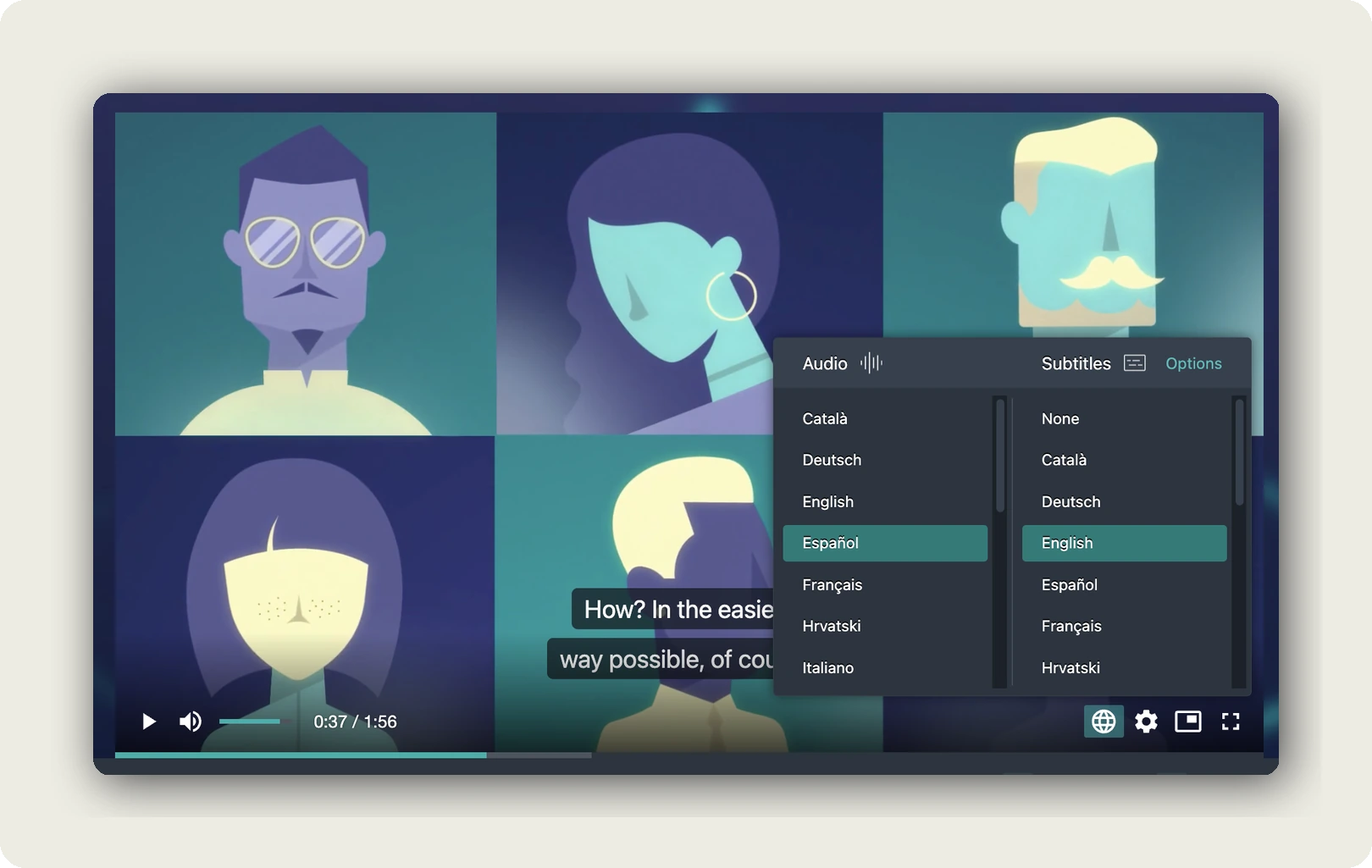
Trimble’s videos appeared on several web pages, and each needed its own subtitle additions. Now it runs “a single video per page with subtitles for multiple languages”, as the Trimble case study describes. Where people watch muted, set SUBTITLES to “Automatic (force)”.
One snippet, every language: our player starts in the visitor’s browser language.
On shared links, lang takes ISO 639-3 codes: ?lang=deu opens German, while ?lang=de silently falls back to the default track. See the automatic language switcher and embedding a multilingual video.
Three switches before the code works
The code lives in the dubbr under Im-/Export, Share Project, EMBED OPTIONS, and three switches decide whether it plays. First, the project is Public or Not listed. Second, “Prevent this video from being embedded” is off, because “If this toggle is on, your embed code will not work on any website.” Third, the project is published, not only available, as published vs available content explains. The code box rewrites itself as you change language, subtitles and size.
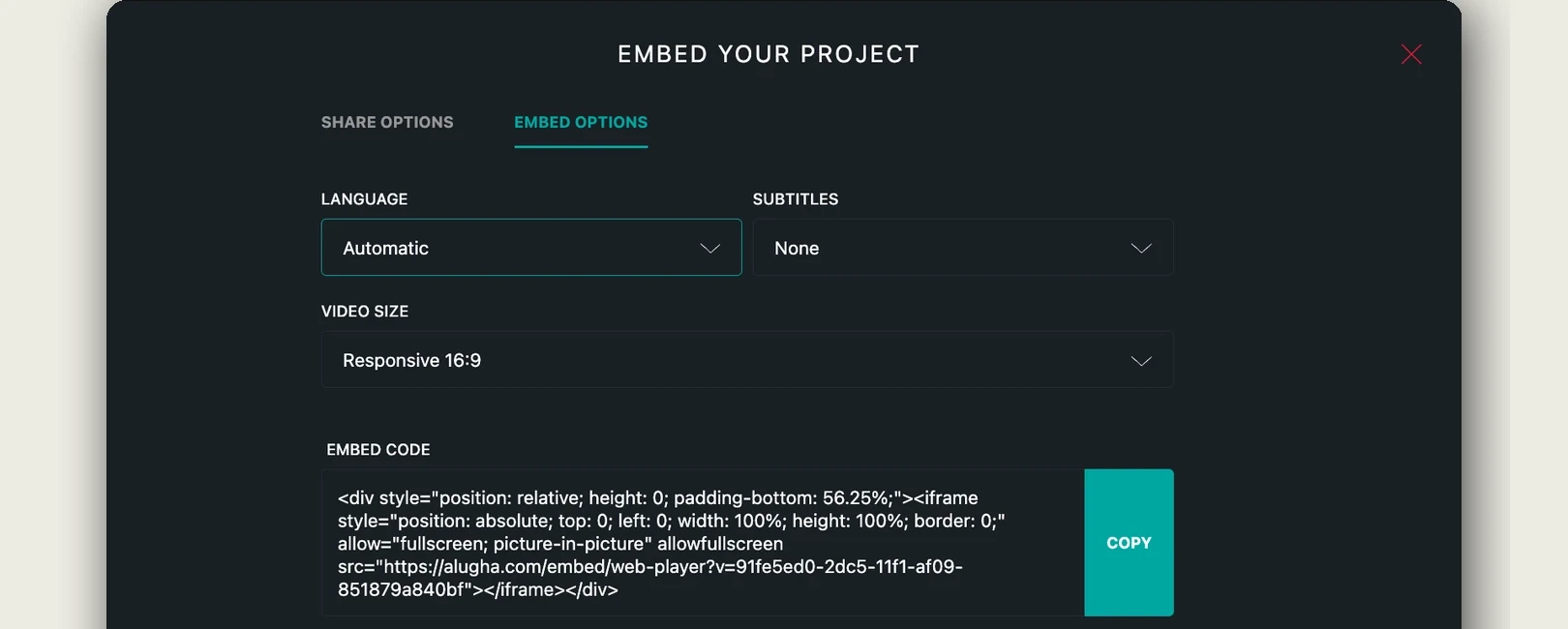
https://alugha.com/videos/<project-id>              share link, cannot be framed
https://alugha.com/embed/web-player?v=<project-id>  embed URL, goes into the iframe
Add title and loading="lazy" to what you copy. Autoplay, loop and start time sit in the same tab, see embed autoplay, loop and start time. Custom player branding sits on a paid tier.
In short: publish the project, leave embedding on, copy the code from EMBED OPTIONS, and use the embed URL, never the video page.
What our embed loads, and when you do not need us
We host in Germany and the EU, and our player loads no third-party advertising cookies and trackers and shows no third-party recommendations. It does count plays with our own analytics, so have your data protection officer check the consent setup, as with any embed. Ask any host for its Art. 28 DPA, us included.
Tourette.de, a health-information site on Contao, moved its own videos off embedded YouTube, and our snippet dropped into existing pages unchanged. Consent-tool wiring was “always a bit of fiddly work, regardless of which provider you use,” says Christian Hempel of Hempel Media in the Tourette.de story. YouTube stayed for third-party videos that only exist there.
That is also when you do not need us: a public, single-language video where YouTube’s reach is the point, or a silent loop you host yourself.
Frequently asked questions about how to embed video
What does it mean to embed a video?
To embed a video means it plays on your page while the file stays with the host that streams it. Instead of uploading the file, you paste a snippet, usually an iframe, that loads the host’s player in a window on your page. A link, by contrast, sends the visitor away to the video.
Is it better to embed or link a video?
Embed when the video supports the page and the reader should stay. Link when the video is the destination or the channel cannot play it, as in email. Wistia’s analysis of its own 100 busiest pages, 2021 to 2022, found about 1.4 times more time on pages with video: one site, correlational.
Where can I embed a video for free?
YouTube costs nothing to host and brings reach, and Vimeo and other hosts offer free tiers with limits. Our free tier lets you embed too, after account verification, at up to 720p. With free third-party players, the price is often the consent banner and the recommendations at the end. The best YouTube alternatives compares the options.
Can I legally embed a YouTube video on my website?
Usually, yes. The owner decides with “Allow embedding”. Under copyright, the CJEU held in BestWater (C-348/13, 2014) that framing content freely available with the rightholder’s consent reaches no new public, so it needs no fresh permission. In VG Bild-Kunst (C-392/19, 2021), it added that framing which circumvents anti-framing measures needs the rightholder’s consent. Consent for device access is a separate question. Not legal advice.
Does an embedded video slow down my website?
It can. A third-party player loads its own scripts when the page loads, and in Google’s 2020 Lighthouse example the player weighs 540 KB against 3 KB for a facade. Add loading="lazy" to keep it off the initial load, and use a click-to-load facade for heavy players. Reserve the box so layout shift stays within Google’s “good” threshold of 0.1.
Do embedded videos need cookie consent in the EU?
Often, yes. In Germany, section 25 TDDDG requires consent before anything is stored on or read from the device, unless it is strictly necessary. The German authorities’ 2024 guidance treats embedded videos as add-ons, and the EDPB’s 2024 guidelines read the EU rule the same way. A two-click facade is the common answer. Not legal advice.
Does embedding a video help SEO?
The page ranks on its text; the embed serves the reader. Since December 2023, Google’s video mode shows only pages where the video is the main content. A blog post with an embed does not qualify. The “53 times likelier to rank” claim traces to a 2009 Forrester blog post. Its author wrote in 2012 that the findings were almost certainly outdated.
Getting started
Three moves, in this order:
- Take the embed on your busiest page and add
title,loading="lazy"and theaspect-ratiorule. - Open it on a phone, in a private window, with the consent banner declined, and watch what loads before the click.
- If a third-party player loads before consent, swap it for the facade.
The box YouTube hands you is still 560 by 315 pixels, but what you paste can do more. It can scale to any screen, show a picture until someone presses play, ask before it stores anything and carry captions. And if your visitors speak more than one language, it can play all of them from one snippet.
Want one snippet that plays every language? Create a free account, upload one video and copy its embed code. Once your account is verified, it plays on your page, with captions and every language track behind the same snippet.