To embed a video in an email for a mixed audience, add a thumbnail with a play button and link it to the page where the video plays. Include a descriptive text link underneath so the message still works when images are blocked. A short animated GIF can provide a preview, but reliable playback inside the email depends on the recipient’s client and account setup.
That distinction matters when you build the campaign. A video block in an email editor often creates a linked image, while the embed code supplied by a video host is usually intended for a website. Both may be labelled “embed”, but they produce different results. The useful question is what the recipient can see and do after the message arrives.
This guide explains how to choose a method, create the thumbnail or GIF, add it in your email tool and test the result. It also covers the landing page, accessibility and measurement, because a successful video email needs the whole journey to work.
Key takeaways
- Start with a linked thumbnail. It offers broad compatibility and a clear route to the video. A text link preserves that route when the image does not load.
- Use a GIF when the movement helps explain the message. Keep it short and lightweight, and make the first and final frames useful on their own.
- In-email playback is a targeted option. HTML video support varies; eligible Microsoft 365 users also have an internal video-link playback feature.
- Share a hosted link for campaigns. Attachments add download and delivery constraints, while a hosted video can be maintained centrally.
- Check what your email tool actually inserts. Many video blocks generate a thumbnail and link. Test the frame, destination and access permissions.
- Measure clicks and plays with context. Privacy features affect opens, and automated security checks can affect clicks. Neither metric automatically represents a person watching.
- Use your own campaign results to judge the benefit. Published percentage lifts describe particular tests, not a guaranteed return from adding video.
- Key takeaways
- How to embed a video in an email: choose the right method
- Why embedded video behaves differently across email clients
- Method 1: add a linked video thumbnail
- Method 2: use a short animated GIF preview
- When video can play inside an email
- Add a video in Mailchimp, Brevo, HubSpot or another email tool
- Keep the email lightweight and test the delivered message
- Make the video email accessible from thumbnail to playback
- Measure video email clicks and plays with care
- Do videos improve email performance? Read the evidence carefully
- Build a landing page that keeps the email's promise
- Use alugha for the multilingual video behind the email
- Frequently asked questions about embedding video in email
- Your video email checklist before sending
How to embed a video in an email: choose the right method
For a newsletter or campaign sent to different email clients, a linked thumbnail is the practical starting point. Upload the video, choose a recognisable frame, add a play symbol and link the image to the watch page. The recipient sees the invitation in the email and watches the video after clicking. This also keeps the full video file out of the message.
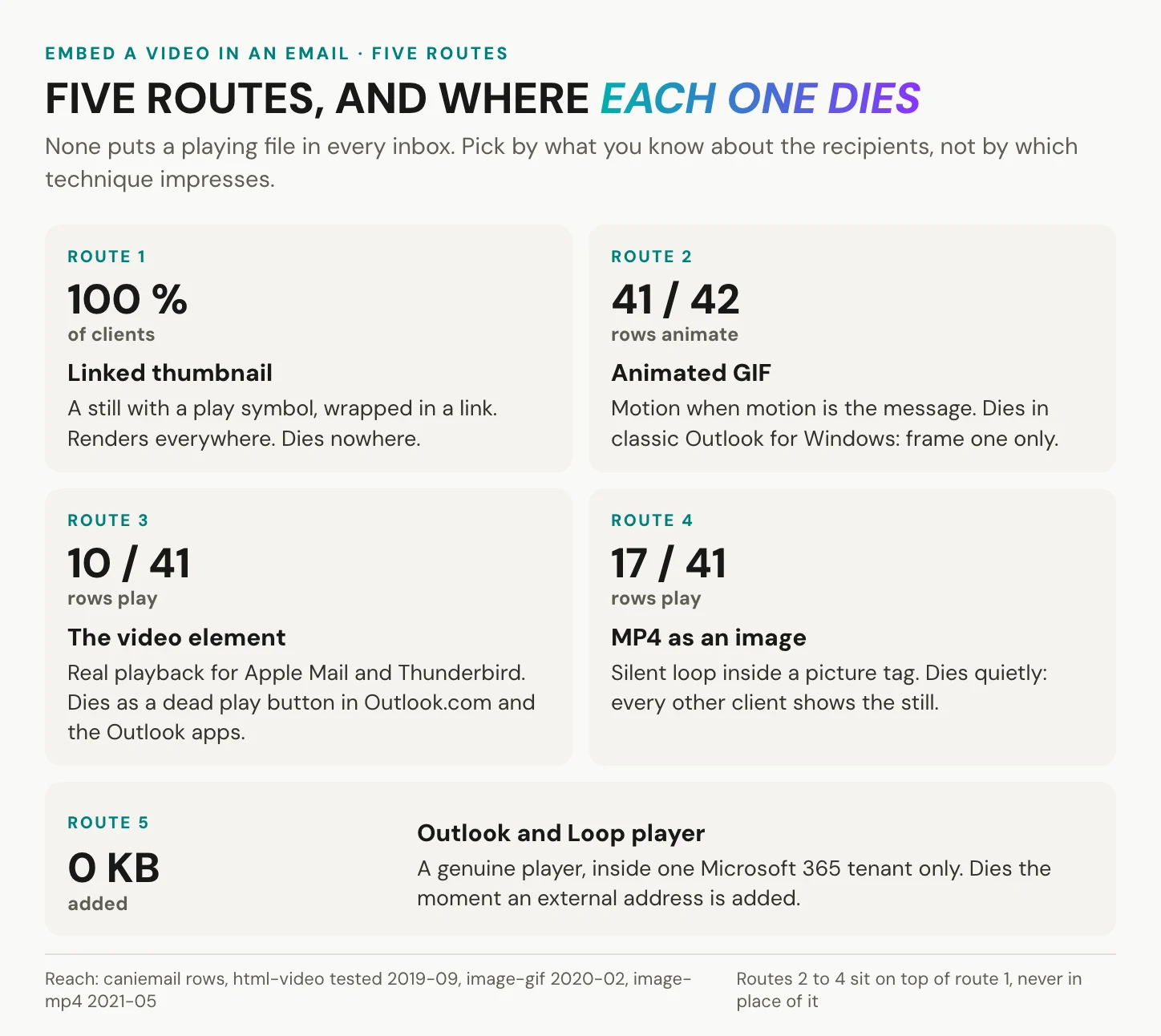
There are five approaches in the illustration. A linked still suits most campaigns; a linked GIF adds a short, silent preview. An HTML video element and an MP4 used as an image source are specialised techniques that require testing with known clients. The fifth option is Microsoft 365’s internal playback feature, where a supported video link becomes a player for eligible recipients. The last three are useful in specific environments, but a compatibility estimate is not a reason to assume they will work across your whole list.
Choose the section that matches how you send:
- Marketer building a campaign inside an ESP: the tool you actually send from.
- Developer hand-coding the message: route 1 onward.
- Salesperson sending one recording to one prospect: Loom, Vidyard and HubSpot.
- Internal comms on Microsoft 365: route 5.
- One-off sender in Gmail, or an automation builder: sending from Gmail.
- EU or DACH sender with a compliance review ahead: what you may measure.
Whichever route you choose, keep the goal clear: a relevant recipient should be able to reach and use the video. The section on published video email statistics explains how to evaluate performance claims before using them in a campaign forecast.
Why embedded video behaves differently across email clients
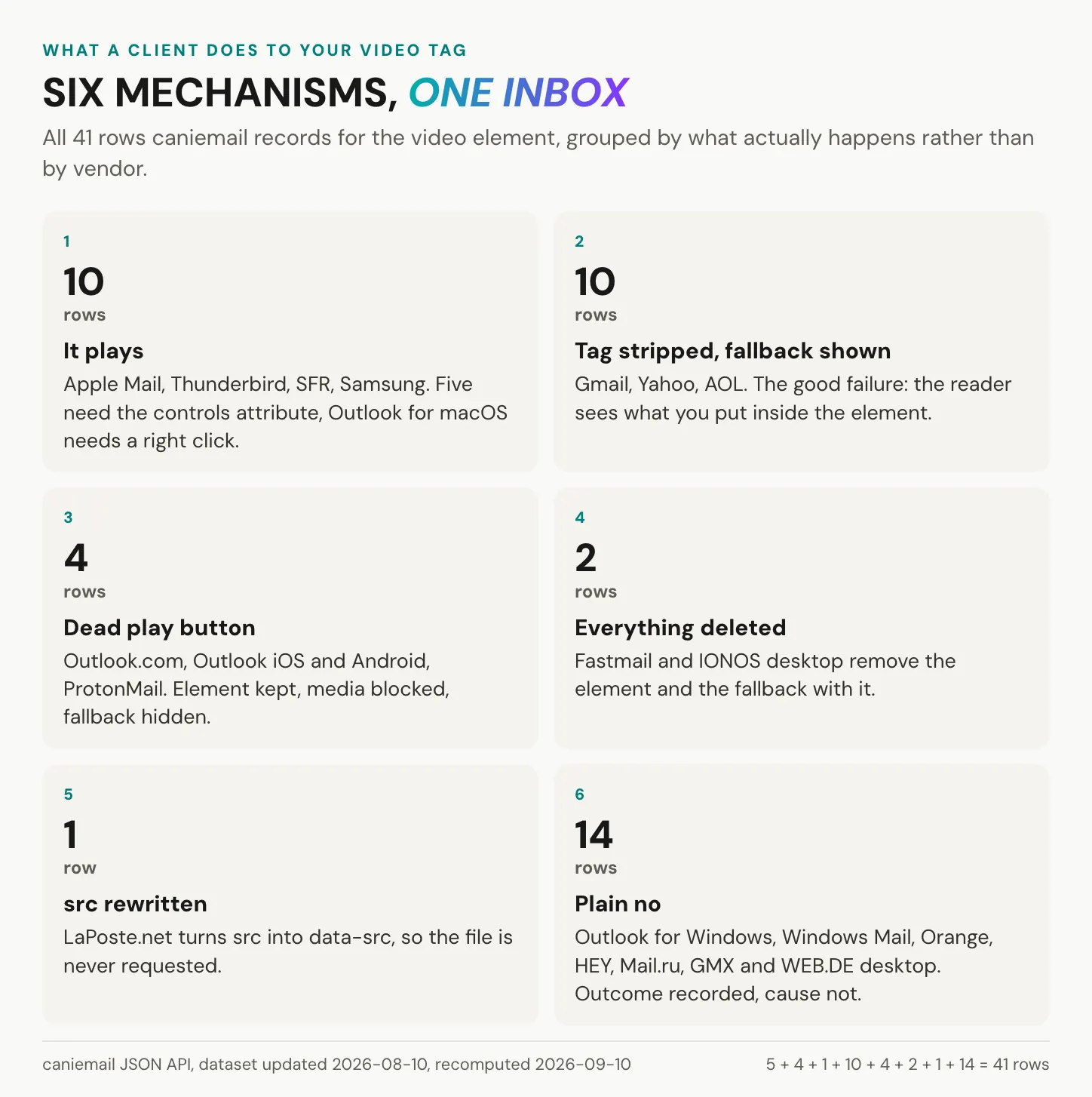
Email clients process HTML more restrictively than web browsers. Ordinary HTML email does not support website-style JavaScript players or iframe embeds reliably, so a YouTube, Vimeo or alugha website embed is not a portable email component. Even the native <video> element behaves differently across clients. Can I email’s video support data records several failure modes, which is why a fallback needs testing rather than just adding to the markup.
Some tested clients play the video, sometimes only when particular controls are present or the user takes an additional action. That is partial support, not the same experience everywhere. A loop that starts automatically in a browser may require a manual start in an email client, while a control available on desktop may be absent on a phone.
Other clients remove or replace the video tags and may display the fallback content inside them. Can I email records Gmail replacing <video>, <source> and <track> tags with <u> elements. That behaviour is useful to know when inspecting a delivered message, but it is not a reason to rely on nested fallback content as your only way to reach the video.
A more confusing result is a visible video area that cannot play. The support notes describe clients that retain the element but block the media through a content security policy. A poster image or apparent player can then survive even though playback does not. Recipients need a separate, working link that does not depend on interacting with that element.
A client can also remove the entire element, including its fallback, or rewrite an attribute so the media file is never requested. These outcomes call for different fixes. The table below turns the compatibility detail into a practical test plan.
| What the client does | What the reader may see | What to test |
|---|---|---|
| Plays the video, fully or with conditions | A working player, sometimes with limited controls | Manual start, controls, audio and the separate watch link |
| Strips or replaces the video tags | Inner fallback content may remain | Whether the image and link survive the delivered markup |
| Keeps the element but blocks the media | A poster or video area without working playback | A direct watch link outside the video element |
| Removes the element and its contents | The player and inner fallback disappear | That the rest of the message still explains and links to the video |
| Rewrites media attributes | The file may never load | The received source and the hosted destination |
| Has no current result for your configuration | An unknown outcome | A test on the actual client, version and account |
The compatibility illustrations use a snapshot compiled on 2026-09-10. Individual client tests have different dates; the video feature page labels its overall test as 2019-09-16. Treat the figures as test coverage, not the percentage of today’s recipients who can watch.
Keep a descriptive watch link outside any experimental video markup. That gives the reader a route to the hosted video even if the player, poster or inner fallback disappears.
Compatibility percentages can answer different questions. A share of tested client configurations is not a market share, and a market share based on tracked opens is not the composition of your list. Full and partial support are also different outcomes. Before choosing a technique, check the relevant client versions, support notes and test dates, then send a real message to the environments you expect to reach.
This is particularly important for Outlook, which has several desktop, web and mobile versions. Do not infer the behaviour of one from another or assume that an older Apple Mail result settles the current version. If your audience is unknown, build for a useful image and link. Add in-email playback only when the benefit justifies the extra testing and maintenance.
Method 1: add a linked video thumbnail
A linked thumbnail uses an ordinary image inside a hyperlink. It works with the basic components email clients are designed to display, while the full player stays on the destination page. Select a frame that explains why the video is worth watching, add a visible play symbol and give the reader enough surrounding text to understand the invitation.
The image is still subject to image blocking, caching and slow connections. That is why the text link beneath it belongs in the design from the beginning. A static thumbnail is often enough for a product explanation, customer story or training invitation. Add motion when seeing the movement contributes something the still cannot show.
<!-- Body fragment: replace URLs and match the image dimensions to your asset. -->
<!--[if mso]>
<table role="presentation" width="600" align="center" cellpadding="0" cellspacing="0" border="0"><tr><td>
<![endif]-->
<table role="presentation" width="100%" cellpadding="0" cellspacing="0"
       border="0" align="center" style="width:100%;max-width:600px;">
  <tr>
    <td align="center" bgcolor="#111111" style="padding:0;">
      <a href="https://example.com/watch/onboarding"
         style="display:block;text-decoration:none;">
        <img src="https://cdn.example.com/onboarding-thumb@2x.jpg"
             width="600" height="338"
             alt="Watch the two-minute onboarding walkthrough"
             border="0"
             style="display:block;width:100%;max-width:600px;height:auto;
                    background-color:#111111;color:#ffffff;
                    font-family:Arial,sans-serif;font-size:15px;
                    line-height:20px;margin:auto;">
      </a>
    </td>
  </tr>
  <tr>
    <td align="center" bgcolor="#111111" style="padding:12px 24px 20px;">
      <a href="https://example.com/watch/onboarding"
         style="font-family:Arial,sans-serif;font-size:16px;line-height:22px;
                color:#ffffff;text-decoration:underline;">
        Watch the two-minute onboarding walkthrough
      </a>
    </td>
  </tr>
</table>
<!--[if mso]></td></tr></table><![endif]-->
The example uses a fluid table capped at 600 pixels, with a conditional fixed-width wrapper for older Outlook rendering. The image’s HTML dimensions describe its display size; width:100% and height:auto let it scale on smaller screens in supporting clients. role="presentation" identifies the tables as layout, and display:block removes the baseline gap beneath the image. Replace the sample URLs, description and dimensions with your own before testing.
For a 600-pixel display slot, a 1200-pixel-wide source can improve sharpness on high-density screens. Compress it and compare the result with a smaller export rather than assuming that twice the width is always worthwhile. Photographic thumbnails often suit JPEG; flat graphics may suit PNG. Choose the smaller file that preserves the details readers need.
The play symbol can be part of the exported image. That avoids trying to position a separate control with email CSS, and the whole thumbnail becomes the clickable target. It also keeps the symbol aligned when the image scales.
Create the thumbnail and play button
# 1. The play button once, as a transparent PNG at 2x.
#    176 px = 88 CSS px on a 600 px thumbnail, about 15 percent of its width.
python3 - <<'PY'
from PIL import Image, ImageDraw
SS, D = 4, 176
img = Image.new('RGBA', (D*SS, D*SS), (0, 0, 0, 0))
d = ImageDraw.Draw(img)
d.ellipse([0, 0, D*SS-1, D*SS-1], fill=(0, 0, 0, 178))          # 70 percent black scrim
cx, cy = D*SS/2 + D*SS*0.06, D*SS/2                              # nudged right, optical centre
h = D*SS*0.42; w = h*0.866
d.polygon([(cx-w/2, cy-h/2), (cx-w/2, cy+h/2), (cx+w/2, cy)], fill=(255, 255, 255, 255))
img.resize((D, D), Image.LANCZOS).save('play.png')
PY
# 2. Pull the still at 2x and composite the button onto it.
ffmpeg -y -ss 00:00:08 -i demo.mp4 -i play.png -filter_complex \
  "[0:v]scale=1200:-2:flags=lanczos[bg];[bg][1:v]overlay=(W-w)/2:(H-h)/2,format=yuvj420p[v]" \
  -map "[v]" -frames:v 1 -q:v 5 onboarding-thumb@2x.jpg
This example needs Python with Pillow and FFmpeg. It extracts a frame eight seconds into the source video and places a play symbol in the centre. Choose a frame that represents the actual video, then check the exported dimensions and file size. A target around 100 to 150 KB can be useful for a photographic thumbnail, but treat it as a budget to test, not a requirement every image must meet.
Put the white play symbol on a dark backing so its contrast does not depend entirely on the selected frame. WCAG’s non-text contrast criterion generally calls for 3:1 contrast where a graphical object is required to understand the content. Check the final asset at mobile size as well: the symbol needs to be recognisable after the thumbnail has shrunk, not only in the full-size export.
When images are blocked, the invitation should still be understandable. Use functional alternative text such as alt="Watch the two-minute onboarding walkthrough", and repeat the destination in a visible text link beneath the thumbnail. Avoid relying on styled alt text, because clients display it differently. The surrounding copy should name the subject and explain why the reader would open the video.
Dark mode needs a separate check. Clients can alter surrounding colours, and support for dark-mode CSS is uneven. An opaque thumbnail with the play symbol already composited into it reduces some of that uncertainty, but it does not guarantee a seamless result. Set intentional background and text colours, preserve a visible link, and inspect the delivered email in light and dark mode on a real phone.
Method 2: use a short animated GIF preview
A GIF can show a product turning, a cursor completing a task or a brief moment from the video. It is a silent preview linked to the full recording, not a replacement for that recording. Can I email’s GIF support notes show broad support with version-specific exceptions. Build the first and final frames so either can communicate the message if animation is disabled or stops.
The script below creates a palette from the selected clip, then uses it to encode a 600-pixel-wide GIF at 10 frames per second. It plays once and limits the selected duration to five seconds. You can change the width, colours and dithering after checking the first export.
#!/bin/sh
# make-loop.sh INPUT.mp4 OUTPUT.gif [START] [SECONDS]
# Requires FFmpeg. Produces a single-play preview of up to five seconds.
set -eu
if [ "$#" -lt 2 ]; then
  echo "Usage: $0 INPUT.mp4 OUTPUT.gif [START] [SECONDS]" >&2
  exit 1
fi
input_file="$1"
output_file="$2"
start_time="${3:-0}"
duration="${4:-4}"
if ! awk -v d="$duration" 'BEGIN { exit !(d ~ /^[0-9]+([.][0-9]+)?$/ && d > 0 && d <= 5) }'; then
  echo "SECONDS must be greater than zero and no more than five." >&2
  exit 1
fi
temp_dir=$(mktemp -d)
trap 'rm -f "$temp_dir/palette.png"; rmdir "$temp_dir"' EXIT
trap 'exit 1' HUP INT TERM
filters="fps=10,scale=600:-1:flags=lanczos"
ffmpeg -v warning -y -ss "$start_time" -t "$duration" -i "$input_file" \
  -vf "$filters,palettegen=max_colors=64:stats_mode=diff" \
  -frames:v 1 -update 1 "$temp_dir/palette.png"
ffmpeg -v warning -y -ss "$start_time" -t "$duration" -i "$input_file" \
  -i "$temp_dir/palette.png" \
  -filter_complex "[0:v]$filters[x];[x][1:v]paletteuse=dither=bayer:bayer_scale=3[out]" \
  -map "[out]" -an -loop -1 "$output_file"
# Example: sh make-loop.sh demo.mp4 preview.gif 00:00:12 4
The two passes make palette selection explicit: palettegen creates the colour table and paletteuse applies it. A 64-colour palette is a starting point for reducing file size; gradients or fine detail may need a different setting. FFmpeg’s GIF muxer documentation defines -loop -1 as no looping and -loop 0 as indefinite looping. Here, the single playback is deliberate.
Ten frames per second is a practical starting point for a short email preview. GIF timing uses hundredths of a second, so some frame rates require alternating frame delays. That does not make 15 fps unusable or guarantee visible judder in every client. Judge the actual export: a clear demonstration at a modest frame rate is more useful than a larger animation whose extra frames add little.
Aim for a compact file, often under 1 MB for a small preview, and measure the export. Duration, dimensions, changing pixels, colours and dithering all affect the result. A locked-off shot with one moving object will often compress more efficiently than a camera pan. If the file is too heavy, first choose a simpler moment or shorten the clip, then try fewer pixels or colours.
Repeated motion needs an accessibility decision. WCAG 2.2.2, Pause, Stop, Hide addresses non-essential movement that starts automatically, lasts more than five seconds and appears alongside other content. In those circumstances, users need a way to pause, stop or hide it. A short GIF that plays once avoids an indefinite animation, but you still need to check flashing, legibility and the behaviour of the delivered file.
Keep the message understandable without motion. The text link remains the route to the full video, whether the preview plays, stops or never starts.
Outlook needs version-specific testing. Some older Windows versions display only the first frame of an animated GIF; other Microsoft 365 versions can animate it, subject to settings and playback behaviour. Some variants add their own animation controls. Check both actions separately: can the reader control the preview, and can they follow the link to the video? If either is confusing for your audience, use a static thumbnail.
Microsoft documents animation settings and version differences in its Outlook animated-graphics guidance. Avoid a blanket instruction that all Outlook installations behave the same way. Test the version used by your organisation, including the state with animation disabled.
When video can play inside an email
There are situations where in-email playback is useful, especially in a known internal environment. Treat it as a tested enhancement and keep a direct watch link available. A technique working in your own inbox does not establish what an external recipient will receive.
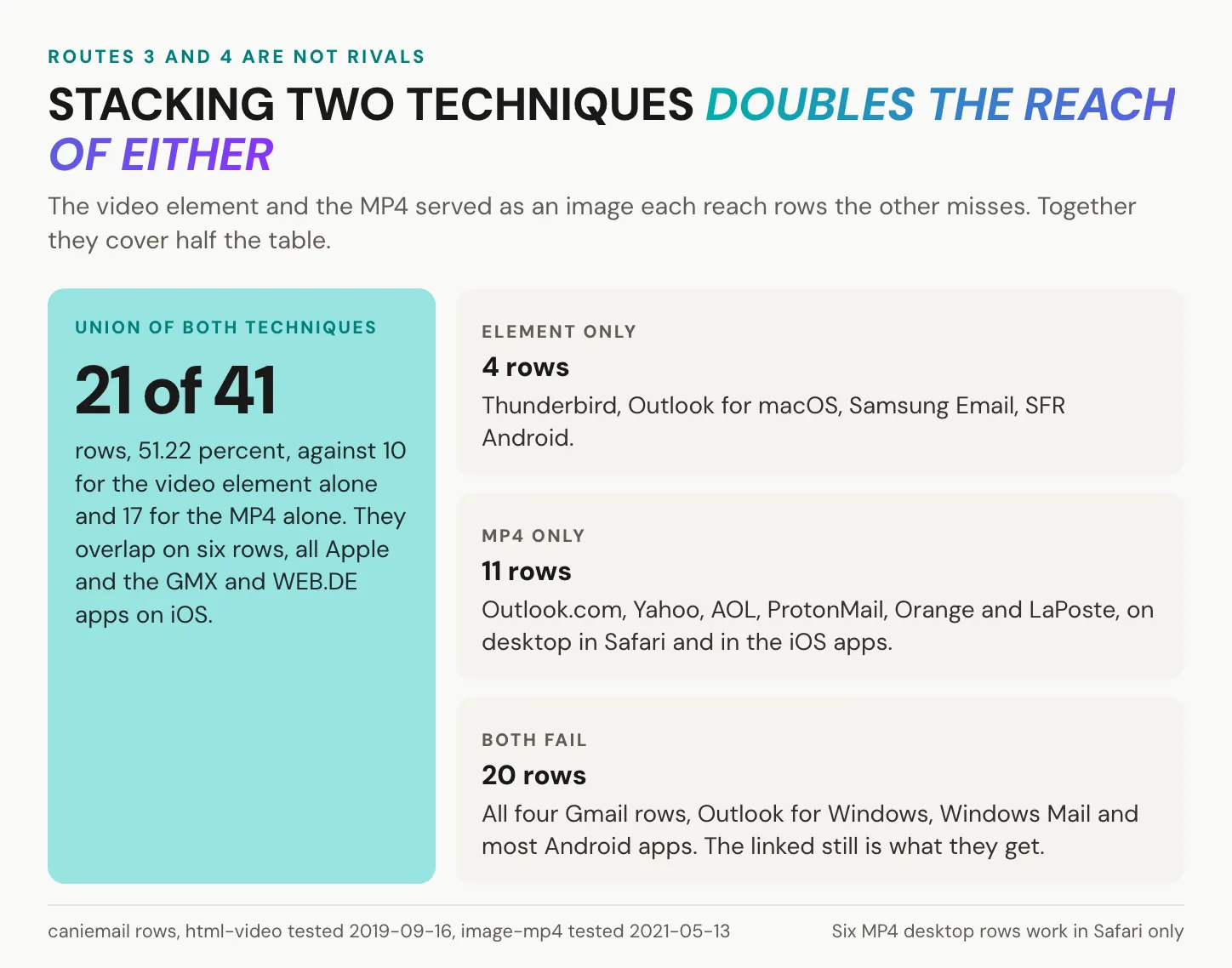
The HTML <video> element and an MP4 used as an image source are different techniques, with different support patterns. Some clients that reject one have historically accepted the other. The overlap shown below comes from the dated compatibility snapshot; it is not a combined market-reach figure. Before using either technique, check the current client, browser and account configuration, including the failure state.
<a href="https://example.com/watch/onboarding">
  <picture>
    <source srcset="https://videos.example.com/onboarding-loop.mp4" type="video/mp4">
    <img src="https://videos.example.com/onboarding-still.jpg" width="600"
         alt="Watch the two minute onboarding walkthrough">
  </picture>
</a>
<p><a href="https://example.com/watch/onboarding">Watch the two minute onboarding walkthrough</a></p>
The example uses <picture> to offer an MP4 source with a still image as the fallback. It is experimental email markup, not a universal fallback guarantee: clients and sending tools can rewrite the wrapper and its children. Use a short, silent clip, retain the separate text link and test the message after it has passed through your email platform. A bare MP4 URL in img src is especially risky where that format is unsupported.
More elaborate HTML-video patterns use client-specific CSS to choose between a player and a fallback. That increases the number of states you must maintain, including what happens when the sender rewrites the HTML. Keep the recipient’s action clear and avoid misleading hidden content. If you cannot test the target clients and the delivered markup, the linked-thumbnail method is the more manageable choice.
Microsoft 365: video links that become embedded players
Microsoft offers a separate, supported route for eligible enterprise users. Its Outlook and Loop video playback documentation explains how a video link can turn into a player inside the message. This relies on the Microsoft 365 environment and file permissions, rather than a general-purpose email embed code.
- Confirm that the sender and intended recipients are eligible enterprise users in the supported Microsoft 365 environment.
- Store the video in OneDrive for work or school, or SharePoint.
- Check that the preview and playback policy is enabled for the users involved.
- Grant the intended recipients access to the source file.
- Check the relevant Outlook version and the current component limits. Microsoft documents a limit of five Loop components per non-mobile email, including video players.
Paste the supported share link into the message and confirm that it becomes a player in your environment. Check the source file’s permissions before sending. Microsoft states that external recipients see a link rather than the embedded player, and that the source file’s access rules remain in effect when a message is forwarded. Moving or unsharing the source can remove access after the email has been sent.
For the linked-thumbnail route, you can also use a hosted multilingual watch page. Create a free alugha account and upload a video to work through that part of the workflow.
Add a video in Mailchimp, Brevo, HubSpot or another email tool
An email service provider (ESP) usually lets you build this without writing HTML. Look for a video block, or use an image block linked to the watch page. The important checks are the supported host, the selected thumbnail and the URL the recipient will actually open.
Mailchimp documents its video block as a linked thumbnail, and Klaviyo describes the same basic approach. The block looks like a player, but a click opens the hosted video. Knowing that helps you focus on the preview image and destination rather than looking for a setting that will force playback across all inboxes.
| Email tool | Practical route | Check before sending |
|---|---|---|
| Mailchimp | Video block for supported hosts, or a linked image | Thumbnail, destination and any automatic video conversion |
| Brevo | Video block or an image linked to the watch page | Supported host, video visibility and preview image |
| HubSpot | Video module or a linked image in the email editor | Available module options, thumbnail and recipient access |
| Klaviyo | Video block with the watch URL | Automatic thumbnails for standard YouTube videos; upload an image for other hosts |
| Campaign Monitor | Video block for supported hosts, or a linked image | Whether the desired host and thumbnail are supported |
| ActiveCampaign | Video block for supported hosts, or a linked image | Use an image block if you need more control over the preview |
| Salesforce Marketing Cloud | Image or HTML content block with a watch link | The final template, responsive layout and generated links |
Add the block, paste the watch URL and inspect the resulting image. Replace the thumbnail where the editor allows it, then verify the delivered link. Some platforms also transform imported HTML: Mailchimp, for example, has an automatic video-conversion option that replaces embedded videos with linked screenshots. If hand-coded markup behaves unexpectedly, check the sending platform as well as the recipient’s client.
Use a native block when it produces the image and link you need. Switch to a linked image or custom markup when:
- Your video host is not supported by the native block.
- You need a specific frame that the block cannot select.
- You want a short GIF instead of the generated still image.
- The editor has no suitable video block.
- You need closer control over the play symbol, alt text or surrounding layout.
Send a personal video with Loom, Vidyard or HubSpot
For a one-to-one sales or support email, the content usually matters more than a complex template. Record a focused message, explain why it is relevant to that recipient and use the video’s email-sharing option. A thumbnail and a short description make the destination clearer than an unexplained URL.
Check the difference between a preview shown by your browser extension and the content that is actually sent. An extension-enhanced compose window does not prove that a recipient without the extension will see the same thing. Where the tool offers a copyable thumbnail or GIF, send it to a test account without the extension and open it on another device. Confirm that the image is linked, the destination is accessible and the preview does not depend on being signed into your account.
Send a video in Gmail or through an automation
In Gmail, you can share a watch link or insert an inline thumbnail and apply a hyperlink to it. Add a descriptive text link underneath and test the received message. For a file in Drive, use Gmail’s Drive-sharing workflow and check recipient access. Google’s attachment guidance states that personal Gmail accounts have a 25 MB attachment limit and that larger attachments are replaced with Drive links; work and school limits can be set by the administrator.
For an automated email, generate the same image-and-link structure in the HTML body. Use a stable HTTPS URL for the thumbnail and a separate URL for the watch page. Avoid assuming that a base64 data URI will render across email clients. Test the final message after the automation has added its template, tracking redirects and other transformations. Image caching can also delay thumbnail changes, so finalise the asset before the send.
Keep the email lightweight and test the delivered message
Treat HTML size, image weight and video size as three different budgets. The remotely hosted video is not included in the email body. The HTML still grows with layout code and tracking, while the thumbnail or GIF has to load when the client requests it. Mailchimp documents Gmail clipping around 102 KB of message content. Use a lower working budget, such as 90 KB, and test the final send. The illustration combines planning targets with provider-specific limits; it is not a set of universal caps.
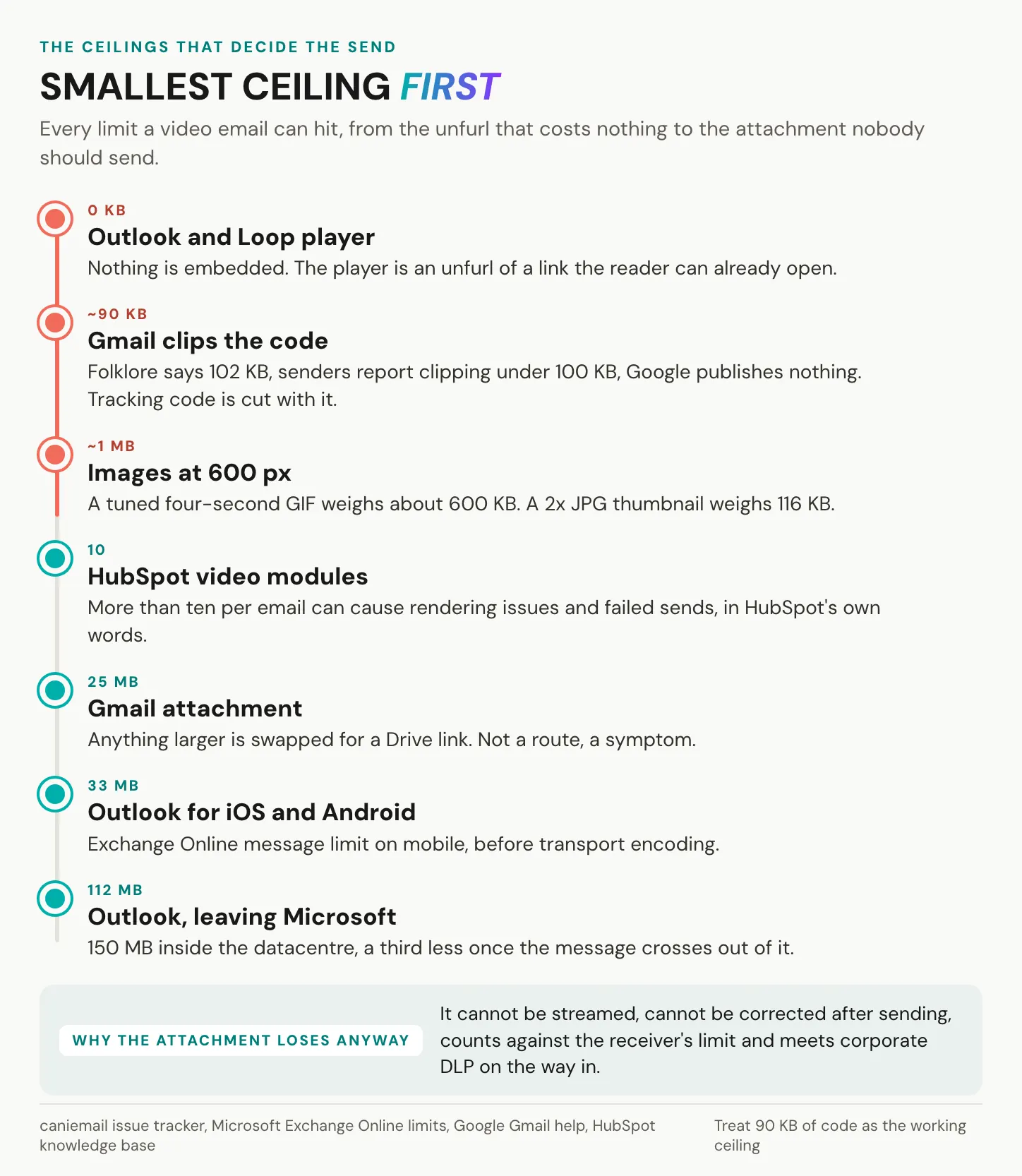
Attaching an MP4 can be appropriate for a small file exchange, but a hosted link is usually easier to manage in a campaign. Attachment limits depend on the sending service, recipient system and administrator settings. MIME encoding can add roughly a third to the binary file size, and a delivered copy cannot be updated centrally. A hosted link avoids carrying the full video in each email, although the host’s upload, storage and access limits still apply.
Deliverability has no universal image-to-text ratio that guarantees inbox placement. Use real, useful body text to explain the video, authenticate the sending domain and follow your provider’s sender requirements. Do not pad the message with invisible text or assume that an image-only design will behave like a well-formed invitation. Check the delivered layout and the final URLs as part of the same review.
Build a small test list around the clients your recipients use. Include Gmail, the relevant Outlook versions and at least one real mobile device. For a German audience, GMX and WEB.DE may also be useful checks. These accounts will not provide exhaustive coverage, but they let you catch common failures before a campaign goes out.
| Test environment | What to check |
|---|---|
| Gmail | Image loading, text link, mobile layout and message clipping |
| Outlook on the web or new Outlook | The delivered preview, animation and link behaviour |
| Classic Outlook for Windows, if used | Layout width, image dimensions and the non-animated state |
| Apple Mail on an iPhone | Small-screen legibility, light mode and dark mode |
| GMX or WEB.DE, if relevant | Differences between webmail and the mobile app |
| Another audience-relevant client | The same image, access and link checks in that environment |
Run the checks below on the delivered email, including a forwarded copy. An editor preview cannot reproduce every client’s sanitisation, image handling or mobile layout.
- Open the delivered message with images enabled and follow both the thumbnail and the text link.
- Disable images and confirm that the invitation and destination still make sense.
- Check the Outlook versions your recipients use, including the first-frame view of any GIF.
- Inspect the message on a real phone in light and dark mode.
- Check keyboard navigation, link purpose and visible focus where the client permits.
- Forward the email and reopen it to check that layout and links still work.
- Open the destination without author privileges and verify video, language, captions and access.
Make the video email accessible from thumbnail to playback
Accessibility starts before the video plays. A reader needs to understand the invitation, identify the link and activate it using their preferred input method. The thumbnail, accompanying text and player form one journey, so assess them together. A working alt attribute cannot compensate for an unclear destination or a player that is difficult to operate.
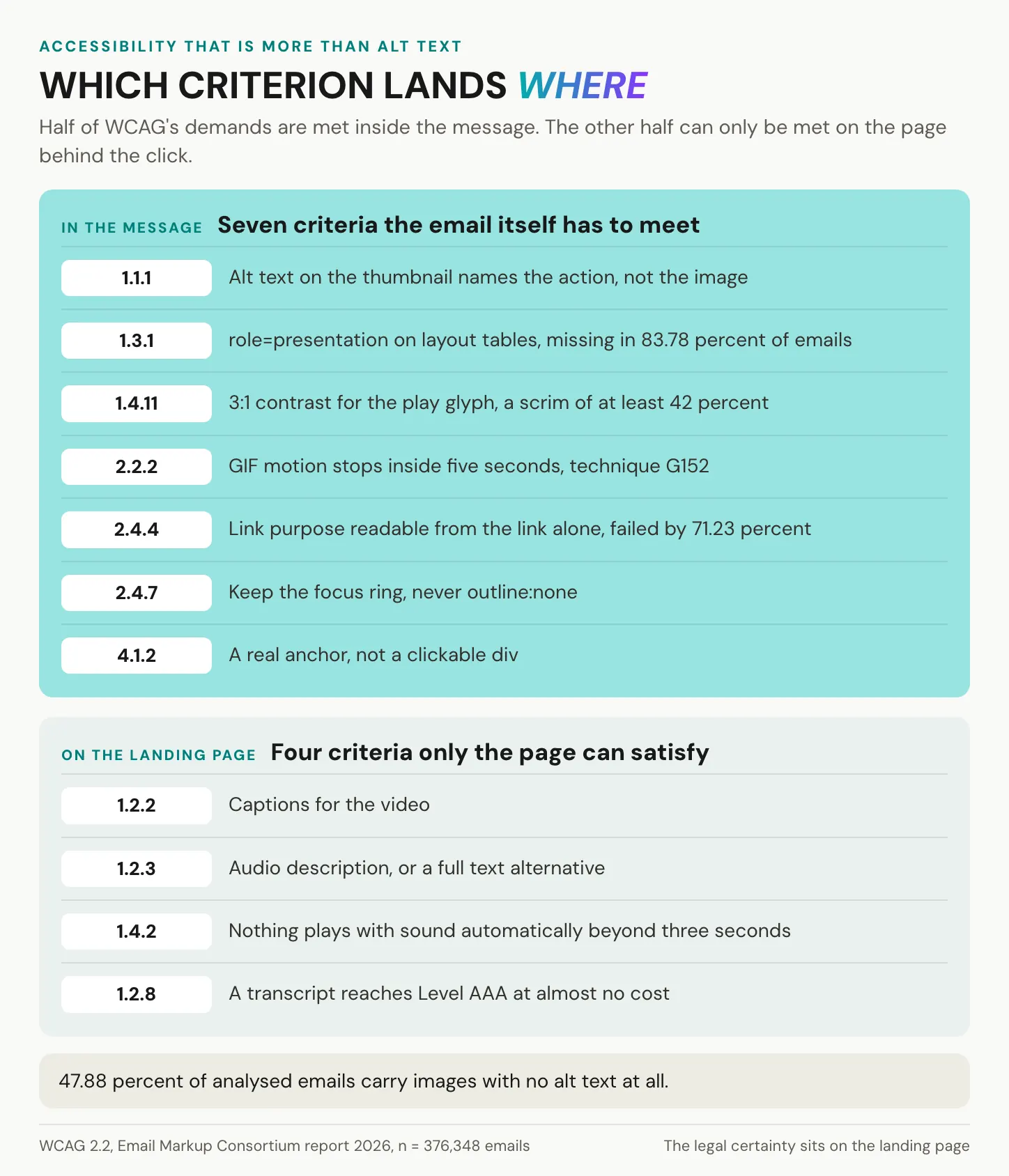
| Requirement | Where to check | Practical implementation |
|---|---|---|
| Meaningful alternatives, WCAG 1.1.1 | Email thumbnail | Alt text describes the link’s purpose; a visible text link also names the destination |
| Information and relationships, WCAG 1.3.1 | Email layout | Mark layout tables as presentational; retain semantic structure for actual data |
| Non-text contrast, WCAG 1.4.11 | Play symbol and controls | Check required graphical elements against adjacent colours; 3:1 where applicable |
| Pause, stop or hide, WCAG 2.2.2 | Animated preview | Provide the required control for qualifying movement, or use a brief single playback |
| Flash thresholds, WCAG 2.3.1 | Preview and video | Avoid flashing; evaluate any remaining flashes against the criterion’s frequency and threshold rules |
| Link purpose, WCAG 2.4.4 | Image and text links | The purpose is clear from the link text or its programmatically determined context |
| Visible focus, WCAG 2.4.7 | Links and player controls | Preserve a visible keyboard focus indicator |
| Captions, WCAG 1.2.2 | Video on the destination page | Provide reviewed captions for prerecorded audio in synchronised media, subject to the criterion’s exception |
| Visual information, WCAG 1.2.3 and 1.2.5 | Video on the destination page | At Level A, an applicable media alternative or audio description; at AA, audio description where required |
| Audio control, WCAG 1.4.2 | Destination page | Avoid unexpected autoplay with sound; provide the required control if automatic audio lasts over three seconds |
Use a real <a> link, descriptive text and meaningful image alternatives. Identify layout tables as presentational, keep keyboard focus visible and set the message language in the template where supported. For a multilingual campaign, the email copy, alternative text and destination should use the intended language consistently. Client support varies, so these attributes need a practical test with the delivered message.
WCAG describes technical accessibility requirements; whether and how they are legally required depends on the organisation, service and applicable law. The European Accessibility Act covers specified products and services, with defined exemptions and transitional provisions. Do not assume that every B2B newsletter is covered, that every microenterprise is exempt from every obligation, or that one WCAG version automatically establishes EAA compliance. Review the applicable national rules and the relevant standards for the service you are providing.
Measure video email clicks and plays with care
Measure the journey in stages: delivery, link interaction, arrival on the watch page and video engagement. Each event answers a different question, and each has limitations. A recorded open may be an automatic image load; a recorded click may be a security check; a play does not establish that someone watched the whole video. Define the outcome you need before setting up the tracking.
Apple’s Mail Privacy Protection documentation explains that remote content can be downloaded in the background regardless of whether the recipient engages with the email. That makes an image-based open an unreliable indicator of reading for protected users. Clicks can offer a stronger signal, but automated security checks can also generate activity. Use the filtering available in your tools and compare email clicks with activity on the destination page rather than treating either count as an exact number of people.
Technical measurability and legal permission are separate questions. EDPB Guidelines 2/2023 address how tracking pixels and tracking links can fall within Article 5(3) of the ePrivacy Directive. They do not make every ordinary hyperlink equivalent to a tracking pixel, and they do not settle every consent exemption. The mechanism, purpose and applicable national rules matter.
A recipient-specific identifier in a link can allow the sender to associate the request with a particular person. Replacing it with a campaign parameter shared by every recipient reduces that direct identification, but it does not automatically make the processing anonymous or exempt. Server logs, IP addresses, cookies and other linked data may still need consideration. Review what your ESP and video host collect, retain and combine.
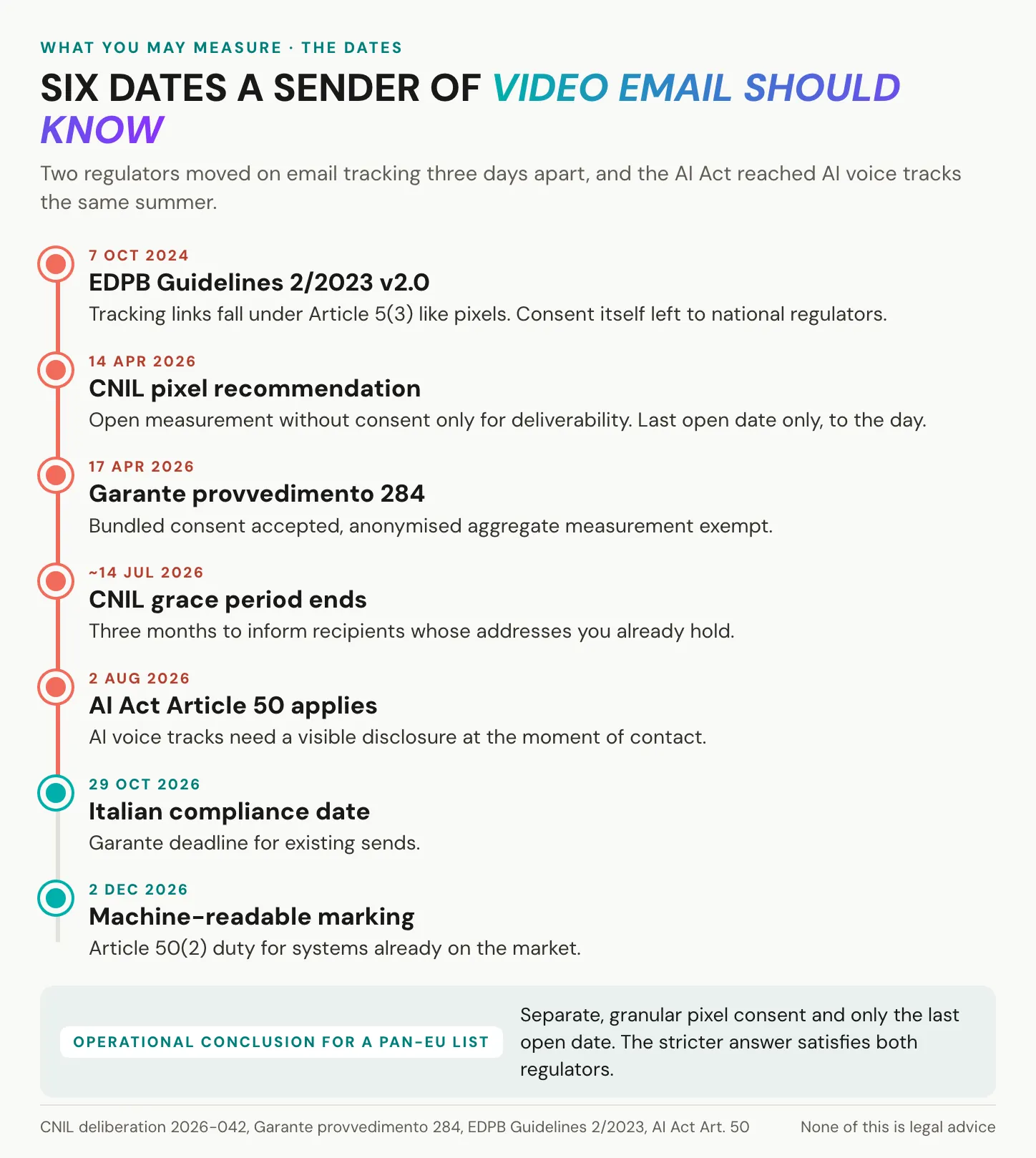
Read the calendar as a summary of separate regimes. The CNIL’s email-pixel guidance distinguishes purposes and consent conditions; its last-open-date limitation concerns a specific exemption, not a universal retention rule for every campaign. Subscribing to a newsletter is not permission for every form of behavioural tracking. The graphic’s statement about AI voices also needs qualification: Article 50 disclosure depends on the applicable obligation and content assessment, as explained below. A single “strictest rule” does not establish compliance across all these regimes.
Collect only the measurements you need, document their purpose and configure retention and access accordingly. If consent is required, obtain it through an informed, affirmative action. A request to a link is not a safe consent event on its own, because automated systems may follow that link. Review the landing page’s analytics separately, even when reporting is aggregated or the hosting is in the EU.
Do videos improve email performance? Read the evidence carefully
A video thumbnail can give people a clearer reason to click, but the size of the effect depends on the audience, offer and creative. Widely repeated figures such as “65 percent more clicks” are not a forecast for your campaign. Before using a percentage in a business case, look for the original experiment, the comparison, the sample and the metric being measured.
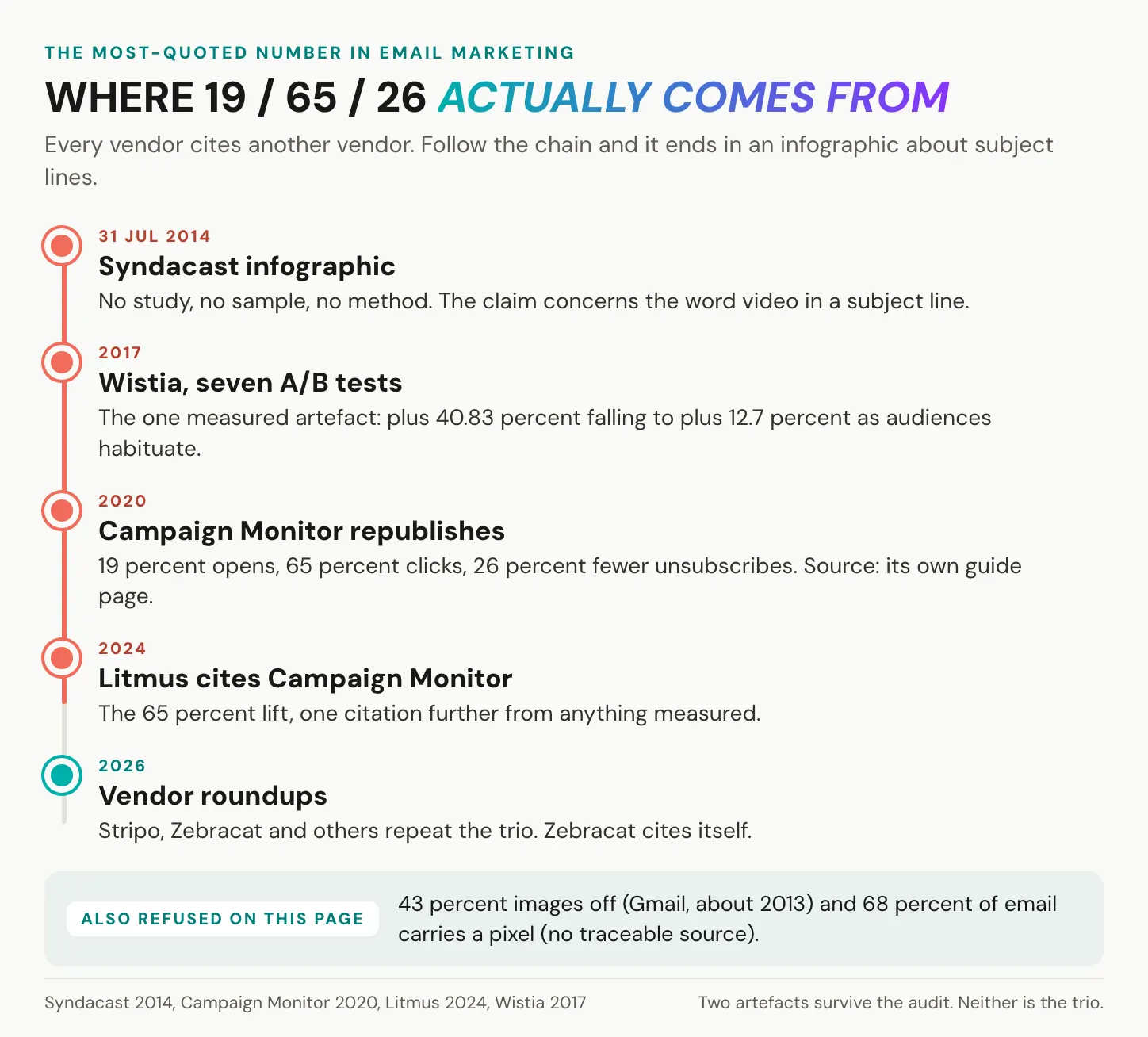
The provenance illustration follows a frequently repeated set of video-email claims back through marketing articles and an infographic. Its practical lesson is to distinguish a claim about the word “video” in a subject line from a test of a video thumbnail or actual playback. Those are different changes. A citation to another article is also different from a published method and result.
| Claim or result | What it can tell you | What it cannot establish |
|---|---|---|
| A percentage lift attributed to a subject line | How a wording change performed, if the test is documented | The effect of adding an embedded player or thumbnail |
| A video-thumbnail A/B test | The effect of that creative treatment in the tested audience | A guaranteed lift for other offers, audiences or future sends |
| A GIF campaign compared with an earlier benchmark | How one campaign differed from its benchmark | That animation alone caused the difference |
| A client-support percentage | The share of tested configurations supporting a feature under the source’s method | The share of your recipients who can use it |
| A testimonial or infographic without a method | A claim worth investigating | A dependable forecast or causal finding |
Client compatibility and campaign performance should stay separate too. A feature working in a share of tested configurations says nothing about how many recipients will click. A high click-through rate says nothing about whether a technique will render in the next recipient’s client. Use each measure for the question it can actually answer.
Wistia’s published thumbnail experiments provide a useful example of testing an image treatment against a comparison. The reported effect varied across sends, which is a reason to run your own controlled test rather than adopt one headline result. Compare two otherwise equivalent emails, randomise the split and choose the outcome in advance. Keep the destination and offer the same, account for automated clicks and repeat the test before assuming the result will persist.
Build a landing page that keeps the email’s promise
The destination should make it obvious that the reader has reached the video they clicked. Use a recognisable title and poster image, explain the running time and keep the player easy to find. This is also where you can provide captions, accessible playback controls, a transcript or description where needed, and the next action promised in the email.
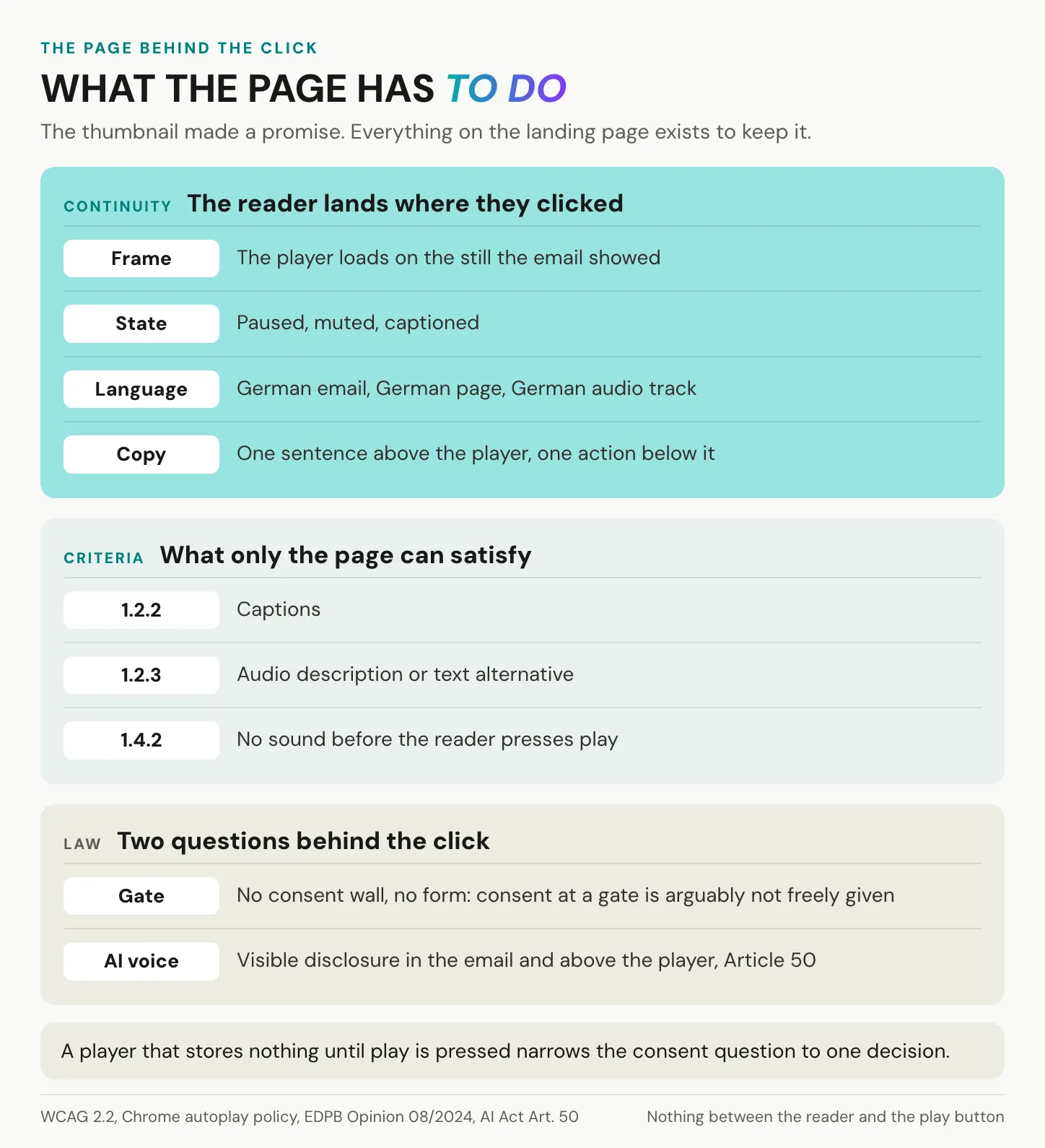
For a predictable experience, let the visitor start playback and control the audio. Avoid relying on autoplay, since browser policy and device settings affect it. Match the page language to the email, make the relevant audio and captions easy to select, and place a concise description above the player. Below it, offer the next step that fits the video: the supporting procedure, product information or booking page.
Remove unnecessary interruptions, but keep access and privacy controls that the content requires. If a video is restricted, say so in the email instead of surprising the reader with an unexplained sign-in screen. If optional tracking requires consent, design the page so refusal is handled appropriately rather than treating arrival as acceptance. Check the complete journey with a recipient account that has no author privileges.
If the video uses synthetic audio or imagery, assess the relevant transparency obligations. The European Commission’s Article 50 guidance distinguishes provider marking from deployer disclosure of qualifying deepfakes. A translated AI voice is not automatically the same legal case in every context. Where disclosure is required, it must be clear and perceivable by the first exposure at the latest. Use an accurate notice near playback, and include it in the email too if synthetic content is already presented there. Adapt the examples below to what was actually generated.
Example for a translated voice track, where accurate:
This video uses an AI-generated German voice track.
The original recording is in English.
Place the notice near playback. If the email itself includes synthetic
audio or imagery that requires disclosure, provide the notice there too.
Use alugha for the multilingual video behind the email
With alugha, the email still uses a thumbnail or another tested email technique. The hosted player belongs on the watch page or website, where playback, language selection and subtitles can work as intended. Choose the hosting setup by what happens after the click: who needs access, which languages they need and how the video will be maintained.
A multilingual project can keep the shared video and its language tracks together. For each language version of a campaign, use the appropriate title, thumbnail and watch link, then confirm which audio and subtitles the recipient will receive. Language-specific links can point to the same video ID, but availability and fallback behaviour depend on the tracks and metadata configured on that project.
The alugha guide to per-language metadata explains the title, description and thumbnail fields. For an automated template, an oEmbed response can supply metadata such as a title and thumbnail URL. The example below requests English and German variants of the same video. Replace VIDEO_ID and inspect the returned fields before using them in a campaign.
# English version of the send
curl -s -G 'https://alugha.com/v1/videos/oembed' \
  --data-urlencode 'format=json' \
  --data-urlencode 'url=https://alugha.com/videos/VIDEO_ID?lang=eng'
# German version: same video id, one code changed
curl -s -G 'https://alugha.com/v1/videos/oembed' \
  --data-urlencode 'format=json' \
  --data-urlencode 'url=https://alugha.com/videos/VIDEO_ID?lang=deu'
The example uses the three-letter language codes eng and deu. Confirm that the requested language and thumbnail exist, and check whether the response falls back to a default. Use the returned image URL in the email and the watch URL as its destination. The oEmbed HTML, if returned, belongs on a compatible web page rather than in an ordinary email body. Image caches also mean that replacing a thumbnail after sending may not update every inbox.
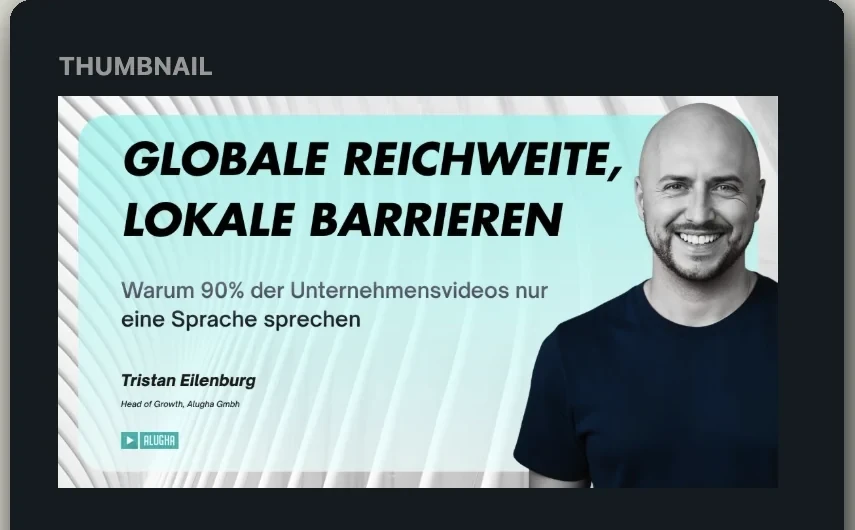
For a multilingual campaign, test the experience separately in every language: the email image, page title, selected audio, captions and next action should agree. Choose any player analytics according to the question you need to answer and the privacy assessment for the campaign. Hosting location, cookie behaviour and reporting features should be reviewed on their own terms; EU hosting alone does not resolve every consent or data-protection obligation.
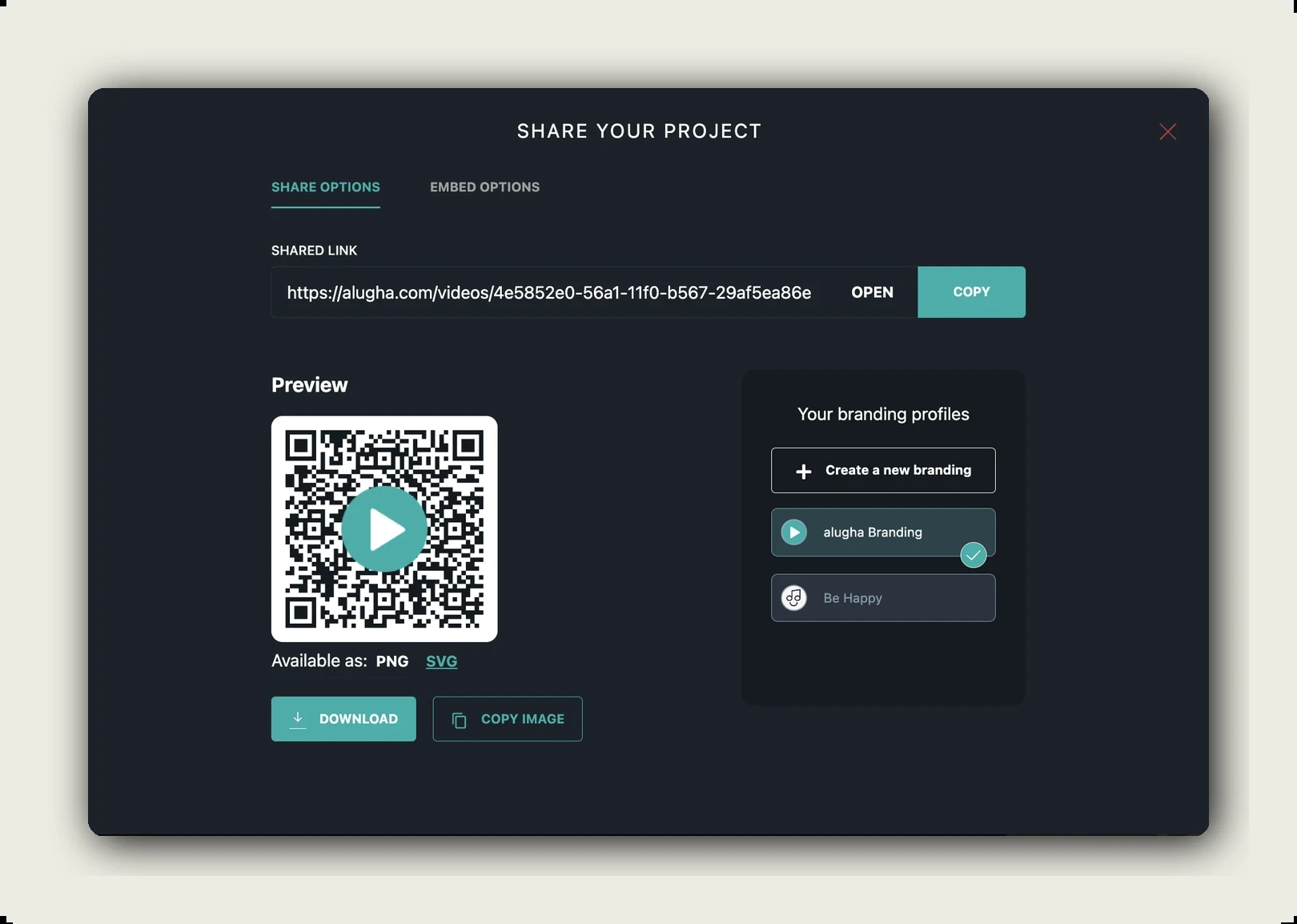
Before sending a link to an alugha project, check these four settings with an ordinary recipient account:
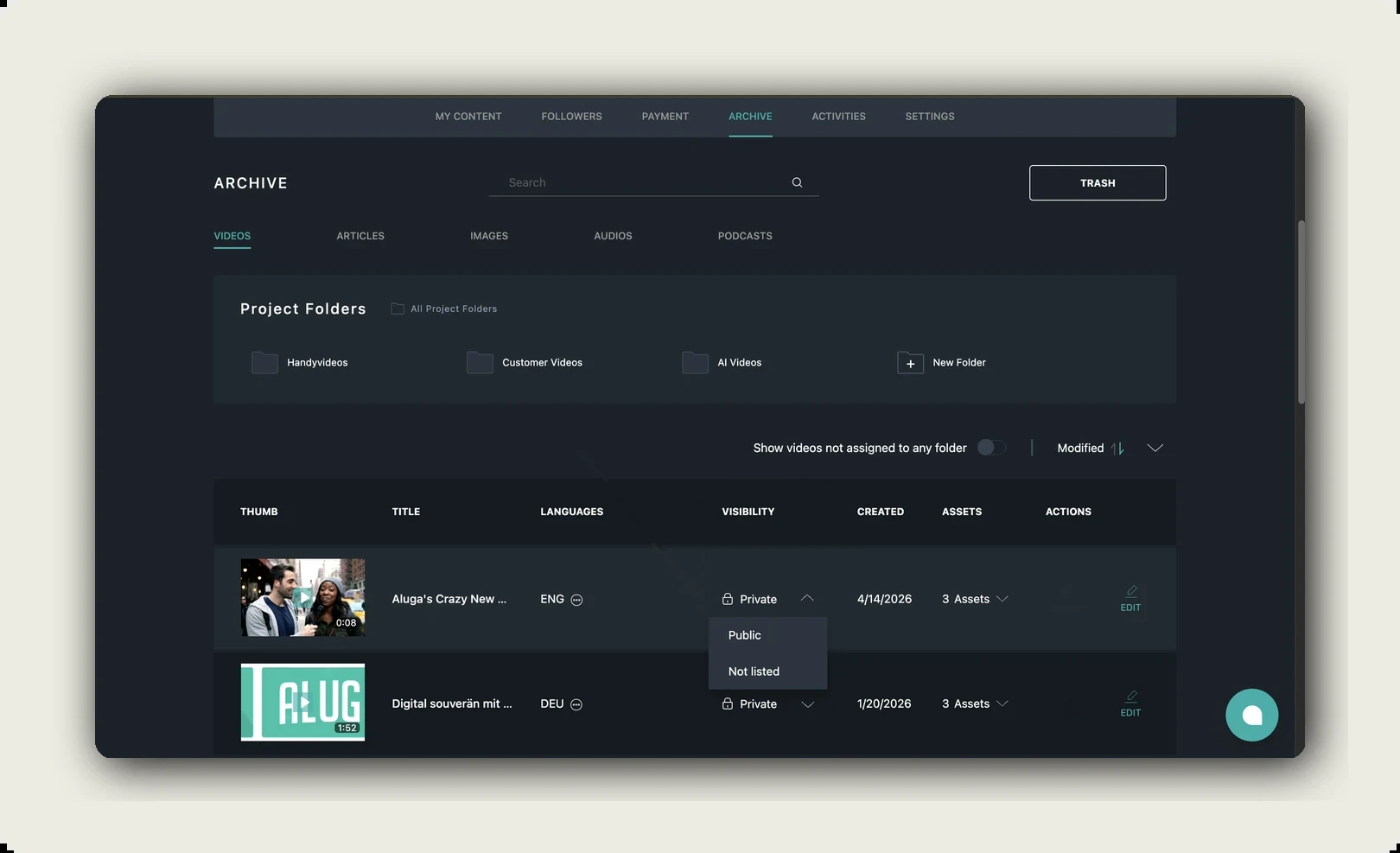
- The visibility and sharing settings allow the intended recipients to open the video. Public or Not listed may suit an open campaign; restricted material needs an appropriate access workflow.
- Every language promised in the email is available for playback.
- The relevant tracks are published rather than merely available in the editor.
- If you embed the player on your own website, embedding is enabled and the destination domain is permitted.
Frequently asked questions about embedding video in email
Can you embed a video directly into an email?
Some clients support in-email video, and eligible Microsoft 365 users have an internal playback option. For a mixed external list, use a thumbnail or short GIF linked to a hosted watch page. Add a separate descriptive text link so the recipient can still reach the video if images or experimental player markup do not work.
How do I embed a video in an email in Gmail?
For a broadly compatible Gmail message, insert an inline image, link it to the video’s watch page and add a descriptive text link beneath it. Alternatively, share the watch URL directly or use Gmail’s Drive button for a file in Drive. Check sharing permissions and test what the recipient receives; a preview shown by an extension in your compose window may not travel with the message.
Why will my video not attach to an email?
The file may exceed your service’s attachment limit, the recipient’s limit or an organisation’s security policy. Personal Gmail accounts have a 25 MB limit; other account types and providers have different rules. File size depends on duration and encoding, so there is no fixed number of video seconds that always fits. A hosted share link is usually easier for a campaign, provided recipients have access.
How do I insert an MP4 in an Outlook email body?
For a general Outlook audience, insert a thumbnail and link it to the hosted MP4 or watch page. For eligible Microsoft 365 enterprise recipients, a supported OneDrive or SharePoint video link can become an embedded player. That feature depends on the environment and policy, and external recipients receive a link instead. Test the exact Outlook versions and recipient permissions involved.
Can you embed a YouTube or Vimeo video in an email?
Use the video’s watch URL in your email platform’s video block, or link an image to that URL yourself. The standard website iframe embed is not reliable in ordinary email. The block normally creates a clickable preview, with the video playing on the destination page. Check supported hosts and thumbnail controls in your current editor.
Does an animated GIF work in Outlook?
It depends on the Outlook version, account and animation settings. Some older versions show only the first frame, while newer Microsoft 365 variants can animate GIFs. Design the first and final frames to stand alone, keep the animation short and retain a text link to the video. Test both the animation controls and the image’s hyperlink in the delivered message.
Is it better to embed a video in an email or just link to it?
For a mixed external audience, a linked thumbnail is usually the most manageable approach. It gives the recipient a clear preview without depending on native video support. In-email playback can be useful in a known, tested environment. Compare performance using your own campaign results, while accounting for automatic opens, automated link checks and the privacy requirements of your tracking setup.
Your video email checklist before sending
Start with one video and one clear reason to watch. Then check the full route from the delivered email to the destination:
- Choose the method for your audience; start with a linked thumbnail if the client mix is unknown.
- Export a representative still or a short, lightweight preview that also works without motion.
- Check the play symbol, mobile legibility and any animation requirements.
- Write functional alt text and include a descriptive text link beneath the image.
- Insert the block and confirm the watch URL and recipient permissions.
- Check the final HTML size and image weight after the sending platform has processed the message.
- Send to a representative test list and check images off, dark mode and forwarding.
- Test the destination page, including playback, captions and language selection.
- Review tracking purposes, configuration and any required consent before the campaign is sent.
The upload, language tracks and player settings are explained in the alugha help centre. If you are planning multilingual audio and subtitles, book a call to work through the setup with one of your videos.
The email gives the reader a reason to watch; the destination delivers the video. Keep the preview relevant, the link dependable and the page consistent with the promise. Once that route works for your audience, test whether a different frame or a short animation improves the result.