Summary
Sign up for a free alugha account, verify your email, and complete the free Paddle verification to unlock public sharing and embedding of multilingual videos.
Prerequisites
Before you begin:
- A valid email address
- A payment method for the free Paddle verification: PayPal, Google Pay, or credit card (Visa, Mastercard, Amex, Diners Club)
Step-by-Step Instructions
1. Sign up on alugha.com
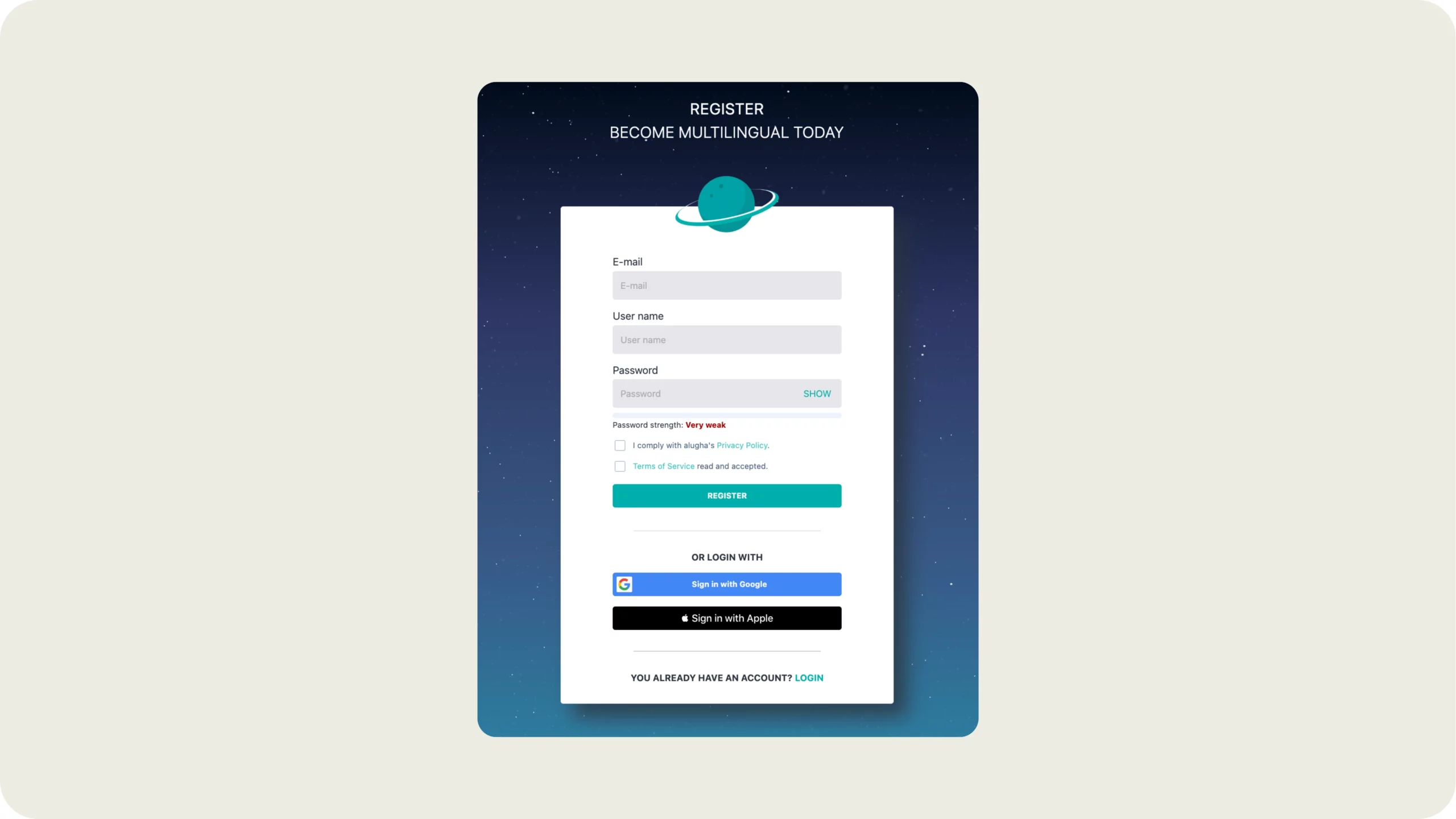
Go to alugha.com and click Sign Up. Enter your email address, choose a username, and create a password. Accept the Privacy Policy and Terms of Service, then click Register.
You can also sign up with Google or Apple for a faster registration.
2. Confirm your email address
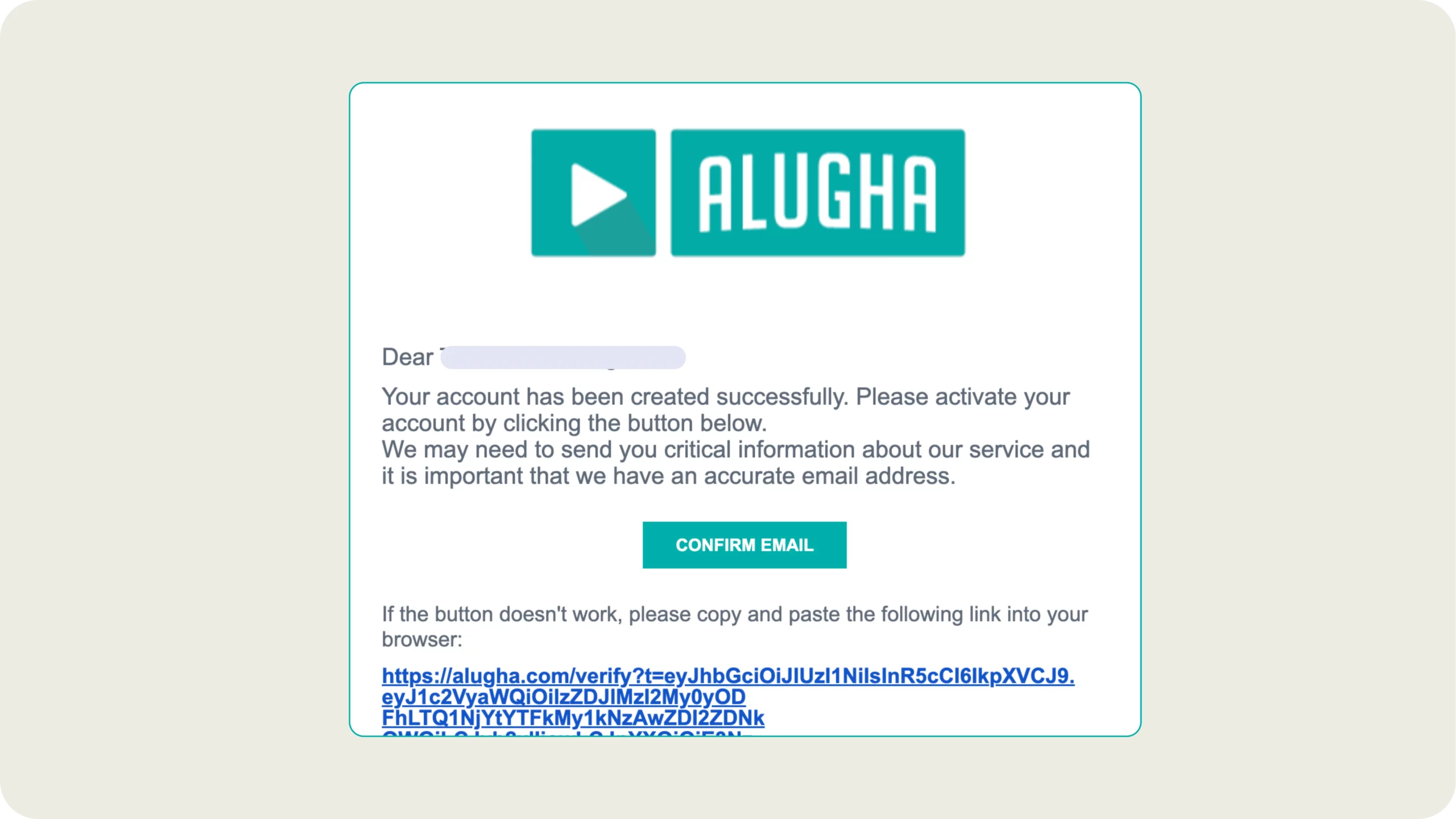
After signing up, alugha displays a confirmation page asking you to verify your email. Check your inbox for an email from alugha and click Confirm Email.
3. Explore the Publisher
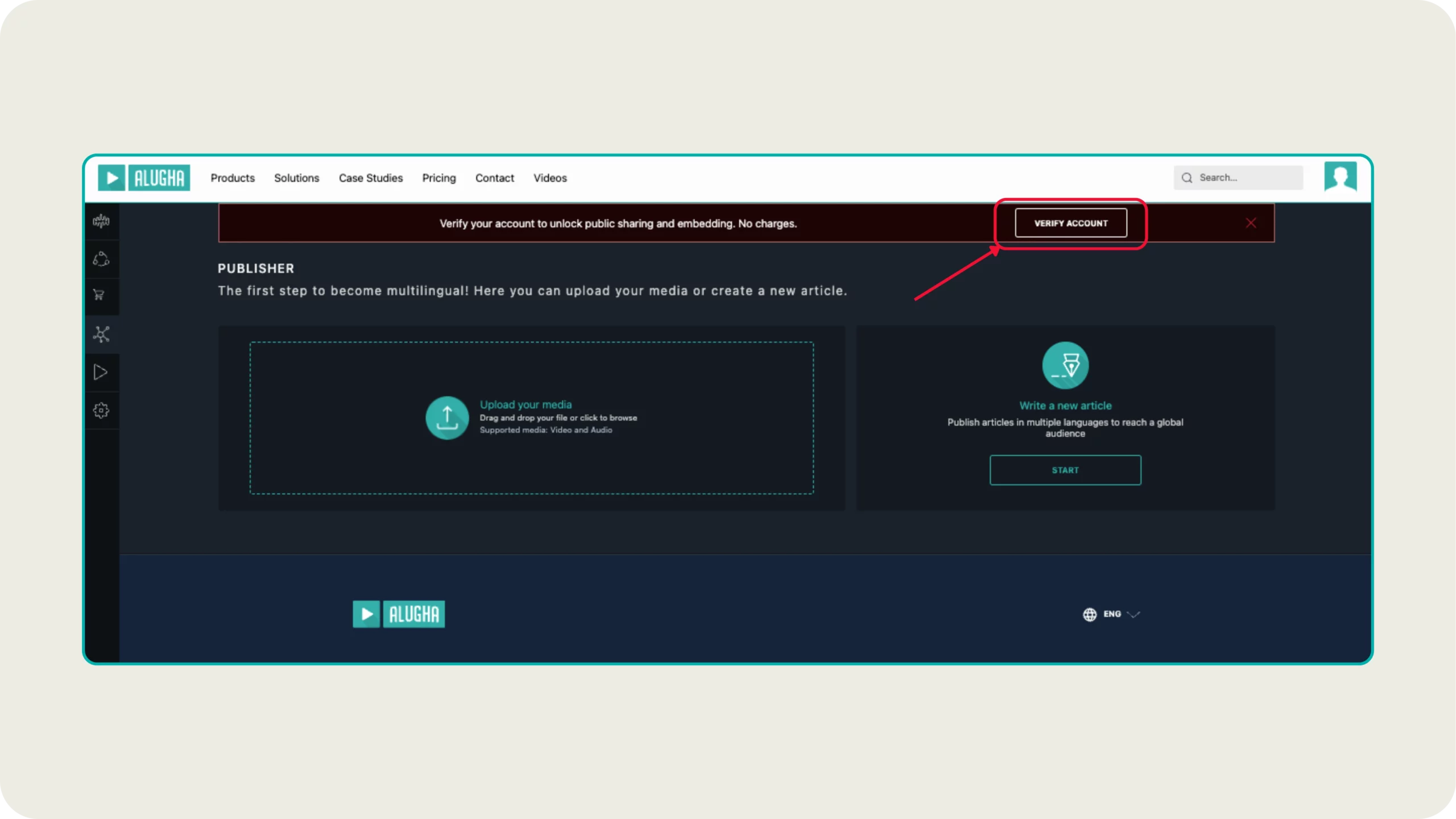
After confirming your email, you land on the Publisher — the starting point for uploading videos and writing articles. You will see a verification banner at the top prompting you to verify your account.
4. Start the account verification
Click Verify Account in the banner at the top. This opens the verification page explaining the process. Click Verify with Paddle to continue.
Verification is completely free – alugha uses Paddle for identity checks and legal compliance only. You will not be charged.
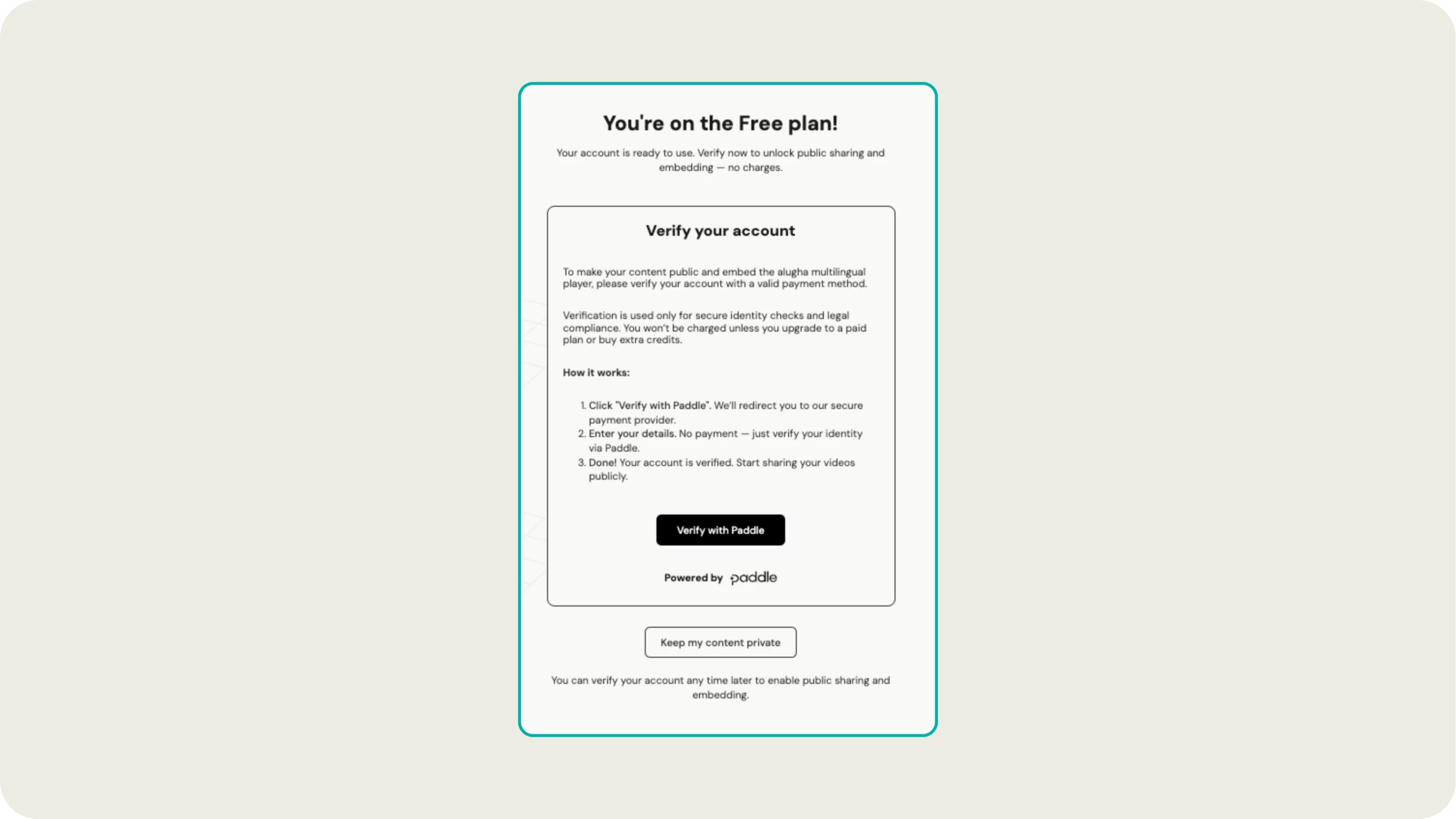
If you prefer to skip verification for now, click Keep my content private. You can verify at any time later.
5. Add your payment method
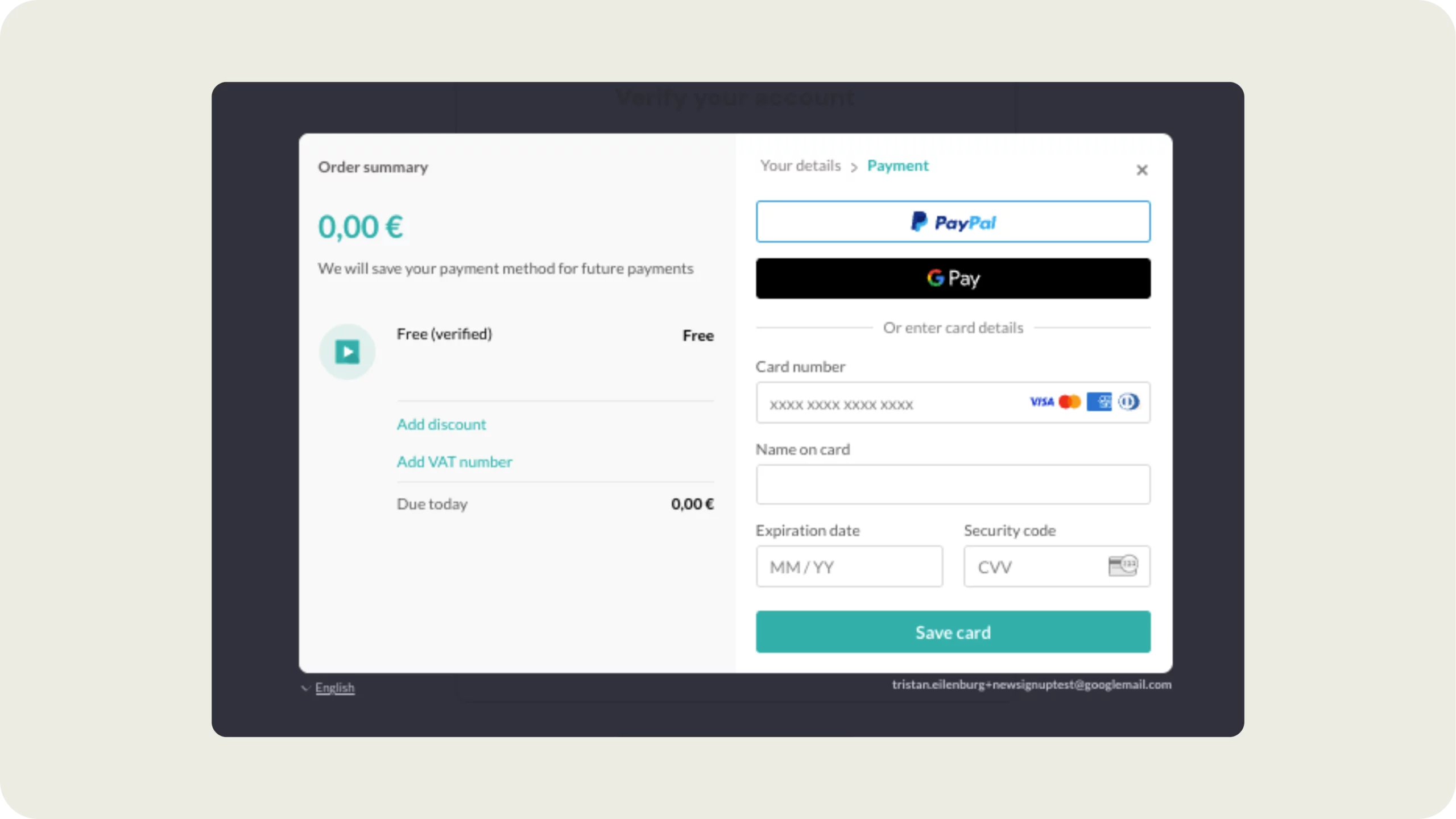
Paddle opens a two-step checkout. First, enter your email, country, and postal code, then click Continue. Next, select your preferred payment method: PayPal, Google Pay, or enter your credit card details. Click Save card to complete.
Important: The order summary shows 0,00 €. Your payment method is securely stored but will not be charged unless you upgrade to a paid plan or buy credits.
6. Start using alugha
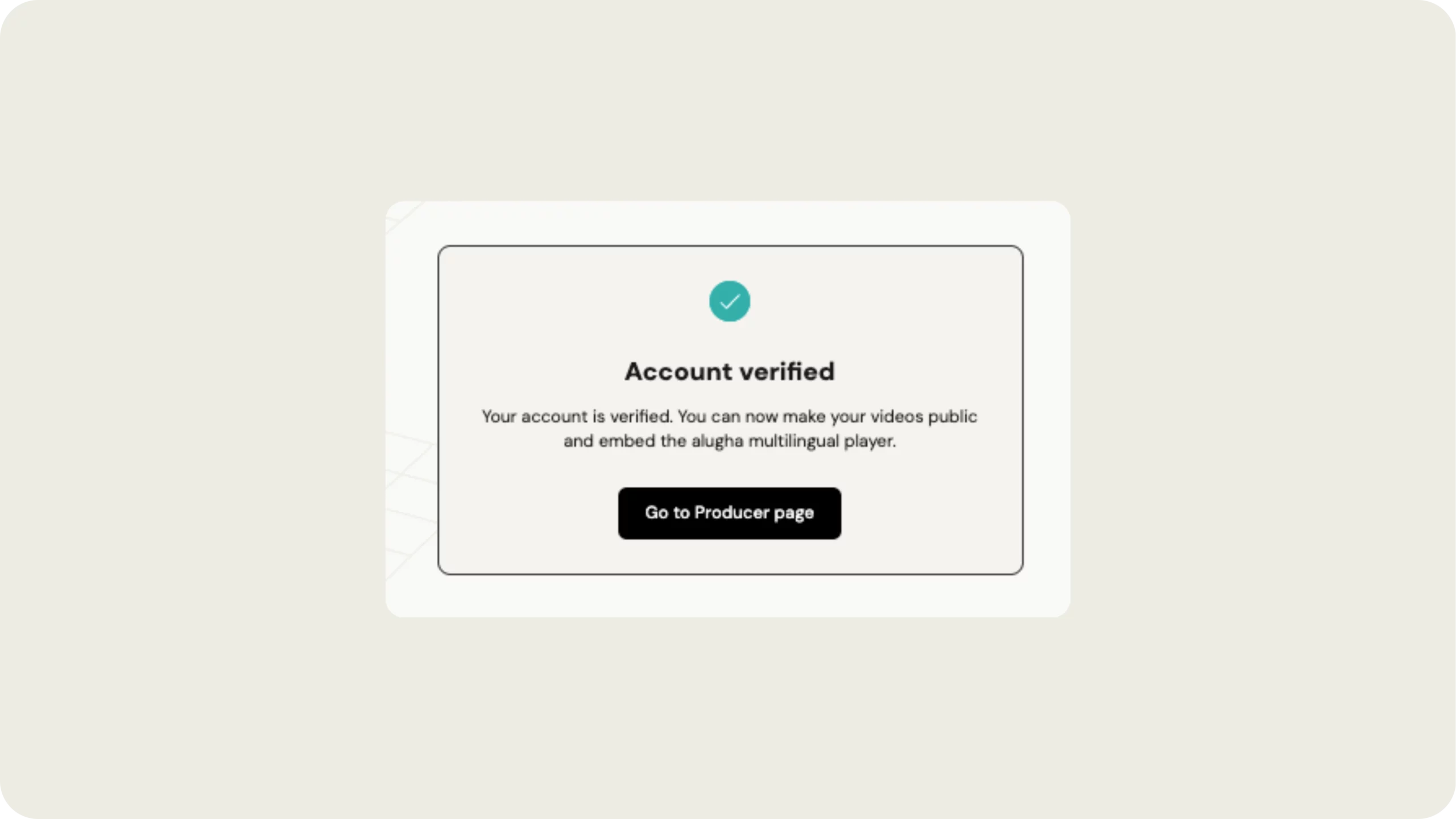
Once verification is complete, you see the Account verified confirmation. Click Go to Producer page to access your content library. Your account is now fully activated — you can upload, translate, and publish videos.
What you can do at each stage
| Account Stage | Upload Videos | Publish Videos | Embed Codes |
|---|---|---|---|
| Signed up (email verified) | Yes | No | No |
| Paddle verified (free) | Yes | Yes | Yes |
| Paid plan (Creator / Business / Enterprise) | Yes | Yes | Yes + more storage & features |
Troubleshooting
If you don’t receive the verification email:
- Check your spam or junk folder.
- Make sure you entered the correct email address during signup.
- Try resending the verification email from the login screen.
If Paddle verification fails:
- Confirm your payment method details are correct.
- Try a different payment method (credit card, PayPal, etc.).
- Contact alugha support if the issue persists.
Related Articles
Was this article helpful?