An accessible video can be followed without sound, without sight and without a mouse. It carries captions and a transcript, and where the picture holds information the sound does not, a description of that picture. And it plays in a player that works by keyboard and names its controls. WCAG 2.2, the W3C standard in its December 2024 edition, sets the bar: Level AA means 55 of its 86 success criteria, and a handful of them decide whether a video passes. Now picture a screen reader user arriving at your video. The player announces “button, button, button”. The captions may be flawless. The person cannot start the film. Below are 30 checks in the order a video is made, each with its criterion and its owner. You will know whether a video needs audio description at all, and you will test any player in ten minutes.
Key takeaways
- Thirty checks cover an accessible video from script to publish. Several cost nothing once planned: a description written into the script is cheaper than any audio track added later.
- WCAG 2.2 Level A asks for captions and for audio description or a text alternative on prerecorded video. Level AA drops the text option wherever the picture carries information of its own.
- Automatic captions are a draft, and YouTube’s own help page says to review them. Under WCAG success criterion 1.2.2, captions carry speech, speakers and every sound that matters.
- WCAG 2.2 added three AA criteria a player meets or fails: focus never fully hidden by a cookie banner, 24 by 24 CSS pixel targets or enough spacing, and seeking without dragging.
- The European Accessibility Act has applied since 28 June 2025. It exempts pre-recorded video published earlier, and service microenterprises: under 10 staff and at most EUR 2 million turnover or balance sheet.
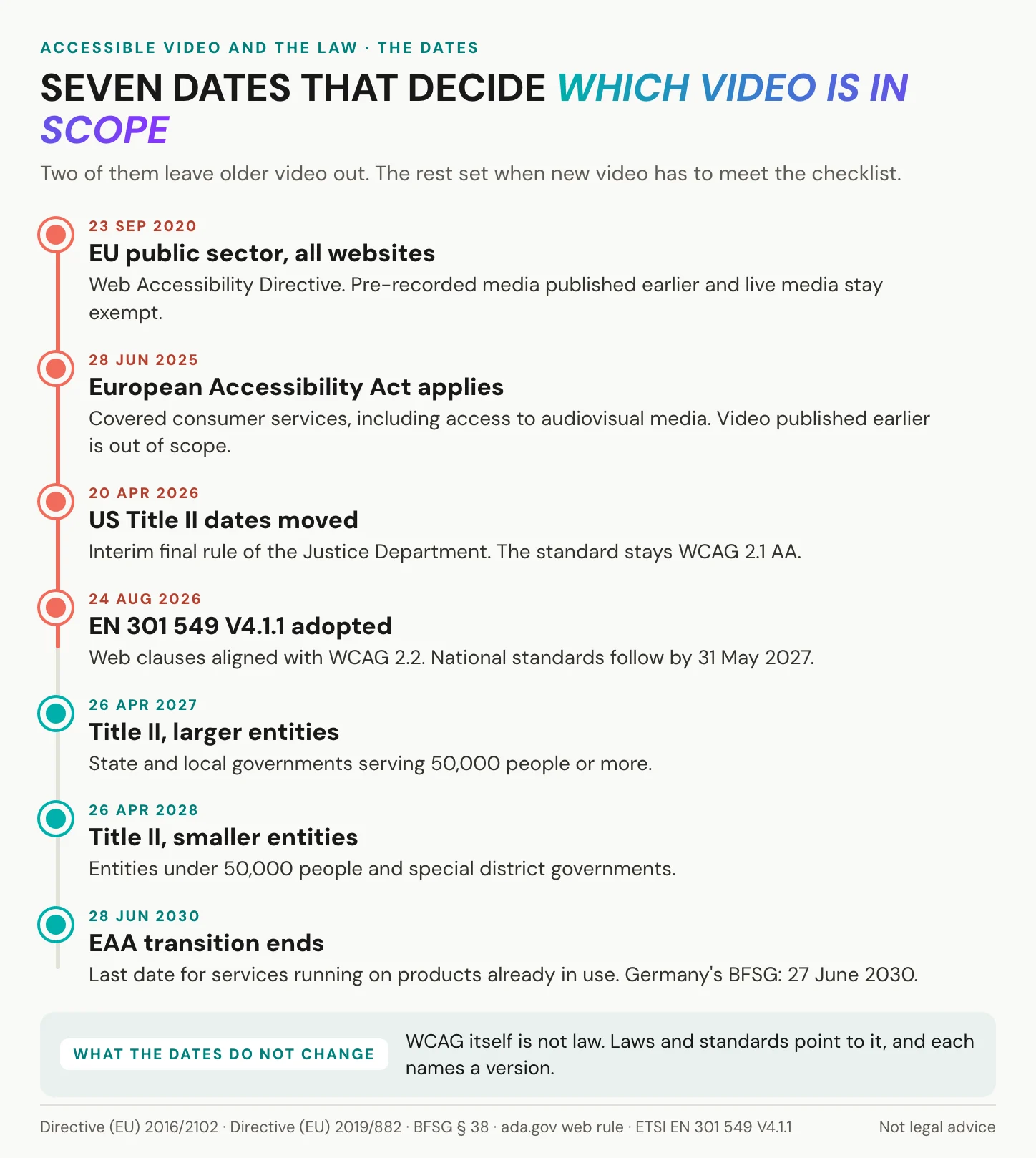
- In the US, the Justice Department moved the ADA Title II web deadlines on 20 April 2026, to 26 April 2027 and 26 April 2028. The standard stays WCAG 2.1 AA.
- Key takeaways
- The full accessible video checklist
- WCAG video requirements, level by level
- Before recording: script and sound
- Captions that meet WCAG
- Transcripts, plain and descriptive
- Audio description without guesswork
- Testing an accessible video player
- Is accessible video required by law?
- Who uses captions and description
- What our player does, and does not
- Frequently asked questions about accessible video
- Getting started
The full accessible video checklist
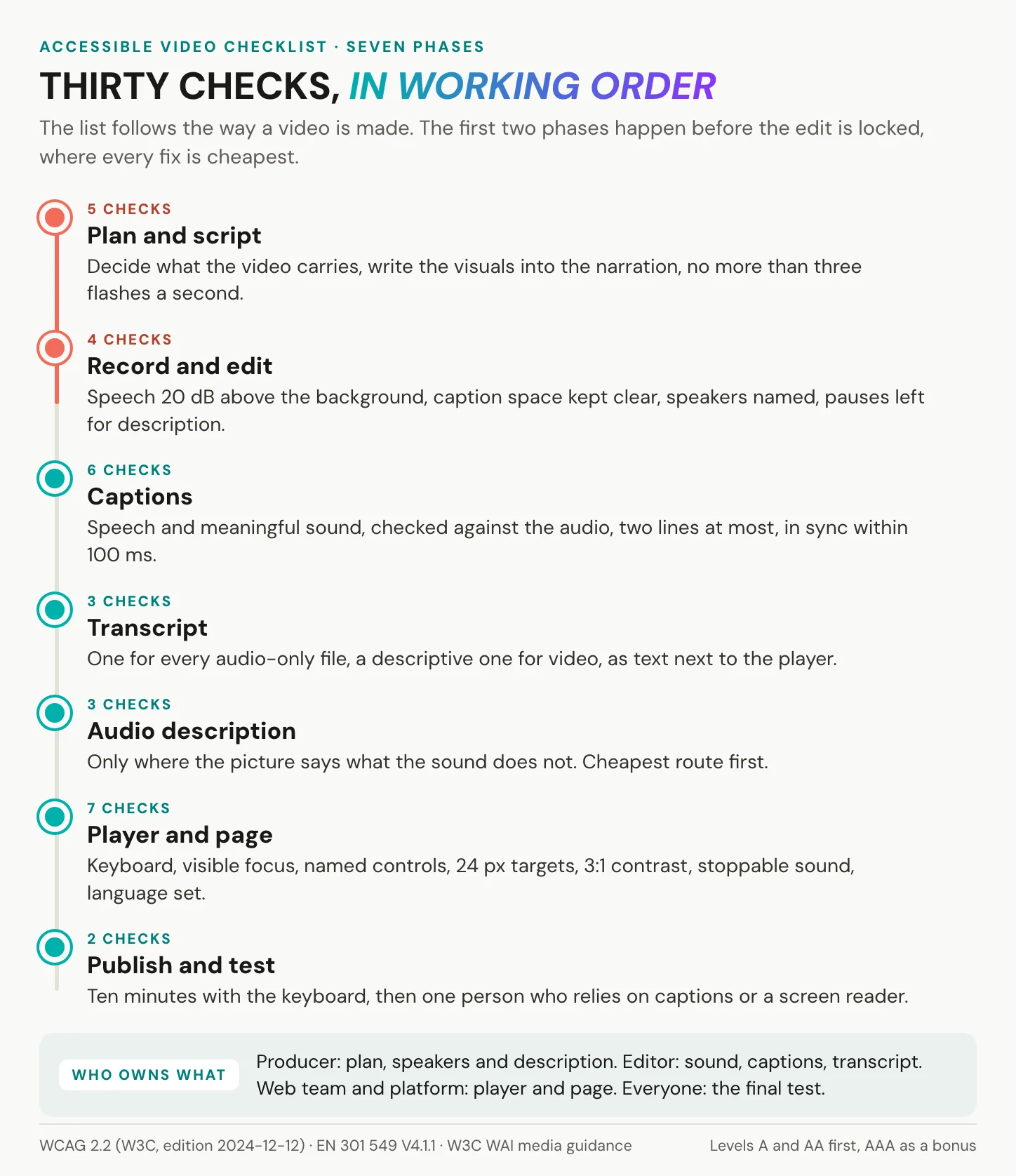
The list runs in the order a video is made. Each check names the WCAG 2.2 criterion or the standard behind it, and the role that usually owns it. Levels A and AA are the target that laws point to, and the AAA items are marked as going further. Checks 1 to 9 happen before the edit is locked, and that is where most of the work gets cheaper.
| # | Check | Criterion (level) | Owner |
|---|---|---|---|
| Plan and script | |||
| 1 | Decide what the video carries: speech, information only in the picture, or both. That decides which checks below apply. | WCAG 1.2.1 to 1.2.5 (A, AA) | Producer |
| 2 | Write what matters on screen into the narration (integrated description). | 1.2.3 (A), 1.2.5 (AA) | Producer |
| 3 | Say on-screen text, figures, names and web addresses aloud. | 1.2.5 (AA) | Producer |
| 4 | Nothing flashes more than three times in any one second. | 2.3.1 (A) | Producer, editor |
| 5 | Where captions or description are not needed, plan to say so on the page. | W3C WAI practice | Producer |
| Record and edit | |||
| 6 | Keep background sound at least 20 dB below speech, or leave it out. | 1.4.7 (AAA, good practice) | Editor |
| 7 | Keep key on-screen text clear of the area captions use. | W3C caption definition, note 4 | Editor |
| 8 | Make every speaker identifiable, by name on screen or in the narration. | 1.2.2 (A) | Producer |
| 9 | Leave natural pauses where a description could go. | 1.2.5 (AA), 1.2.7 (AAA) | Editor |
| Captions | |||
| 10 | Caption all speech and every sound that matters. | 1.2.2 (A) | Editor |
| 11 | Check machine captions against the audio: names, terms, numbers, punctuation. | 1.2.2 (A) | Editor |
| 12 | Put speaker names and sound cues in square brackets. | 1.2.2 (A); brackets are house style | Editor |
| 13 | At most two lines per caption, at a readable pace. | House style (DCMP, Netflix), not WCAG | Editor |
| 14 | Captions appear within 100 ms of their timecode. | EN 301 549 V4.1.1, 7.1.2 | Editor, platform |
| 15 | Live streams get live captions. | 1.2.4 (AA) | Producer |
| Transcript | |||
| 16 | Every audio-only file, a podcast or a voice memo, gets a transcript. | 1.2.1 (A) | Editor |
| 17 | Video gets a descriptive transcript: speech, sound and what the picture shows. | 1.2.3 (A), 1.2.8 (AAA) | Editor |
| 18 | Publish the transcript as text on the page, linked next to the player. | 1.2.1, 1.2.3 (A) | Web team |
| Audio description | |||
| 19 | Listen with your eyes closed. If you miss information, the video needs description. | 1.2.3 (A), 1.2.5 (AA) | Producer |
| 20 | Pick the cheapest route that works: script, descriptive transcript, recorded description. | 1.2.3 (A), 1.2.5 (AA) | Producer |
| 21 | Go further where it counts: extended description, sign language. | 1.2.7, 1.2.6 (AAA) | Producer |
| Player and page | |||
| 22 | Every control works by keyboard, focus can leave the player, single-key shortcuts can be switched off. | 2.1.1, 2.1.2, 2.1.4 (A) | Platform |
| 23 | Keyboard focus is visible and never fully hidden by a banner. | 2.4.7, 2.4.11 (AA) | Web team, platform |
| 24 | Every control has a name a screen reader can say; the video iframe has a title. | 4.1.2 (A) | Platform, web team |
| 25 | Buttons at least 24 by 24 CSS pixels or spaced apart enough; seek bar and volume work without dragging; controls 3:1 contrast, text labels 4.5:1. | 2.5.8, 2.5.7, 1.4.11, 1.4.3 (AA) | Platform, web team |
| 26 | Captions and description switch on in one step, at the level of the volume control; caption display can be adapted. | EN 301 549 V4.1.1, 7.3 and 7.1.4, not WCAG | Platform |
| 27 | No sound on page load, or a stop or volume control for any sound over three seconds; muted motion over five seconds can be paused. | 1.4.2, 2.2.2 (A) | Web team |
| 28 | The page declares its language, every caption track its own. | 3.1.1 (A), 3.1.2 (AA) | Web team |
| Publish and test | |||
| 29 | Run the ten-minute player test on the page where the video lives. | 2.1.1 to 4.1.2 | Web team |
| 30 | Before release, one person who relies on captions or a screen reader checks the video. | W3C WAI practice | Producer |
Read the table as a division of labour. Producers own the plan, the speakers and the description decisions. Editors own sound, captions and the transcript. The web team and the platform own the player and the page, and everyone owns the final test. Not every video needs every row. A silent, decorative background loop needs checks 4 and 27, and its pause button has to pass checks 22 to 25 like any other control. A video that repeats text already on the page needs no captions, as long as the page says so.
WCAG video requirements, level by level
Nine criteria do the heavy lifting, all in guideline 1.2, time-based media, and each names the kind of media it applies to. The player and page criteria follow in the player test further down.
| Criterion | Level | Applies to | What it asks |
|---|---|---|---|
| 1.2.1 Audio-only and Video-only (Prerecorded) | A | audio without picture, picture without sound | a transcript; for silent video, a text alternative or an audio track |
| 1.2.2 Captions (Prerecorded) | A | video with sound | captions for all speech and meaningful sound |
| 1.2.3 Audio Description or Media Alternative (Prerecorded) | A | video with sound | audio description or a descriptive transcript |
| 1.2.4 Captions (Live) | AA | live video | live captions |
| 1.2.5 Audio Description (Prerecorded) | AA | video with sound | audio description; the transcript alone no longer suffices |
| 1.2.6 Sign Language (Prerecorded) | AAA | video with sound | sign language interpretation |
| 1.2.7 Extended Audio Description (Prerecorded) | AAA | video with too few pauses | the video pauses for description |
| 1.2.8 Media Alternative (Prerecorded) | AAA | all prerecorded video | a full text alternative |
| 1.2.9 Audio-only (Live) | AAA | live audio | a text alternative in real time |
Eighty-six criteria are hard to hold in your head. That is why shortcuts circulate, such as a percentage attached to each level, or the idea that every image needs audio description. Neither is in the standard. Level A is the floor, and Level AA is what laws and procurement rules point to. AAA is a target for specific content, not for a whole site, and WCAG attaches no percentage to any level. Audio description at AA covers prerecorded video in synchronized media, while images need text alternatives under a separate criterion.
Build against 2.2: it is the current W3C Recommendation and also the international standard ISO/IEC 40500:2025. Content that meets 2.2 also meets 2.0 and 2.1, which matters because several laws still name the older versions. WCAG 3.0 exists only as a working draft, the latest dated 10 September 2026, and no law references it.
In short: Level A asks for captions and for a text or audio description, Level AA adds live captions and full audio description, and the rest of guideline 1.2 is AAA.
Before recording: script and sound
Start before the camera does. The first two phases decide how much work the rest of the list will take.
Plan accessible videos in the script
Two questions come first. Does the video have sound? Does the picture carry information the sound does not? The answers sort every video into its checks. Speech needs captions, and a picture with information of its own needs description. A video with both needs both.
The cheapest answer to the second question is a script that says what matters. The W3C calls this integrated description: one video, with the description woven into the narration and decided before filming. “Click Export” becomes “Click Export, the blue button at the top right”. Names, figures and web addresses are spoken, not only shown. Where the picture has to speak for itself, leave a natural pause in the edit, so a separate description can go there later.
The cheapest audio description is a sentence in the script.
Flashes, sound mix and on-screen text
Nothing may flash more than three times in any one second, unless the flash stays below the thresholds WCAG sets in criterion 2.3.1. WCAG estimates the critical flash area as a rectangle of 341 by 256 pixels on a 1024 by 768 screen. The reason is medical. Around 1 in 100 people has epilepsy, and about 3 percent of them have photosensitive epilepsy, according to the UK Epilepsy Society’s guidance as it stands in 2026. It names 3 to 30 flashes per second as the common trigger range.
Mix speech well above everything else. The AAA criterion 1.4.7 asks for background sound at least 20 dB below speech, and it is good practice at any level. Then keep lower thirds and on-screen text out of the band where captions sit. The W3C’s caption definition and the FCC’s placement rule for US television agree: captions must not hide what matters.
In short: decide in the script what the picture says, keep flashes under three per second, and leave the caption band and the speech clear.
Captions that meet WCAG
Captions top every list, and they fail more quietly than anything else on it.
Machine captions are the first draft
Speech recognition is now good enough to start every caption file, and YouTube hands out automatic captions for free. That is real progress. The risk is stopping there. YouTube’s own help page warns that automatic captions can misrepresent what was said, and tells creators to always review them. Unreviewed, a machine track is a transcript of a guess, not a caption track in the WCAG sense.
How good is good enough? Many universities set 99 percent accuracy as their internal bar, UC San Diego and Auburn among them. It is a sensible bar, though no law or standard sets a percentage. The FCC’s caption rule for US television, 47 CFR 79.1, uses four tests instead: accuracy, synchronicity, completeness and placement. DCMP, the Described and Captioned Media Program, is blunter: its goal is captions without errors.
What a caption track has to carry
WCAG defines captions as text for both speech and non-speech audio: sound effects, music, laughter, and who is speaking. Put speaker names and sounds in square brackets, [Anna] or [door slams], so they read as cues rather than dialogue. Keep each caption to two lines at most.
Pace is a matter of house rules. DCMP works at 130 to 160 words per minute, depending on the audience. Netflix allows up to 20 characters per second for adult content and 42 characters per line. Those are style guides, not law, but timing has a harder number. EN 301 549 V4.1.1, clause 7.1.2, asks players to show each caption within 100 ms of its timecode. Live audio needs live captions at Level AA.
One thing WCAG does not set is a contrast ratio for captions. Caption legibility sits in EN 301 549 instead, which asks players to let viewers adapt how captions look. Formats and the full quality rules are in our article on closed captions.
The file behind the track
On the web, a caption track is usually a WebVTT file that an HTML <track> element loads.
<video controls>
  <source src="onboarding.mp4" type="video/mp4">
  <track kind="captions" src="onboarding.en.vtt" srclang="en" label="English">
</video>
Two attributes matter. Set kind="captions", because a track without a kind counts as subtitles, which are meant for viewers who can hear. Set srclang to a valid BCP 47 tag such as en or de, which is also check 28. Prefer closed captions to open ones, because the viewer can switch them off and, on players that support it, change their size and colour. Burned-in text cannot. Keep a master without it, whatever you publish. For a second language, add a second <track> with its own srclang. Give it a label in that language, so the caption menu reads English and Deutsch rather than two codes.
In short: start from a machine draft, finish by hand, and deliver a closed WebVTT track with the right kind and language.
Transcripts, plain and descriptive
A transcript is the one format that needs no player. A plain transcript is the words, and a descriptive transcript adds the sounds and what the picture shows. It is the only format that reaches someone who can neither see nor hear, through a braille display, and the W3C calls descriptive transcripts required for people who are Deaf-blind.
WCAG asks for a transcript for every audio-only file at Level A, podcasts and voice memos included. For video, a descriptive transcript is the Level A route under 1.2.3. A full text alternative for all prerecorded video is AAA, under 1.2.8.
Put the transcript on the page as text, linked right next to the player, not only as a download. A caption export is a start, not a finished transcript. It lacks paragraphs, speaker names and scene notes, so add them. For the mechanics, read how to transcribe video to text and look at a worked video transcript example.
In short: publish the words as text beside the player, and for video add what the picture shows.
Audio description without guesswork
Audio description has a reputation for being expensive, but most of that cost is avoidable.
Does your video need it?
Close your eyes and play the video. If you miss nothing, it needs no description. A talking head whose words carry the whole message passes. A product demo with silent clicks and numbers on screen does not. The requirement covers prerecorded video in synchronized media, so a still image on the page falls under text alternatives instead. If it needs none, say so on the page. Screen recordings and software demos usually need description, because the clicks happen in silence. Interviews and talking-head updates rarely do. Animated explainers sit in between, and the deciding question is whether the voice-over names what the animation shows. For a back catalogue, grade each video by need, high, medium or low, and start at the top.
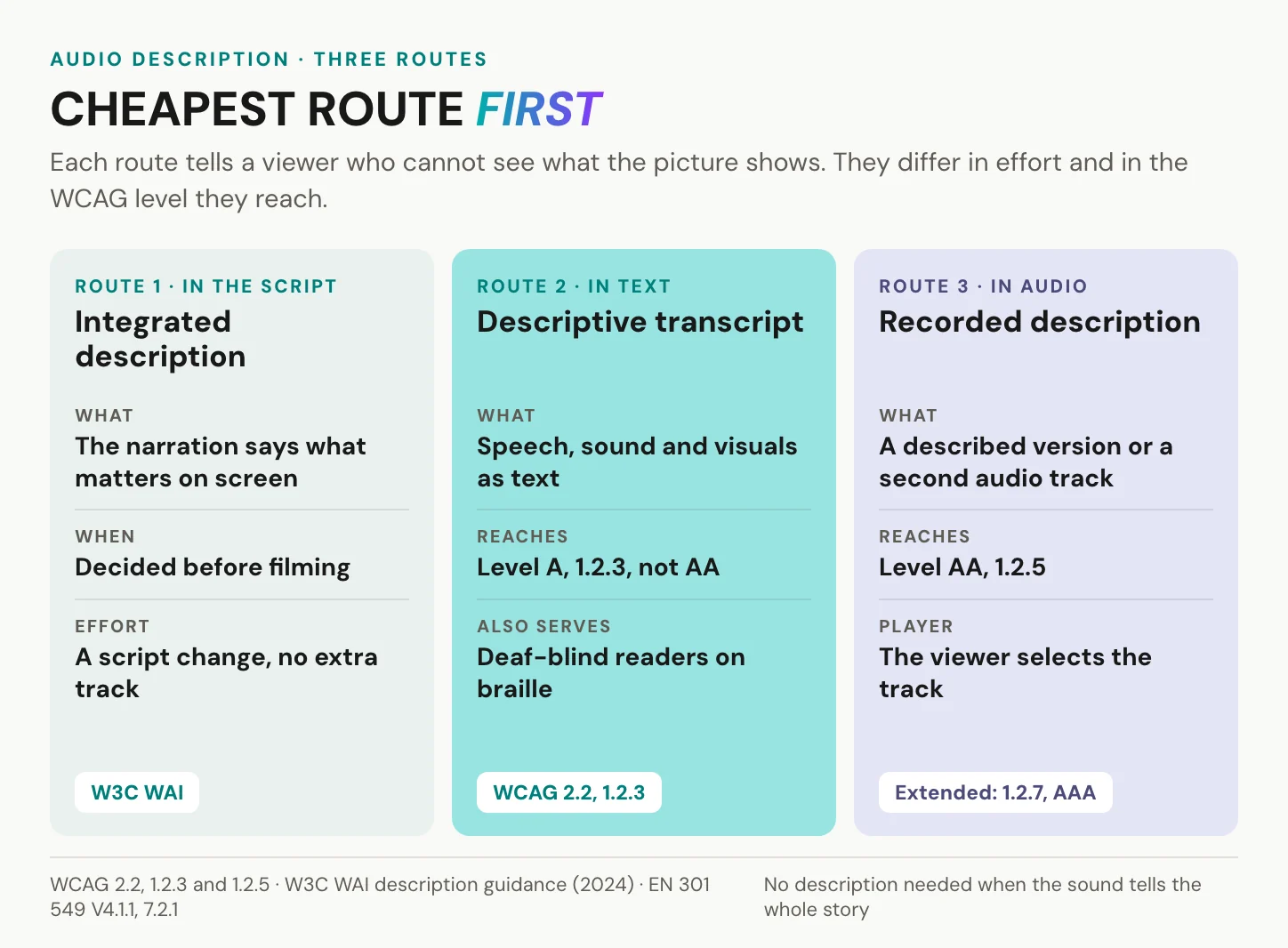
Three routes, cheapest first
The first route is integrated description: the script already says what the picture shows, so there is one video and no extra track. It costs a sentence per scene, if you decide on it before filming.
The second route is a descriptive transcript, which meets 1.2.3 at Level A but not 1.2.5 at Level AA. HTML also has a kind="descriptions" text track, meant to be spoken by the browser, but only some players read it.
The third route is a recorded description. That is either a second, described version of the video or a separate audio track the viewer selects. EN 301 549 V4.1.1, clause 7.2.1, accepts exactly that: letting the user select and play one of several audio tracks. Where the dialogue leaves no pauses, extended description stops the video for the describer. That is AAA, under 1.2.7.
Each route has its owner. The scriptwriter owns route one. The editor owns route two. Route three needs a describer and a voice. The rule is the same for all three: describe what matters to the message, in the gaps of the dialogue, and leave the rest. Our article on audio description goes into more depth.
In short: ask whether the picture says something the sound does not, and if it does, write it into the script first.
Testing an accessible video player
The player is where good captions get lost. Credit where it is due: YouTube’s player can be run from the keyboard, and its help pages document the shortcuts, from k for pause to c for captions. The web around it is another story. The WebAIM Million found detectable WCAG failures on 95.9 percent of the top one million home pages in February 2026. The 6.2 percent of those pages with a YouTube video averaged 9.4 more errors than the average page. That is automated detection and a correlation, not proof that the player causes the errors.
A captioned video in a player you cannot start is not an accessible video.
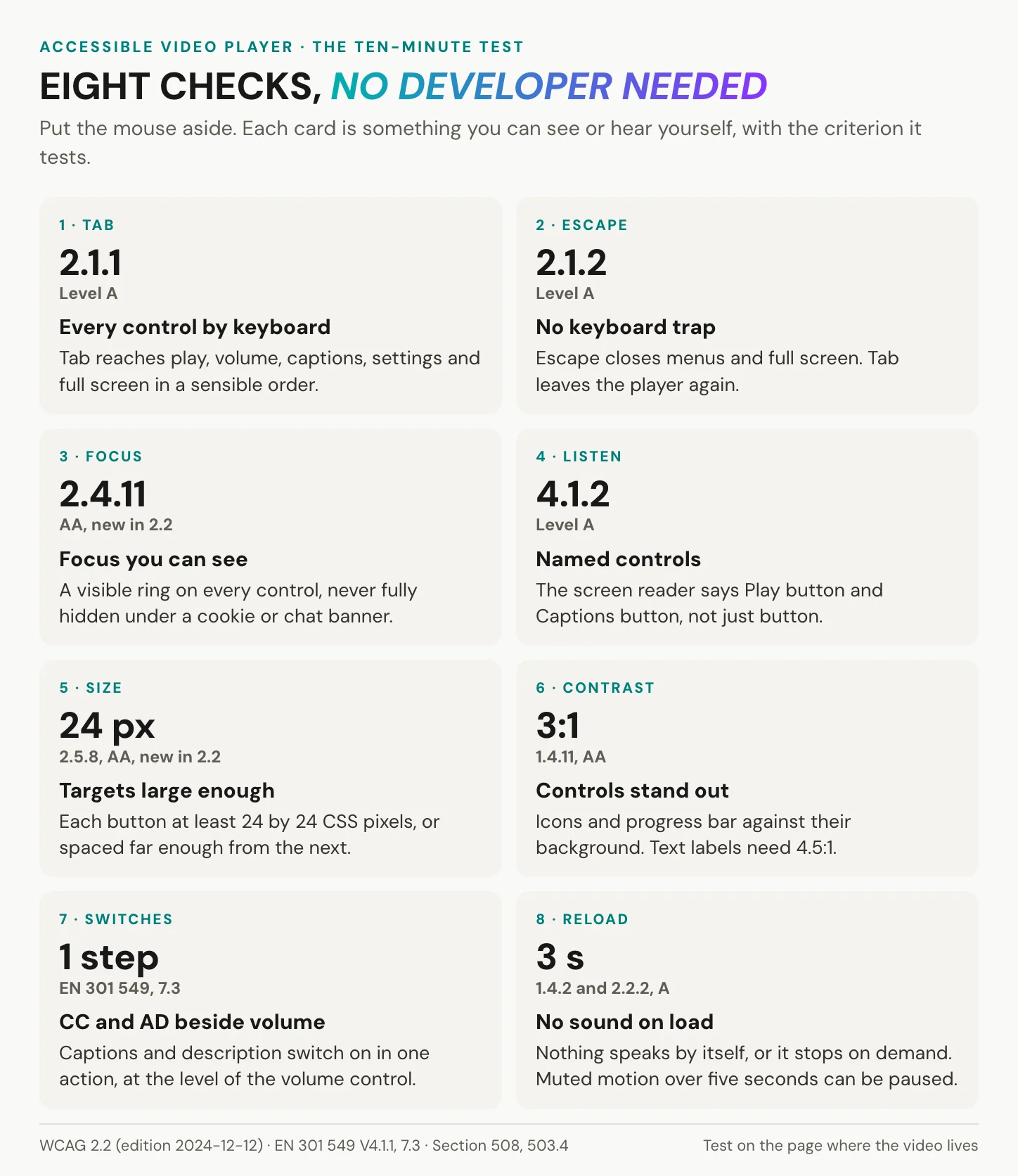
The ten-minute test
Run it on the page where the video lives, not on the platform’s own site. You need a keyboard, your system’s built-in screen reader and ten minutes.
1. Put the mouse away and press Tab from the top of the page. Every player control should get focus, in a sensible order (2.1.1). 2. Play and pause with Space or Enter. Change the volume, open captions and settings. 3. Leave menus and full screen with Escape, then Tab on to the next link. Focus that cannot leave is a keyboard trap (2.1.2). 4. With focus outside the player, press single letters. The player should not react, unless its shortcuts can be switched off (2.1.4). 5. Watch the focus ring on every control, then open the cookie banner. Focus must never vanish entirely beneath it (2.4.7, 2.4.11). 6. Turn on the screen reader. It should say “Play, button”, not “button”, and the iframe should carry a title (4.1.2). 7. Buttons need at least 24 by 24 CSS pixels, or enough space around them (2.5.8). The seek bar and volume must also work by click, without dragging (2.5.7). Icons and progress bar need 3:1 against their background (1.4.11), text labels 4.5:1 (1.4.3). 8. Caption and description switches belong one step away, at the level of the volume control (EN 301 549 clause 7.3, Section 508 rule 503.4). If captions can be restyled, try it. 9. Reload the page. Nothing should start speaking by itself. If sound plays for more than three seconds, a stop or volume control must be within reach (1.4.2). 10. Zoom the browser to 200 percent. The controls should stay usable.
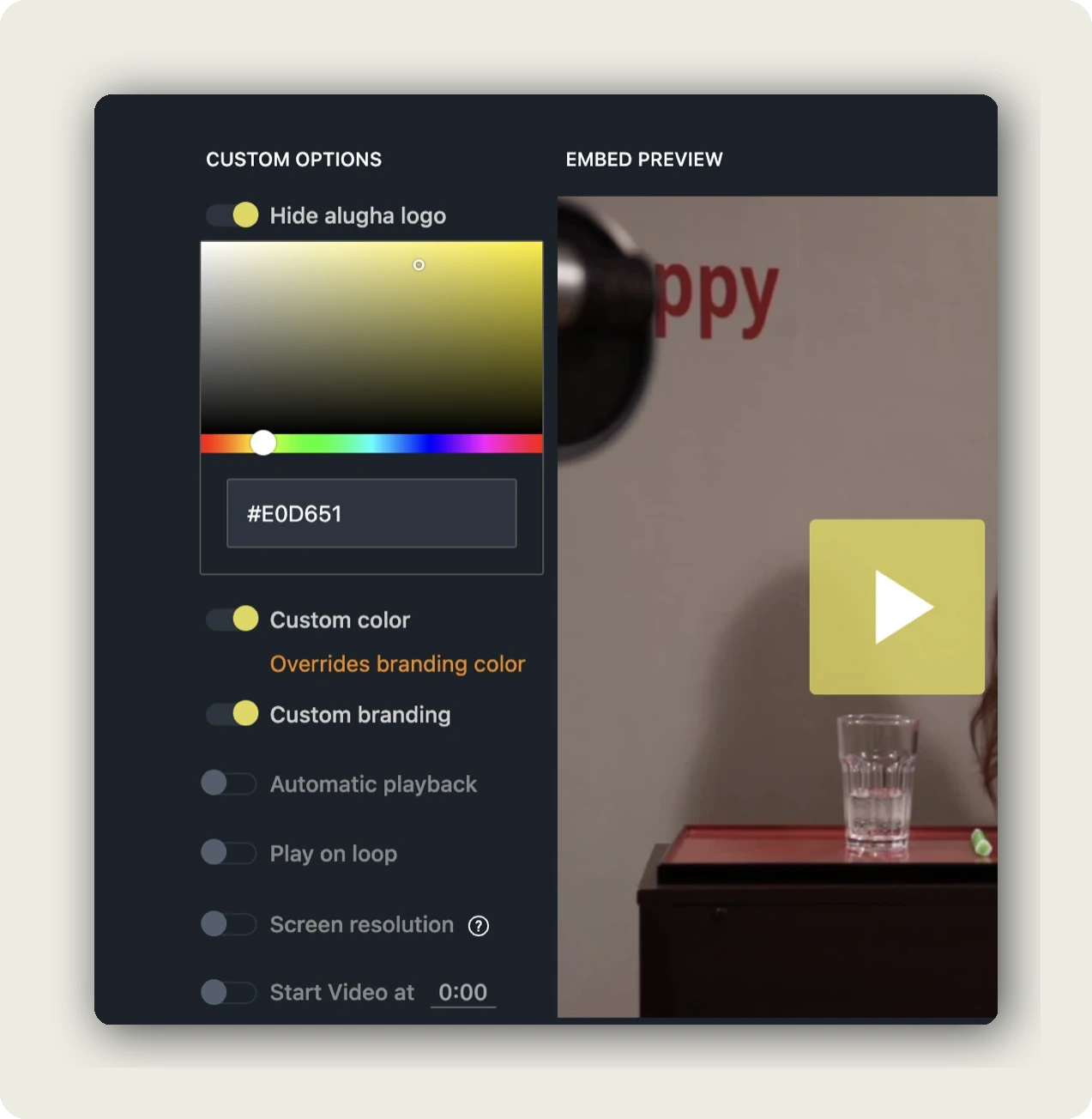
Colour is the step people skip. In our embed options you can give the player any colour you like. A pale yellow such as #E0D651 behind a white play icon comes out at about 1.5 to 1, far under the 3 to 1 the icon needs. Check your brand colour before you publish, not after.
In short: a keyboard, a screen reader and ten minutes show whether the player works on your page, and a contrast check covers the colour.
Autoplay, motion and language on the page
A moving header sells, and browsers already stop most sound-on autoplay. Chrome allows sound only once the user has interacted with the site, has played media there often enough, or has installed it. Safari on iOS pauses a video that unmutes without a gesture. WCAG still sets two rules. Under 1.4.2, sound that plays automatically for more than 3 seconds needs a stop or volume control, and the W3C discourages autoplaying sound outright. Under 2.2.2, muted motion longer than five seconds needs a way to pause, stop or hide it. Where a visitor has set prefers-reduced-motion: reduce, do not start background video at all. That pause button needs a real name, such as “Pause background video”, so it passes check 24 as well.
Language is the other half of the page. Screen readers choose their pronunciation from the language markup. Set lang on the page (3.1.1) and on any passage in another language (3.1.2). Give every caption track its own srclang. The WebAIM Million found missing document language on 13.5 percent of the top one million home pages in 2026. Whatever host you choose, this line belongs to the web team.
Embedded players and the consent wall
A YouTube embed brings reach and a player people already know. It also brings Google into the page. With autoplay on, YouTube’s own documentation says playback data collection “will therefore occur upon page load”. In Germany, section 25 TDDDG requires consent before anything is stored on or read from the device, unless strictly necessary. So many sites put a click-to-load placeholder in front of the video. That placeholder is now part of the accessible path: reachable by Tab, named, and never hiding focus. Never set disablekb=1, which switches off keyboard control. cc_load_policy=1 shows captions by default. Privacy-enhanced mode changes personalisation, not the consent question.
In short: test on the real page, with the keyboard, a screen reader and the banner open. The player can pass while the page around it fails.
Captions, a transcript and every language version of a video, in one project behind one link. Create an alugha account and upload your first video.
Is accessible video required by law?
WCAG itself is not law, but laws and harmonised standards point to it, and each names a version.
| Rule | Who it binds | Standard it points to | Video-relevant detail | Date |
|---|---|---|---|---|
| European Accessibility Act, Directive (EU) 2019/882 | businesses providing covered consumer services, including access to audiovisual media | harmonised standards; EN 301 549 V4.1.1 maps its clauses to the Act | access services such as subtitles and audio description transmitted in sync, with user control of their display | since 28 June 2025 |
| BFSG (Germany) | as the EAA, in German law | BFSGV § 12: perceivable, operable, understandable, robust | transition until 27 June 2030 for services using products already in use before 28 June 2025 | since 28 June 2025 |
| Web Accessibility Directive (EU) 2016/2102 | public sector bodies | EN 301 549 | pre-recorded media published before 23 September 2020 and live media excluded | all websites since 23 September 2020 |
| ADA Title II web rule | US state and local governments | WCAG 2.1 AA | archived content exception, four conditions | 26 April 2027 (50,000 people or more), 26 April 2028 (smaller) |
| Section 508 | US federal agencies | WCAG 2.0 A and AA | caption and description controls at the level of volume (503.4) | revised standards, existing ICT cut-off 18 January 2018 |
Europe
The European Accessibility Act covers services provided to consumers after 28 June 2025. Where a service gives access to audiovisual media, Annex I requires subtitles, audio description, spoken subtitles and sign language to be transmitted in full and in sync, with the user in control of their display. That regulates the access layer. The accessibility of the audiovisual content itself stays with the Audiovisual Media Services Directive. The technical yardstick is EN 301 549, the harmonised European standard for ICT accessibility. Its September 2026 edition, V4.1.1, aligns its web clauses with WCAG 2.2 and maps its clauses to the Act in a new annex. In Germany, the BFSG carries the Act into national law. More in five BFSG steps for your videos and WCAG 2.2 for enterprise video hosting.
United States
The Justice Department’s 2024 rule for ADA Title II binds state and local governments to WCAG 2.1 Level AA. An interim final rule of 20 April 2026 moved compliance to 26 April 2027 for governments of 50,000 people or more, and 26 April 2028 for smaller ones. The obligation did not move. In practice, a county that streams its council meetings needs live captions on the stream. Each new recording it posts needs captions and, where the picture carries information, audio description. Federal agencies work under Section 508, whose standards still incorporate WCAG 2.0 A and AA, so an audit against 2.0 is not wrong. It is incomplete. WCAG 2.2 is current and adds three AA criteria a player meets or fails: focus not obscured, target size and dragging movements.
When the rules do not reach a video
Not every video is in scope. The EAA does not apply to pre-recorded time-based media published before 28 June 2025, or to third-party content the operator neither funds, develops nor controls. Service microenterprises are exempt: fewer than 10 persons, and an annual turnover or balance sheet total of no more than EUR 2 million. The Web Accessibility Directive exempts pre-recorded media published before 23 September 2020, and live media. Title II exempts archived content, but only when all four of its conditions are met. Two cautions. Under Title II, archived content keeps its exception only while it stays unaltered, so treat a re-edited back catalogue video as new. And out of scope is not accessible: the people in the next section are still watching.
In short: the EAA and EN 301 549 carry WCAG into EU consumer services, Title II and Section 508 into the US public sector, each with dates and exemptions that decide which video counts. This is not legal advice.
Who uses captions and description
The audience is larger than the word “disability” suggests. WHO estimated in 2023 that 1.3 billion people experience significant disability, 16 percent of the world’s population, or 1 in 6. For hearing, the WHO fact sheet of March 2026 counts 430 million people, over 5 percent of the world’s population, who need rehabilitation for disabling hearing loss. It projects nearly 2.5 billion people with some degree of hearing loss by 2050.
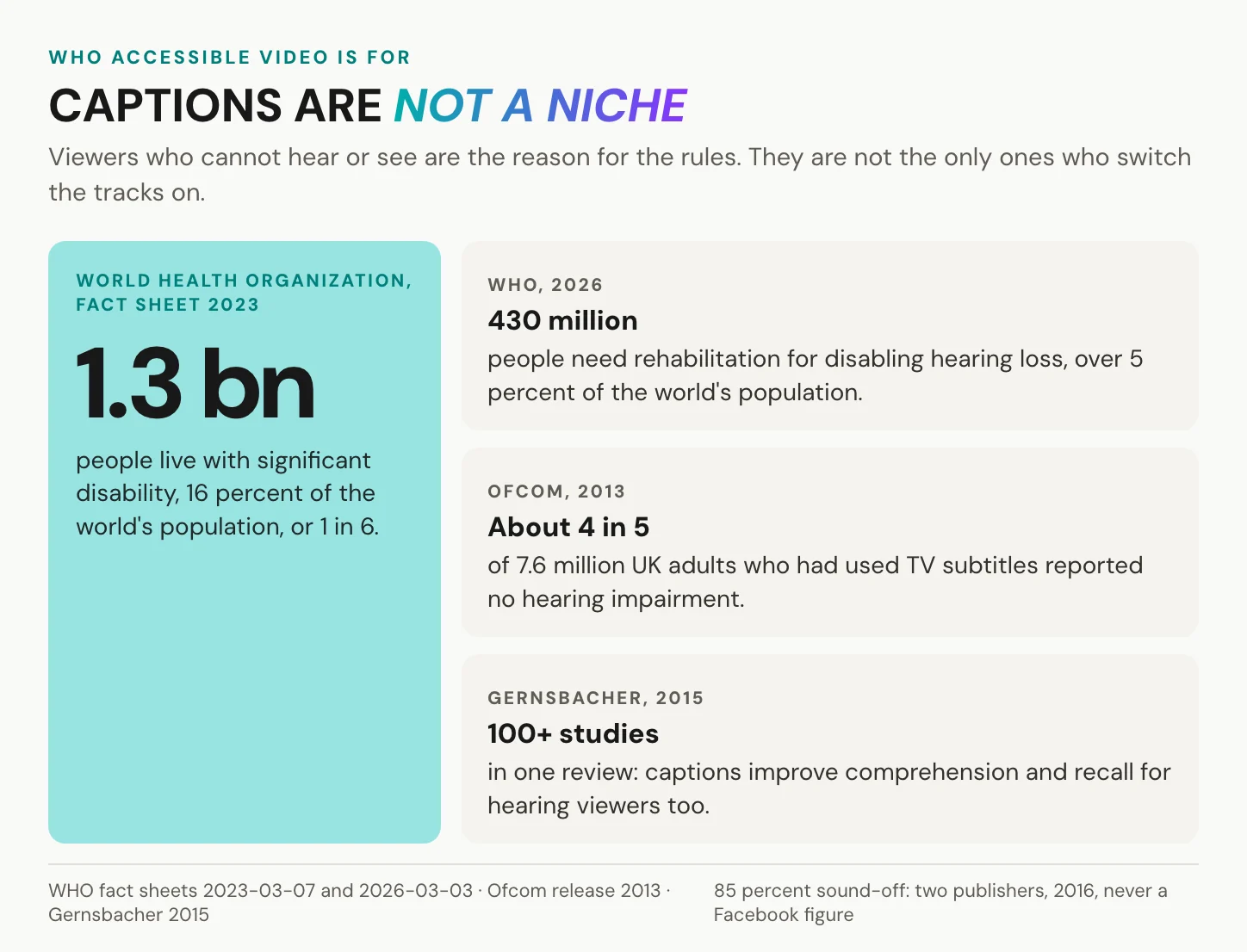
Most caption users hear well. Ofcom reported in 2013 that about 7.6 million UK adults had used TV subtitles, and 1.4 million of them had a hearing impairment. That leaves about 4 in 5 users with none. A 2015 review by Morton Ann Gernsbacher of more than 100 studies found that captions improve comprehension and recall for hearing viewers too. A 2016 Oregon State University survey of 2,124 students at 15 US universities, co-funded by a captioning vendor, found that 98.6 percent of the students who used captions found them helpful.
Some numbers travel without their sources, or past their date. “85 percent of Facebook video is watched without sound” goes back to two publishers describing their own pages in 2016. It was never a Facebook figure. “15 percent of the world has a disability” is the 2011 figure from WHO and the World Bank, which WHO has since replaced with 16 percent. And WHO’s count of 2.2 billion people with a near or distance vision impairment is not the audience for audio description. Of the at least 1 billion cases its February 2026 fact sheet calls preventable or unaddressed, 826 million are presbyopia and 88.4 million refractive error, which glasses correct.
What our player does, and does not
Here is where we come in, and where we stop.
We make no claim here about how our player behaves with a keyboard or a screen reader. Run the ten-minute test on it as on any other player. Our Speech-To-Text gives you a first draft of the captions, not the final file: read it against the audio, fix the names, and add the sounds that matter by hand in the dubbr. In our embed options, SUBTITLES starts at None, so captions stay off until you choose. The player needs JavaScript and a current browser. And the colour is yours to check.
We let you tint our player in any colour, which also means we cannot promise your colour has enough contrast.
You do not need us for everything on this list. If your video is public, single-language and already captioned on YouTube, leave it there. A muted decorative loop needs a pause button, not a new host. And if a platform already accepts your WebVTT or SRT file, upload the file there.
What we do differently is keep the pieces together. Captions, transcript and every language version of a video sit in one project, behind one link. Our player keeps audio and subtitles apart, so a viewer can listen in Spanish and read in English, and the switch takes effect without a page reload. Each language can carry its own audio track, which is the slot a described or dubbed version needs. How many tracks one video holds depends on your tier. That goes beyond WCAG: a spoken translation reaches viewers who cannot read captions fast enough, or at all. On a paid tier, any subtitle track exports as WebVTT, SRT or plain text for the transcript on your page. See automatic language switching and exporting subtitles.
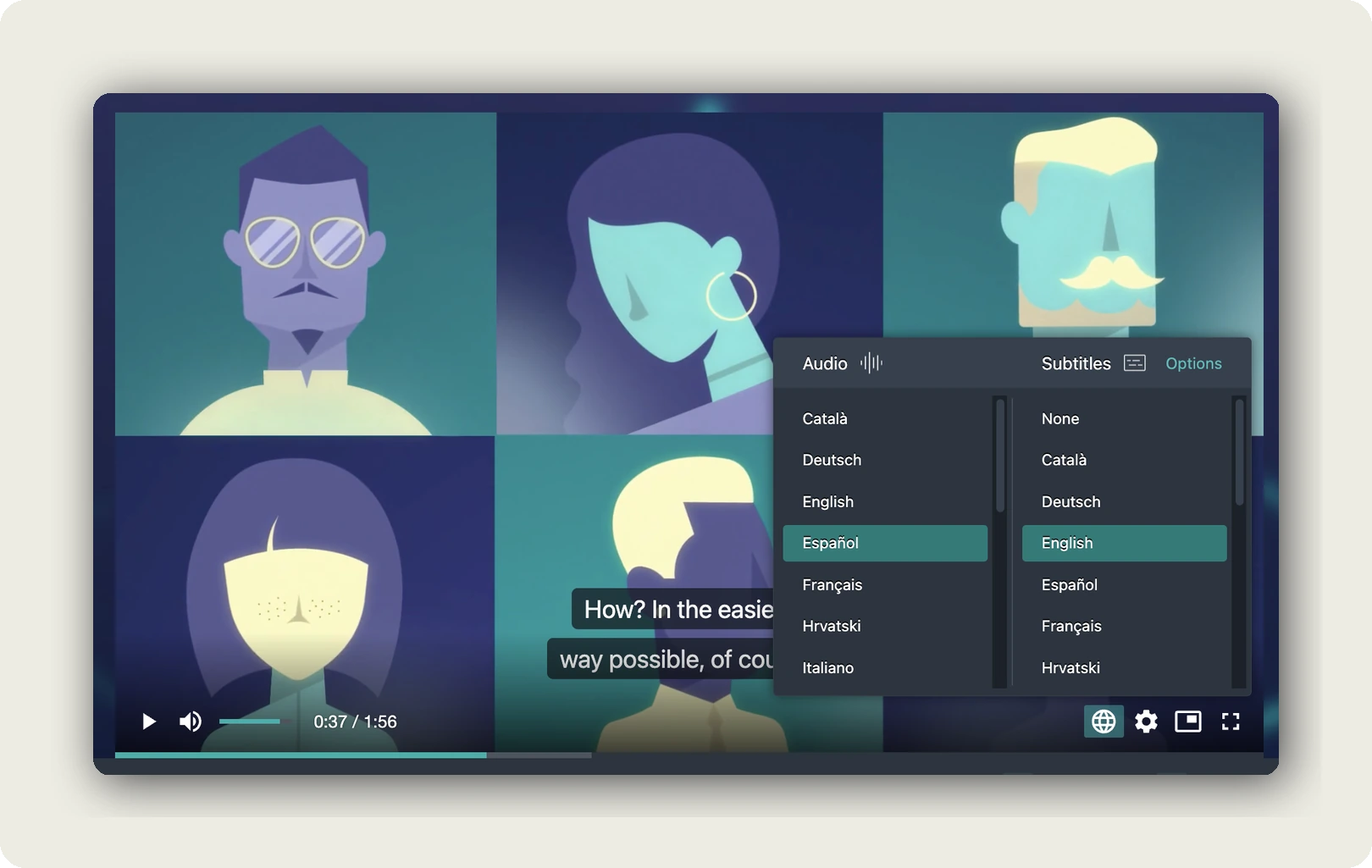
For captions that show as soon as the video loads, set SUBTITLES in the embed options to Automatic or to a fixed language. The four values are None, which is the default, Automatic, Automatic (force) and a fixed language. Autoplay is off by default, and if you switch it on, browsers usually start the video muted, which is their policy, not ours. For anything with sound, leave it off. See subtitles in embedded videos and autoplay, loop and start time.
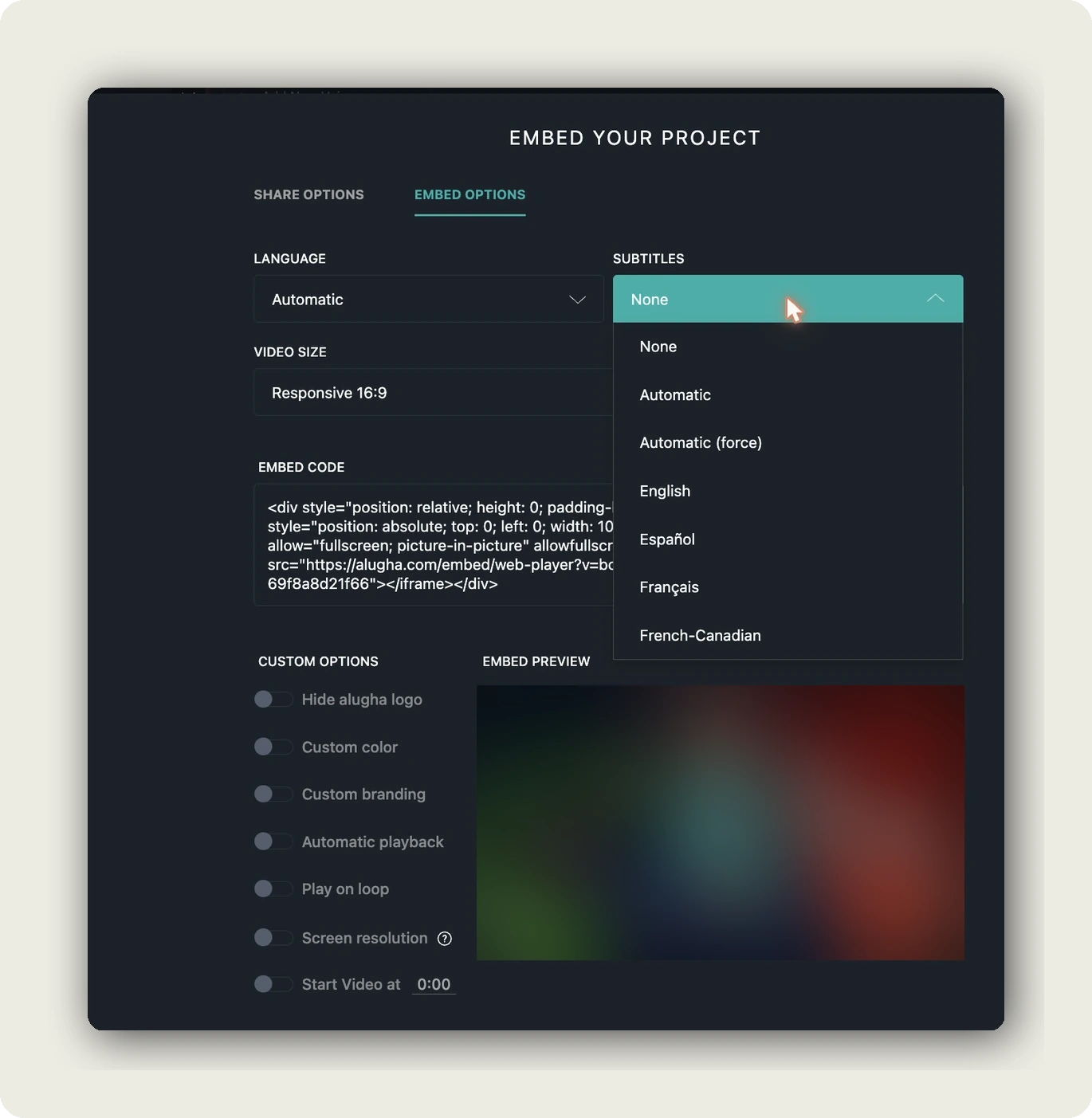
Each language track also has its own state: Private, Playable or Hidden. Keep new captions private until someone who relies on them has watched the video. Then publish them without touching the rest, as published versus available content explains.
YouTube’s reach is real, and for a public brand film, switching hosts buys you nothing. On a customer portal, an intranet or a patient information page, the embed has to pass accessibility and data protection at the same time. We host in Germany and the EU, and our player carries no third-party advertising cookies and trackers. Whoever hosts your video, us included, ask for the Art. 28 GDPR processing agreement before the first upload. More in GDPR-compliant video hosting. Accessibility tools come with every tier we offer, the entry tier included.
In short: we keep captions, transcript and languages together and out of the viewer’s way. The words in the tracks and the test of the player stay your work.
Frequently asked questions about accessible video
What are the ADA requirements for videos?
For state and local governments, the 2024 ADA Title II rule sets WCAG 2.1 Level AA. For video, that means captions for prerecorded and live content, and audio description for prerecorded video. Compliance is due on 26 April 2027 for governments of 50,000 people or more, and on 26 April 2028 for smaller ones. Federal agencies follow Section 508 and WCAG 2.0 instead.
Is WCAG legally required?
Not on its own. WCAG is a W3C standard, and it becomes binding when a law or procurement rule points to it. In the EU, the Web Accessibility Directive works through EN 301 549, and the standard’s 2026 edition maps its clauses to the European Accessibility Act. In the US, the Title II rule names WCAG 2.1 AA, and Section 508 names WCAG 2.0.
What are the WCAG requirements for video?
At Level A, prerecorded video needs captions and either audio description or a descriptive transcript, and audio-only files need a transcript. Level AA adds captions for live video and full audio description for prerecorded video. On top come the player criteria: keyboard operation, no keyboard trap, visible focus, named controls, enough contrast, and a way to stop sound that starts by itself.
Do all accessible videos need audio description?
No. A video needs description only where the picture carries information the sound does not. A talking head whose words say everything needs none, while a product demo with silent clicks does. Often the narration can carry the description itself, which the W3C calls integrated description. If a video needs no description, say so on the page next to it.
Are automatic captions good enough for accessibility?
As a first draft, yes. As the final track, not without a human pass. YouTube’s own help page tells creators to review automatic captions, and WCAG counts captions only when they carry speech, speakers and meaningful sound. Read the draft against the audio. Many universities set 99 percent accuracy as their internal bar, though no law sets a number.
What makes a video player accessible?
Every control works by keyboard, and focus can leave the player. Focus stays visible and never disappears under a banner. Each control has a name a screen reader can say. Buttons measure 24 by 24 CSS pixels or have room around them; controls reach 3:1 contrast. The seek bar works without dragging. Caption switches sit beside the volume, and autoplaying sound can be stopped.
Does the European Accessibility Act apply to video?
Yes, to the consumer services it covers, since 28 June 2025, including services that give access to audiovisual media. Access services such as subtitles and audio description must be transmitted in sync, under the user’s control. The Act does not cover pre-recorded video published before that date, third-party content the operator does not control, or services from microenterprises.
Do I need both captions and a transcript?
For video, usually yes. Captions meet 1.2.2 for viewers who cannot hear the sound. A descriptive transcript is the Level A route for 1.2.3, and the only format that reaches people who are Deaf-blind, through a braille display. Audio-only files need the transcript alone. The W3C recommends offering both, and once the captions exist, the transcript costs little.
Getting started
Go back to the screen reader from the opening. The same player, fixed, now says “Play, button. Captions, button.” The captions were never the whole problem. Three steps get your own video there:
1. Run the ten-minute test on the page where your most important video sits. 2. Take that one video through checks 1 to 21, and fix what fails. 3. Put the checklist into your production brief, so the next video starts at check 1 instead of at the fix.
The person who heard “button, button, button” can now press play, and the captions you worked on finally reach them.
Making a training or product library accessible in several languages? Book a call and we will set up captions, transcript and language tracks on one of your own videos, or create an account and start with one upload.