Summary
An embedded alugha player can start with subtitles already on, in a fixed language or automatically in each visitor’s browser language. The setting is one dropdown in the embed dialog; alugha updates the embed code for you, so there is no code to edit. This article walks through it.
Where the setting lives
Open the video in the dubbr and click Im-/Export → Share Project, then switch to the EMBED OPTIONS tab. At the top sit three dropdowns: LANGUAGE, SUBTITLES, and VIDEO SIZE.
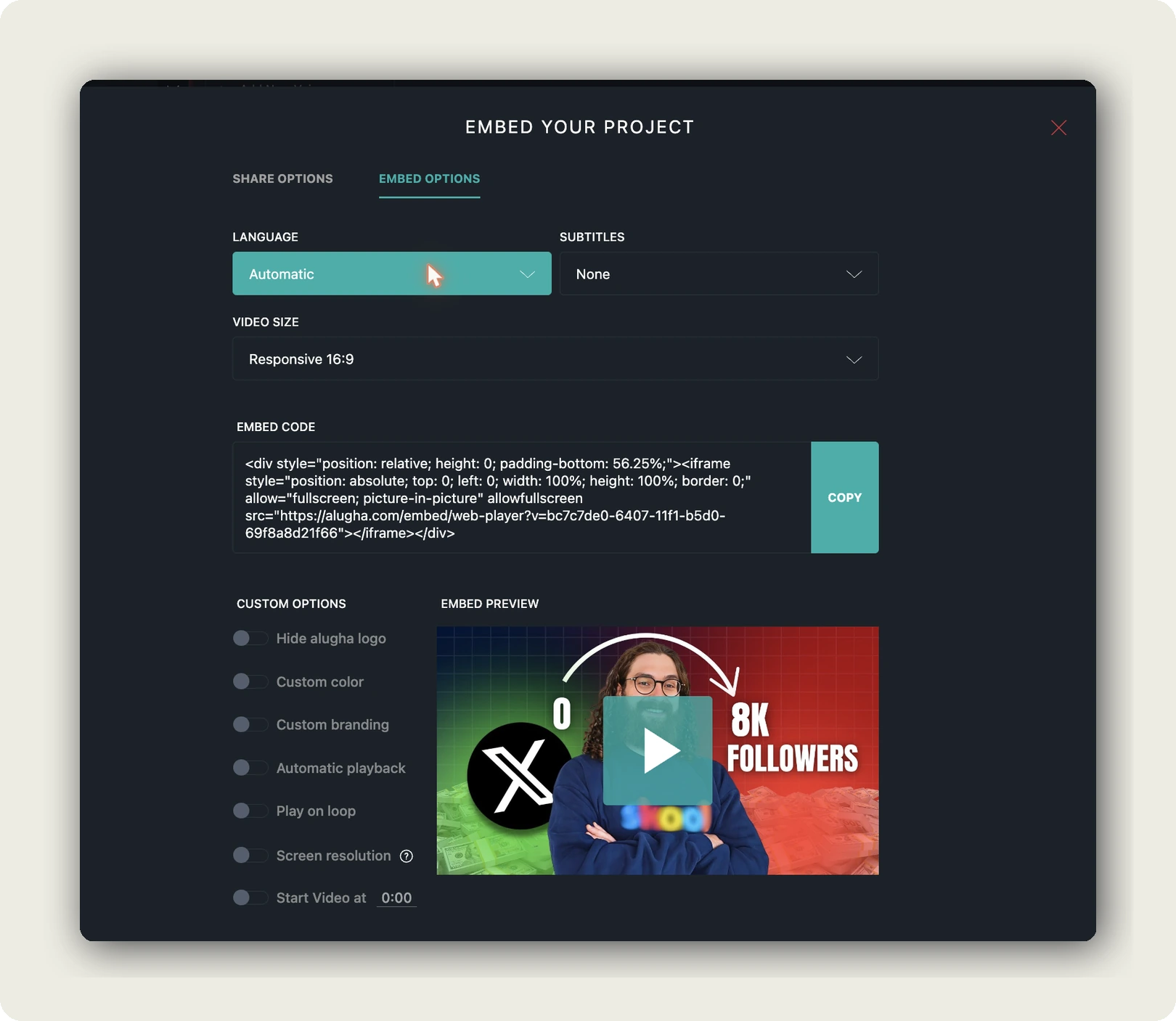
The SUBTITLES options:
- None. Default; visitors turn subtitles on manually.
- Automatic. Subtitles start in the visitor’s browser language when that track exists.
- Automatic (force). Subtitles are always shown; if there is no exact language match, the player falls back to the best available track.
- A fixed language (Deutsch, English, Français, …). Every visitor starts with that track.
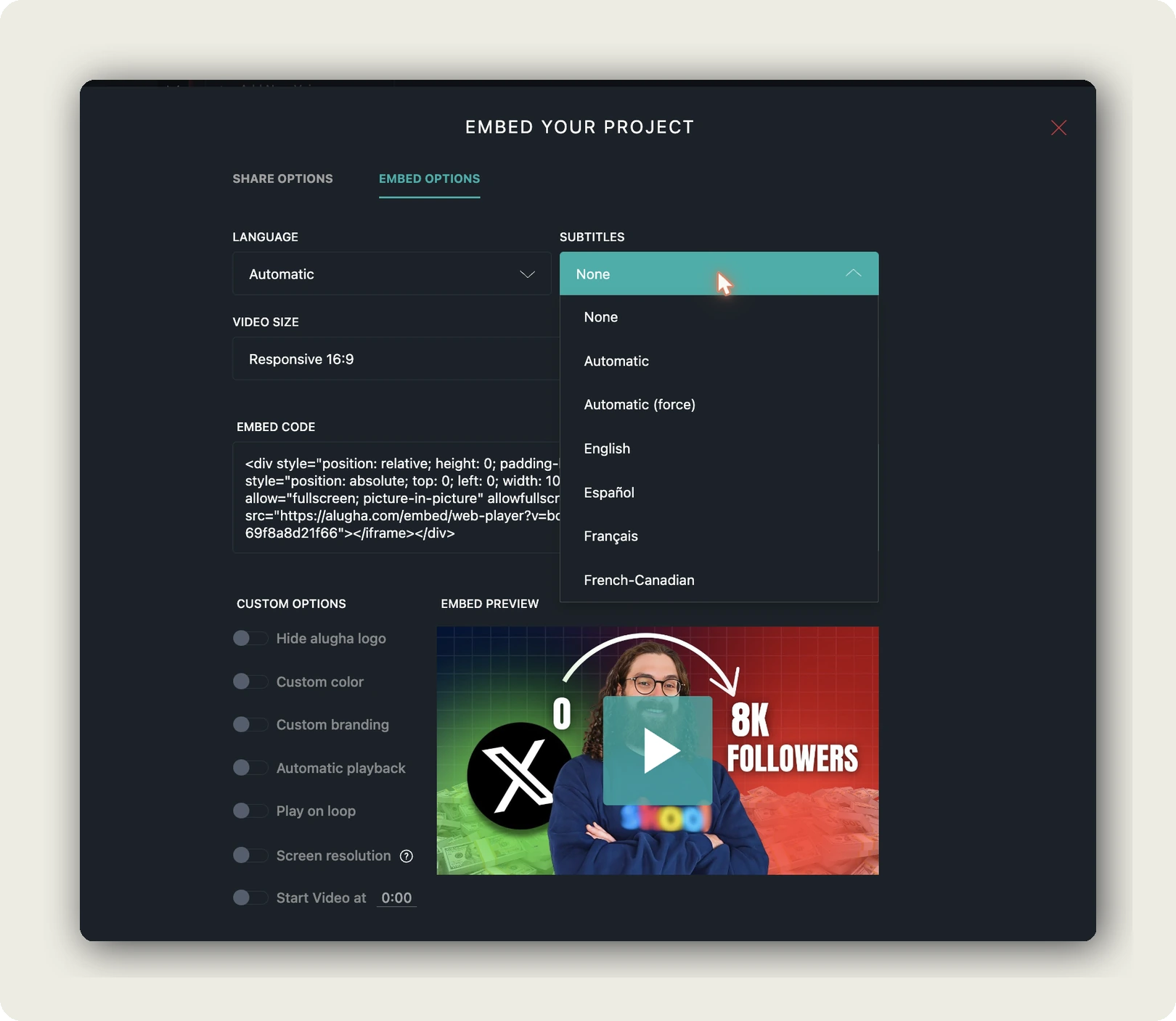
Copy the finished embed code
Every choice you make updates the EMBED CODE box instantly, the dialog writes the snippet for you, so there is nothing to edit by hand. Click COPY and paste it into your page: a plain HTML page, a WordPress Custom-HTML block, or an LMS. The snippet is a responsive 16:9 wrapper unless you picked a different VIDEO SIZE.
Want to change the setting later? Re-open the dialog, pick the new option, copy the fresh code, and replace the old snippet on your page.
Verify with the live preview
The EMBED PREVIEW next to CUSTOM OPTIONS is the real embedded player. Press play, with your subtitle setting active you see the captions exactly as your visitors will. Adjust, re-check, then copy the final code.
The CUSTOM OPTIONS. Hide alugha logo, Custom color, Custom branding, Automatic playback, Play on loop, Screen resolution, Start Video at. Combine freely with the subtitle setting.
Shortcut: the SHARE tab on the video page
The same Subtitles dropdown exists on the public video page. SHARE tab below the player, next to Language and Size. The Embed code shown there updates the same way. Use whichever surface you have open; the result is the same player.
When to use which option
- Marketing pages with autoplay → Automatic (force). Autoplaying embeds start muted in every modern browser. Subtitles carry the message until the visitor unmutes.
- International site with one embed → Automatic. Each visitor reads their own language; the same iframe serves every market.
- Country-specific landing page → fixed language matching the page.
- Accessibility-first pages → Automatic (force) plus a Closed-Captions track. See How to manage subtitles.
Remember: a subtitle track has to exist and be published before the player can show it. See Create subtitles from your transcript.
Where to go next
- Automatically enable subtitles in shared videos, the same idea for links.
- Embed your multilingual video
- Set autoplay, loop, and start time for embeds
- How to manage subtitles
Was this article helpful?