A TikTok transcript is a written version of the words spoken in a TikTok video. To get one, read the video’s captions or transcribe a video file you are entitled to use. For your own clip, start with the original recording. For someone else’s, check the captions first and use TikTok’s Save video option where the creator allows downloads. This guide explains both routes, how to correct the result and how to export text, subtitles or a translation.
Key takeaways
- Choose the route that matches your clip. Viewers can read available captions or transcribe an authorised download. Creators should use their original video file.
- To read available captions, open Share, select Captions and enable Show captions. You may need to scroll across the Share panel to find the control.
- Reading captions and downloading a transcript are different tasks. TikTok documents caption creation and editing, but its caption help does not describe an SRT or WebVTT export.
- A public video is not permission for every reuse. Check download settings, the relevant platform terms and the rights needed for any republication or translation.
- Review the transcript against the audio. Music, overlapping voices, unfamiliar names and language changes can produce errors. Add unspoken on-screen text separately when it matters.
- Keep an editable transcript alongside the video. Use plain text for reading, timed files for subtitles and a corrected source for translation. Export features and processing allowances depend on the tool and plan.
- Key takeaways
- How to get a transcript of someone else's TikTok
- How to transcribe your own TikTok video
- TikTok transcripts, captions and subtitles: what is the difference?
- How to fix errors in a TikTok transcript
- Export a TikTok transcript as SRT, WebVTT or plain text
- Translate a TikTok video to English or another language
- Reuse vertical videos without losing the original framing
- Can you republish a transcript of someone else's TikTok?
- Get a TikTok transcript with alugha
- Frequently asked questions about TikTok transcripts
- Start with the right source and keep the corrected text
How to get a transcript of someone else’s TikTok
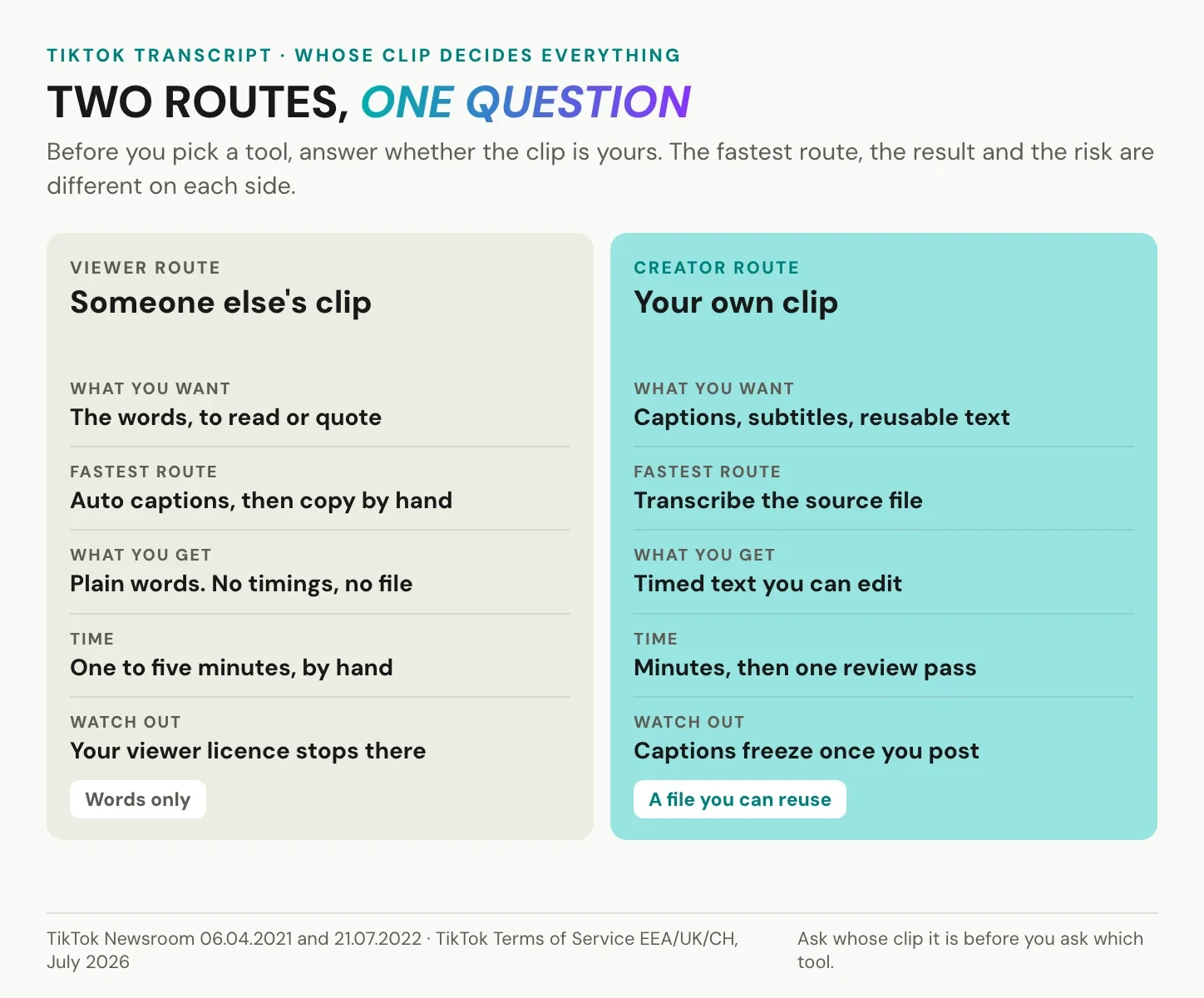
Start with how much text you need. A few words from a recipe or an instruction may be easier to check in the app than to process through a transcription tool. For a complete transcript with timestamps, you will need a suitable file and permission for the intended use. Update to the illustration: captions are not necessarily frozen after posting. TikTok’s current caption guidance explains how creators can edit or remove auto-generated captions on their own published videos.
- Open the TikTok post and tap Share.
- Find Captions in the lower row of options. Scroll across if it is not immediately visible.
- Turn Show captions on, then pause or replay the passage you need.
These are the steps in TikTok’s viewer accessibility guidance. They apply to posts that contain captions. If the control is missing, first check the rest of the Share panel; a missing button alone does not tell you why a particular clip lacks captions. Pause or replay the relevant section and compare the text with the audio before copying a name, number or quotation.
If TikTok offers translated captions for the clip, they can help you understand it. Keep the source and translation distinct, especially when quoting someone: a translated line is not their exact original wording. The language lists from TikTok’s early announcements describe those rollouts, not a reliable inventory of what every account can use today.
This gives you text to read. It does not, by itself, produce a downloadable transcript file.
The post description may also contain the ingredient, product name or explanation you need. In a desktop web view, copy it if the page allows text selection. Words drawn inside the video are different: pause the frame and type them out, or use optical character recognition (OCR) on a screenshot and check the result. A speech-to-text tool cannot recover a temperature or label that was never spoken.
Save an allowed download and transcribe the file
When you need the whole spoken passage, a video file lets you create an editable transcript. Use TikTok’s own download option where it is available, then check that your intended processing and reuse are permitted. Download access and permission to publish the result are separate questions.
TikTok’s download instructions confirm that creators control whether others can save their posts. If you are collecting material for a team, keep the original URL and creator name with the file so that its source remains clear after transcription.
- Open the clip in TikTok and tap Share.
- Choose Save video if the creator allows downloads.
- Upload the saved file to a suitable speech-to-text tool, review the transcript and export the format you need.
If Save video is unavailable, TikTok says the creator does not allow that download. Ask the creator for a file or transcript, or use the captions and information available in the post. A service that accepts the URL does not establish that it has permission to extract the content.
After transcription, you can review the words and, if your tool supports it, export timestamps or subtitle files. Whether you can republish the transcript, translate the video or use it commercially depends on the rights and purpose discussed below.
Check URL-based transcript tools before using them. Some services accept a TikTok link, but their access methods and permissions differ. Section 4.5 of TikTok’s EEA, UK and Switzerland terms restricts extracting platform content with automated systems or software not provided by TikTok or approved in writing. That is a regional contractual rule, not proof that every tool works the same way or a universal ruling on legality. For your own content, uploading the original file avoids depending on a third party to retrieve the TikTok post.
How to transcribe your own TikTok video
Start with the original recording or the export from your editor. It avoids an additional platform download and gives you access to the audio before any extra compression or watermarking. If you have separate dialogue and music tracks, use the clean dialogue for recognition while keeping the finished mix for review. Owning the recording does not automatically clear music or other third-party material for reuse elsewhere.
Upload the file to a transcription tool and select the spoken language when that setting is available. For mixed-language speech, check whether the chosen model supports language switching rather than forcing the entire clip into one language. Enable speaker detection when you need separate labels for different voices. Our guide on how to transcribe a video to text explains the wider file-based workflow.
If you only need captions inside TikTok, use its own caption tools. For auto-generated captions, select the video language under More options on the posting screen. For creator captions, choose Captions on the video preview screen, then review and edit the generated lines. TikTok also documents editing auto-generated captions after posting: open your video, tap its caption, choose Edit captions and save the changes. These in-app editing options are separate from exporting a subtitle file.
For a reusable transcript, play the recording alongside the generated text. Check names, quantities, dates, negations and speaker changes, then revisit any unclear passage. Mark something as unclear rather than inventing a plausible word. A quick first pass may be enough for a simple clip; noisy audio or material intended for publication can need more work.
When choosing a TikTok transcript generator, look beyond the language count or advertised accuracy. Check whether it accepts your file, lets you correct the text, handles the languages you need and exports the required format. Also check processing quotas, export restrictions and how the service handles uploaded material. A tool can be free to try while charging for the subtitle file you want at the end.
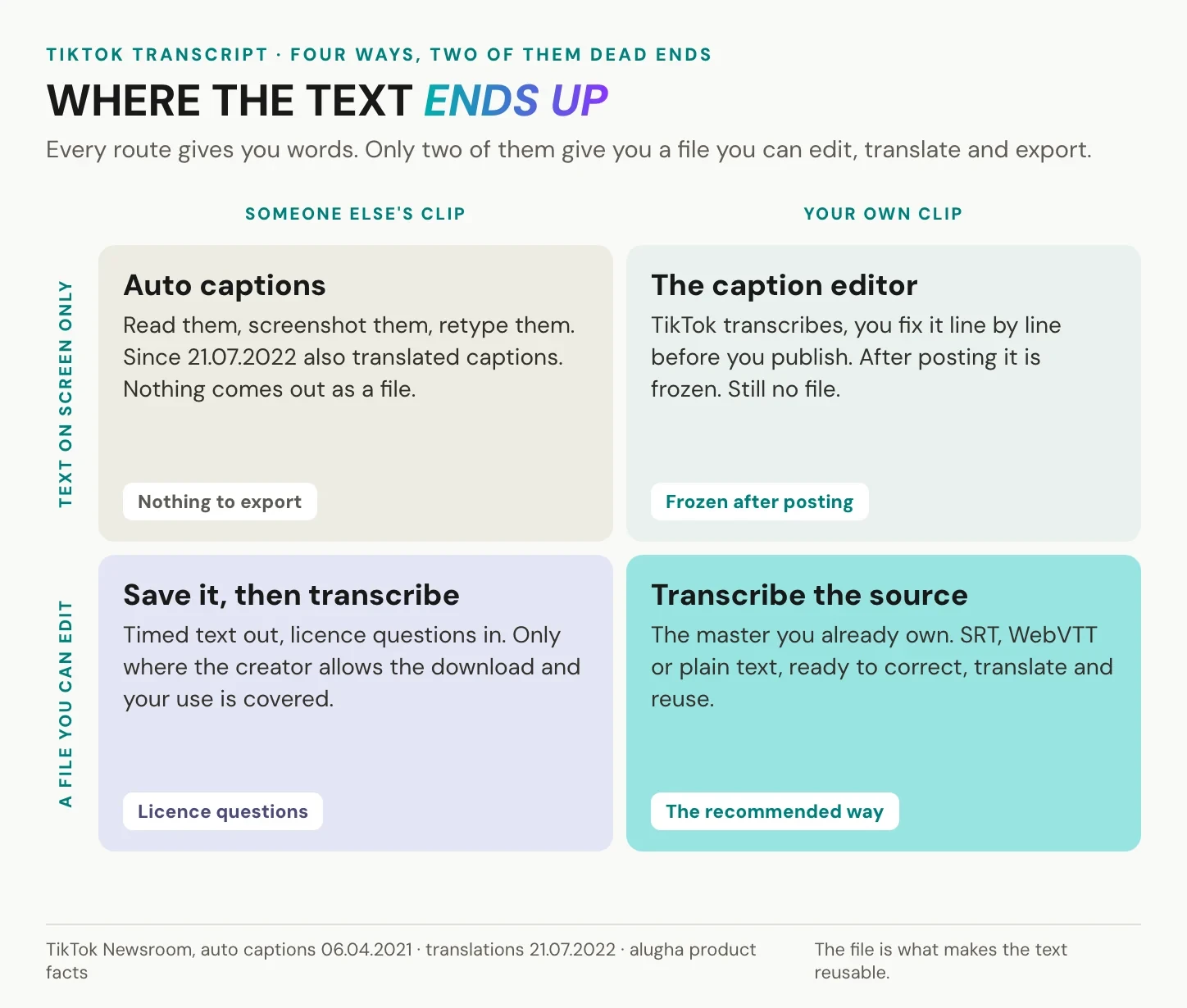
The caption editor in the illustration is not necessarily frozen after posting: TikTok documents an edit option for auto-generated captions. The useful distinction is between editing text inside TikTok and keeping a separate, exportable transcript. To try the file-based workflow, create a free alugha account. Check your plan before relying on subtitle exports.
TikTok transcripts, captions and subtitles: what is the difference?
The same search can lead to four different kinds of text. Knowing which one you need prevents an avoidable mismatch: copying a video’s description will not give you its dialogue, and a plain-text transcript will not carry subtitle timings.
A transcript records the spoken words, with optional timestamps and speaker labels. Captions or subtitles divide text into timed segments for playback; accessible captions also include relevant sounds and speaker identification. A post description is the text the creator adds around the video. TikTok uses “captions” for its speech-based caption tools too, so the word does not refer only to the description field.
Finally, on-screen text includes stickers, labels and words already embedded in the picture. Keep these separate from the spoken transcript when adding them by hand, for example as “On-screen text: preheat to 200°C”. That distinction matters when the image and the speaker provide different information. OCR can help, but its output still needs review.
Use timestamps when the text needs to follow playback or when a reviewer must find a passage quickly. Choose plain text when the result is primarily for reading, notes or a written quotation. Our video transcript examples show how the same material can be presented as plain text, SRT and WebVTT.
How to fix errors in a TikTok transcript
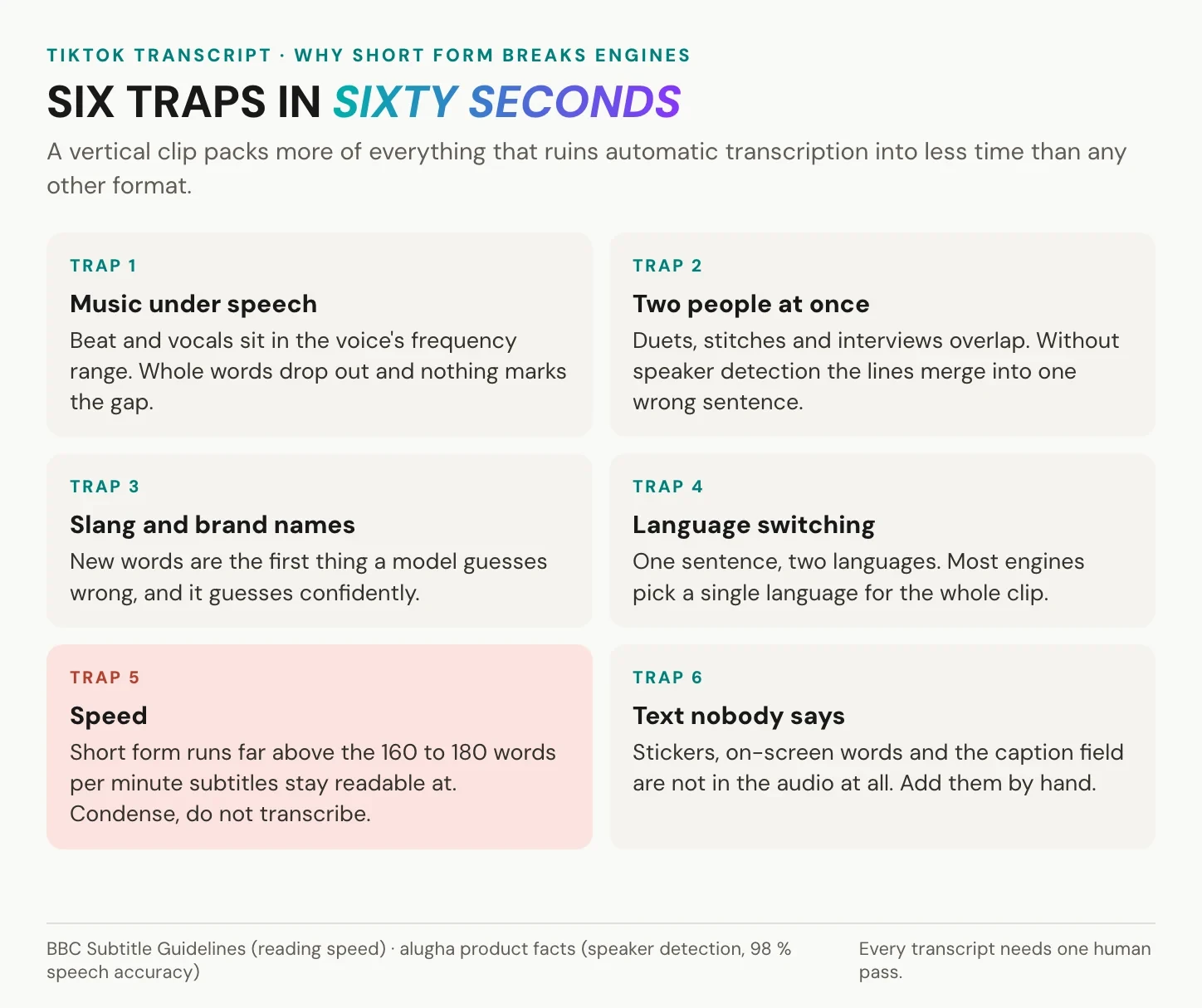
Music can mask speech, while overlapping voices make it harder to identify both the words and their speaker. Slang, unfamiliar names and language changes add further uncertainty. These are possible failure modes, not inevitable errors in every short video. Speaker detection can help label turns, but it cannot reliably reconstruct speech that is inaudible in the recording. Treat an advertised accuracy percentage as a claim about a particular test unless the provider explains its languages, audio conditions and measurement method.
Once you turn the transcript into subtitles, reading speed becomes a separate editing task. The BBC Subtitle Guidelines recommend around 160 to 180 words per minute while allowing editorial adjustments. That is a broadcasting guideline, not a universal TikTok limit or a WCAG pass mark. Preserve the meaning and useful detail; adjust cue timing and segmentation before condensing speech that viewers need to follow.
Review the beginning and end of the clip, proper nouns, numbers and anything spoken over loud music. Then watch the captions at normal speed on a phone. Check that each line can be read, identifies the right speaker and does not cover an important part of the picture. Our guide to accessible subtitles for corporate video covers the additional information needed beyond dialogue alone.
Export a TikTok transcript as SRT, WebVTT or plain text
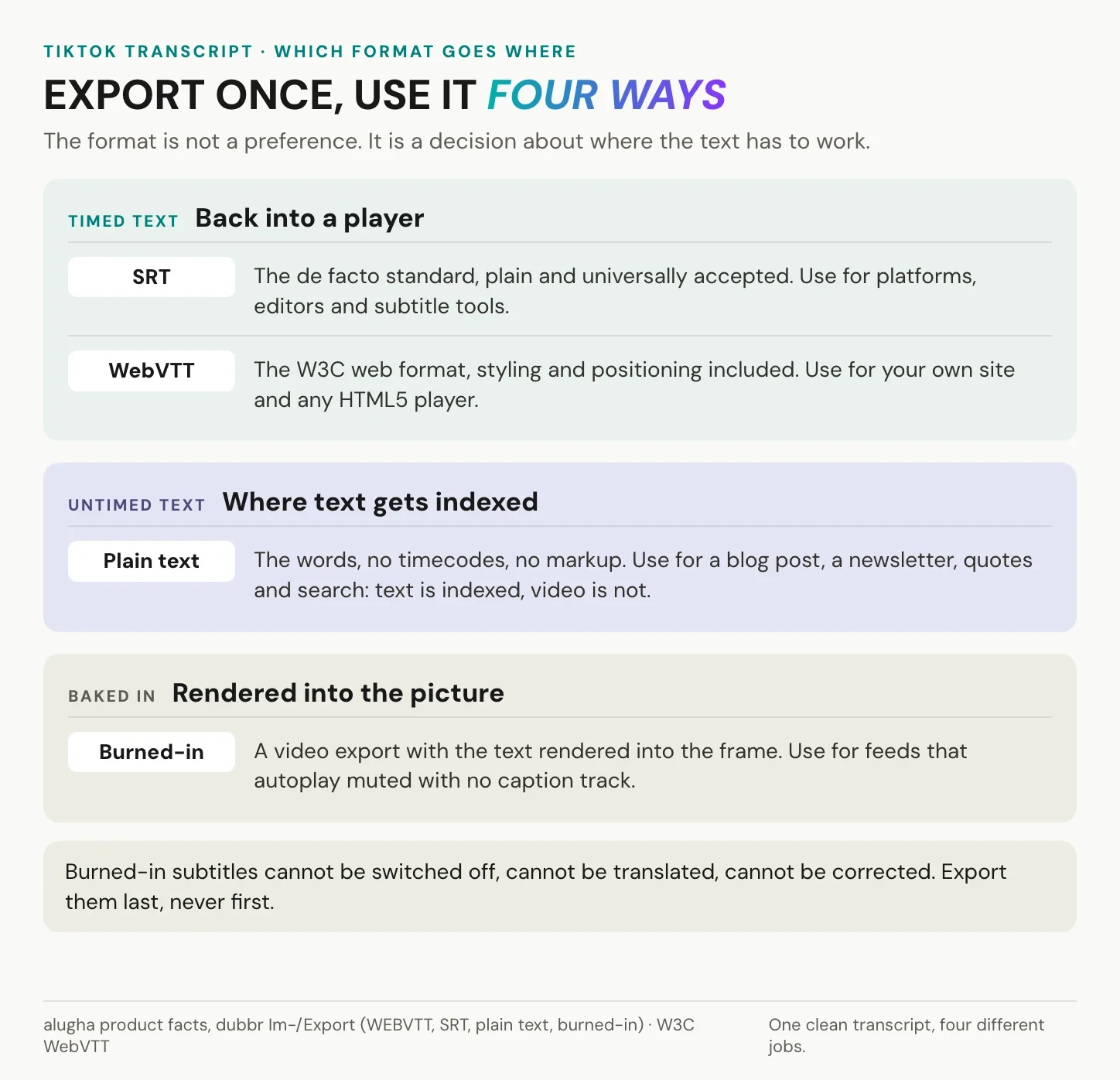
Choose the export for its destination. SRT is widely supported by subtitle editors and publishing tools, but check the specific destination before uploading. WebVTT is designed for timed text on the web. A basic WebVTT cue contains a start time, an end time and the text to display, as this example shows:
WEBVTT

00:00:04.120 --> 00:00:07.480
Two hundred degrees, fan off, twenty minutes.
Plain text is useful for reading, notes and accompanying website copy. It can make the spoken information easier to scan and search. The illustration’s claim that video is not indexed is incorrect: Google documents video indexing as well. A transcript complements the video; it does not replace the requirements for a discoverable video page. alugha offers SRT, WebVTT and plain-text export, plus video export with burned-in subtitles. See how to export subtitles and check the features included in your plan.
For timed files, keep line breaks at natural phrase boundaries and synchronise each cue with the speech. Give readers enough time without leaving captions on screen after they no longer fit the scene. If speech is too fast, consider careful editing that preserves meaning. A word-for-word transcript and a readable subtitle track may therefore need separate final checks.
Burned-in subtitles are rendered into the video picture. They can be useful when a destination has no suitable caption-track support or when the text is part of the creative treatment. They cannot be switched off by the viewer, and changing them requires a new video export. Keep the editable text and timed file as well. Where separate caption tracks are available, check that using both does not create duplicate text on screen.
Translate a TikTok video to English or another language
To translate a TikTok video, first decide whether you only need to understand it or want to publish another language version. Available translated captions may be enough for viewing. For a version you can review, subtitle or dub, work from an authorised file and a corrected transcript.
Correct recognition errors before translation. A wrong name or number can spread into several language versions, making it harder to locate the original mistake later. Preserve terminology consistently and have someone who understands the target language review important passages, humour and cultural references. Our guide on how to translate a video explains that sequence in more detail.
Choose subtitles, voice-over or both around how the video will be watched. Subtitles carry the words when sound is off. A translated audio track helps viewers who listen and can reduce competition between reading and watching a detailed demonstration. Do not assume that everyone turns the sound on, or that a website can autoplay audible video. In alugha, translation starts from the transcript and can support subtitle and voice-over workflows. A glossary can help keep names and terminology consistent where your plan includes it.
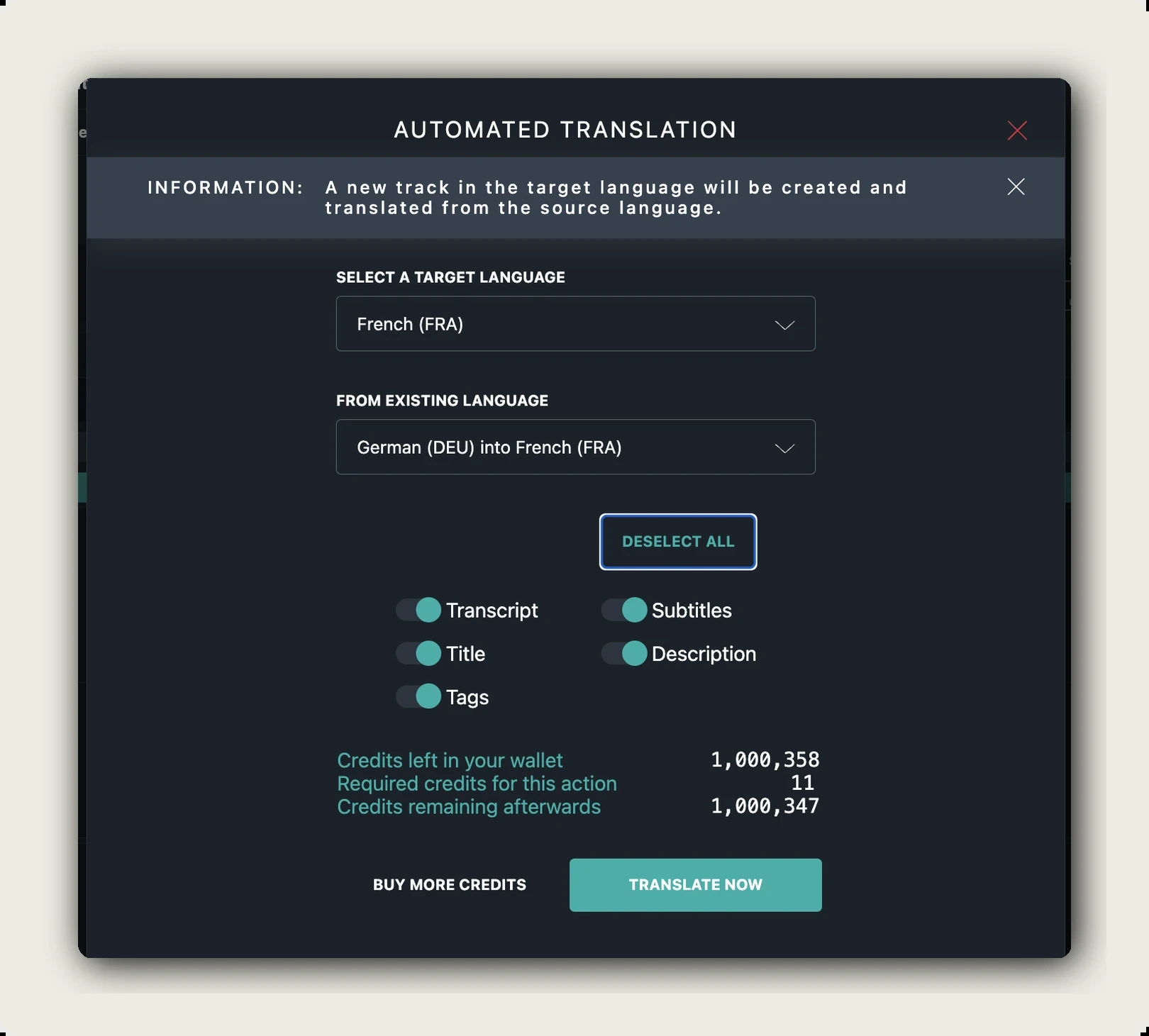
A URL-based translation service may return text, subtitles, a rendered video or some combination; those outputs vary by provider. Check whether you can edit the recognised speech and download the result before committing to a workflow. You can also translate a transcript you are entitled to use in a text-translation tool, but you will still need a separate step to time subtitles, create audio and check the finished video.
Reuse vertical videos without losing the original framing
Many TikTok videos use a 9:16 portrait frame, although not every post has that shape. Transcription itself does not change the aspect ratio. Cropping and padding depend on what the editor, export preset and destination player do with the video. Check those settings before turning a phone recording into a landscape canvas.
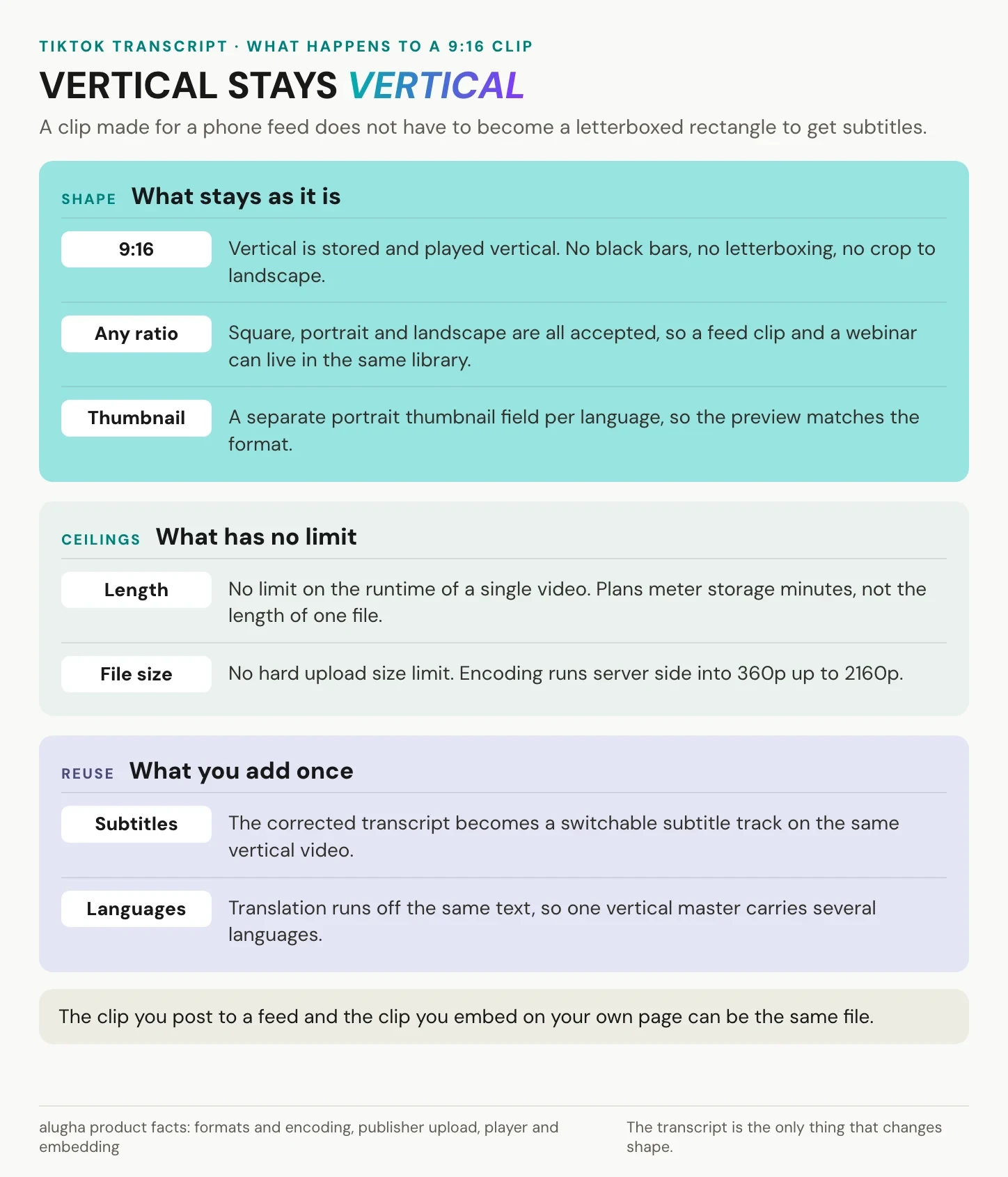
alugha supports portrait video without requiring you to reframe the source as 16:9. Keep the original aspect ratio and use an embed container that suits it. Black bars already baked into an uploaded file will still be part of the picture, and a fixed landscape container can leave empty space around portrait content. Test the published page as well as the source file.
The per-language metadata settings include a Portrait Thumbnail field alongside the standard thumbnail. Use it to choose a preview that matches the vertical composition and, where useful, the language of that version. Keep important words and faces visible at the size the preview will actually appear.
alugha does not impose a fixed per-video duration cap or a hard upload file-size limit. That does not mean unlimited free processing or storage: the platform uses credits and plan-based features. The illustration’s encoding and billing details need updating: the current upload guide lists 540p, 720p and 1080p quality choices, subject to the plan. The plans and credits guide describes credit-based storage and processing, not the old resolution-multiplier model. Do not treat 2160p in the graphic as an available upload-wizard option.
A single vertical master can be the starting point for several destinations. Check each platform’s current duration, format and music-licensing requirements, then review caption placement against its interface. You may still need a different edit or export for a particular destination even when the aspect ratio stays the same.
To review that workflow with one of your own clips, book a call and bring the source file, intended destinations and target languages.
Can you republish a transcript of someone else’s TikTok?
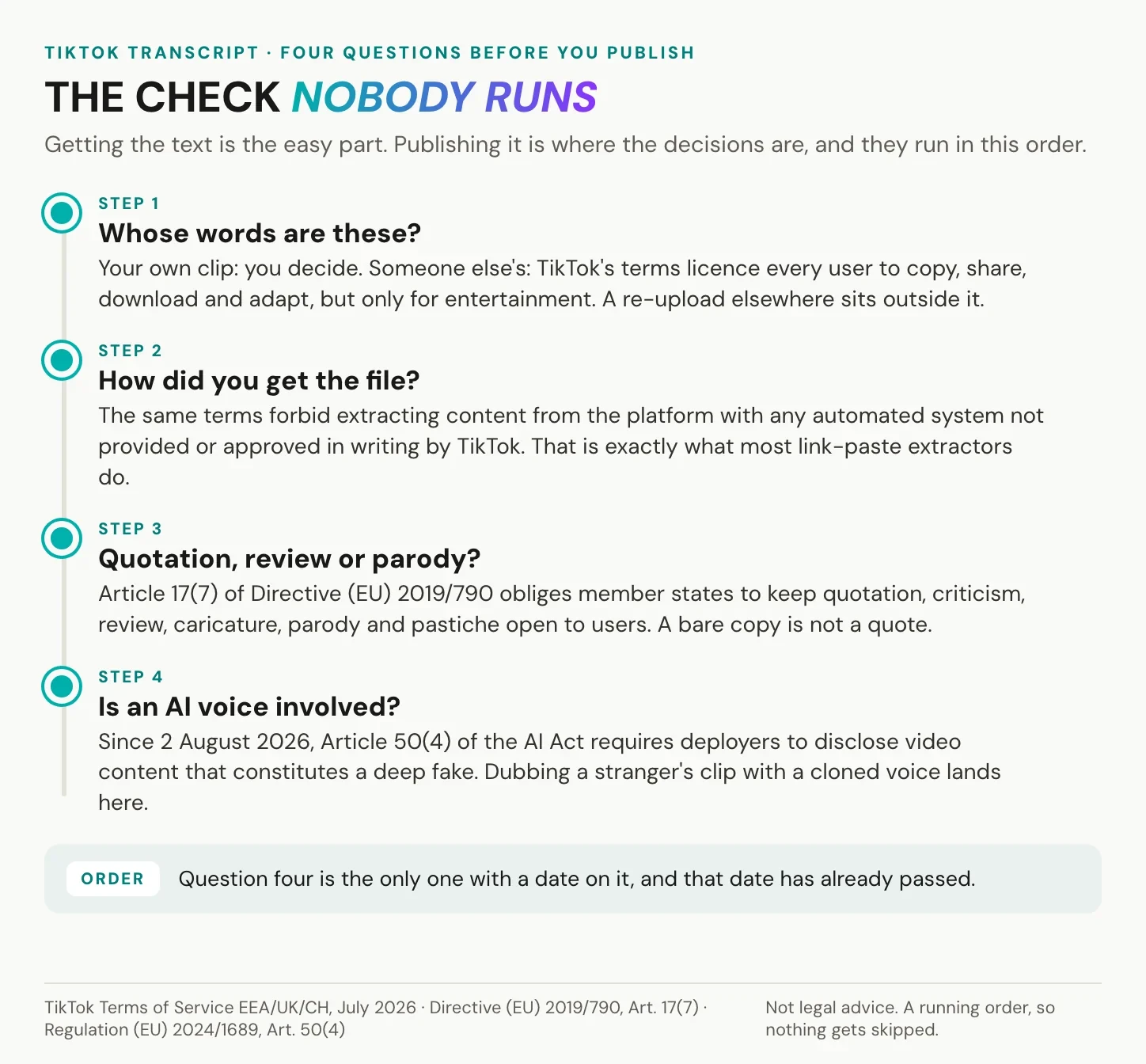
Getting access to a clip and obtaining permission to republish its words are different decisions. The graphic provides a starting checklist, but the answer depends on the applicable terms, local law, the material and your intended use. A public post or an enabled download button does not automatically clear commercial reuse, translation or voice cloning.
TikTok’s EEA, UK and Switzerland terms tie the user-to-user content licence to use of the platform for entertainment, subject to the creator’s settings. They also restrict unauthorised automated extraction. Do not read those terms as a general licence to republish an entire transcript elsewhere. Other regions and commercial uses can have different terms, and separate permission from the relevant rights holder may cover a use that the platform licence does not.
Copyright exceptions may apply to uses such as quotation, criticism, review or parody, subject to the relevant national law. Article 17(7) of Directive (EU) 2019/790 protects specified exceptions for users uploading to online content-sharing services; it is not a blanket permission to reproduce any clip or transcript on any website. For a quotation, use an amount justified by the purpose and make clear how it relates to your own discussion.
Article 5(3)(d) of Directive 2001/29/EC sets conditions for the EU quotation exception, including lawful prior availability, fair practice, an amount justified by the purpose and source attribution, including the author’s name unless impossible. Credit alone does not establish permission. Keep the creator name and original link, and separately consider privacy, personal data, music and likeness rights where relevant.
AI dubbing needs a separate rights and disclosure check. Under Article 50(4) of the EU AI Act, covered deployers must disclose AI-generated or manipulated audio or video that constitutes a deepfake. These obligations apply from 2026-08-02, but the scope includes distinctions such as professional use versus purely personal use and specific treatment of artistic work. A cloned voice needs assessment; every AI voice-over does not automatically fall into the same category. The European Commission’s Article 50 guidance explains those distinctions. A disclosure label also does not replace the rights needed to use the voice or recording. Our guide to AI dubbing explains the production workflow.
Get a TikTok transcript with alugha
The alugha workflow starts with a video or audio file you are entitled to process. For your own TikTok, use the original recording or editor export. For someone else’s content, confirm that the way you obtained the file and the planned use are permitted. The steps below create an editable transcript and, where your plan supports it, exportable subtitle files.
1. Upload the video file
Open the Publisher, upload the file and select the spoken language. Choose an encoding quality available to your plan, then review the displayed credit cost. You can request transcription during upload or run it later in the dubbr. Keep a portrait source in its original aspect ratio and avoid adding a landscape canvas merely to upload it.
2. Generate the transcript and identify speakers
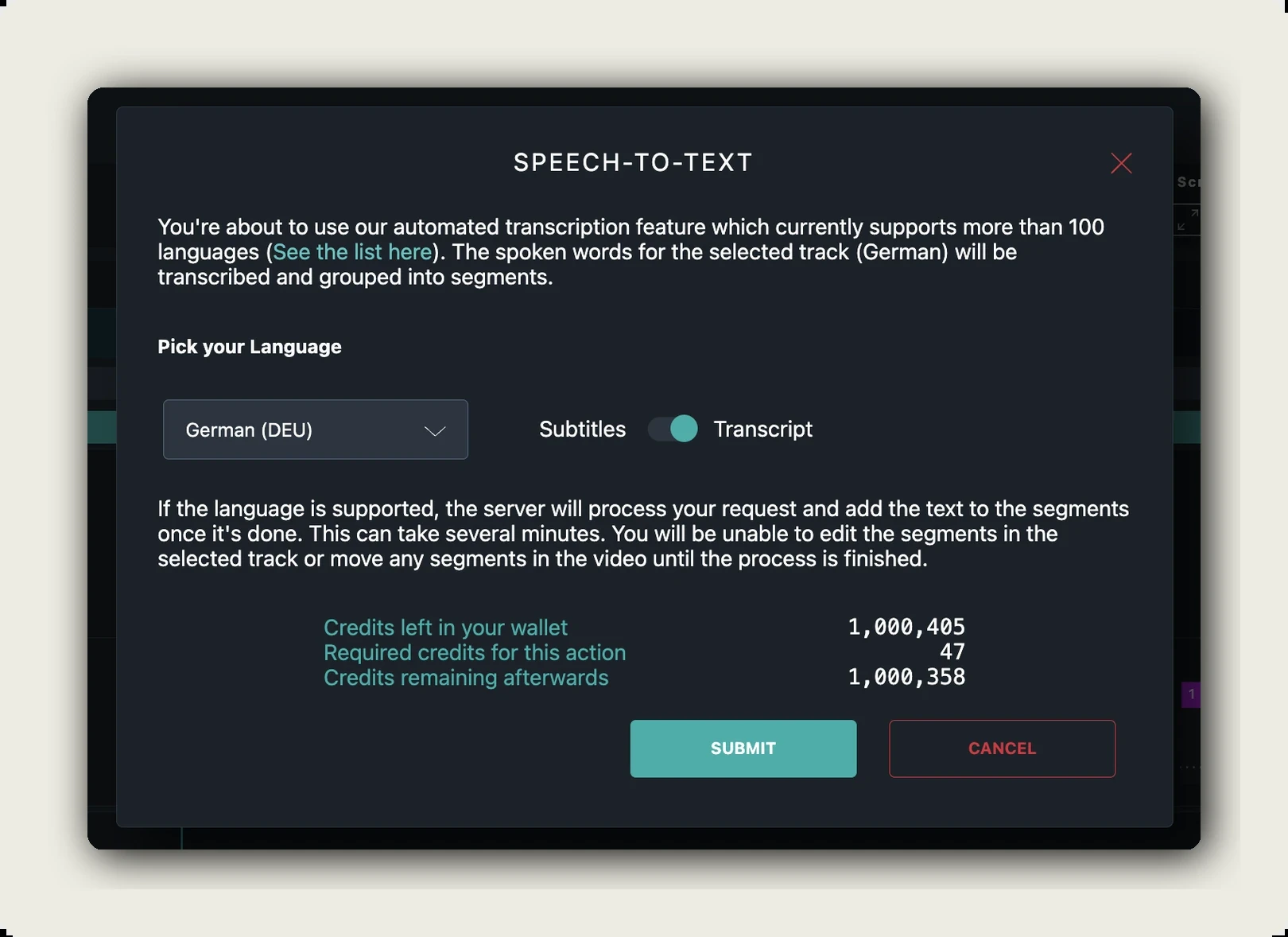
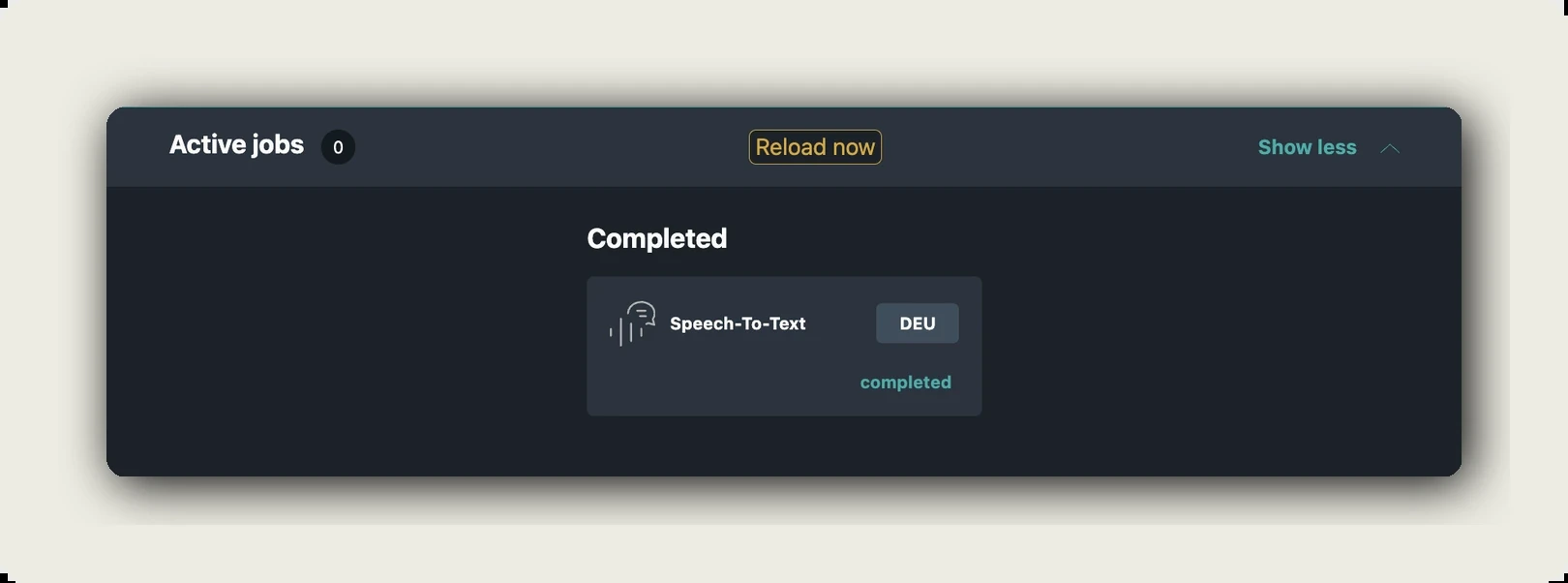
Select the source-language track in the dubbr, then open Automation and Speech To Text. Choose the language actually spoken in the recording. Keep the output on Transcript if you plan to translate or dub the clip; use speaker detection where available to distinguish different voices. Review the credit cost and submit the job. alugha’s Speech-To-Text guide explains the settings. Once processing finishes, reload the track and review the words against the audio. Speaker labels and timestamps help navigation, but do not prove accuracy.
3. Correct the text and export the format you need
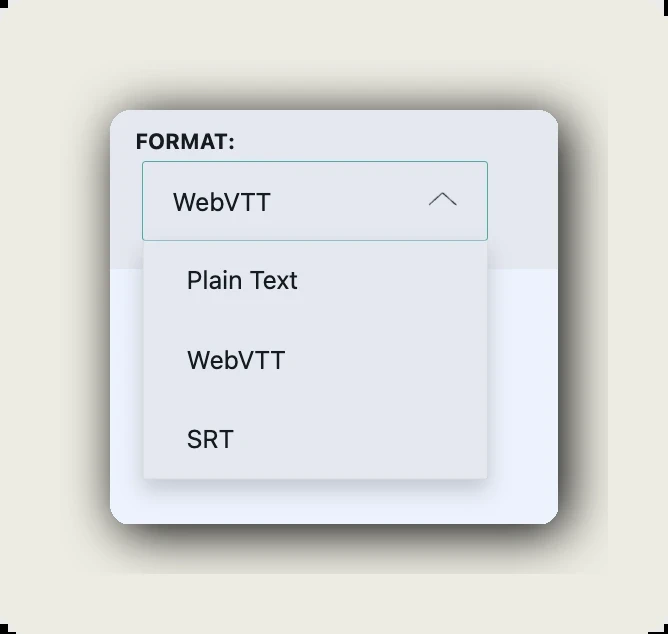
Correct the transcript first. If you need a subtitle track, use Copy Dub to Subs to create it from the transcript, then review line breaks and timing. In the import and export menu, choose SRT or WebVTT for timed text, or plain text for a readable transcript. Keep an editable version even if you also export a video with burned-in subtitles. alugha’s plans guide lists subtitle export from the Creator plan; check that your plan includes the download you need.
4. Publish with reviewed captions and language tracks
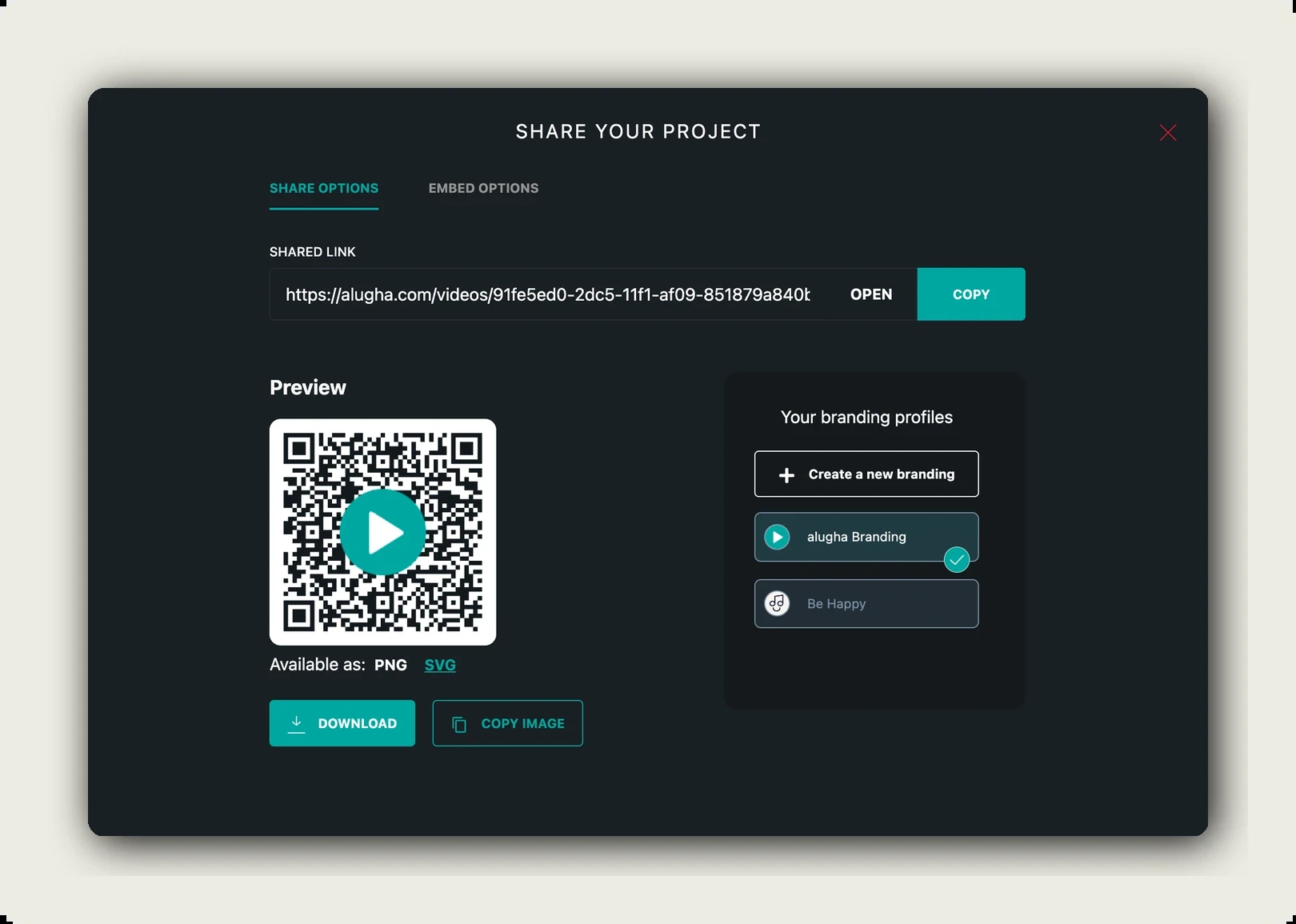
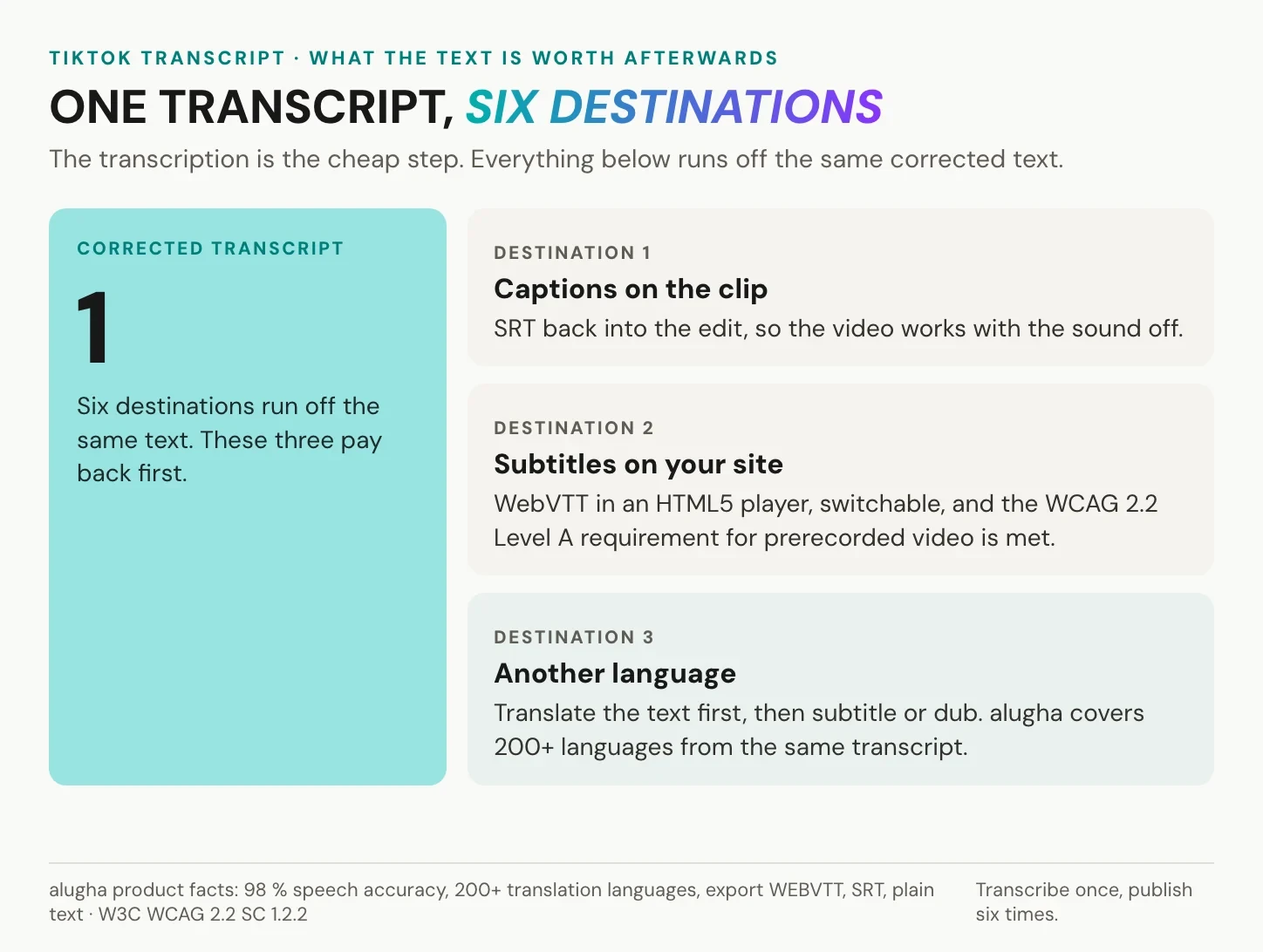
Publish the project and use the Share tab to select the sharing or embedding options, including the relevant language and subtitle settings. Test the resulting link as a viewer. WCAG 2.2 success criterion 1.2.2 requires captions for prerecorded audio in synchronised media, with a defined exception for a clearly labelled media alternative for text. Captions need to convey relevant speech and non-speech audio, including speaker identification where needed. A WebVTT file or a subtitle switch alone does not establish conformance, despite the shorthand in the reuse graphic below.
Frequently asked questions about TikTok transcripts
How can I transcribe a TikTok video to text for free?
For a short clip, read its available captions, replay the audio and type a checked transcript yourself. That does not require a paid transcription tool. If you use an automated service, check its free allowance and export restrictions. For your own content, start with the source file. For another creator’s clip, use an authorised download or ask them for the file or transcript.
Can I transcribe a vertical TikTok video without adding black bars?
Yes. Speech-to-text does not require you to change the picture’s aspect ratio, and alugha supports portrait video. Keep the source at its original ratio and check the export and embed settings. Bars already rendered into the source file remain part of it; changing the transcript will not remove them.
Is there a length limit on the video I transcribe?
Limits depend on the tool. alugha does not impose a fixed per-video duration cap or a hard upload file-size limit, but processing, storage and available features depend on credits and your plan. Other transcription services may have per-file or monthly limits. Check those separately from TikTok’s own recording and upload limits.
Can I download TikTok captions as an SRT file?
TikTok’s caption help documents creating, displaying and editing captions, but it does not describe an SRT or WebVTT export. For a file-based workflow, transcribe a video you are entitled to use in a tool that supports the required export. TikTok’s own auto-generated captions can also be edited after posting; editing and exporting are separate features.
Can I translate a TikTok video to English from a link?
Some services accept a TikTok URL, but check how they obtain the content, what permissions apply and whether they return editable text or only a finished video. If TikTok provides translated captions for that clip, they may be enough for viewing. For a version you plan to publish, use an authorised file, correct the source transcript and review the English translation before creating subtitles or audio.
Why are auto captions missing on some TikTok videos?
TikTok says that viewers can manage captions only when a post contains them, and its creator guidance refers to eligible videos. A missing control does not identify the underlying cause. Check across the Share panel for Captions. If no track is available, ask the creator for captions or a transcript, or transcribe a file you are entitled to use.
Can I use a transcript of someone else’s TikTok in my own content?
Sometimes, if you have permission or an applicable legal exception covers the use. A public post, attribution or an available download is not enough by itself to establish that. Consider the amount reproduced, your purpose, the relevant jurisdiction and any additional rights. For a translation or AI-dubbed version, review those uses separately and apply any required disclosure.
Start with the right source and keep the corrected text
If you only need to read a passage, use the available captions and check the words against the recording. If you need a complete TikTok transcript, choose a file-based workflow and confirm that you may process the source. Keep the original URL with notes from someone else’s clip so you can return to the context later.
For your own video, work from the master, review the generated text and keep that corrected version. Export the format your next destination needs, then test the captions or translation in the finished video. This keeps later edits connected to the source instead of rebuilding the text for every platform.
Create a free alugha account to try the workflow with your own clip, and compare processing allowances and export features on the pricing page before choosing a plan.