Summary
Social networks don’t let you paste an iframe into a post, but you don’t need one. Share the alugha link and the platform renders a preview card; the viewer lands on your multilingual player with automatic language switching. This article covers the link workflow for LinkedIn, Facebook, X, and Instagram, the QR-code option for Stories and print, and when a real embed is the better tool.
Why social sharing works with links
Feeds on LinkedIn, Facebook, X, and Instagram strip embedded players for security reasons. What they do support is link previews: paste an alugha video link into a post and the network builds a preview card from the video’s title, description, and thumbnail. One click takes the viewer to the alugha player, in their language, thanks to the automatic language switcher.
That’s the core advantage over uploading the video natively per language: one link serves every audience.
Get the right link
Path A, from the video page
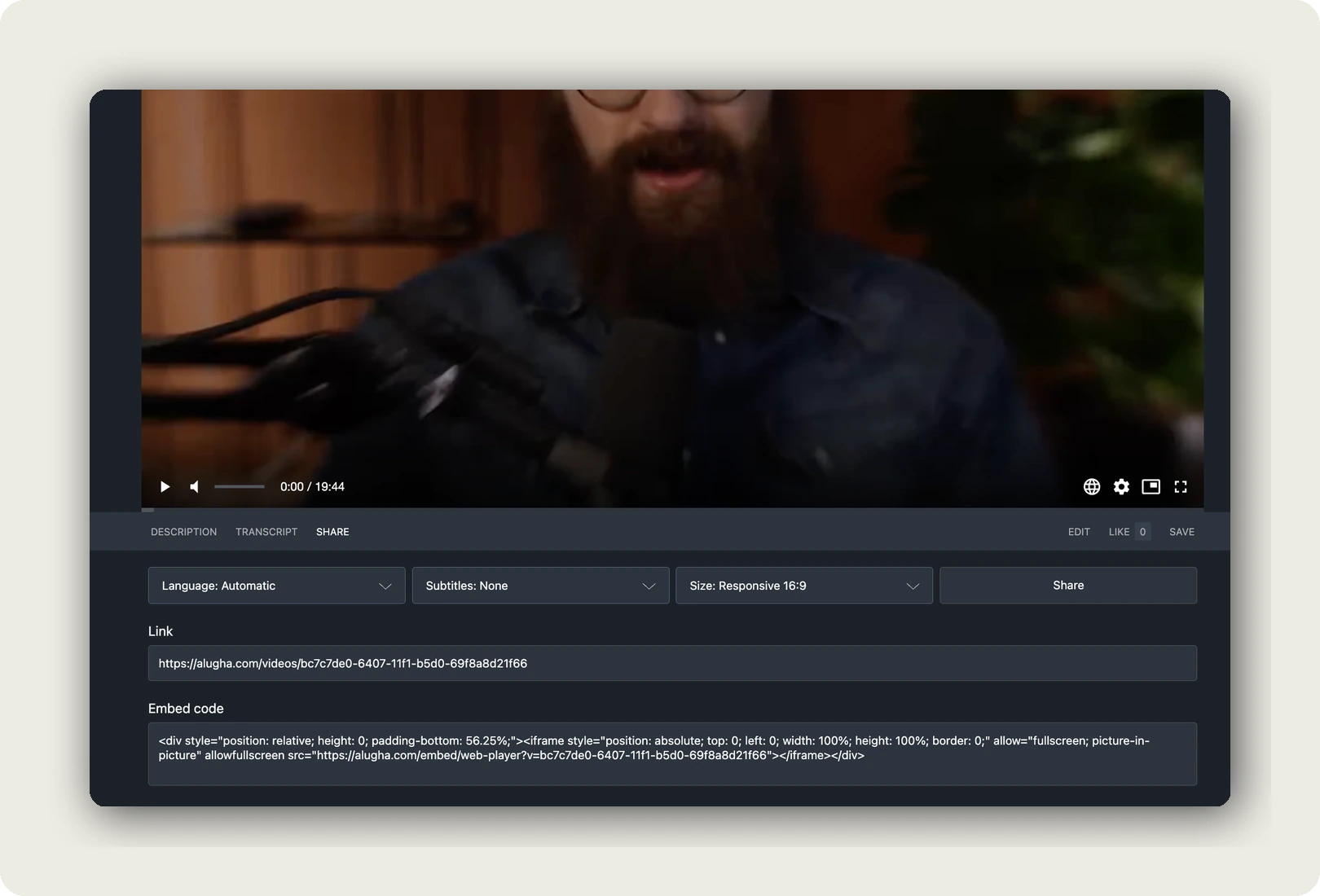
Open the video and click the SHARE tab below the player. Configure what the viewer should get:
- Language. Automatic (recommended) or a fixed audio language.
- Subtitles. None, Automatic, Automatic (force), or a fixed language. See Automatically enable subtitles in shared videos.
- Size. Only relevant for embeds; ignore for social links.
The Link field updates live with every choice. Nothing to edit by hand. Copy it and paste it into your post.
Path B, from the dubbr (with QR code and branding)
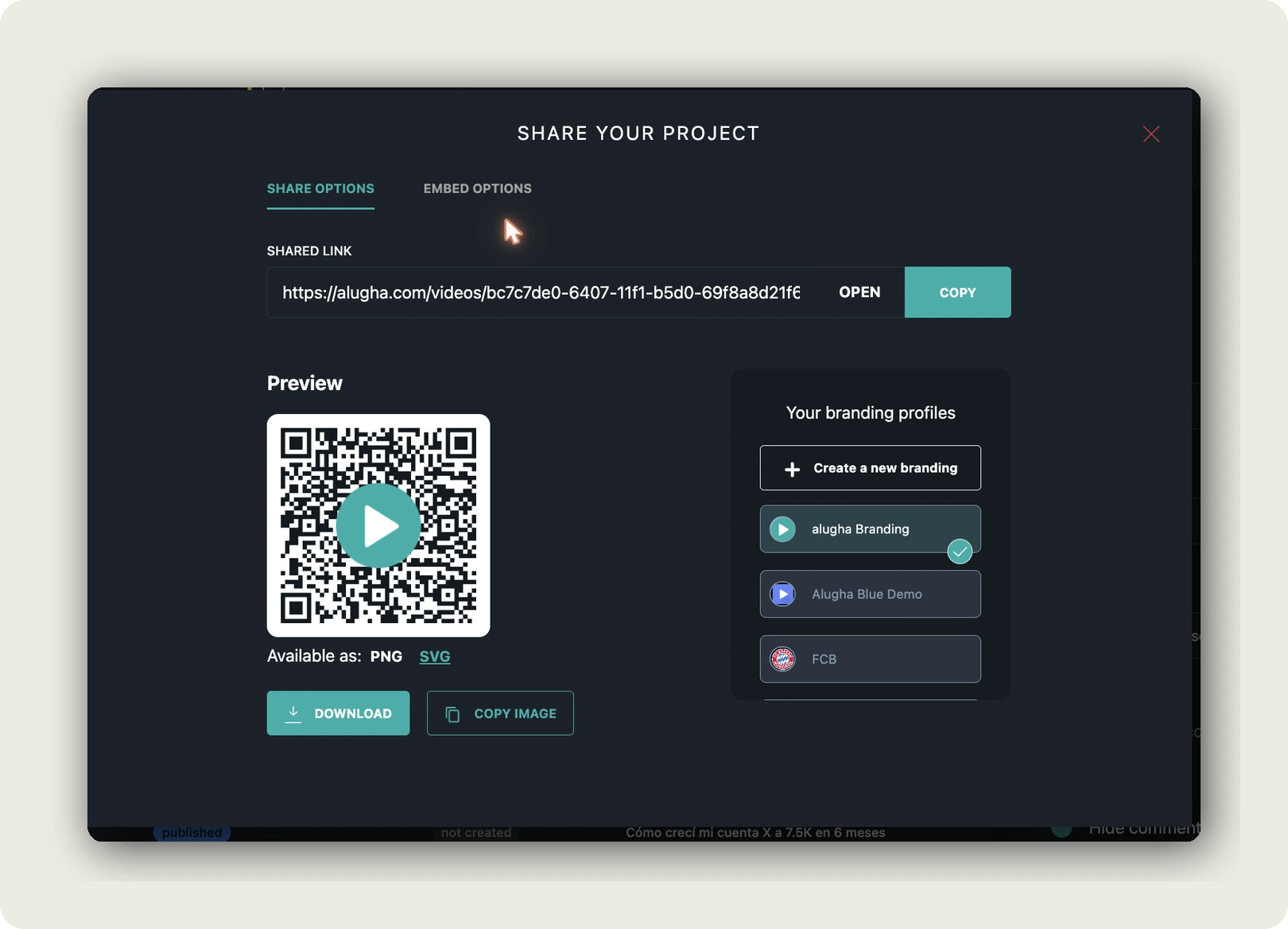
In the dubbr, open Im-/Export → Share Project. The SHARE OPTIONS tab gives you:
- The SHARED LINK with OPEN and COPY buttons.
- A QR code preview. Downloadable as PNG or SVG, or copied straight to the clipboard with COPY IMAGE.
- Your branding profiles, the active profile colours the QR code’s play button. See How to manage brands with alugha.
Network-by-network
- LinkedIn. Paste the link into a post; the preview card renders from your video metadata. Tip: put the link in the post itself for a clickable card.
- Facebook. Same link-preview behaviour on pages and groups.
- X, the link renders as a summary card. Keep your per-language titles sharp; the card uses them.
- Instagram. Feed posts don’t take links; use the link sticker in Stories or the bio link. For print-to-digital or event slides, the QR code (PNG/SVG) is the cleanest path.
- Messaging apps (WhatsApp, Slack, Teams), the link unfurls with a preview; your Language and Subtitles choices keep working.
When a real embed is the better tool
If you control the page. Your website, blog, newsletter landing page, or LMS. Embed the player instead of linking out. Switch to the EMBED OPTIONS tab, configure LANGUAGE / SUBTITLES / VIDEO SIZE, and copy the iframe snippet. See Embed your multilingual video and Automatically enable subtitles in embedded videos.
Rule of thumb: social feed → link. Own page → embed.
Tips for stronger social shares
- Fill title, description, and thumbnail per language before sharing, the preview card is built from them. See Edit title, description, tags, and thumbnails.
- Publish first. The video must be Public or Not listed. Private links show nothing to outsiders.
- Set Subtitles to Automatic (force) for sound-off audiences. Most social viewers watch muted; forced subtitles keep them.
- Brand the QR code when it goes on slides, flyers, or packaging, the play-button colour comes from your active branding profile.
Where to go next
- Share your video with a link or QR code
- Automatically enable subtitles in shared videos
- Embed your multilingual video
- Understand the automatic language switcher
Was this article helpful?