Summary
Each language in your alugha video has its own title, description, tags, and thumbnails. Edit them from the dubbr language tab to make every language discoverable in its own market.
Prerequisites
Before you begin:
- A video uploaded to alugha with at least one language (see Upload a video to alugha)
- Basic familiarity with My archive (see Manage your videos in My archive)
Step-by-Step Instructions
1. Open the language tab in the dubbr
Open My archive from your avatar menu and click EDIT on the video you want to update. The dubbr opens on the PROJECT tab.
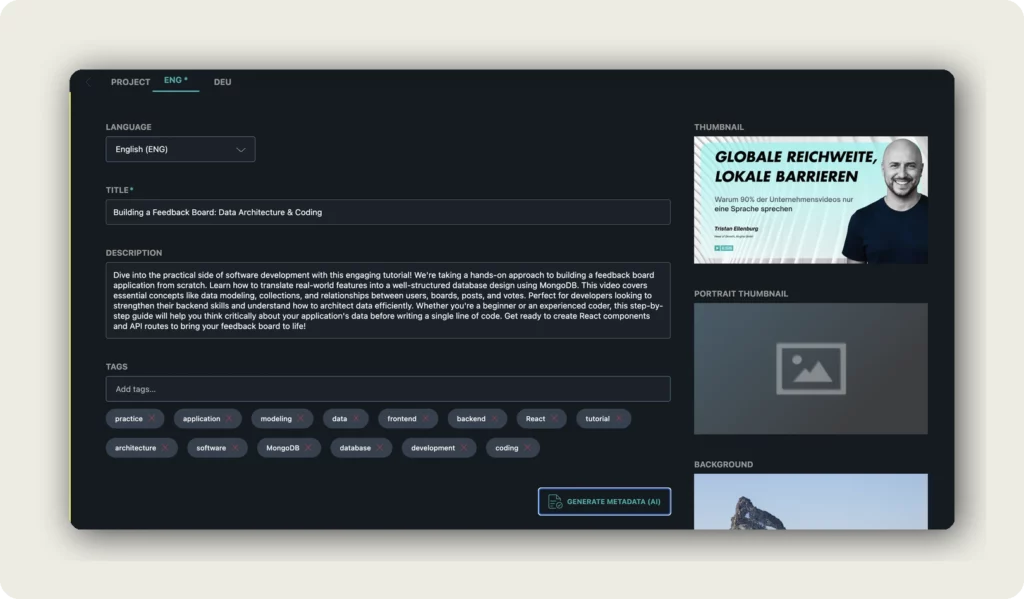
Click the language tab for the language you want to edit (for example DEU, ENG, CMN, or ZHO). The metadata form for that language loads below.
2. Edit title, description, and tags
Fill in the three text fields at the top of the form:
- TITLE — Required. Use a clear, searchable title in the target language. Avoid direct translations that feel unnatural — write for local readers.
- DESCRIPTION — A summary of the video in the target language. Helps both viewers and search engines understand what the video is about.
- TAGS — Type keywords into Add tags… and press Enter to add each one. Tags help your video show up in on-platform search and external search engines.
Every field is per-language. Changes on the DEU tab do not affect the ENG tab — translate and localize each one separately.
3. Upload thumbnail, portrait thumbnail, and background image
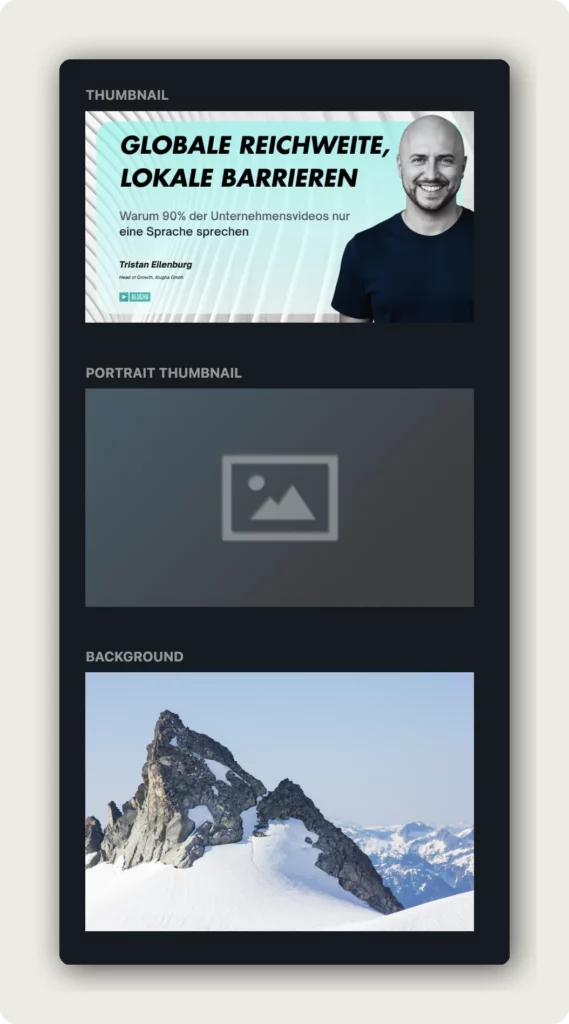
On the right side of the form, you can upload three image types — all per-language, so every language can have its own localized visuals:
- THUMBNAIL — Recommended 1280 × 720 px (16:9). The standard preview image shown in feeds, embeds, and on your alugha profile.
- PORTRAIT THUMBNAIL – Recommended 1080 × 1920 px (9:16). Used for alugha Verticals and mobile views. Unlike Youtube, TikTok or Instagram, alugha Verticals have no duration limit.
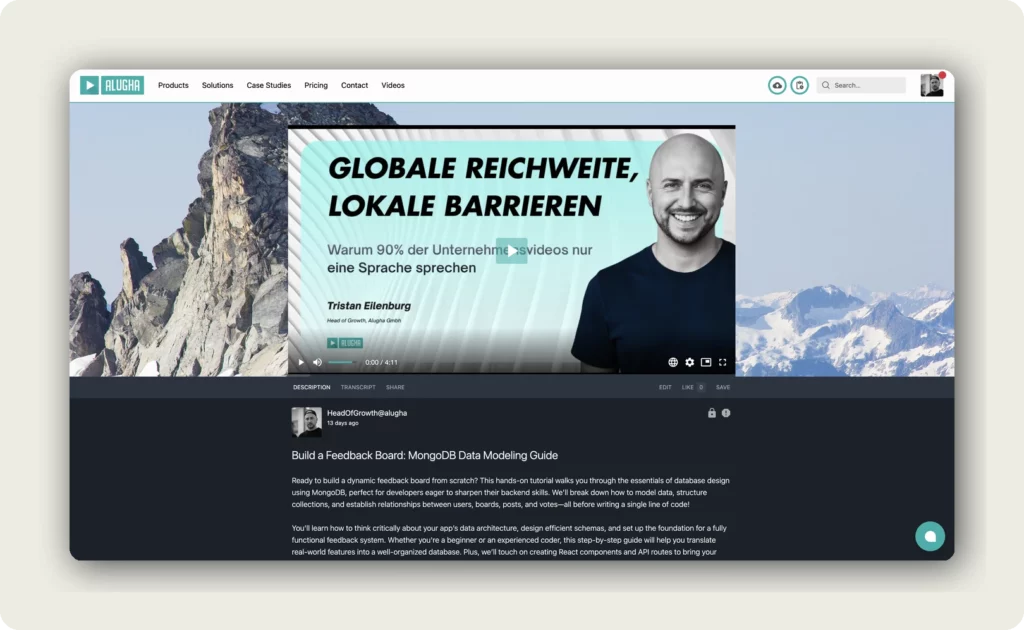
- BACKGROUND — Recommended 1920 × 800 px (wide banner). Displayed behind the video on the video page – gives every language a branded look.
Here is how the background appears behind the video on a live alugha video page:
4. Set the language status: Playable, Private, or Hidden
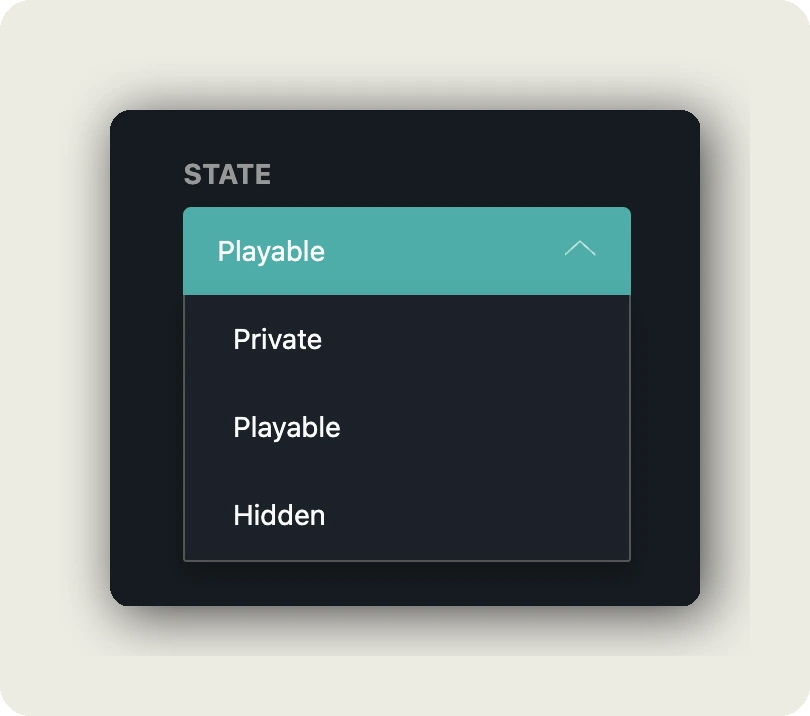
Scroll down to the STATE dropdown on the right. This controls whether this language is visible to viewers — it is separate from the project-level visibility in Set video visibility and privacy.
- Playable — The language is ready and visible to viewers. Shows up in the language switcher.
- Private — The language exists but is not visible to viewers. Useful for drafts you are still editing.
- Hidden — The language is hidden from the language switcher. Viewers cannot pick it, but it is still there if you need to publish it later.
5. (Optional) Generate metadata with AI
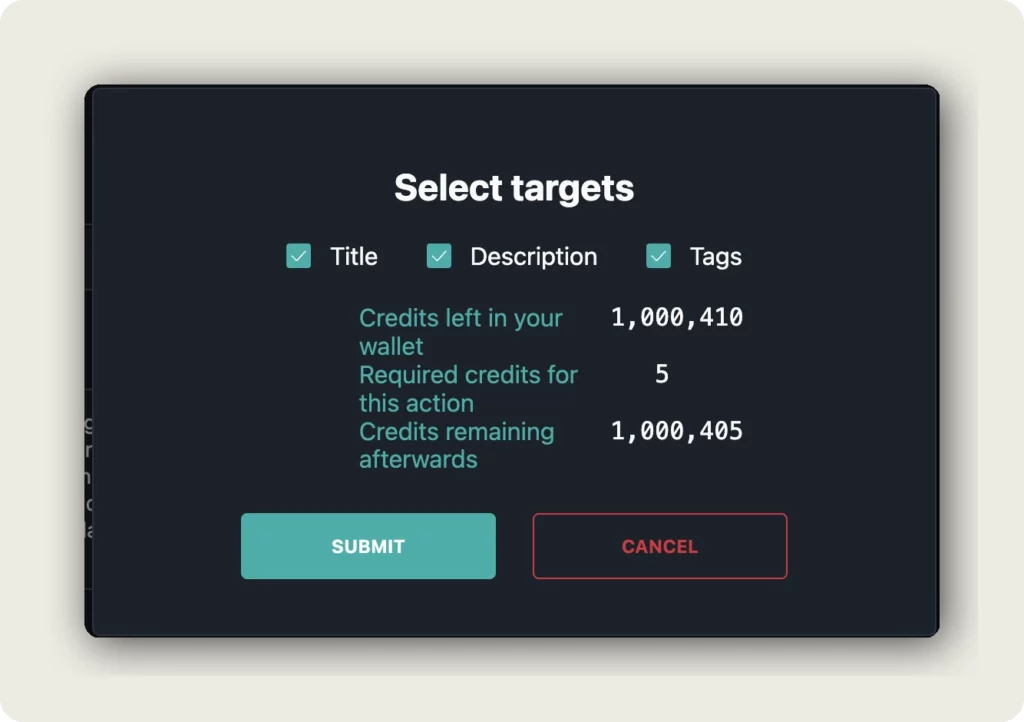
Click GENERATE METADATA (AI) if you want alugha to fill in the title, description, and tags for you, based on the video’s transcript in the current language. A Select targets dialog opens where you choose which fields to fill — tick Title, Description, and/or Tags.
The dialog also shows your current credit balance, the required credits for this action, and the credits remaining afterwards. The AI generation is transcript-based, so always review the output and adjust for tone, SEO, and accuracy before saving.
Don’t forget to click Save changes
Your changes are not auto-saved. Once you are happy with the title, description, tags, thumbnails, background, and state, click the Save changes button at the bottom of the form. If you switch to another language tab without saving, your edits on the current tab will be lost.
Good to know
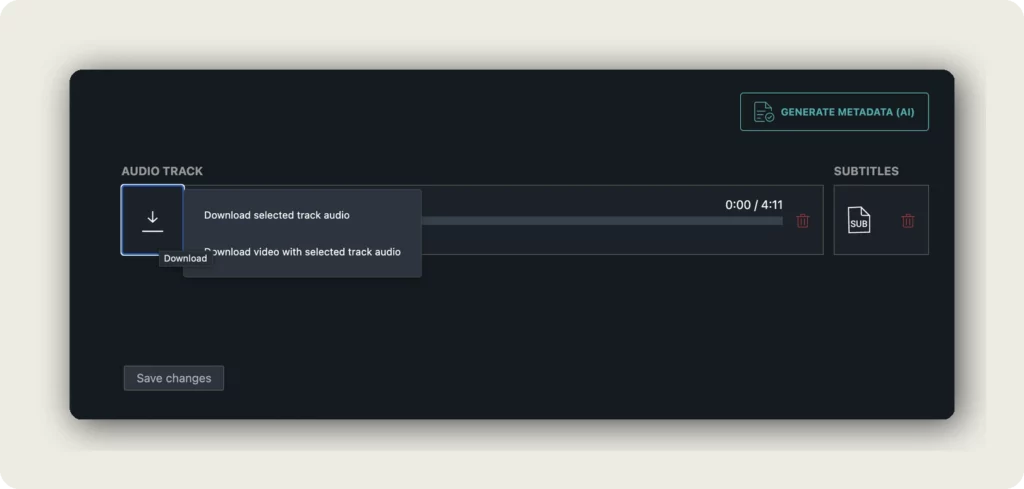
- You can download the audio track for any language from the AUDIO TRACK panel at the bottom of the form — either the audio file alone (Download selected track audio) or the full video with that track (Download video with selected track audio).
- You can also download or delete subtitles per language from the SUBTITLES panel next to Audio Track.
- Thumbnails, portrait thumbnails, and background images can also be picked from the alugha Marketplace or your personal Library. Dedicated articles will cover these in depth.
- GENERATE METADATA (AI) uses credits — it cost 5 credits at the time this guide was written. The dialog always shows the live cost and your balance before you submit.
- Language status (Playable / Private / Hidden) is the same indicator that appears in the LANGUAGES popover in My archive — it is the per-language visibility, not the project-level one.
Troubleshooting
My changes disappeared after switching tabs:
- You probably forgot to click Save changes before switching to another language tab. Re-enter the fields and save before leaving the tab.
The TITLE field shows an error or won’t save:
- TITLE is a required field (marked with a red *). Fill it in, then click Save changes again.
- Check the character length — very long titles may be trimmed by search engines. Aim for under 70 characters.
GENERATE METADATA (AI) button is greyed out or fails:
- Check that the language has a transcript — the AI needs the transcript to generate metadata. If there is no audio or subtitles, there is nothing to analyze.
- Check your credit balance in the Select targets dialog. If Credits remaining afterwards goes below zero, top up your credits first.
My background image looks stretched or cropped on the video page:
- Use the recommended size (1920 × 800 px) or a similar wide banner aspect ratio. Square or portrait images will be cropped to fit the banner area.
Related Articles
Was this article helpful?