Summary
Once your multilingual video is published, share it with a shareable alugha link or a QR code that works in print, slides, and on stage. Both live in the dubbr’s Share Your Project dialog — one click to copy the URL, two clicks to download a branded QR code as PNG or SVG.
Prerequisites
Before you share:
- Your video is published with the languages you want viewers to see.
- The project-level STATE is Public or Unlisted. A Private project is not viewable even with the link — see Set video visibility and privacy.
- (Optional) A custom branding profile if you want the shared QR code or player to carry your brand colors and logo.
Step-by-Step Instructions
1. Open Im-/Export → Share Project
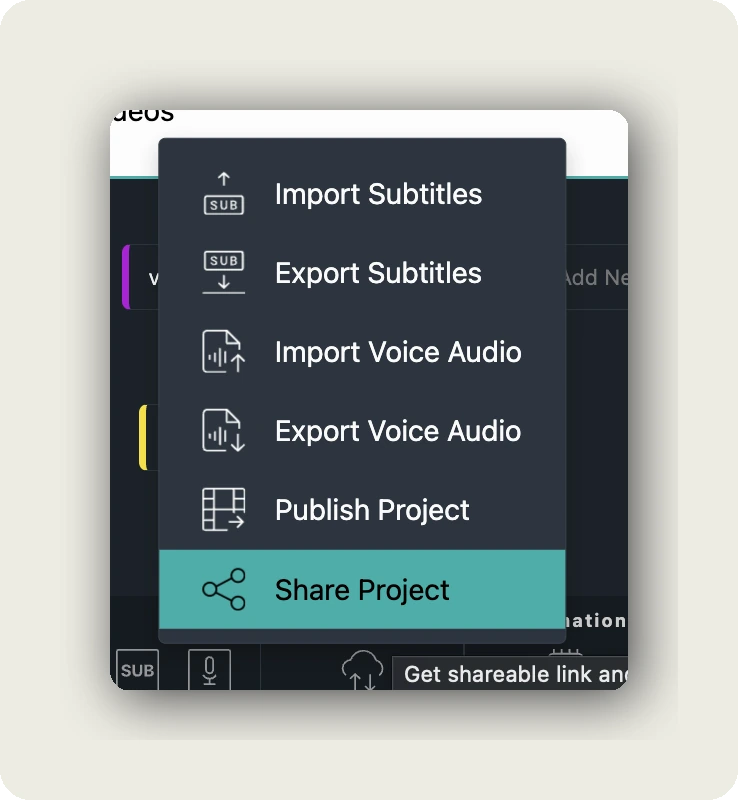
Open the video in the dubbr (My archive → EDIT). In the toolbar click Im-/Export (the up/down arrows icon) and choose Share Project. Hovering over it shows the tooltip “Get shareable link and/or embed code.”
2. Stay on the SHARE OPTIONS tab
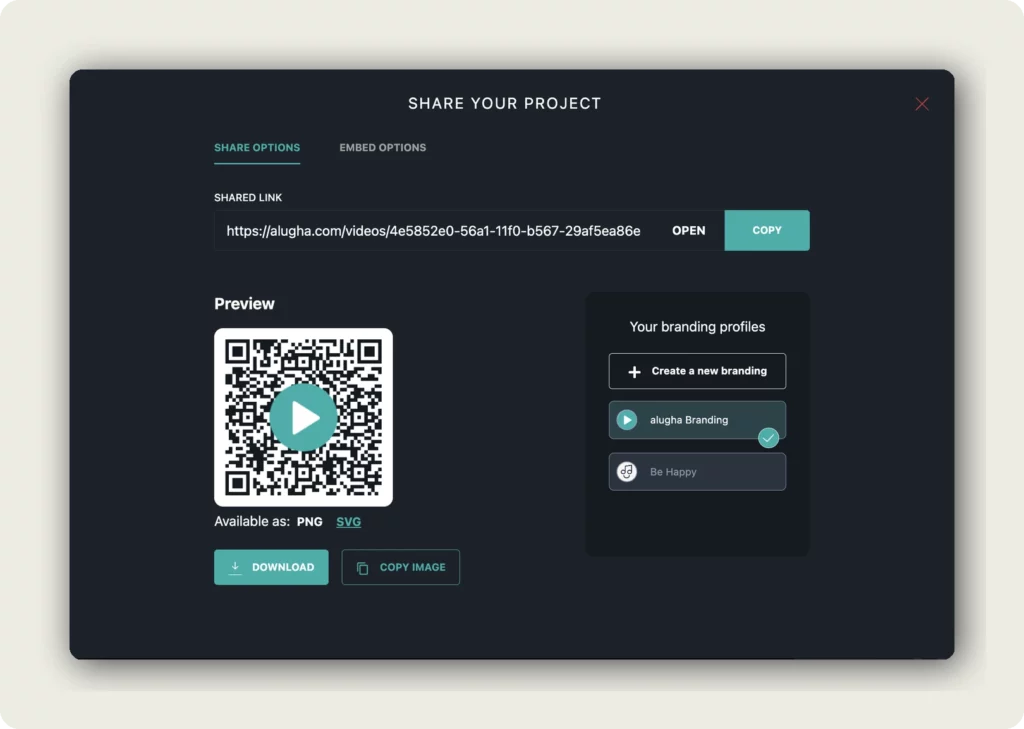
The SHARE YOUR PROJECT dialog opens with two tabs at the top:
- SHARE OPTIONS (active by default) — shareable link and QR code. This is what you want here.
- EMBED OPTIONS — iframe code for embedding on your website. Covered in Embed your multilingual video.
The dialog title switches between SHARE YOUR PROJECT and EMBED YOUR PROJECT depending on which tab is active. Stay on SHARE OPTIONS.
3. Copy the shareable link
The SHARED LINK field shows the public alugha URL, typically in the form https://alugha.com/videos/<project-id>. Two buttons sit next to it:
- OPEN — launches the video page in a new tab so you can verify it looks right to viewers.
- COPY (teal) — copies the URL to your clipboard so you can paste it into email, Slack, LinkedIn, a CMS, or anywhere else.
Viewers on this link see the alugha player with every published language available in the language switcher, with the default language selected.
4. Download the QR code
Below the link, the Preview area shows a QR code with the alugha play-button logo baked into the center — scanning it on a phone opens the same video page. Below the QR code:
- Available as: PNG / SVG — choose the format with the link next to it. PNG is a raster image (good for print and most presentations); SVG is a vector (scales to any size without losing sharpness, ideal for large posters or web).
- DOWNLOAD (teal) — saves the QR code to your computer in the selected format.
- COPY IMAGE — copies the rendered QR code to your clipboard so you can paste it directly into Keynote, PowerPoint, Figma, or any app that accepts images.
Perfect for printed materials, trade-show booths, event badges, business cards, slides, or anywhere a clickable link doesn’t work.
5. (Optional) Apply a branding profile
The right side of the dialog lists Your branding profiles. Click a profile to apply its logo and colors to the shared player and to the QR code — for example alugha Branding (default) or a custom brand like Be Happy. The active profile carries a teal checkmark.
Click + Create a new branding to build a new profile on the fly — the PICK YOUR BRAND dialog opens, where you can pick an existing brand or add a new one from scratch (logo, color, name, link).
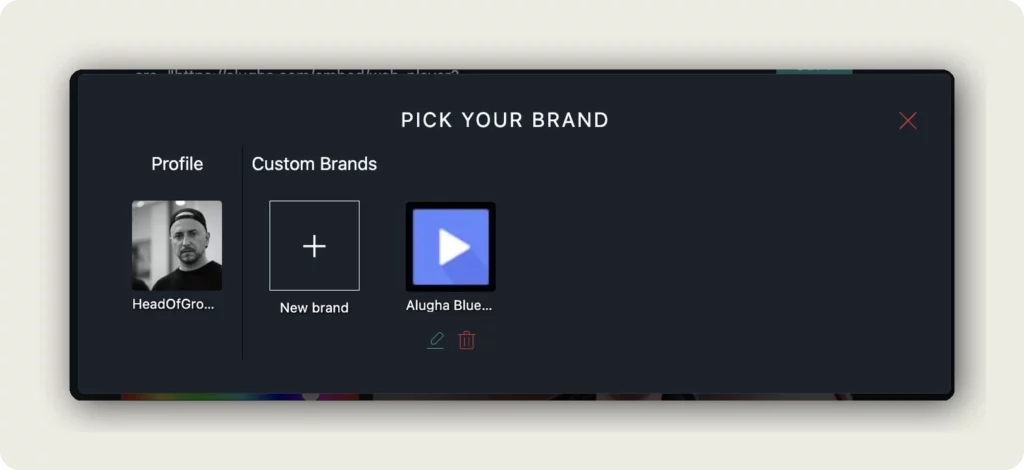
The profile you pick sticks to the QR code preview and the shared player until you change it — so download the QR after switching to the right brand.
What happens next
The link and QR code are permanent — they keep working as long as the project stays reachable (Public or Unlisted). Adding languages, editing subtitles, or republishing content does not change the URL — viewers who bookmarked the link always see the latest published state.
Need to restrict access later? Flip the project STATE to Private — the link stays the same but stops resolving for outside viewers. See Set video visibility and privacy.
Good to know
- No credits — sharing is free and unlimited.
- The shared link is language-agnostic. alugha’s player picks the viewer’s browser language if it’s available, and falls back to your default.
- The QR code encodes the same URL — no separate tracking, no expiry, no extra service required.
- Use PNG for print jobs and most presentation software; SVG for any case where the QR code will be scaled (billboards, posters, responsive web).
- Branding profiles apply to both the shared player and the QR preview — switch brand, then re-download the QR if you need the branded version.
- For embedding on your own site (iframe code, custom player options, autoplay, loop), open the EMBED OPTIONS tab in the same dialog — see Embed your multilingual video.
Troubleshooting
Viewers get a 404 or “not available” page:
- Check the project-level STATE — a Private project blocks anyone outside your team. Flip to Unlisted or Public via Set video visibility and privacy.
- Confirm the video has at least one published language — a project with only available content shows nothing.
The QR code opens a different language than expected:
- alugha’s player picks the browser language automatically. If your default language is Private or Hidden, viewers land on the next available language instead.
- Check language STATE on each language tab — see Edit title, description, tags, and thumbnails for each language.
The QR code is blurry in my slides:
- Re-download as SVG — it stays sharp at any size. Most modern presentation tools accept SVG directly.
- If you need PNG, export from the dialog and let the slide app scale it down — not up.
I changed branding but the QR still shows the old logo:
- Re-open the Share dialog and pick the new branding profile — the QR preview updates immediately.
- Download again – the previously saved PNG/SVG doesn’t auto-refresh.
Related Articles
- Publish your multilingual video project
- Embed your multilingual video
- Set video visibility and privacy
- Understand published vs. available content
Was this article helpful?