Summary
A branding profile in alugha is a logo + colour + name + link bundle that you apply to a video’s share previews and embedded player. You can keep multiple profiles (e.g. your house brand plus client brands) and switch between them per video. This article shows where branding profiles live, how to create and edit them, and how to apply them to share links and embeds.
Where branding lives
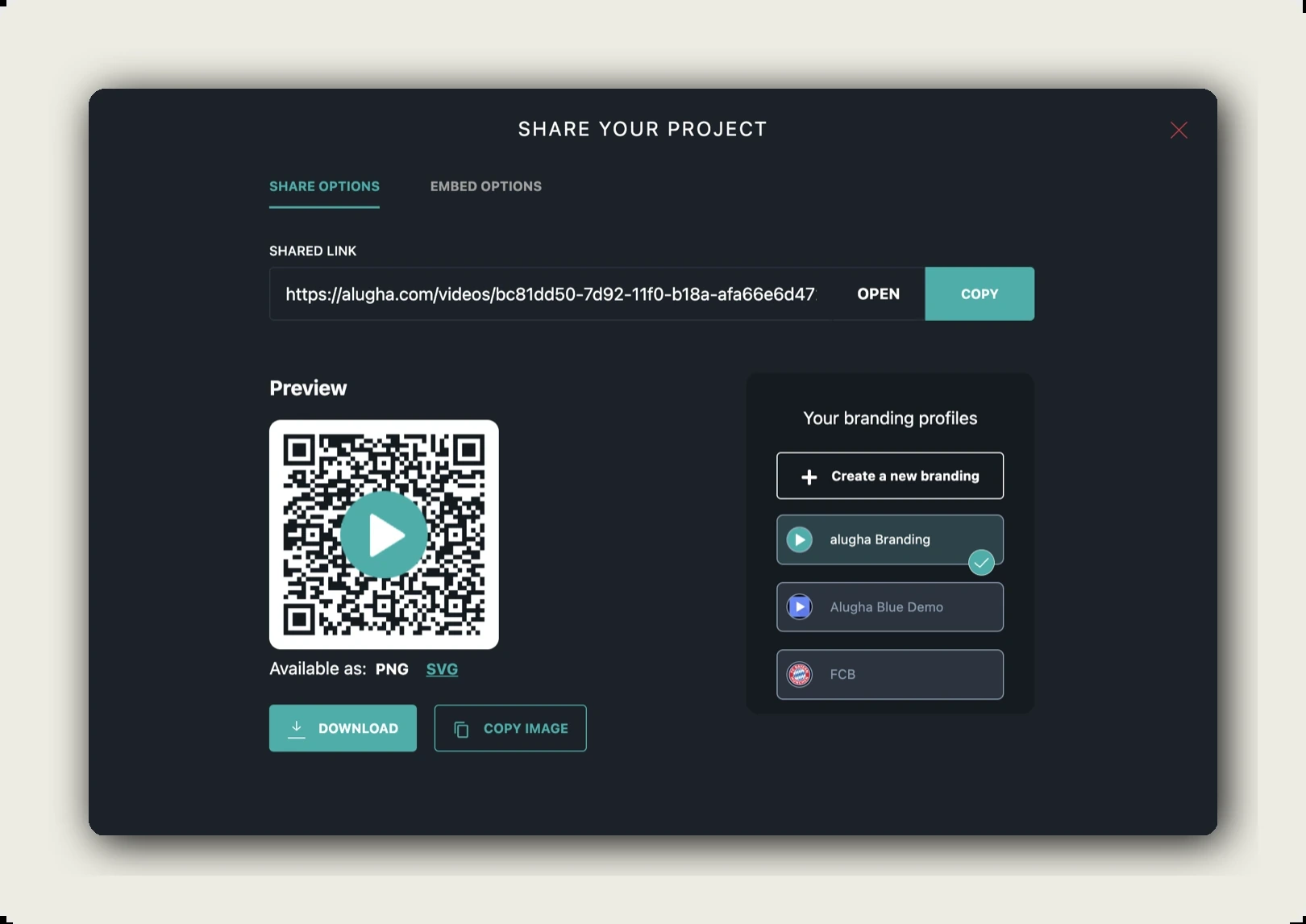
Open the SHARE YOUR PROJECT dialog for any video (Im-/Export → Share Project, or the Share button in the player chrome). On the right side of the dialog sits the Your branding profiles panel.
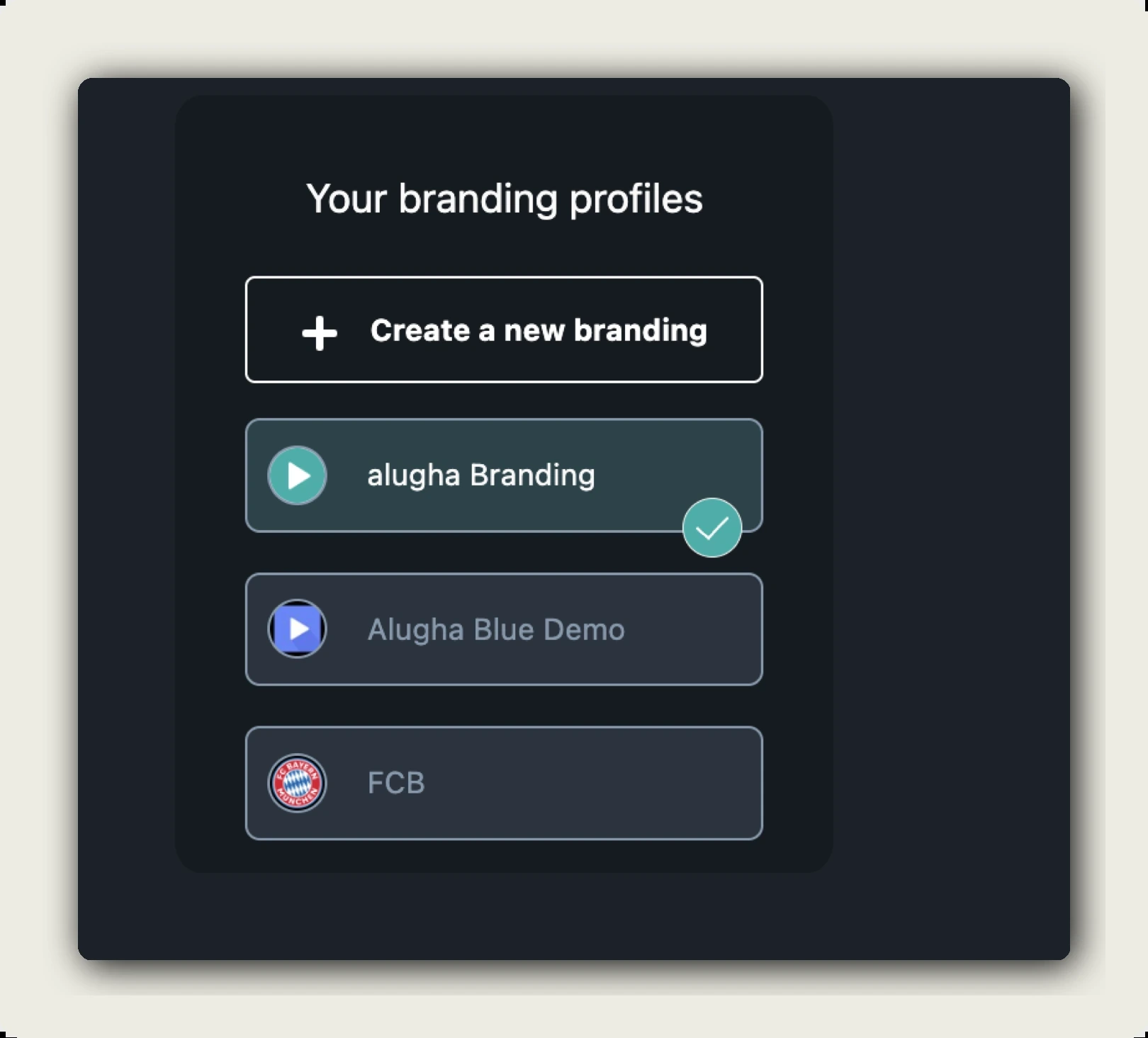
Inside the panel:
- A + Create a new branding button at the top.
- A list of your existing profiles. Each card shows a small play-button preview in the profile’s colour next to its name (e.g. alugha Branding teal, Alugha Blue Demo purple, FCB with the FC Bayern crest in red).
- The currently active profile is highlighted with a teal check mark.
Click any profile to make it active for this video’s share and embed.
Create a branding profile
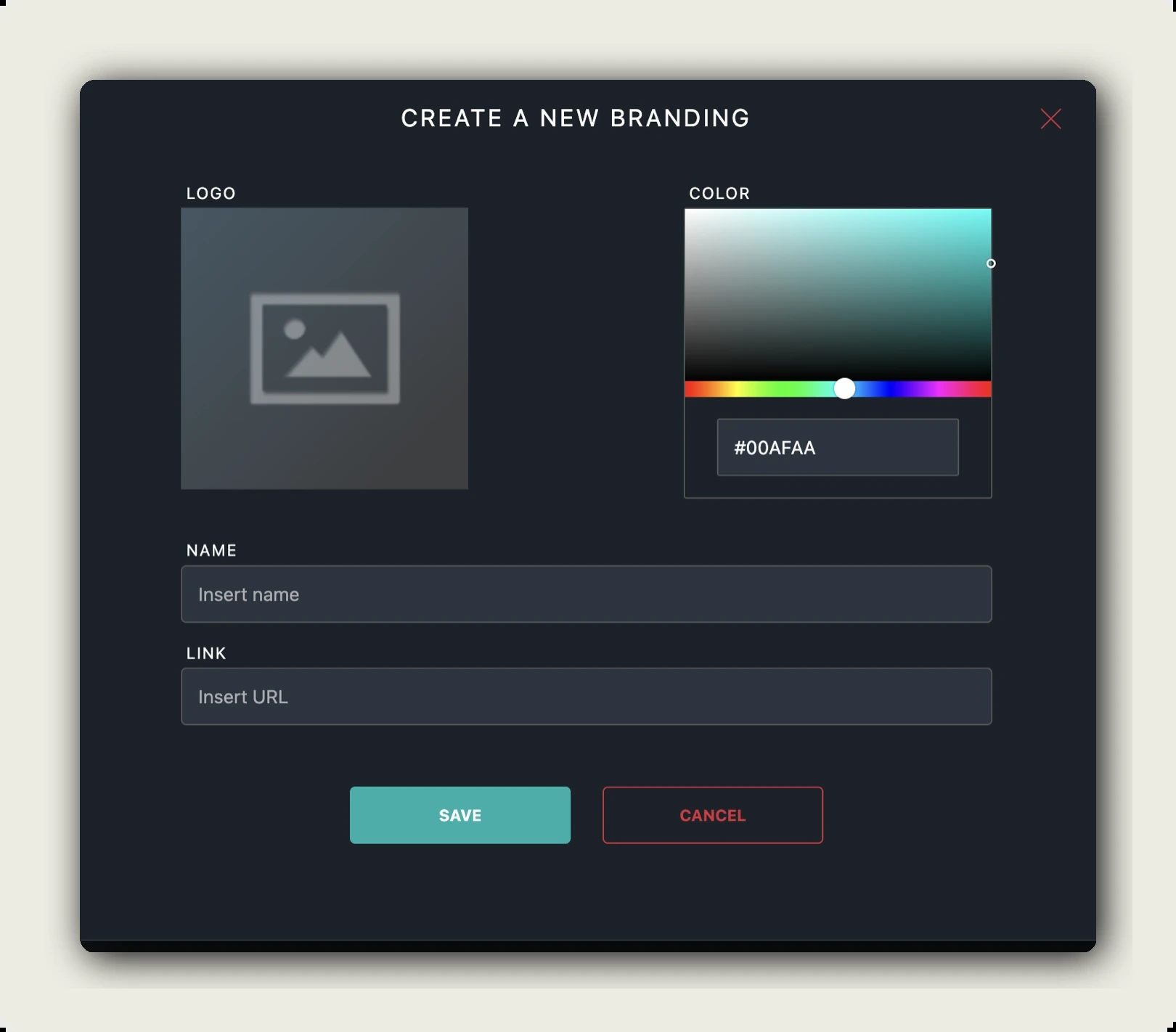
Click + Create a new branding. The CREATE A NEW BRANDING dialog opens with four fields:
- LOGO. Upload your logo. Square crop works best. Used as the play-button overlay on share previews and as the corner watermark on the embedded player when the alugha logo is hidden.
- COLOR. Pick a hex colour (e.g. #00AFAA). Drives the play-button colour on previews and the accent colour of the player controls.
- NAME, the profile’s name in the list (e.g. alugha Branding, FCB). Internal only, never shown to viewers.
- LINK, the URL viewers go to when they click your logo on the player.
Click SAVE to add the profile, or CANCEL to discard. The new profile appears immediately in the Your branding profiles list and is available on every video on this channel.
Apply a profile to a share link
On the SHARE OPTIONS tab of SHARE YOUR PROJECT you have:
- The SHARED LINK with OPEN and COPY buttons.
- A Preview panel showing the QR code with the active branding’s play-button colour in the centre.
- Available as: PNG / SVG format pickers under the QR code, plus DOWNLOAD and COPY IMAGE buttons.
Click any profile in the Your branding profiles panel and the QR-code preview updates immediately. Download the PNG or SVG to use the branded QR in print or web materials.
Apply a profile to the embedded player
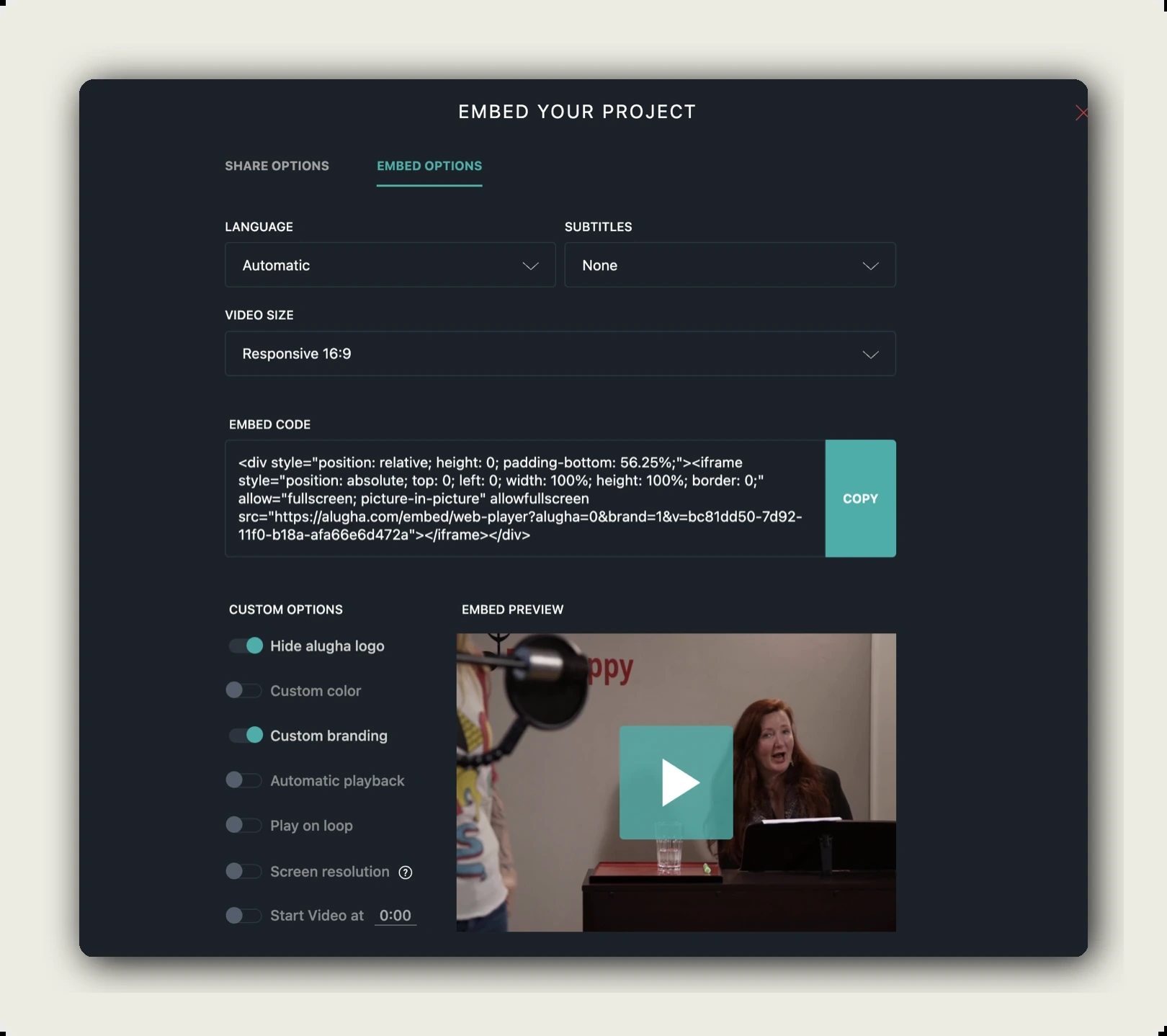
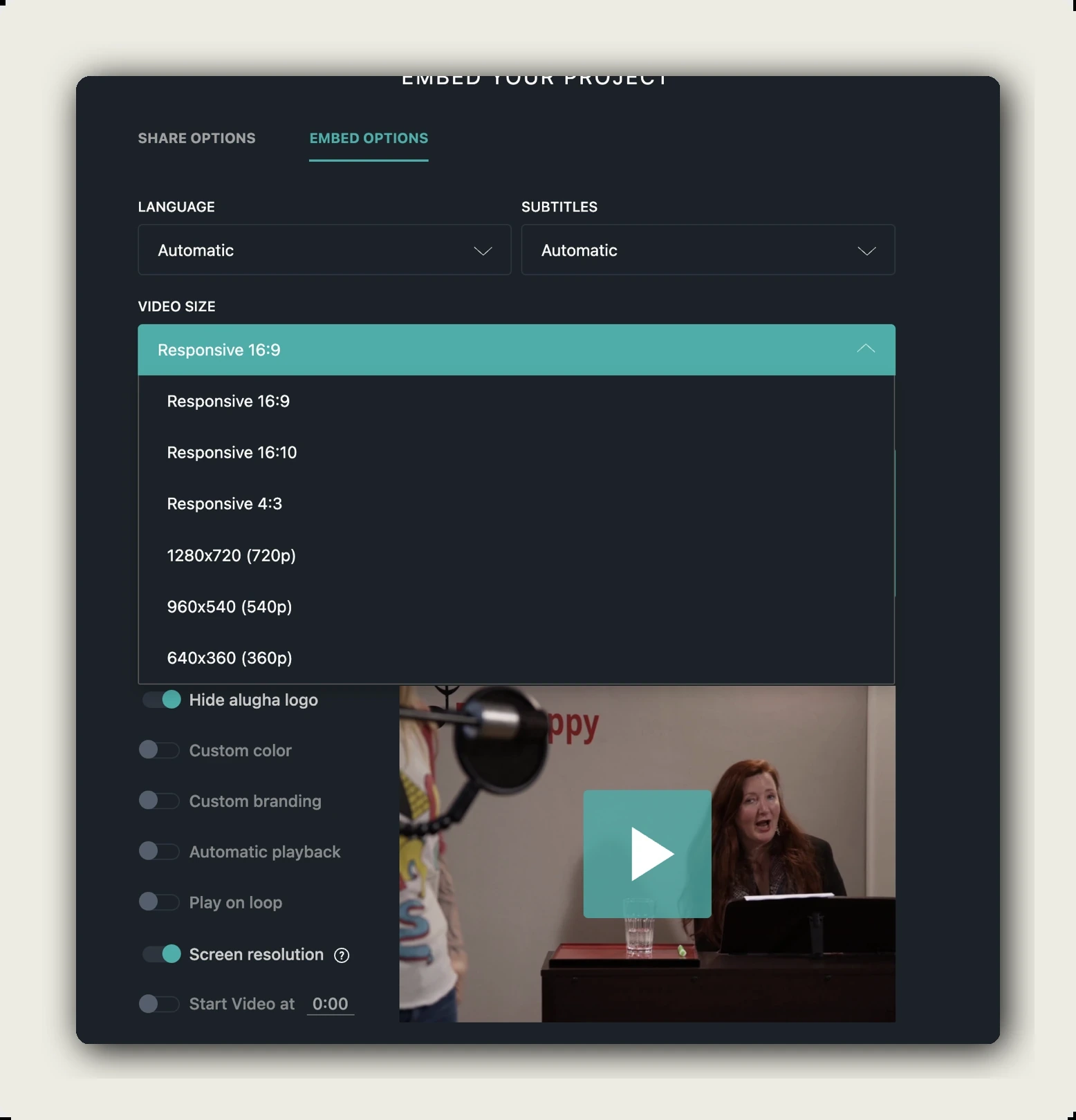
Switch to the EMBED OPTIONS tab of SHARE YOUR PROJECT. You see:
- LANGUAGE and SUBTITLES dropdowns at the top. Pre-select what the viewer sees first.
- VIDEO SIZE. Responsive 16:9 / 16:10 / 4:3 or fixed 1280×720 (720p) / 960×540 (540p) / 640×360 (360p).
- An EMBED CODE textarea with a teal COPY button on the right, the iframe HTML reflects every option you set above.
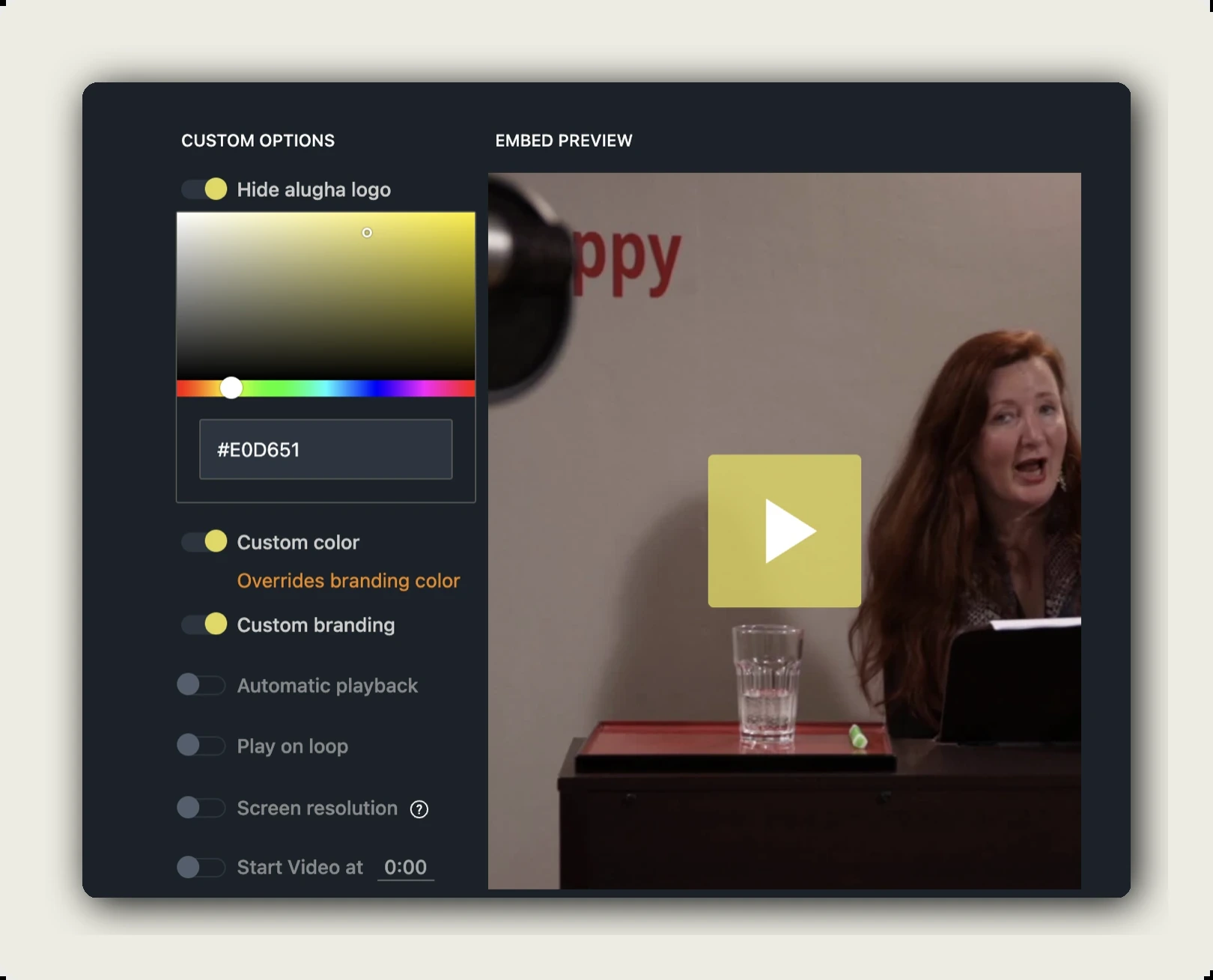
- A CUSTOM OPTIONS panel on the bottom-left and a live EMBED PREVIEW on the right that updates as you toggle.
The toggles in CUSTOM OPTIONS that touch branding:
- Hide alugha logo. Removes the alugha watermark from the player.
- Custom color. Opens an inline colour picker (with hex input, e.g. #E0D651) and uses that colour for the play button. Overrides branding color when enabled.
- Custom branding. Applies the currently active profile from Your branding profiles to the embedded player (logo + colour + click-through link).
The other CUSTOM OPTIONS. Automatic playback, Play on loop, Screen resolution, Start Video at. Configure playback behaviour, not branding. The Screen resolution toggle has a tooltip: Video resolution will be based on the screen resolution instead of the pixel size of the player.
Working with multiple brands
If you produce videos for several clients, set up one profile per client:
- YourCompany Branding. Your house default.
- Client A. Their logo, brand colour, marketing URL.
- Client B. Same idea.
For each video, click the right profile in Your branding profiles before sharing or copying the embed code. The profile sticks per video. Changing the profile on Video A doesn’t change Video B.
Profiles are channel-wide. Create them once on any video and they appear on every other video on the same channel. Workspace channels (Switch channel) have their own separate profile lists.
Edit or delete a profile
Hover any profile card in Your branding profiles. Edit and delete controls appear inline. Editing opens the same form as CREATE A NEW BRANDING with the current values pre-filled.
Deleting a profile does not break videos that already use it. Those videos fall back to the default alugha branding the next time you reopen Share. Re-apply a different profile to restore custom branding.
Branding profile vs. one-off Custom color
There are two ways to colour the player:
- Custom branding (EMBED OPTIONS > CUSTOM OPTIONS) uses the colour from the active profile in Your branding profiles. Use this when you want one consistent brand on this embed.
- Custom color (EMBED OPTIONS > CUSTOM OPTIONS) sets a one-off hex colour just for this embed. Use this for short-term campaign overrides without polluting your profile list.
If both are on, Custom color overrides the profile’s colour (the UI shows the message Overrides branding color next to the picker). Logo and click-through link still come from the active profile.
Branding tips
- Upload a square logo at 512×512 or higher. The player auto-scales; smaller logos look soft on Retina screens.
- Pick a colour with enough contrast against the player’s dark chrome. Very dark or very light brand colours can disappear; pull a mid-saturation accent for visibility.
- Set the LINK to your channel home or campaign landing page. The logo click is one of the few outbound touch points from the embedded player. Make it count.
- Name profiles for the client, not the colour. FCB is more useful than Red brand when you have five reds.
- Keep an alugha-default profile around. Useful as a fallback when you want a non-client-branded embed for internal previews.
Troubleshooting
The embed still shows the alugha logo:
- Toggle Hide alugha logo on under CUSTOM OPTIONS.
- Re-copy the EMBED CODE after toggling. Older copies of the iframe don’t auto-update.
The QR code still shows the old colour:
- Confirm the profile you want is highlighted (teal check mark) in Your branding profiles.
- Hard-refresh the Share dialog. Close and re-open SHARE YOUR PROJECT.
Custom color is greyed out:
- It activates only when Custom branding is on or when you have at least one branding profile saved.
I changed a profile and old embeds didn’t update:
- Embed iframes reference the project, not the profile snapshot. The change propagates automatically when the viewer next loads the embedded player. Clear browser cache to confirm.
Where to go next
- Share your video with a link or QR code
- Embed your multilingual video
- Customize your alugha player appearance
- Set autoplay, loop, and start time for embeds
- alugha toolkit walkthrough
Was this article helpful?