Summary
When you share an alugha video link, you can decide that subtitles are already on when the recipient presses play, in a fixed language, or automatically in the viewer’s own language. This article shows the Subtitles picker in the SHARE tab, what each option does, and how to send a link that starts with subtitles on.
Where the setting lives
Open the video page and click the SHARE tab below the player. Next to the Language picker sits the Subtitles dropdown:
- None, the default. The video starts without subtitles; the viewer can turn them on manually.
- Automatic. Subtitles start in the viewer’s browser language, if your project has that subtitle track.
- Automatic (force), like Automatic, but falls back to the best available track instead of staying off when there is no exact match. Use this when subtitles must always be visible.
- A fixed language (e.g. English, Deutsch). Every recipient starts with that subtitle track, regardless of their browser language.
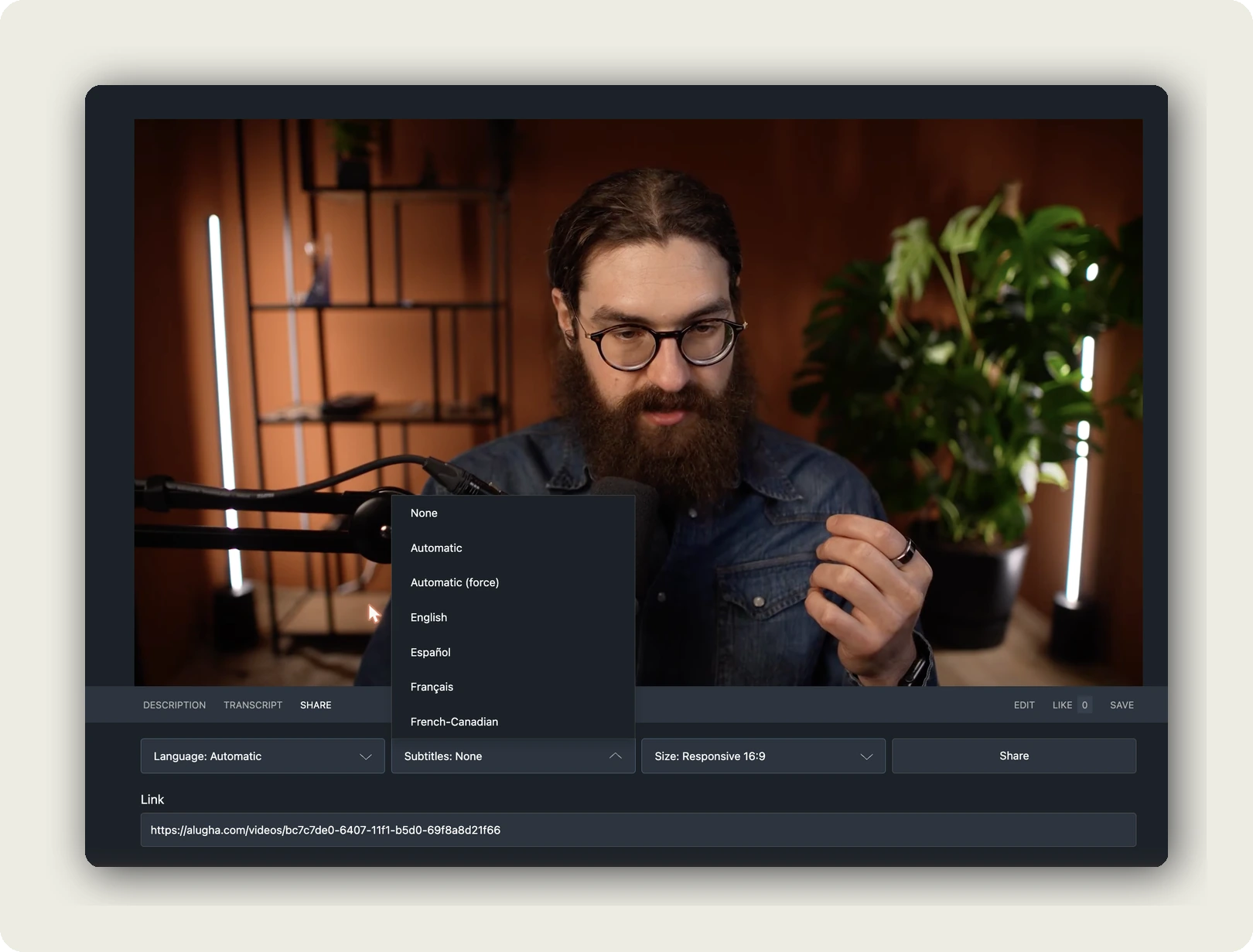
Share a video with subtitles on, step by step
1. Open the SHARE tab
On the video page, click SHARE in the bar below the player (next to DESCRIPTION / TRANSCRIPT / INSIGHTS).
2. Pick a Subtitles option
Choose Automatic, Automatic (force), or a fixed language. Only languages with an available subtitle track appear in the list.
3. Copy the Link
The Link field updates the moment you pick an option. There is nothing to edit by hand. Copy it and send it by mail, chat, or social post. When the recipient presses play, the subtitles are already on.
Changed your mind later? Come back to the SHARE tab, pick a different option, and copy the fresh link.
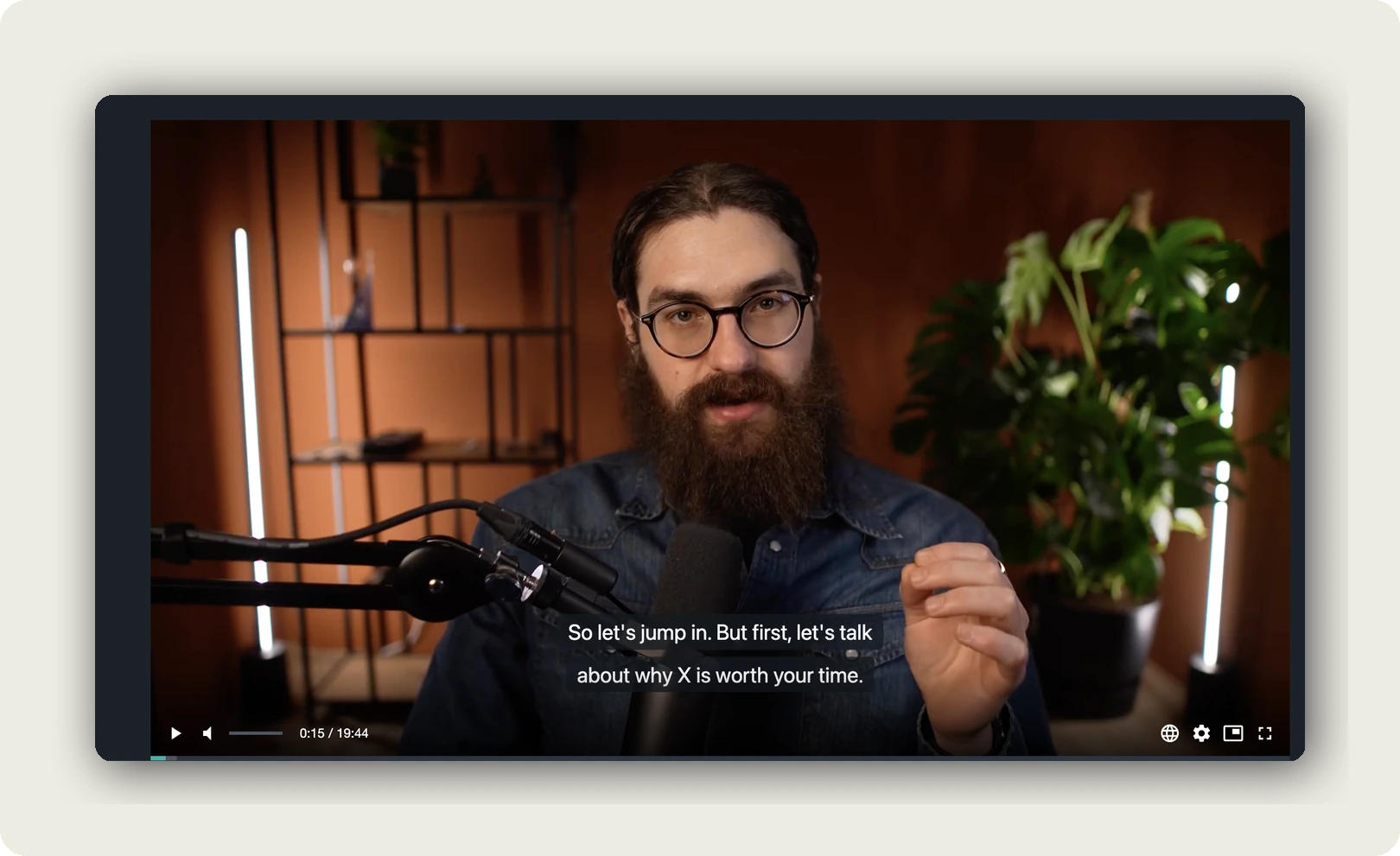
What the viewer sees
- The video starts with the chosen subtitle track rendered over the picture.
- The viewer stays in control: the globe icon in the player still lets them switch audio and subtitle language or turn subtitles off.
- Audio language is a separate choice, the Language dropdown next to Subtitles presets it the same way. Combining both, a link can start with English audio and German subtitles.
When to use which option
- Social posts → Automatic (force). Most feed viewers watch muted; forced subtitles keep them watching.
- International mailing list → Automatic. Every recipient reads their own language, nobody gets a language forced on them.
- Single-market campaign → fixed language. Predictable for every viewer.
- Accessibility commitments → Automatic (force) plus Closed Captions on the track. See How to manage subtitles.
The subtitle track must exist before it can start automatically. Create or import it first. See Create subtitles from your transcript and Import subtitles into your project.
Where to go next
- Automatically enable subtitles in embedded videos, the same idea for iframes.
- Share your video with a link or QR code
- Embedding the alugha player on social networks
- How to manage subtitles
Was this article helpful?