Summary
Already have subtitles from another tool? Drop them into alugha with Import Subtitles. The dubbr reads the file, shows you the cues, and lets you map each source voice to your dubbr voices before saving — so the imported subtitles slot into your project cleanly.
Prerequisites
Before you begin:
- A subtitle file in WebVTT, SRT, or plain text format.
- The target-language tab open on the project — imports always land on the currently selected language.
- An idea of which voices in the source file should map to which dubbr voices. For simple single-voice files you can skip mapping.
Step-by-Step Instructions
1. Switch to the target-language tab
Open the video in the dubbr (My archive → EDIT) and click the language tab the imported subtitles belong to (for example ENG). Import Subtitles lands on the currently selected track.
If the target language does not exist yet, create it first with Tools → Add A New Language.
2. Open Im-/Export → Import Subtitles
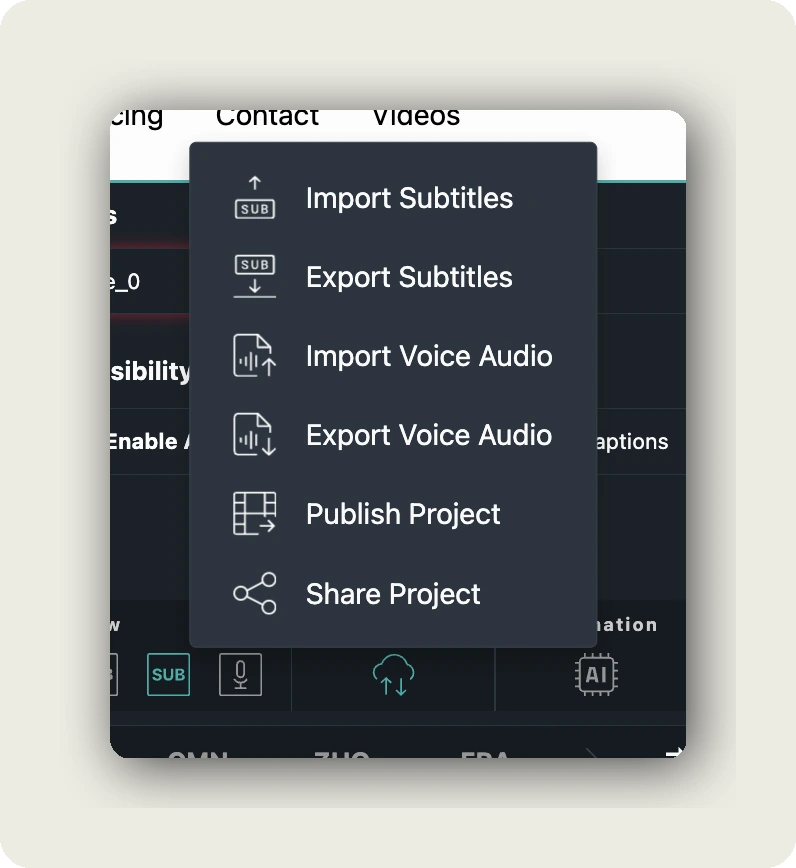
In the dubbr toolbar click Im-/Export (the up/down arrows icon). The dropdown lists every file and project-level action:
- Import Subtitles — this action
- Export Subtitles — download subtitles to a file
- Import Voice Audio / Export Voice Audio — bring in or download spoken audio
- Publish Project — publish the project to viewers
- Share Project — share a link or embed code
Click Import Subtitles to open the upload dialog.
3. Upload your subtitle file
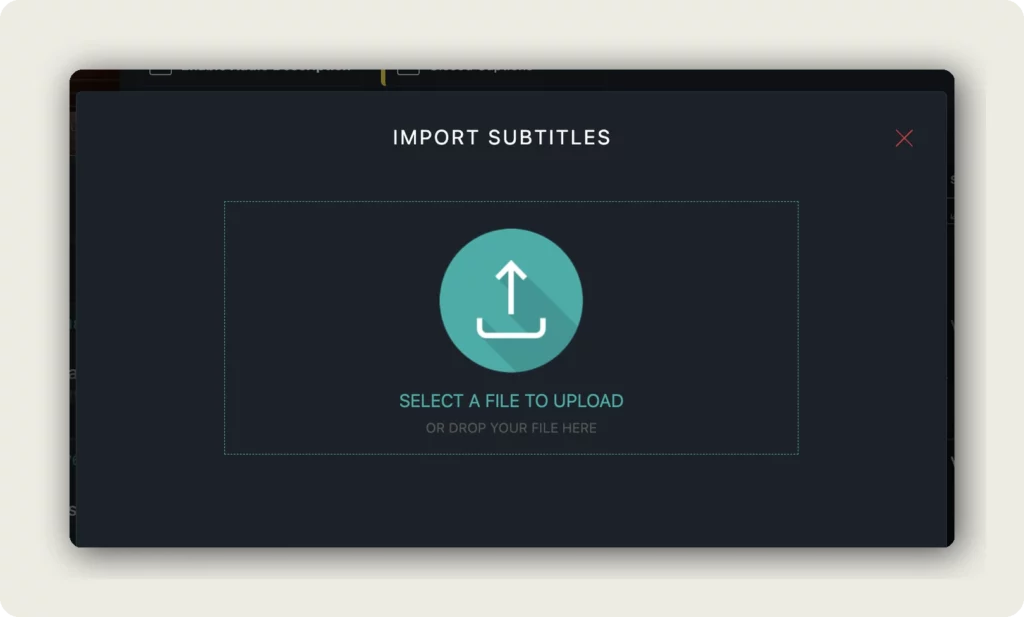
The IMPORT SUBTITLES dialog opens with an empty upload area. Either click SELECT A FILE TO UPLOAD to pick a file from your computer, or drag the file onto the dialog — OR DROP YOUR FILE HERE.
Supported inputs are WebVTT (.vtt), SRT (.srt), and plain text. If a file is rejected, check the format and try again.
4. Choose subtitles or transcript and target language
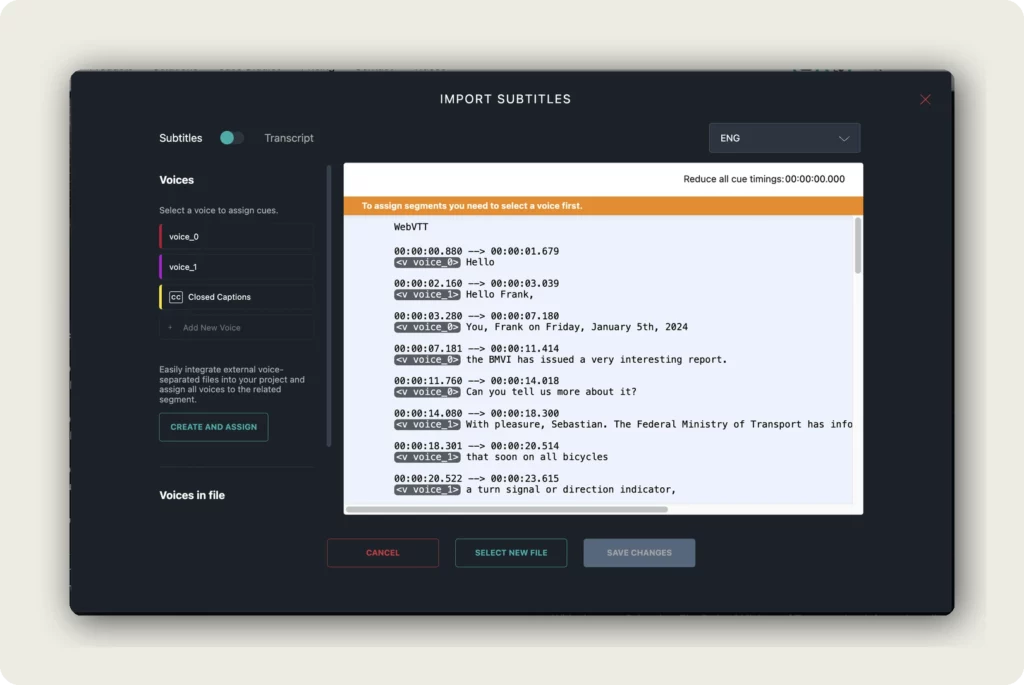
Once the file is parsed, the dialog shows a preview of the cues on the right and a set of controls on the left:
- Subtitles ↔ Transcript toggle — decide whether the import fills the subtitle track or the transcript track. Defaults to Subtitles.
- Language dropdown (top right) — confirms the target language, for example ENG. Override if the autodetect is wrong.
- Reduce all cue timings — shift every cue by a fixed offset (for example if the imported file starts a few seconds late).
5. Assign voices to the cues
If your imported file names its voices (for example VOICE_0 and VOICE_1), the dialog shows a Voices in file section with those names. You map each one to a dubbr voice using the Voices panel on the left, which lists your project voices plus Closed Captions.
Select a dubbr voice, then click a VOICE_X chip in Voices in file to assign it. An orange banner — “To assign segments you need to select a voice first” — reminds you if you try to assign without selecting.
If your project does not have the voices you need, click + Add New Voice to create one on the fly, or use CREATE AND ASSIGN to create and map in one step.
6. Save the import
At the bottom of the dialog you have three buttons:
- CANCEL — close the dialog without importing.
- SELECT NEW FILE — discard the current file and pick another one.
- SAVE CHANGES — apply the import. Enabled once every VOICE_X chip is mapped (or you delete unused ones with the × button).
Click SAVE CHANGES — the subtitles land on the target track and the dialog closes.
What happens next
Your target-language tab now contains subtitle segments from the imported file, with voices mapped to the dubbr voices you chose. Switch to the SUB view in the toolbar to inspect the segments, adjust timings, or edit text.
Import Subtitles is usually a one-shot action per track. If you need to correct the import, re-open the dialog and pick a different file — the new import replaces the existing subtitle track for the current language.
Good to know
- No credits — imports are free. Only AI actions (Speech-To-Text, Translation, Text-To-Speech) cost credits.
- Supported input formats: WebVTT, SRT, plain text. Same formats the dubbr can export — so round-trips are lossless.
- Imports run per language. Repeat for every language where you have an existing subtitle file.
- Use the Subtitles / Transcript toggle to decide whether the file fills the subtitle track or the transcript track — they live on different rows and drive different things (Transcript drives Text-To-Speech).
- The + Add New Voice and CREATE AND ASSIGN shortcuts save time when the imported file names voices that do not exist in your project yet.
Troubleshooting
The file will not upload:
- Check the file extension — alugha accepts .vtt, .srt, and plain text files.
- If the file is valid, try opening it in a text editor to confirm it is not empty or corrupted.
SAVE CHANGES stays disabled:
- Every VOICE_X chip in Voices in file must be mapped to a dubbr voice or removed with the × button. The orange banner tells you which voice still needs assignment.
- If you do not care about voice separation, delete every VOICE_X chip — the cues will import without voice attribution.
Imported cues land on the wrong language:
- The Language dropdown (top right of the dialog) sets the target. Override the autodetect if it picked the wrong language.
- If you already saved the import, switch to the correct language tab and re-import the file there.
All cues are a few seconds off:
- Use Reduce all cue timings to shift every cue by a fixed offset at import time.
- If only some cues are off, save the import first and edit those segments individually in the SUB view.
Related Articles
- Create subtitles from your transcript (Copy Dub to Subs)
- Export subtitles in WebVTT, SRT, or Text format
- Translate your video with Add A New Language
- Transcribe your video with Speech-To-Text
Was this article helpful?