Summary
Manage your videos in My archive — change visibility, check language status, organize videos into project folders, and delete or restore videos from the trash. All from one central page.
Prerequisites
Before you begin:
- A verified alugha account (see Create and verify your alugha account)
- At least one video uploaded to alugha (see Upload a video to alugha)
Step-by-Step Instructions
1. Open My archive
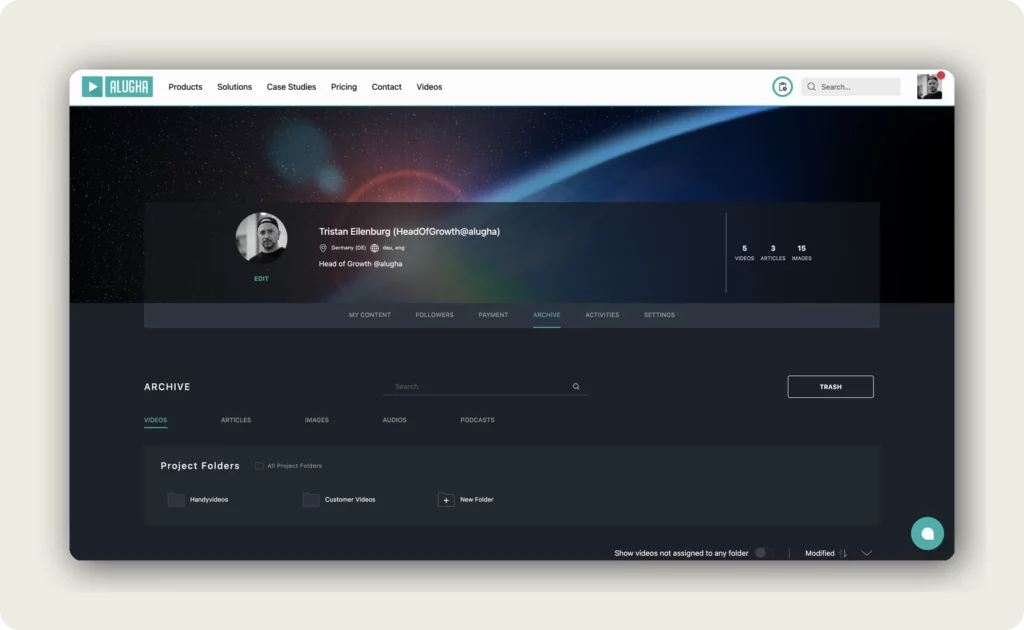
Log in to your alugha account. Click your profile avatar in the top right corner and select My archive from the menu. This brings you to your Archive page, where all your uploaded videos live.
The Archive page has five sub-tabs: VIDEOS, ARTICLES, IMAGES, AUDIOS, and PODCASTS. Make sure VIDEOS is selected.
2. Find your videos
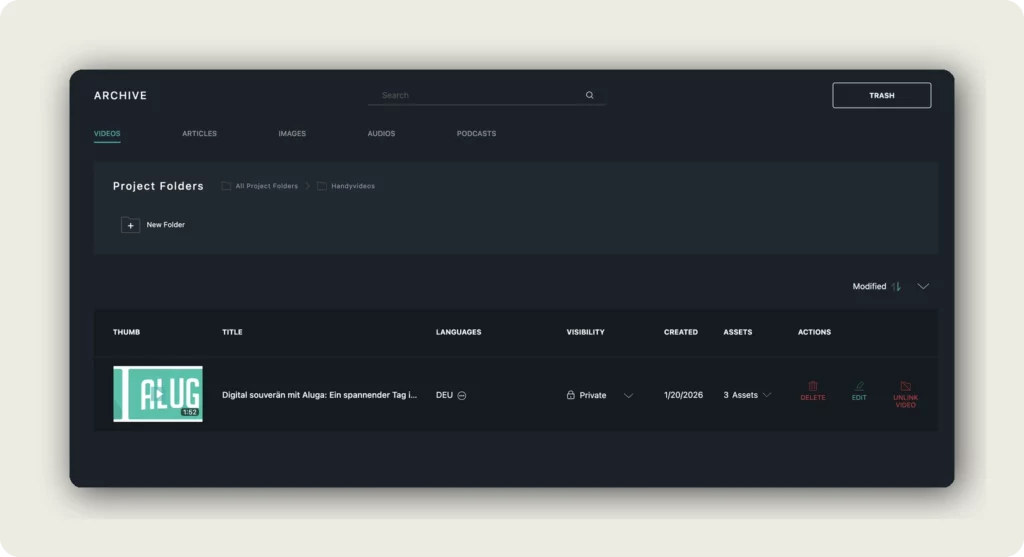
Videos are listed in a table with the following columns: THUMB, TITLE, LANGUAGES, VISIBILITY, CREATED, ASSETS, and ACTIONS. Use the Search field above the list to search by title, or click a project folder (e.g., Handyvideos) to filter by folder.
Inside a project folder, each video row shows three actions: DELETE, EDIT, and UNLINK VIDEO. Outside a folder (the main archive), only DELETE and EDIT are shown.
3. Change video visibility
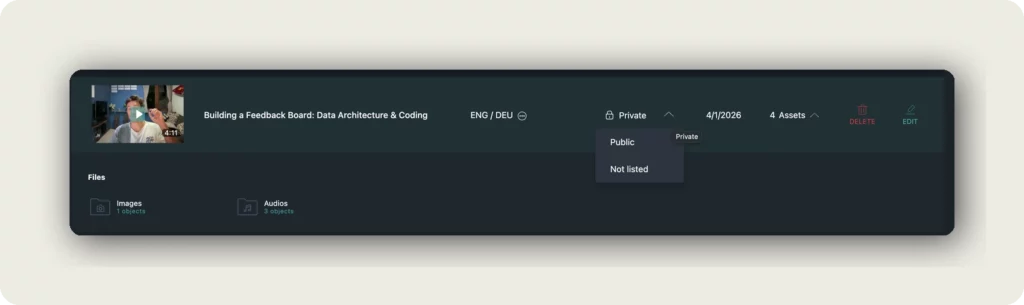
Click the VISIBILITY value of a video to open the dropdown and change it inline — without opening the dubbr. The three options are:
- Private — Only you can see the video.
- Public — Anyone with the link or via search can see the video.
- Not listed — The video is not shown in search or on your profile, but anyone with the direct link can view it.
4. Check language status
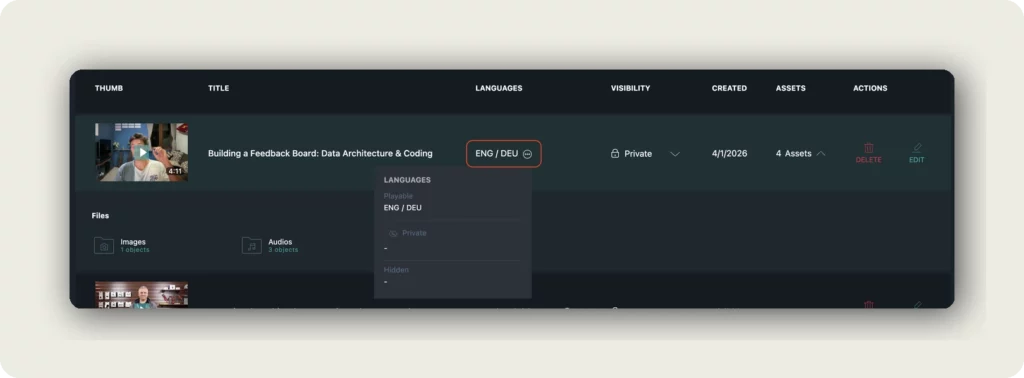
Hover or click the info icon next to the LANGUAGES column to see a popover with the status of each language in your video. A language can be:
- Playable — The language is ready and visible to viewers.
- Private — The language exists but is not visible to viewers.
- Hidden — The language is hidden from the language switcher.
5. Organize videos into project folders
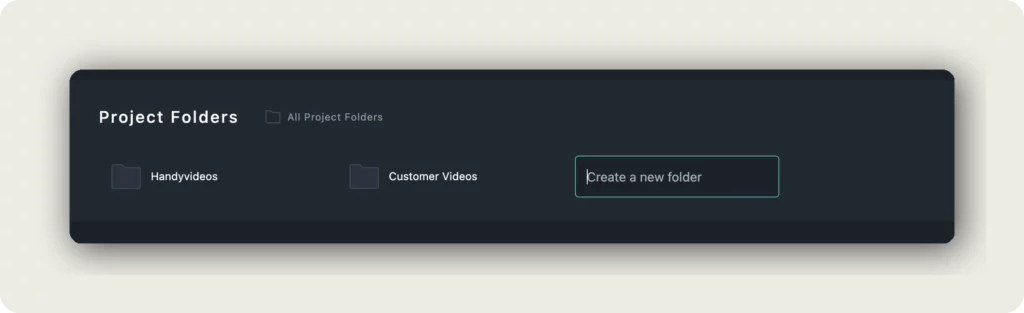
Project folders help you keep related videos together. In the Project Folders section, click + New Folder. An inline input field appears — type the folder name (e.g., Customer Videos) and press Enter to create it.
To move a video into a folder, open the video in the dubbr by clicking EDIT, then assign it to the folder from the PROJECT tab under PROJECT FOLDER. To remove a video from a folder without deleting it, open the folder and click UNLINK VIDEO in the row — the video stays in your archive.
6. Delete a video
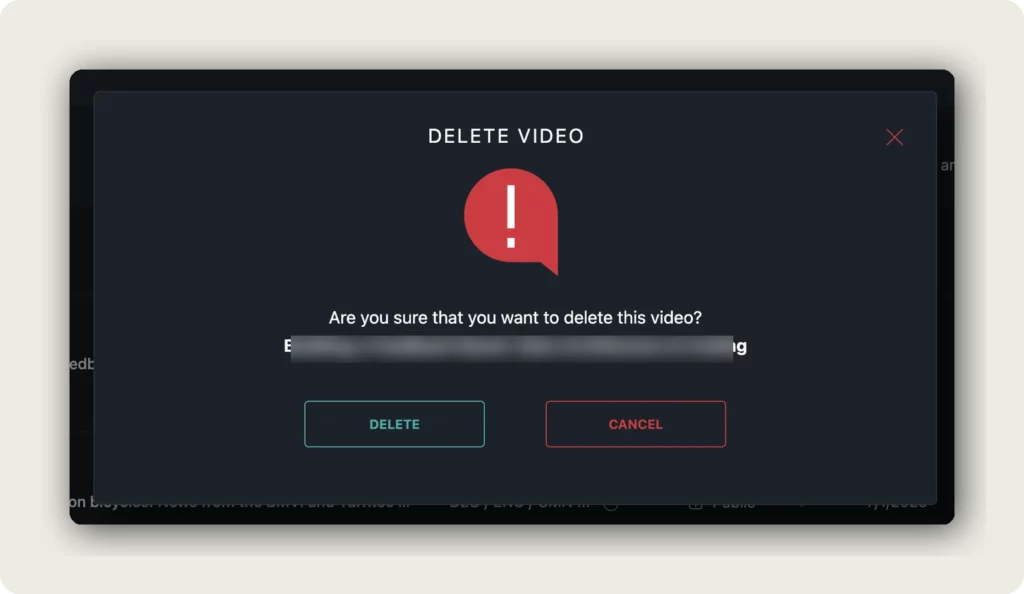
Click the DELETE action in the video row. A confirmation dialog appears with the video title. Click DELETE to confirm, or CANCEL to abort.
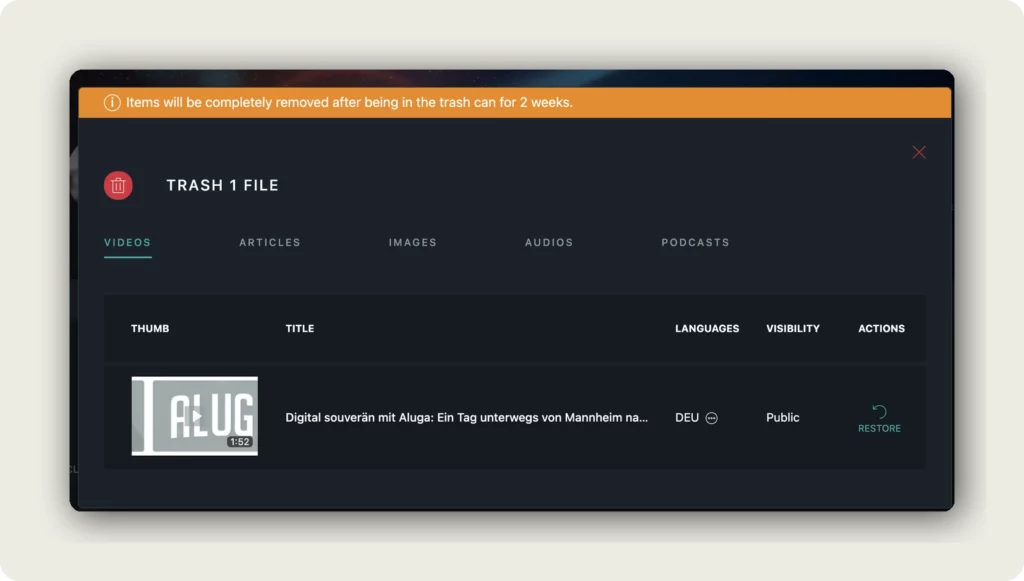
Deleted videos are moved to the TRASH — they are not permanently removed yet. You have 2 weeks to restore a video before it is deleted for good.
7. Restore a video from the trash
Click the TRASH button in the top right of the Archive page. The trash dialog opens with the same sub-tabs (VIDEOS, ARTICLES, IMAGES, AUDIOS, PODCASTS). Find the video you want to restore and click RESTORE in the ACTIONS column. The video returns to your archive.
Good to know
- Clicking EDIT on a video opens it in the dubbr, where you can add translations, voiceovers, subtitles, and change project settings.
- UNLINK VIDEO only removes the video from the current project folder — it does not delete the video.
- Videos in the trash are permanently deleted after 2 weeks. You can restore them any time before that.
- The trash also keeps deleted articles, images, audios, and podcasts — not just videos.
- You can change a video’s visibility directly from the row without opening the dubbr.
Troubleshooting
If a video is missing from the archive:
- Check if the Show videos not assigned to any folder toggle at the bottom of the page is enabled.
- Open the TRASH — the video may have been deleted and can be restored within 2 weeks.
- Use the Search field to look up the video title directly.
If the visibility dropdown doesn’t open:
- Reload the page and try again.
- Make sure you are clicking the visibility value itself, not the padlock icon next to it.
If you accidentally deleted a video:
- Open the TRASH immediately and click RESTORE — you have 2 weeks before the video is permanently removed.
Related Articles
Was this article helpful?