Summary
alugha imports videos from your own Vimeo account. You connect the account once in your alugha settings, alugha checks that it belongs to you, and then you import each video by pasting its Vimeo link. Title, description and tags come over with the video.
Prerequisites
Before you begin:
- You are logged in to your alugha account.
- You can edit the Vimeo account that owns the videos. alugha only imports videos from Vimeo accounts you own.
- The number of Vimeo channels you can connect depends on your alugha plan. See Understand alugha plans and credits.
- You have enough credits. An imported video is encoded like an upload, and the credit cost is shown before you confirm.
Step-by-Step Instructions
1. Open Manage Channels in your settings
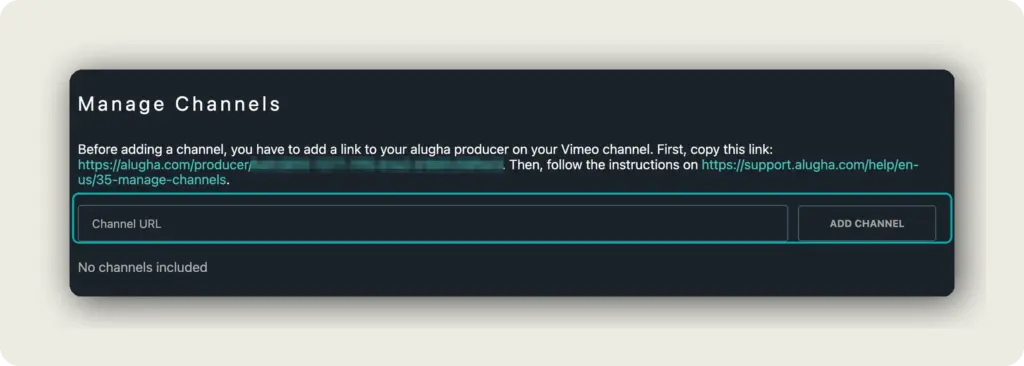
Click your profile picture in the top right corner and select Settings. On the Profile tab, scroll down to the section Manage Channels. alugha calls a connected Vimeo account a channel.
2. Copy your alugha link
The text above the Channel URL field contains a link that starts with https://alugha.com/producer/. It is the address of your alugha channel page. Copy the complete link.
3. Add the link to your Vimeo profile
Open Vimeo in a new tab and sign in to the account that owns your videos. Select your profile photo in the upper right corner and choose View profile. Click your bio, or Add bio if it is empty, paste the alugha link and click outside the field to save it.
The bio is available on every Vimeo plan. Profile links are not, so the bio is the safest place for the alugha link.
While you are on your profile, copy its address from the browser bar. It looks like https://vimeo.com/yourname or https://vimeo.com/user12345678.
4. Add your Vimeo channel in alugha
Go back to Manage Channels in alugha. Paste the address of your Vimeo profile into the Channel URL field and click ADD CHANNEL. The button becomes active as soon as the field contains a valid Vimeo profile address.
alugha checks that your alugha link appears on the Vimeo profile. If it does, the channel appears in the list with its Platform, Channel name and Actions. As long as no channel is connected, the section shows No channels included.
5. Paste the link of a Vimeo video
Click your profile picture and select Add new project. Below the upload area, find Import video from URL (Vimeo). Open the video on Vimeo, copy its address, for example https://vimeo.com/123456789, and paste it into the field Paste your video URL here….
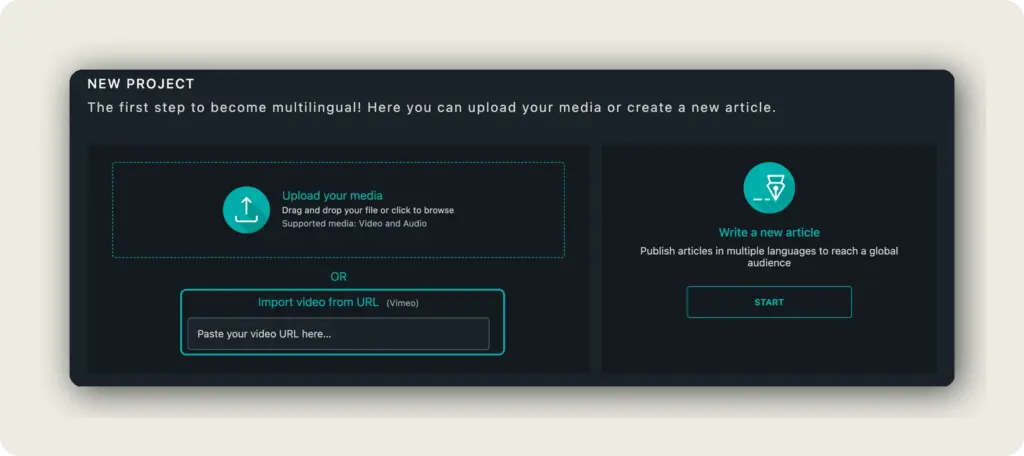
6. Check the details and start the import
alugha reads the video from Vimeo and fills in the title, description, tags and spoken language. Check the language under What language is your video in?. If the video has subtitles on Vimeo, you can tick Import EN-subtitles as well. (If available). The language code matches the language you selected.
From here, the import works like a file upload: choose your video and AI settings, review the credits and confirm. See Upload a video to alugha for the details.
7. Repeat for each video
alugha imports one video per link. Repeat steps 5 and 6 for every video you want to move. Your Vimeo channel stays connected, so you do not need to repeat steps 1 to 4.
Manage connected channels
Each connected channel in Manage Channels has two buttons:
- Check opens the Vimeo profile in a new tab.
- Remove disconnects the channel from your alugha account.
Troubleshooting
If you see “You are not authorized to add this channel”:
- Check that the alugha link is saved in your Vimeo bio.
- Paste the address of your Vimeo profile, not of a video or showcase.
- Make sure the Vimeo account is your own.
If you have reached the maximum number of channels:
- Remove a channel you no longer need, or upgrade your plan.
If you see “You don’t have rights to extract metadata from this video”:
- The video belongs to a Vimeo account that is not connected yet.
- Connect that account first with steps 1 to 4.
If you see “The video link you have pasted is incorrect!”:
- Copy the video address from Vimeo again and paste the complete link.
If you are moving a large library:
- The alugha team runs the move with you. Contact alugha.
Related Articles
- Upload a video to alugha
- Understand alugha plans and credits
- Manage your videos in My archive
- Change your account settings
Was this article helpful?