Summary
Project Folders organise your videos on the channel page. They can be nested, each video can sit in at most one folder, and you assign a folder either at upload time or later from the dubbr. This article shows where folders live, how to create and nest them, the difference between Unlink and Delete, and the two paths to (re-)link a video to a folder.
Where folders live
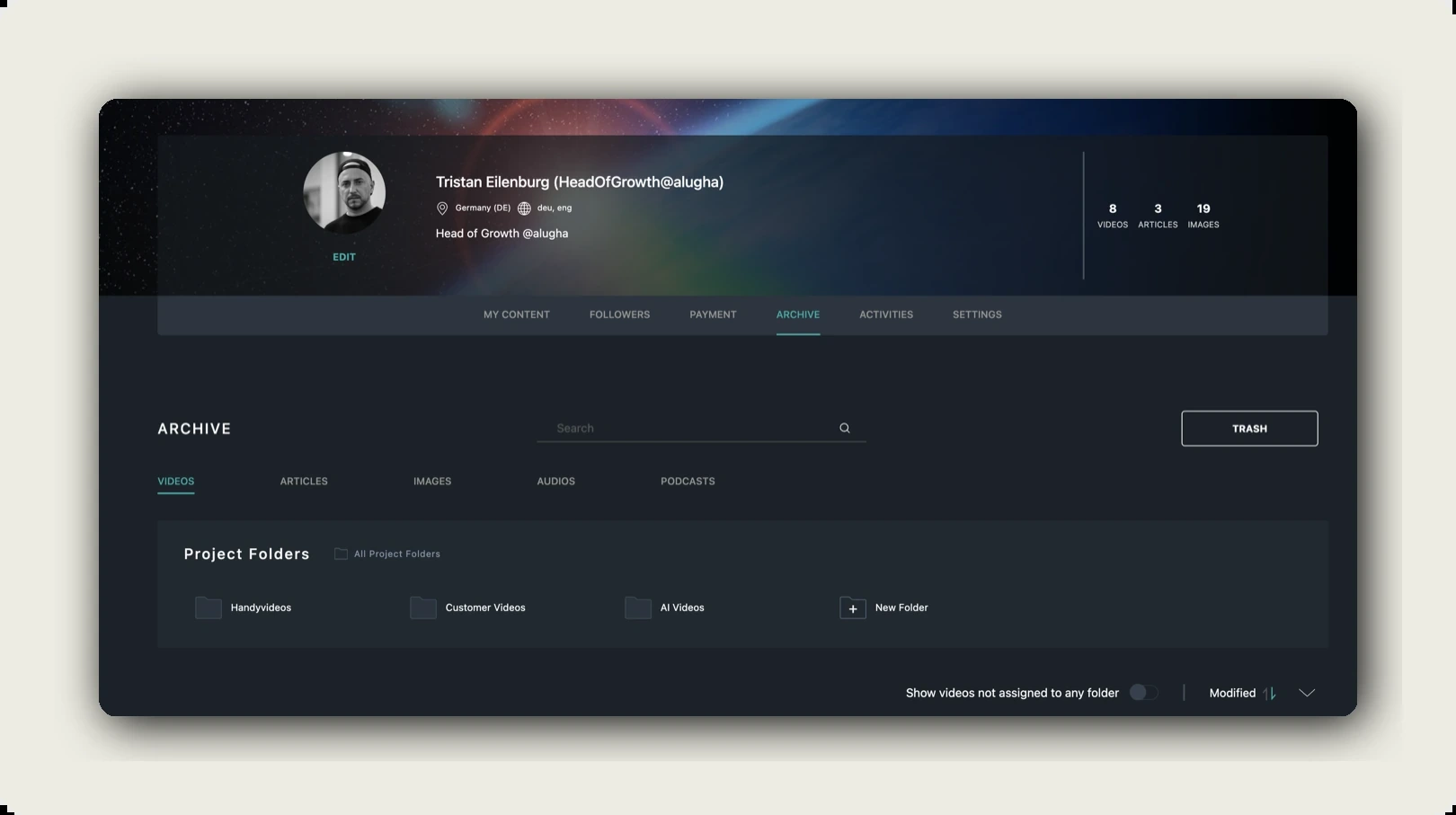
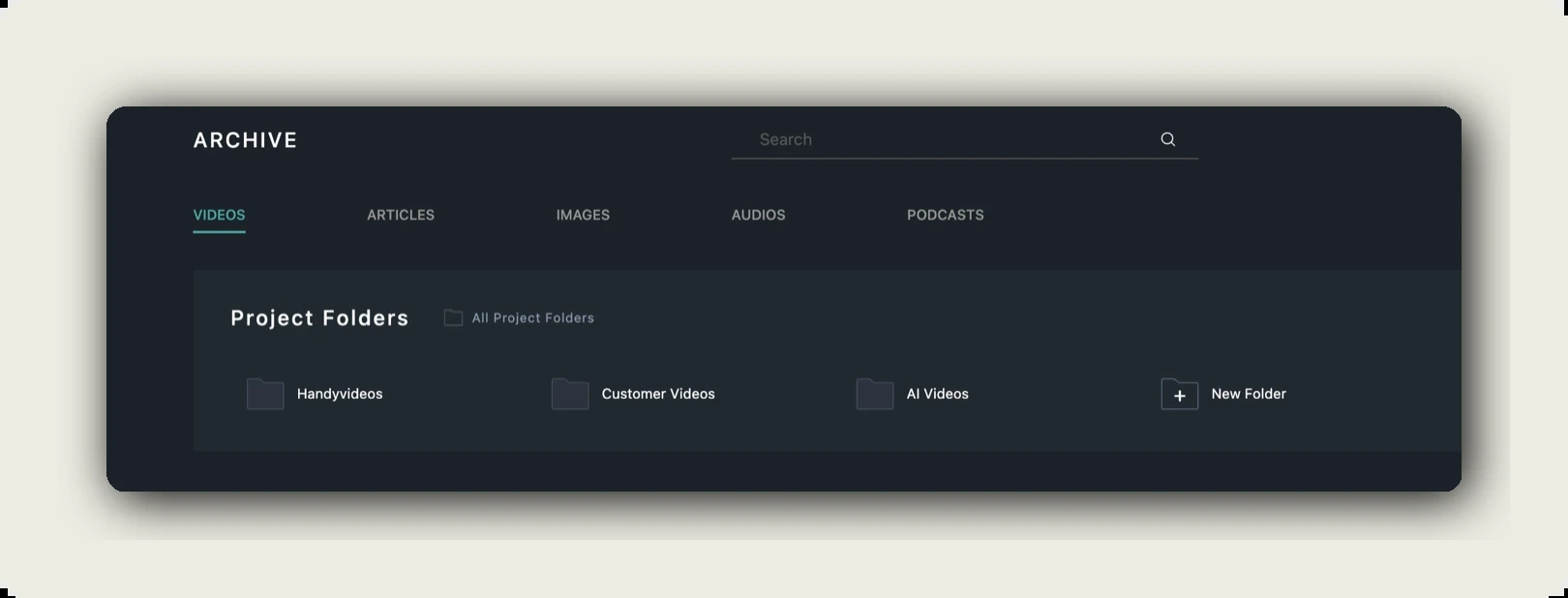
Open the avatar menu (top right) and click the ARCHIVE tab and the VIDEOS sub-tab. The Project Folders section sits above the video list.
On the same page you also see:
- A Search field at the top.
- A TRASH button on the top right.
- Sub-tabs: VIDEOS, ARTICLES, IMAGES, AUDIOS, PODCASTS. Folders shown here apply to videos; the other content types have their own organisation.
- A Show videos not assigned to any folder toggle on the right of the folder strip. Flip it on to reveal unfoldered videos in the list below.
- A Modified sort dropdown on the right.
Create a folder
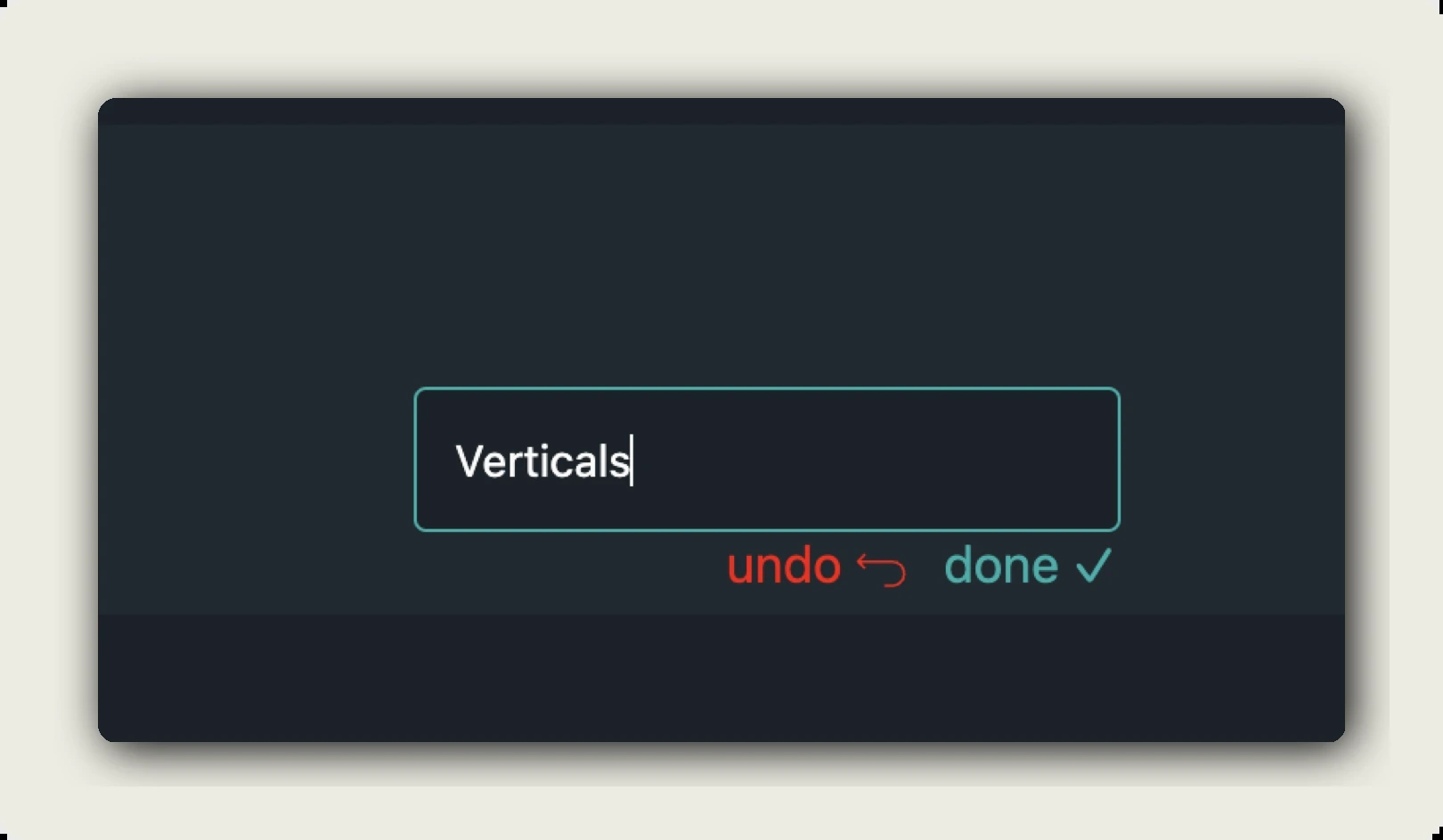
In the Project Folders strip, click the + New Folder tile. An inline input box appears with the placeholder Create a new folder. Type the folder name (e.g. Verticals). Two actions appear below the field: undo (red, with a back-arrow icon) to discard, and done (teal, with a checkmark) to save.
Click done. The new folder shows up immediately next to the others. The order follows the Modified sort by default.
Nest folders inside folders
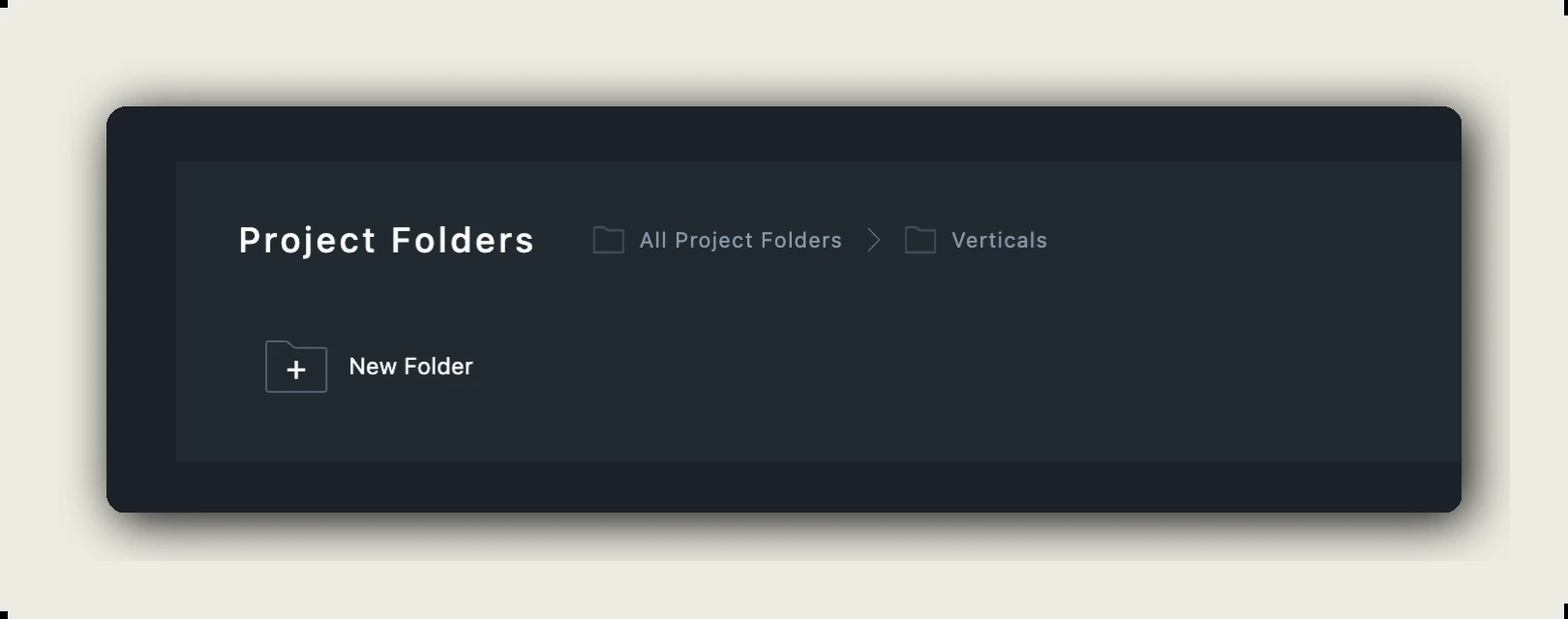
Click any existing folder to open it. The breadcrumb at the top of the strip updates to All Project Folders > <your folder>. Inside that folder you see whatever child folders already exist plus a + New Folder tile to create a child.
Example structure:
- All Project Folders > Customer Videos > Bumm.de
- All Project Folders > Verticals
- All Project Folders > AI Videos
Click any segment of the breadcrumb to jump up the hierarchy. Click All Project Folders to return to the top.
Assign a video to a folder. During upload
When you upload a new video via Add new project (avatar menu), the upload wizard offers a folder picker as part of the flow. Pick an existing folder or create a new one inline and the video lands in that folder when the upload finishes. You don’t need to do anything else.
If you skip the folder picker, the video uploads unfoldered. You can find it later with the Show videos not assigned to any folder toggle and assign it then.
Assign an existing video to a folder
Already uploaded? Two paths lead to the same picker dialog. Both are useful in slightly different situations.
Path A, from the dubbr PROJECT tab
Open the video in the dubbr (EDIT in the archive row), switch to the PROJECT tab. Scroll to the PROJECT FOLDER section. Click Assign to project folder.
Use this when you’re already inside the video doing other Project-tab work.
Path B, from the archive row’s EDIT action
In the archive’s video list, hover any row, click EDIT in the ACTIONS column on the right. The same Project view opens; assign the folder there.
Use this when you’re bulk-organising videos and don’t want to enter the dubbr per video.
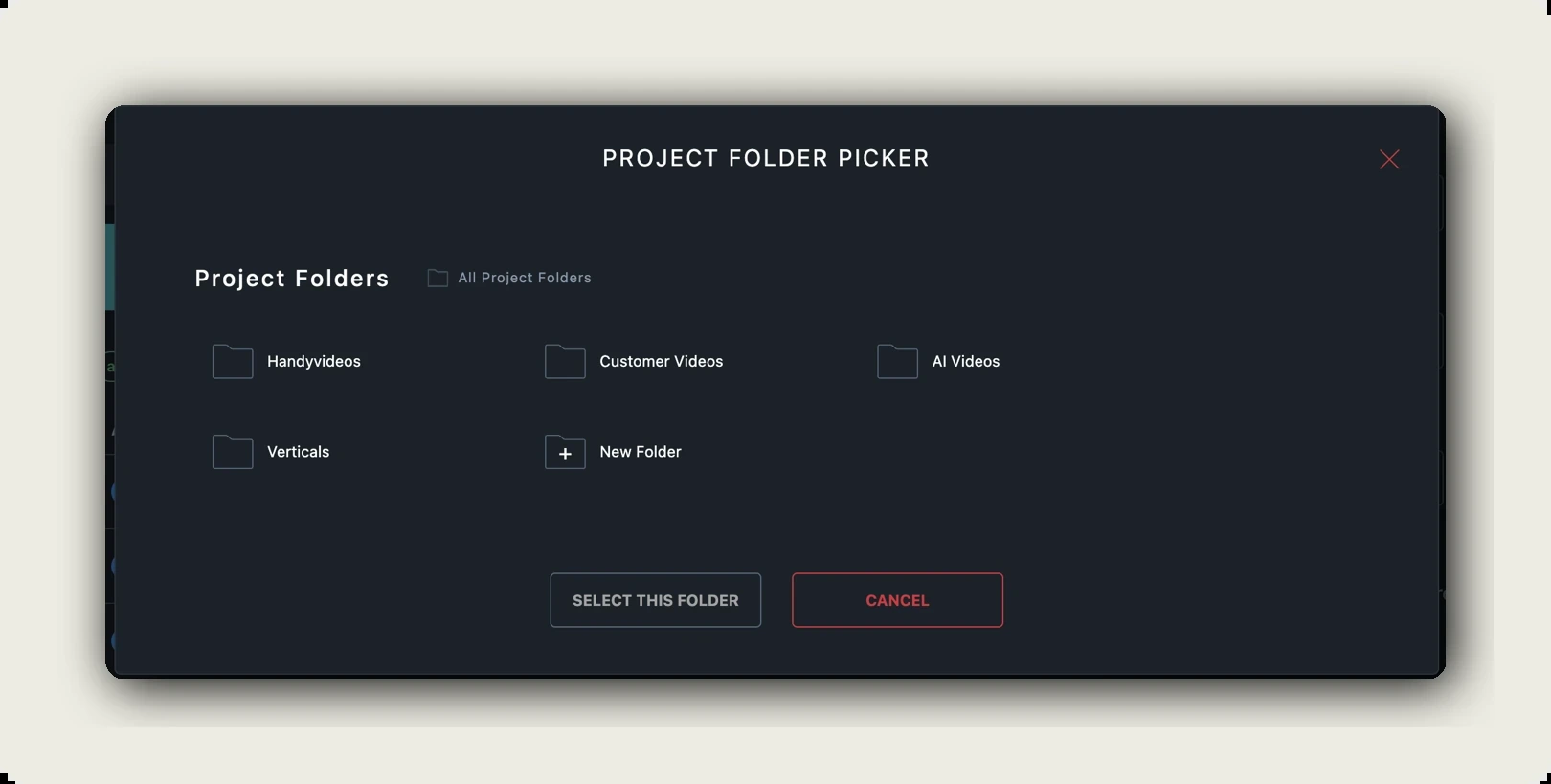
The PROJECT FOLDER PICKER dialog
Either path opens the same PROJECT FOLDER PICKER:
- Top-level shows Project Folders · All Project Folders with the existing top-level folders plus a + New Folder tile.
- Click any folder to drill in, the breadcrumb extends (e.g. All Project Folders > Customer Videos) and child folders appear.
- Bottom of the dialog: SELECT THIS FOLDER (teal outline) to commit the highlighted folder, CANCEL (red outline) to back out.
- You can create a new folder inline with the + New Folder tile at any level, then immediately select it.
A video can live in one folder at a time. Picking a new folder moves the video; the previous folder loses the entry.
Remove a video from a folder: Unlink vs. Delete
These two row actions are easy to confuse. They do very different things:
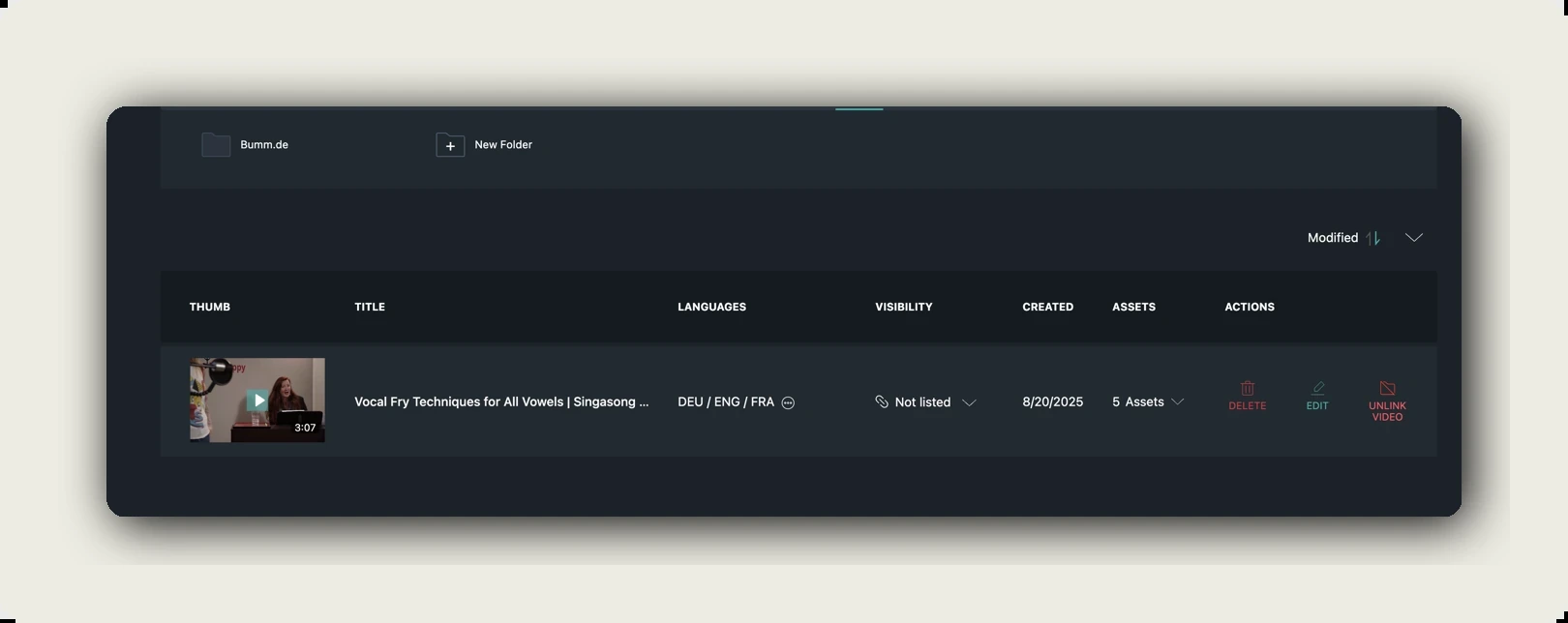
- UNLINK VIDEO (red folder-with-slash icon, ACTIONS column). Detaches the video from its current folder. The video still exists and appears under Show videos not assigned to any folder. Use this to move a video out of a folder without losing it.
- DELETE (red trash icon, ACTIONS column). Sends the video to TRASH. After two weeks in TRASH it is permanently removed. Until then you can restore it.
Where UNLINK VIDEO appears: only when you have opened a folder and are looking at the videos inside it. The top-level archive overview (no folder open) shows only DELETE and EDIT in the ACTIONS column. There is nothing to unlink there because the videos aren’t in a folder yet.
To move a video from one folder to another, you don’t need to Unlink first. Assign the new folder via the picker and the video moves directly.
To put an unlinked video back into a folder, open it (EDIT) and use the PROJECT FOLDER picker again.
Find videos that are not in any folder
On the right end of the Project Folders strip sits the Show videos not assigned to any folder toggle. Flip it on, the video list below now shows every video that has no folder assignment. The list reads columns: THUMB · TITLE · LANGUAGES · VISIBILITY · CREATED · ASSETS · ACTIONS.
From this view (videos that aren’t in any folder) the ACTIONS column shows only DELETE and EDIT. UNLINK VIDEO is not shown because there’s nothing to unlink. Use EDIT to open the Project Folder picker and assign one.
Trash: where deleted videos go
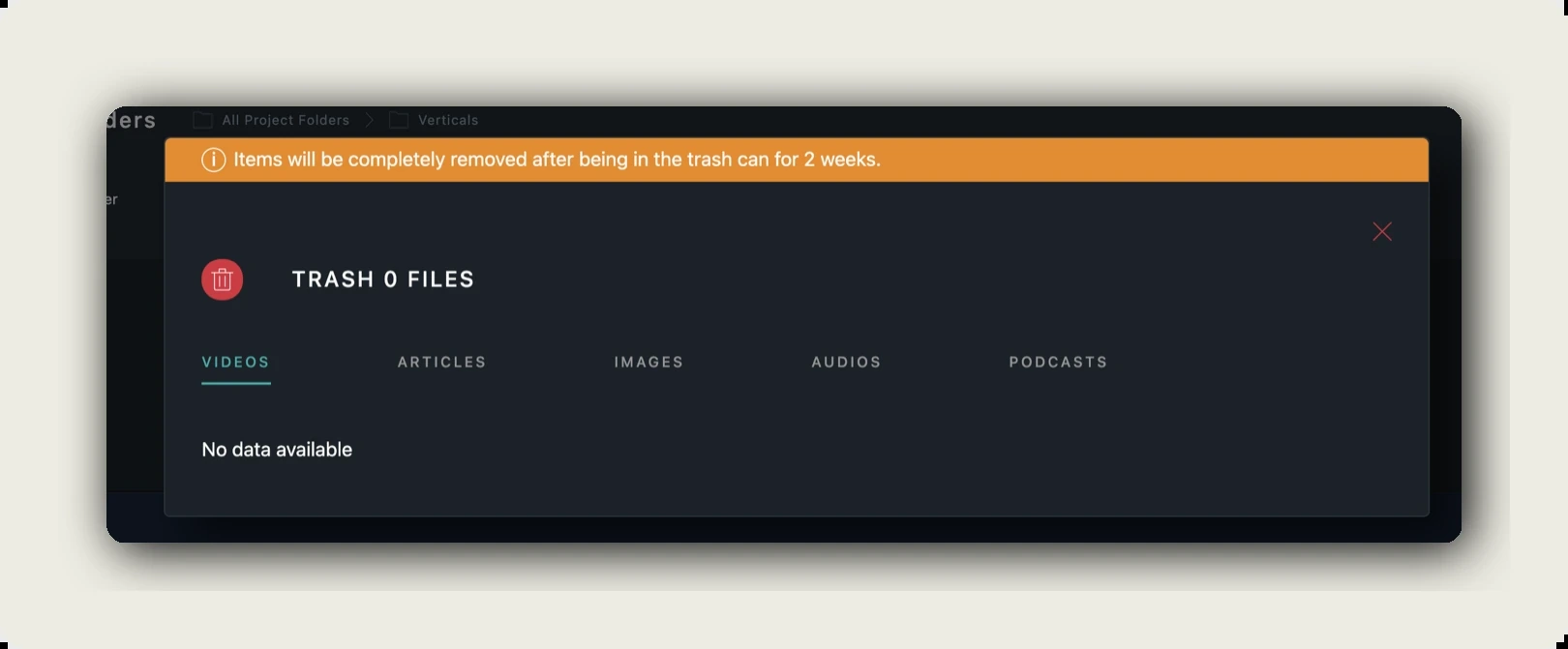
Click TRASH at the top right of the ARCHIVE page. The TRASH X FILES panel opens with the same sub-tabs as the archive (VIDEOS / ARTICLES / IMAGES / AUDIOS / PODCASTS) so you can find what you deleted.
Orange banner at the top: Items will be completely removed after being in the trash can for 2 weeks. Restore an item while it’s still in TRASH; after the two weeks it’s gone for good.
Unlinking a video does not put it in TRASH. TRASH is only for deletes.
Folder organisation tips
- Set up a folder per customer / per channel / per series before you upload. Less re-organising later.
- Nest sparingly. Two levels deep is usually enough (e.g. Customer Videos > Bumm.de). Deeper nesting makes the picker tedious.
- Use the Search bar for cross-folder lookups. The search field at the top of ARCHIVE looks across every folder.
- UNLINK before re-organising, not DELETE. The two icons are next to each other, the red trash always sends to TRASH, the red unlink icon just detaches.
- Use the unfoldered toggle as your inbox. Anything that lands without a folder shows up there until you triage it.
Troubleshooting
I can’t find a video I just uploaded:
- Flip Show videos not assigned to any folder on, if you skipped the folder picker during upload, the video sits there.
- Type the title into the Search field at the top of ARCHIVE.
- Confirm you’re on the correct channel via Switch channel (avatar menu).
UNLINK VIDEO is greyed out:
- The video isn’t in any folder. Nothing to unlink. Assign it to a folder first if you want to move it.
I unlinked a video by mistake:
- Nothing destructive happened, the video is still in your archive. Open it (EDIT), go to PROJECT tab > PROJECT FOLDER, click Assign to project folder, pick the folder again.
I deleted a video by mistake:
- Open TRASH from the top-right of ARCHIVE. While the item is still inside the two-week window you can restore it.
- After two weeks the item is gone, if you need it back, you have to re-upload.
Where to go next
Was this article helpful?