Summary
The dubbr is alugha’s per-video editor, where translation, subtitles, voiceover, and publishing happen. This article is a tour of the dubbr’s layout so you know exactly where to click for what.
Opening the dubbr
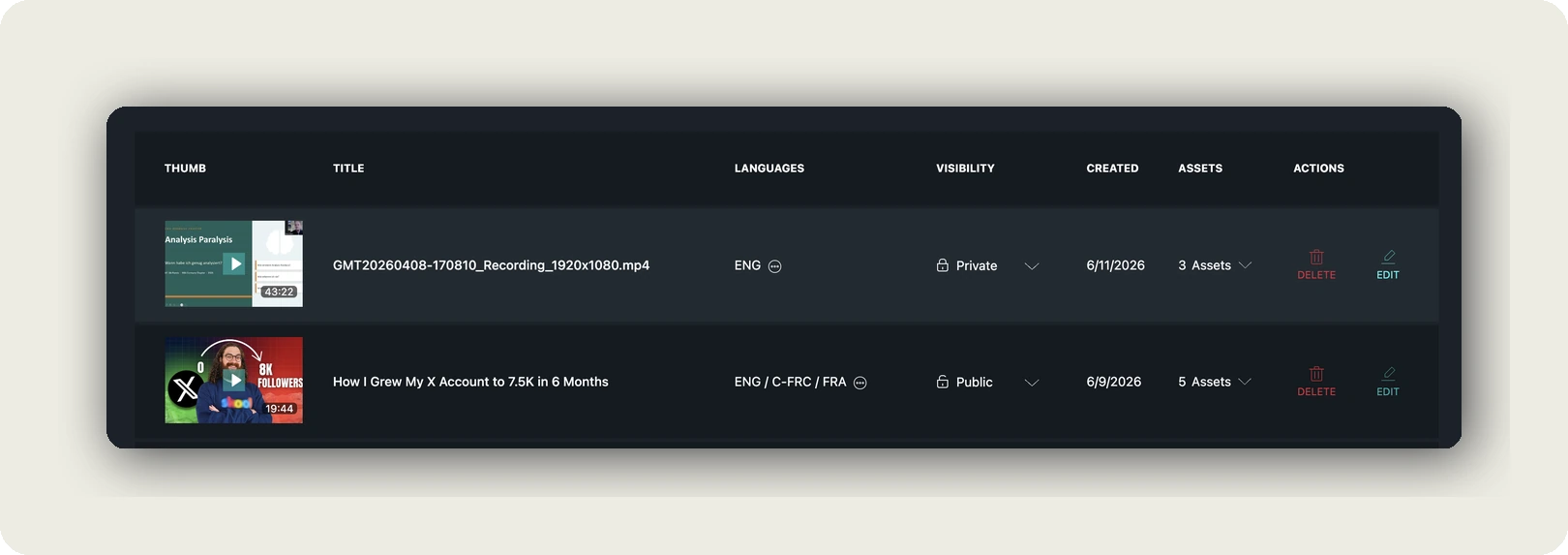
Open the avatar menu (top right) and click Archive. Your Archive page lists every video you own with the columns THUMB / TITLE / LANGUAGES / VISIBILITY / CREATED / ASSETS / ACTIONS. In the ACTIONS column click EDIT (teal pencil icon), the dubbr opens on the PROJECT tab.
If you do not have a video yet, click Add new project in the avatar menu first to upload one. See Upload a video to alugha.
Layout of the dubbr
Top to bottom, the dubbr has:
- Video preview. Player with timecode, voice slots, and accessibility toggles (Enable Audio Description / Enable Closed Captions).
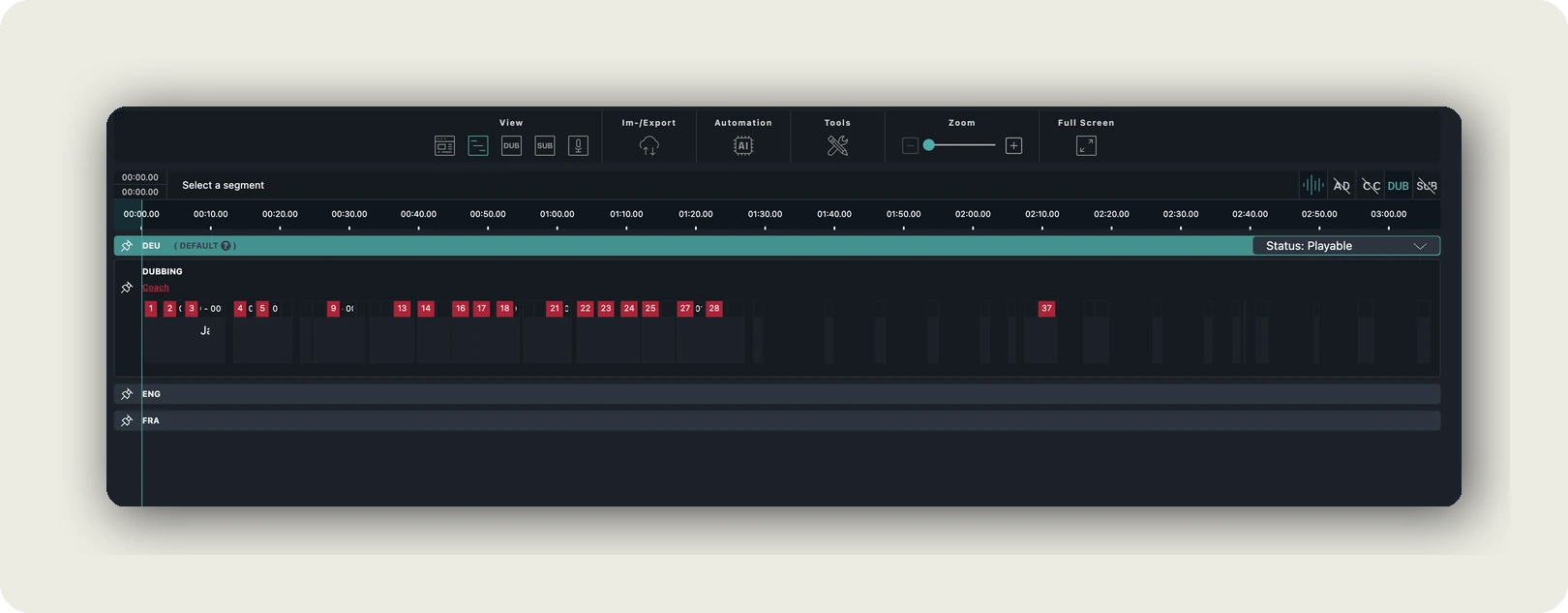
- Toolbar. View, Im-/Export, Automation, Tools, Zoom, Full Screen.
- Language tabs. PROJECT plus one tab per language on the project (DEU, ENG, FRA, …).
- Segment timeline / language detail. Depending on which tab you have open.
The four toolbar menus
View
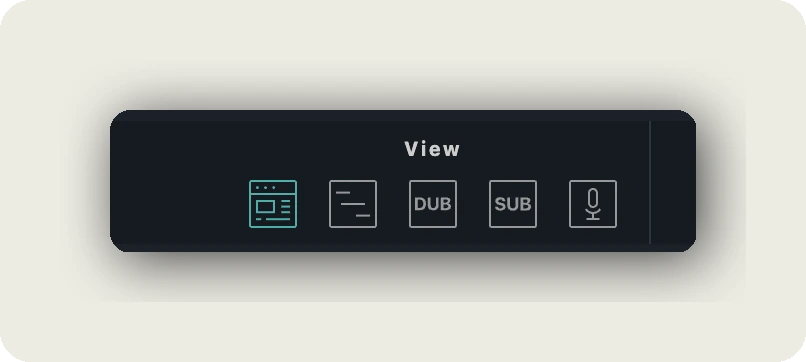
Toggles the editor’s viewing mode. Five icons:
- Overview (screen icon). Per-language project overview.
- Detail (lines icon). Segment-detail view with transcript per segment.
- DUB. Show the transcript / translation segments.
- SUB. Show the subtitle segments instead.
- Recording Panel (microphone icon). Show or hide the Recording Panel at top-right of the editor.
Im-/Export
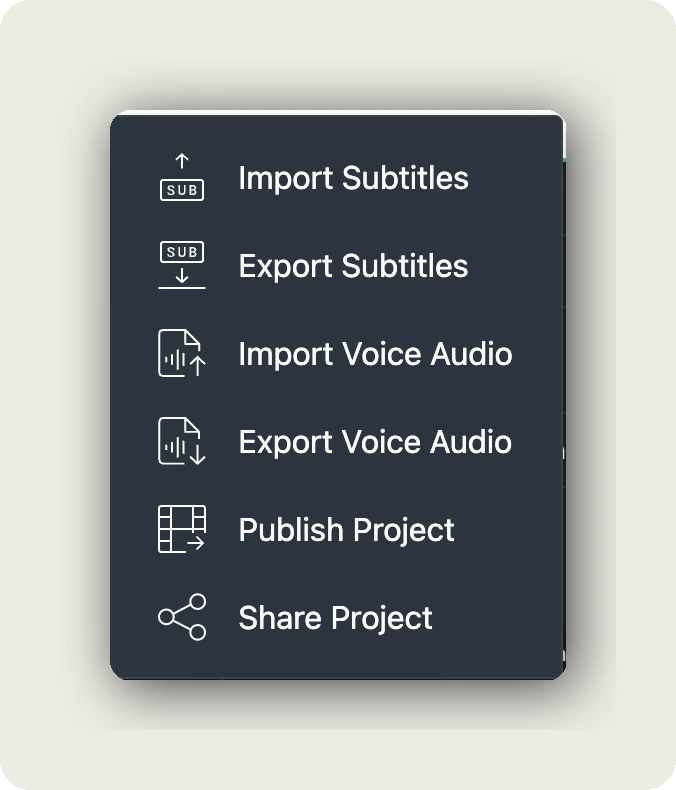
File and project-level actions:
- Import Subtitles · Export Subtitles
- Import Voice Audio · Export Voice Audio
- Publish Project
- Share Project
Automation
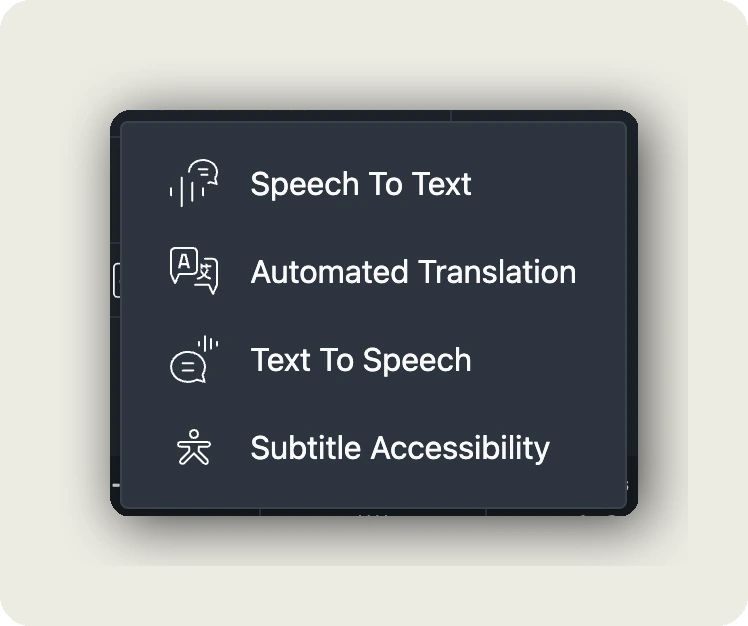
AI actions that cost credits:
- Speech To Text. Transcribe the audio on the current language tab.
- Automated Translation. Translate from source to current target language.
- Text To Speech. Generate AI voiceover.
- Subtitle Accessibility. Accessibility enhancements for subtitles.
Tools
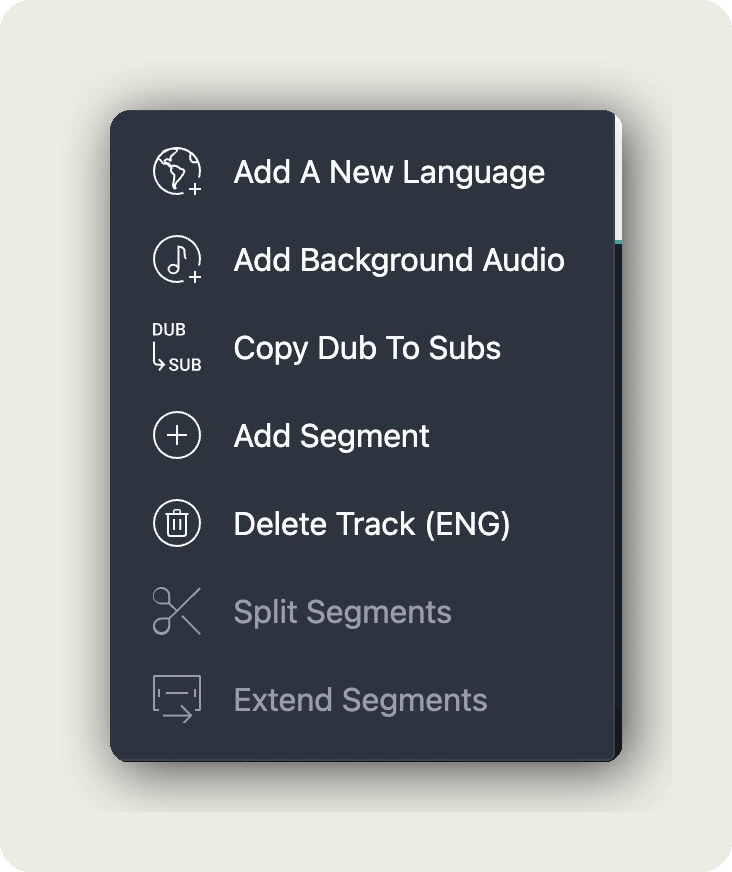
Track and segment management (no credits):
- Add A New Language · Add Background Audio · Copy Dub To Subs
- Add Segment · Delete Track (XXX, where XXX is the current language)
- Split Segments · Extend Segments (greyed out unless a segment is selected)
Recording lives separately in the Recording Panel at the top-right of the dubbr (above the player). Not in this menu. The panel’s gear icon opens Recording Settings. See How to manage recording.
PROJECT vs. language tabs
- PROJECT. Project-wide settings: STATE (Public / Private / Not listed), Youth Protection, Licenses, PROJECT FOLDER assignment, PROJECT PAGE toggles (Hide comments, Hide insights), Embedding. Where you publish.
- Language tabs (DEU, ENG, FRA, …). Per-language content: TITLE, DESCRIPTION, TAGS, THUMBNAIL, language-level STATE (Playable / Private / Hidden), segment timeline.
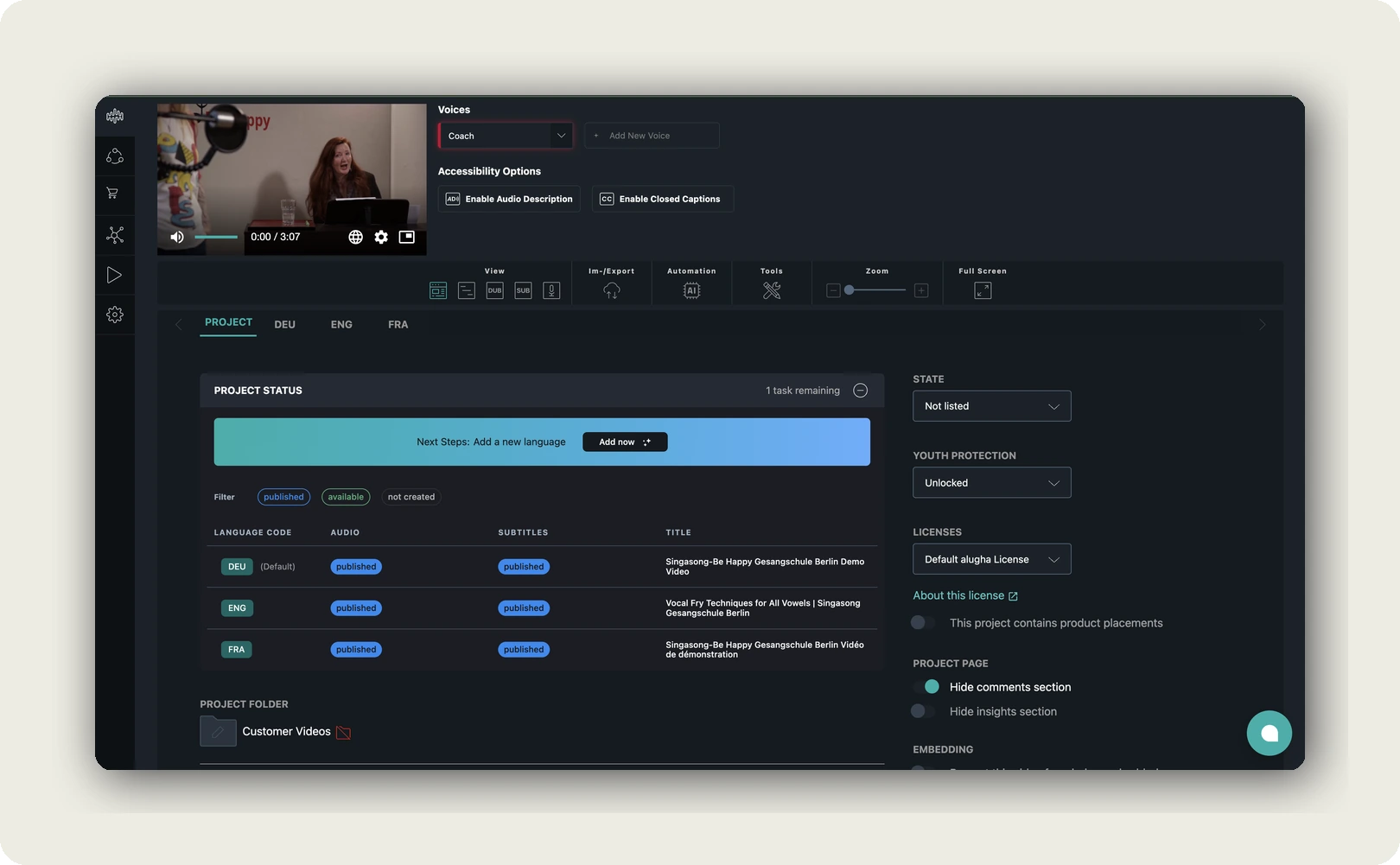
Most AI work happens on a language tab. Publishing always happens on the PROJECT tab.
Voices and accessibility
Above the timeline you see Voice slots (voice_0, voice_1, +Add New Voice) and Accessibility Options (Enable Audio Description, Enable Closed Captions). Voice slots map a speaker in the video to an AI voice for Text-To-Speech. The accessibility toggles surface the corresponding tracks in the player.
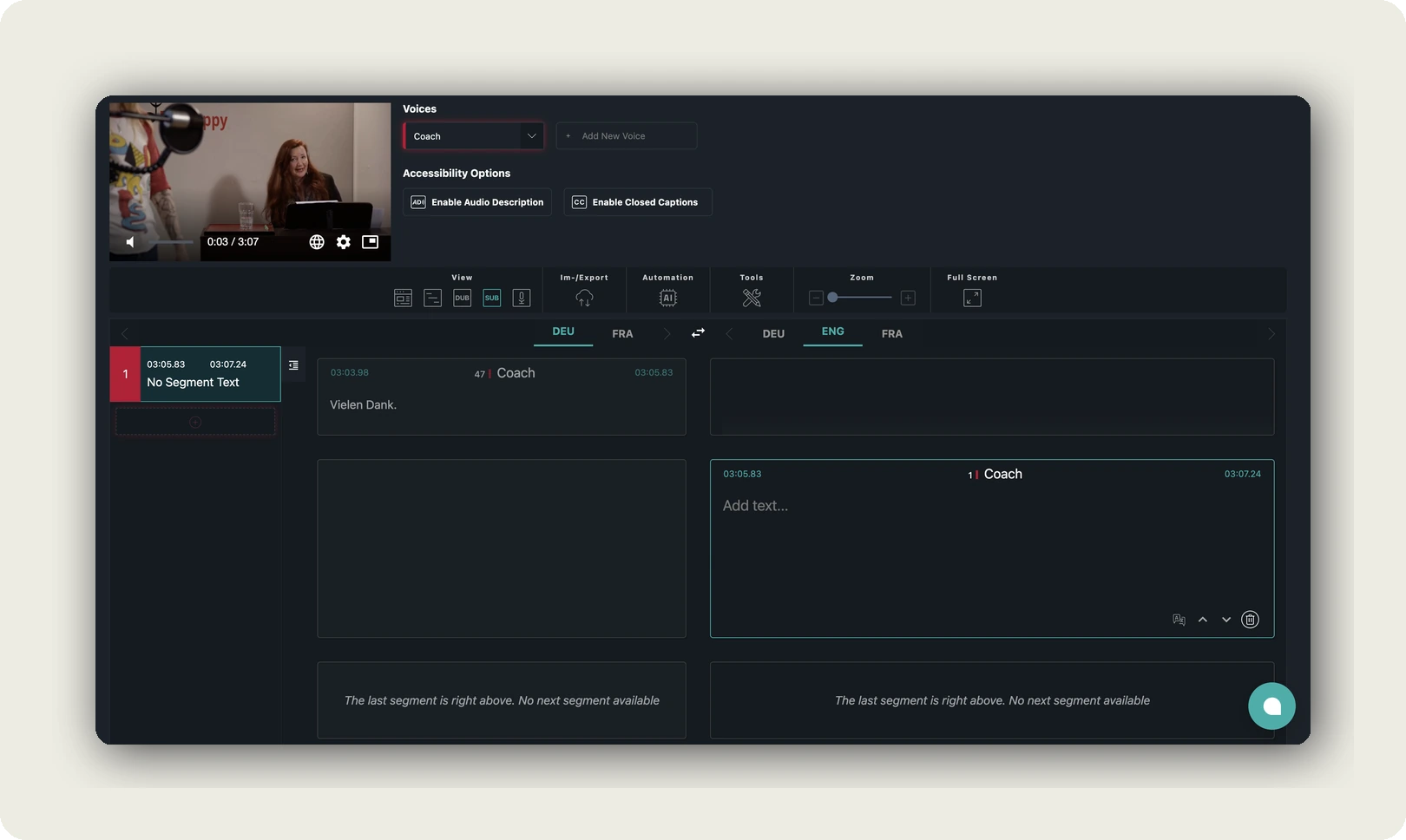
See How to manage audio for the full voice workflow.
Auto-save and background processing
- Every edit you make in the dubbr is auto-saved. No Save button.
- AI actions run in the background. You can close the tab and come back later.
- The Active jobs panel on the PROJECT tab shows running and completed jobs.
- Uploads in progress show in the ☁ Upload status indicator in the top bar.
Where to go next
- Navigating through AI features
- How to manage language tracks
- How to manage audio
- How to manage subtitles
- Publish your multilingual video project
Was this article helpful?