Summary
Translate your video into a new language with alugha’s Add A New Language workflow and Automated Translation. This is Step 2 of the alugha AI pipeline (Speech-To-Text → Automated Translation → Text-To-Speech) and supports 200+ languages.
Prerequisites
Before you begin:
- A transcript on your source-language track — run Speech-To-Text first if you have not already.
- Enough credits in your wallet — Automated Translation shows the exact cost before you submit.
- A clear idea of which target language you want — you can add more later, one language at a time.
Step-by-Step Instructions
1. Open Tools → Add New Language
Open the video in the dubbr (My archive → EDIT). In the toolbar click Tools and choose Add New Language. This creates a new empty language track ready for translation.
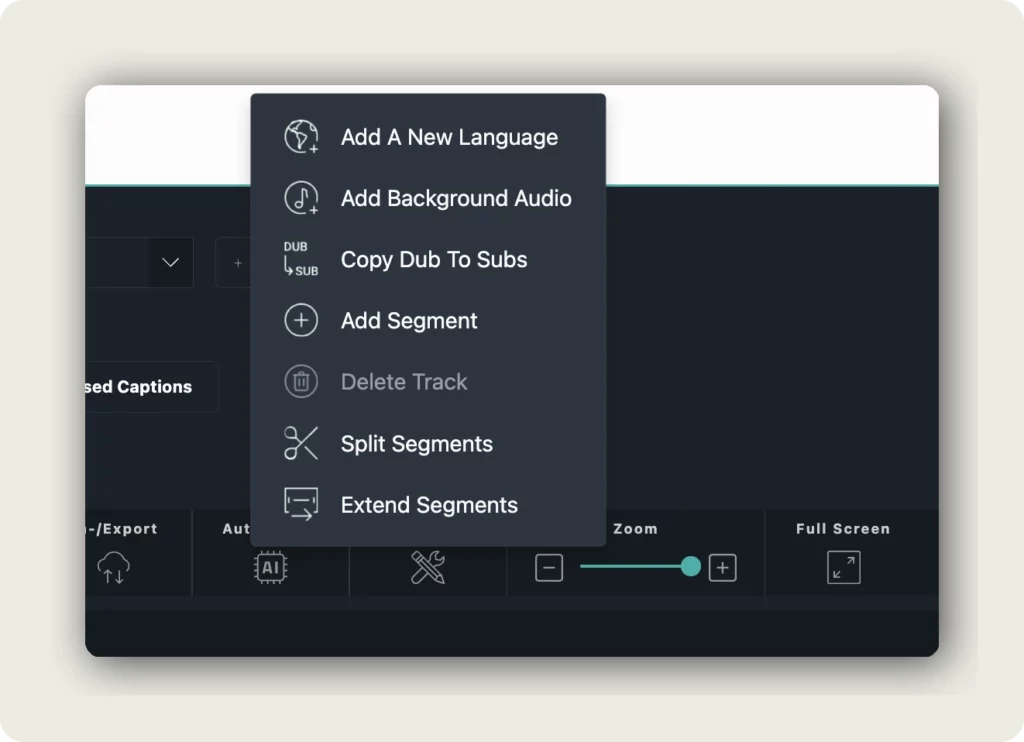
Pick the target language from the dialog — the language you want the translation to be in (for example French (FRA)). A new language tab appears next to your existing tracks.
2. Switch to the new language tab
Click the new language tab (for example FRA). The track starts empty — no segments yet. Automated Translation will fill it based on your source transcript.
Make sure your source track already has a transcript. Without a transcript there is nothing to translate.
3. Open Automation → Automated Translation
In the toolbar click Automation and choose Automated Translation. The AUTOMATED TRANSLATION dialog opens.
At the top you see the translation direction, for example Source language: German (deu) → Target language: French (fra). The source is the track that has the transcript; the target is the new empty track you just created.
4. Select the fields to translate
The dialog lists everything that can be translated:
- Title — the language-level video title
- Description — the language-level video description
- Tags — the language-level tags
- Transcript — the spoken words on the source track
- Subtitles — subtitle segments on the source track
Click SELECT ALL to translate everything, or tick only the fields you need. For the full AI pipeline you will typically want Title, Description, Tags, and Transcript — the transcript is what Step 3 (Text-To-Speech) turns into a voiceover.
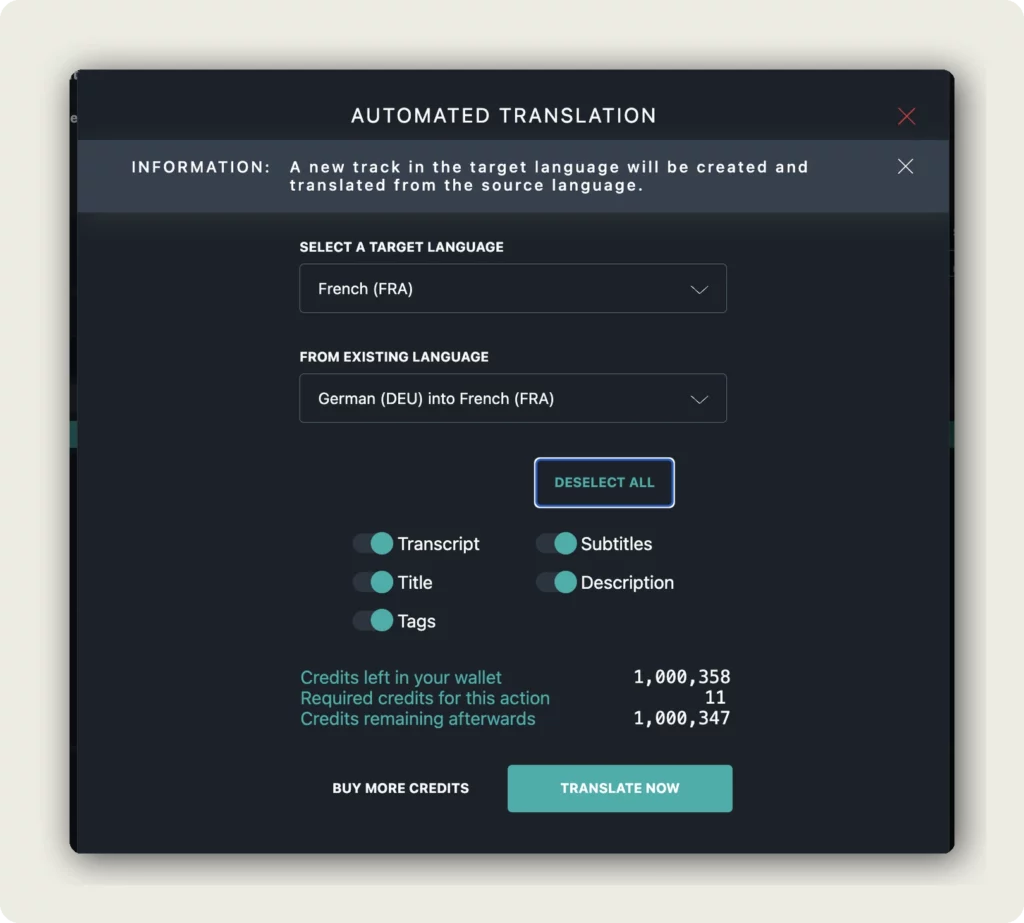
5. Review credits and click TRANSLATE NOW
At the bottom of the dialog you see the credit cost breakdown:
- Credits left in your wallet — your current balance.
- Required credits for this action — what Automated Translation will cost for the selected fields.
- Credits remaining afterwards — your balance once the job runs.
When the numbers look right, click TRANSLATE NOW. The button stays disabled until at least one field is checked — if nothing happens on click, go back and tick a field.
What happens next
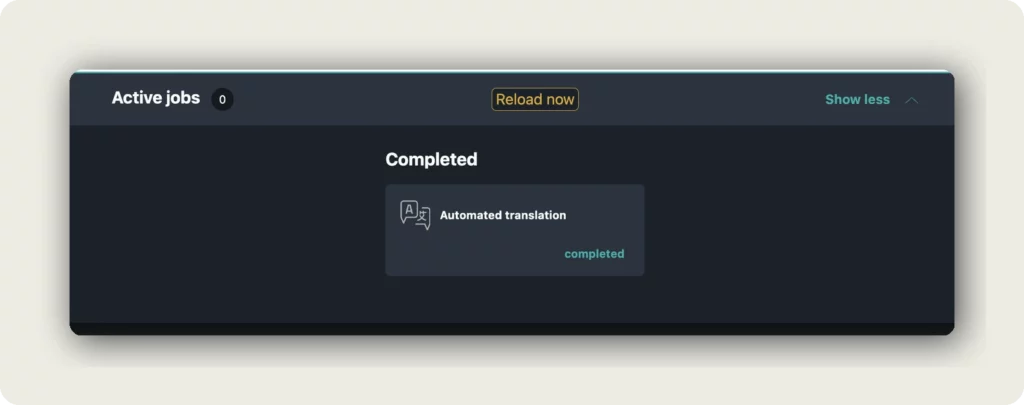
Translation runs in the background. The job appears under Active jobs and moves to Completed when finished, labeled Automated Translation with the target-language code (for example FRA).
Click Reload now to refresh the editor — your target-language tab now contains translated segments, plus a translated title, description, and tags if you selected them.
Once the translation is ready, you are set up for Step 3: Generate AI voiceover with Text-To-Speech.
Good to know
- Automated Translation supports 200+ languages — more than Speech-To-Text’s 100+. If your target language is missing from STT, you can still translate into it.
- Translation always runs source → target. The source is the track with the transcript, the target is the currently selected tab.
- You can run Automated Translation on the same target language multiple times — later runs overwrite earlier output for the selected fields.
- The TRANSLATE NOW button is disabled until at least one field (Title, Description, Tags, Transcript, Subtitles) is checked.
- Translated text is not final — you can edit every segment, title, description, and tag manually after the job completes.
Troubleshooting
TRANSLATE NOW is disabled:
- Check at least one field (Title, Description, Tags, Transcript, or Subtitles). The button only activates once something is selected.
- Confirm the source language has a transcript — no transcript means no transcript fields to translate.
The target language I need is not listed:
- alugha supports 200+ languages for translation. If yours is still missing, it is likely not yet available.
- Contact alugha support and pick the closest supported language as a workaround.
Translation quality looks wrong:
- Check the source transcript first. Inaccurate transcripts produce inaccurate translations — fix the transcript, then re-run translation.
- Edit translated segments directly in the dubbr. Small manual corrections are normal.
- For idioms or domain-specific terms, a human pass is still recommended.
Not enough credits:
- The dialog shows Credits remaining afterwards — if it goes negative, top up your credits before submitting.
- Translating only the Transcript (skipping Title/Description/Tags) reduces cost if you are budget-constrained.
Related Articles
- Transcribe your video with Speech-To-Text
- Generate AI voiceover with Text-To-Speech
- Add AI translations to your video
- Edit title, description, tags, and thumbnails for each language
Was this article helpful?