Summary
Generate an AI-dubbed voiceover in the target language with alugha’s Text-To-Speech. This is Step 3 of the alugha AI pipeline (Speech-To-Text → Automated Translation → Text-To-Speech) — it turns your translated transcript into a ready-to-listen dubbed audio track.
Prerequisites
Before you begin:
- A translated transcript on your target-language track — run Automated Translation first if you have not already.
- Enough credits in your wallet — Text-To-Speech shows the exact cost before you submit.
- One or more voices set up on the target-language track. By default, alugha assigns default voices for the target language — you can swap them before generating.
Step-by-Step Instructions
1. Switch to the target-language tab
Open the video in the dubbr and click the language tab for your target language — the language you translated into in Step 2 (for example FRA). Text-To-Speech always runs on the currently selected track.
Check that the target track already has translated segments. Without a translated transcript there is nothing for Text-To-Speech to voice.
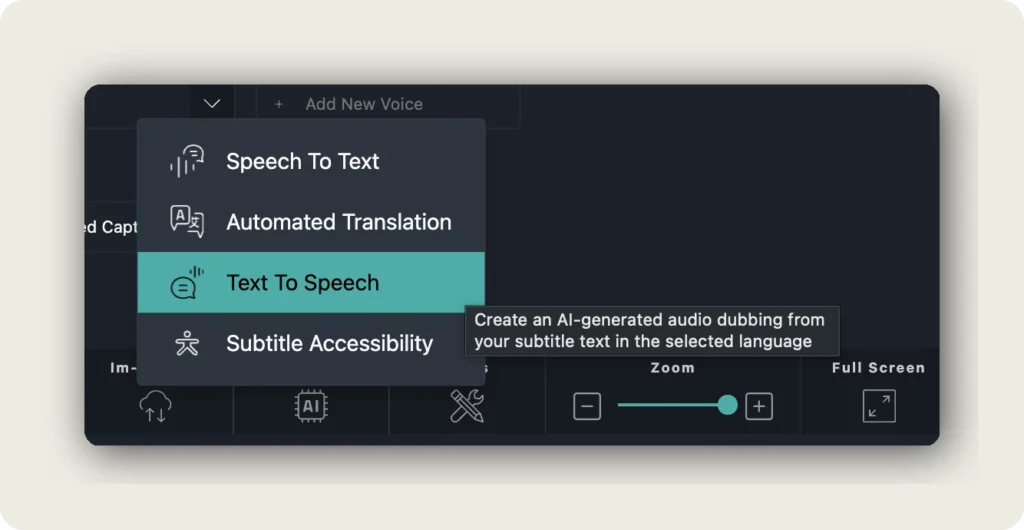
2. Open Automation → Text To Speech
In the toolbar click Automation and choose Text To Speech. The tooltip reads: “Create an AI-generated audio dubbing from your subtitle text in the selected language.”
3. Review the voice assignments
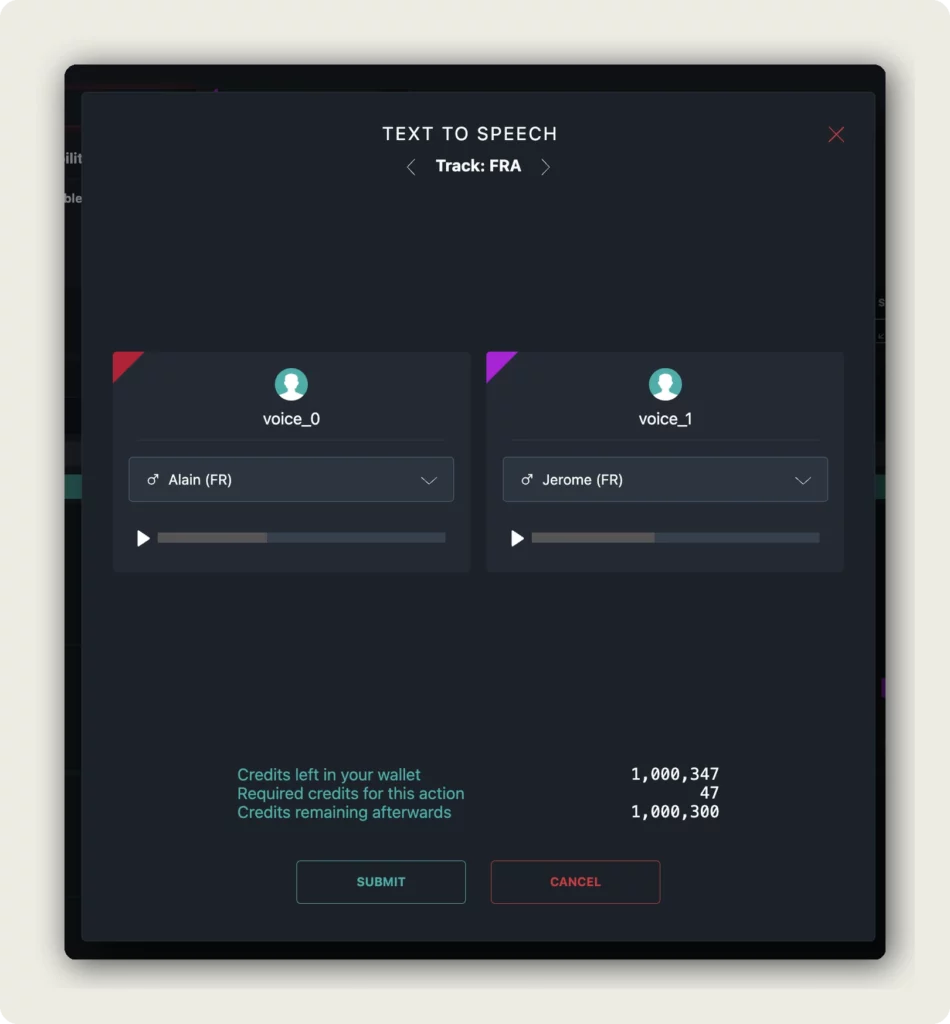
The TEXT TO SPEECH dialog opens with the current track indicator, for example Track: FRA. Each voice slot on the track is listed — typically voice_0, voice_1, and any custom voices you have added.
For each voice slot the dialog shows:
- The voice name assigned to that slot (for example Alain (FR) or Jerome (FR)).
- A playback preview so you can hear what the voice sounds like before committing.
- A dropdown to swap the voice — pick a different voice if the default does not match the speaker.
If you have multiple speakers in the video, assign a different voice to each speaker for a more natural-sounding dub. Use the play button to preview each voice before you submit.
4. Review credits and click SUBMIT
The bottom of the dialog shows the credit cost breakdown:
- Credits left in your wallet — your current balance.
- Required credits for this action — what Text-To-Speech will cost for this video at this length.
- Credits remaining afterwards — your balance once the job runs.
Click SUBMIT to start generation, or CANCEL to close the dialog without spending credits.
What happens next
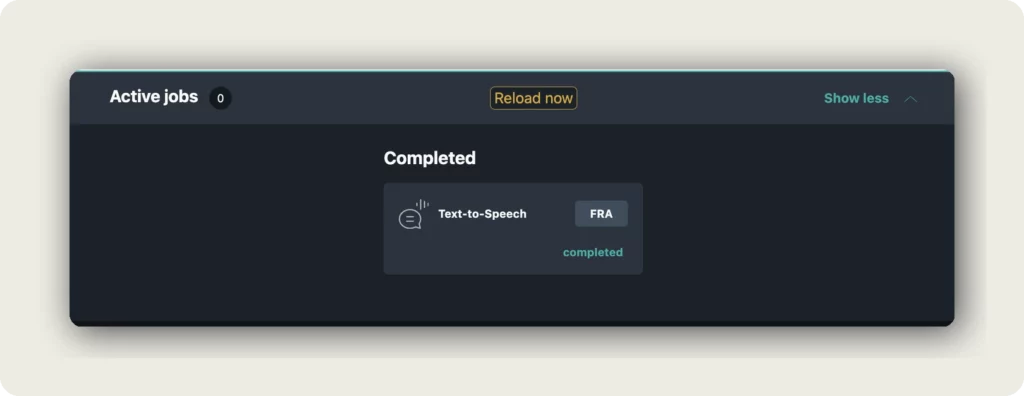
Text-To-Speech runs in the background. The job appears under Active jobs and moves to Completed when generation finishes, labeled Text-to-Speech with the target-language code (for example FRA).
Click Reload now to refresh the editor — your target-language tab now has generated audio for every translated segment.
Play the video with the target language selected to hear the AI dub. If a specific segment sounds off, re-generate just that segment from the segment menu or edit the translated text and re-run Text-To-Speech.
Good to know
- Text-To-Speech is Step 3 of the AI pipeline — it requires a translated transcript. You cannot run Text-To-Speech on an empty track.
- Each voice slot can be swapped before generation. Picking the right voice per speaker makes the dub sound far more natural.
- Every Text-To-Speech run costs credits. Re-running on the same track regenerates and replaces the audio — you pay again.
- You can always edit individual segments after generation — adjust the translated text, then re-run Text-To-Speech (on the whole track or just that segment).
- Voices are language-specific. When you switch tracks, the dialog shows voices available for that language.
Troubleshooting
Text To Speech is greyed out or missing:
- Switch to the target-language tab — Text-To-Speech runs on the current track, not on the PROJECT tab.
- Confirm the track has translated segments. A completely empty track has nothing for Text-To-Speech to voice.
The generated voice sounds wrong:
- Preview voices before clicking SUBMIT — use the play button on each slot.
- Swap a voice via the dropdown and re-run. Different voices have different timbre, pace, and accent.
- For multi-speaker videos, assign a different voice per speaker slot instead of using one voice for everyone.
A few segments sound off:
- Open the segment and check the translated text — odd phrasing often reads better than it sounds. Edit the text, then re-run Text-To-Speech.
- Segments with unusual punctuation, numbers, or abbreviations sometimes need manual tweaks for the TTS engine to pronounce them correctly.
Not enough credits:
- The dialog shows Credits remaining afterwards — if it goes negative, top up before submitting.
- Re-generating only the segments you changed costs less than regenerating the whole track. Use per-segment regeneration to iterate cheaply.
Related Articles
- Transcribe your video with Speech-To-Text
- Translate your video with Add A New Language
- Add AI translations to your video
- Edit title, description, tags, and thumbnails for each language
Was this article helpful?